Building a Restaurant API
Overview
This project creates a set of restaurant APIs using Azure Function Apps. These APIs provide key functionality for a restaurant system and can be extended later to connect to databases or external services.
| API Name | Description |
|---|---|
| Demo API | A simple HTTP-triggered function that returns a personalized greeting. |
| Restaurant Menu API | Returns the restaurant’s menu with categories and items. |
| Restaurant Orders API | Allows creating or viewing orders from customers. |
| Restaurant Reservation API | Handles table reservations and booking requests. |
| Restaurant Info API | Provides restaurant details such as address, hours, and contact info. |
Azure Function Apps are ideal for this project because they:
- Deploy APIs quickly with minimal setup
- Automatically scale to handle traffic spikes
- Keep costs low when demand is quiet
Create the Azure Function App
-
Navigate to Function App in the Azure portal and click Create.
-
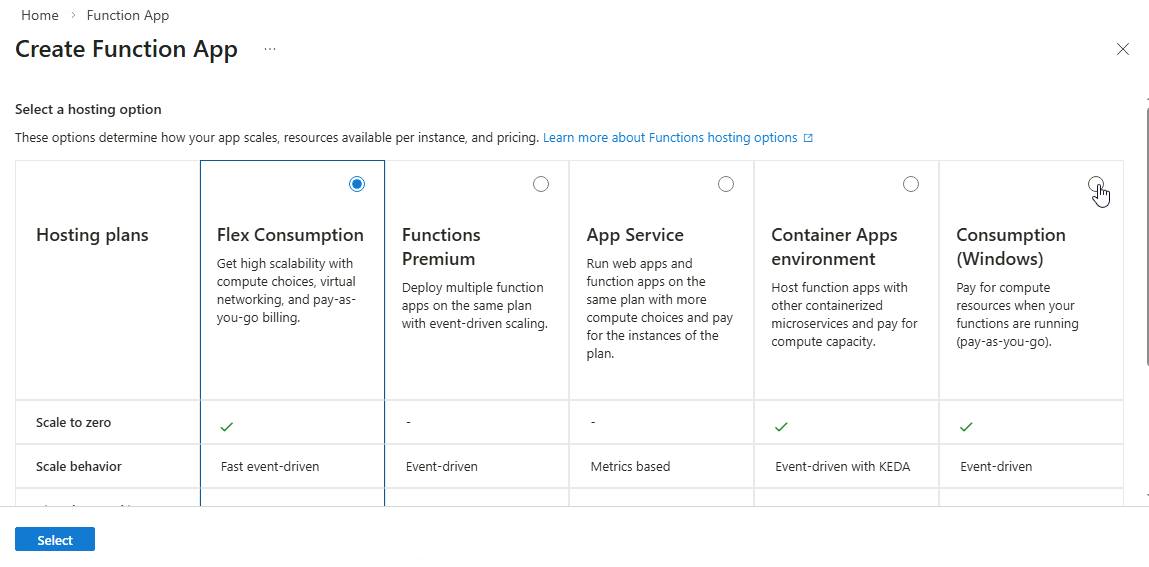
Choose Consumption plan and confirm when prompted.
-
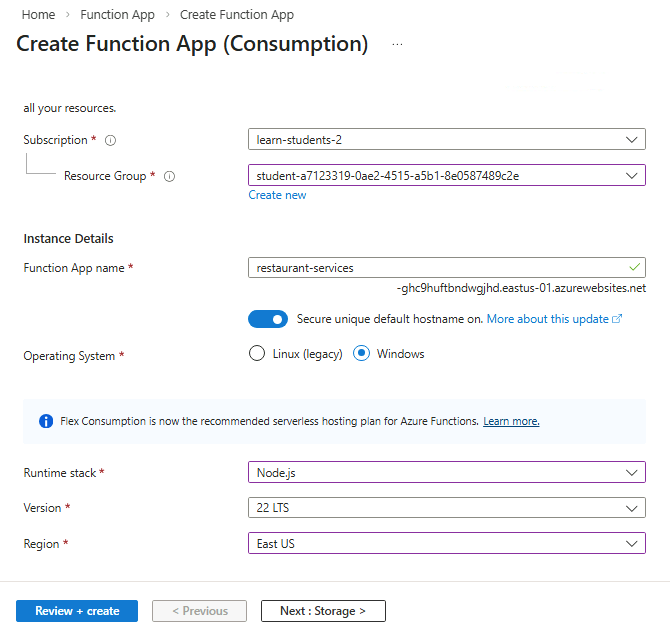
Fill in the required details:
- Name for your Function App
- Runtime stack: NodeJS
- Region: East US
A few notes:
- If you choose Windows as OS, you can use NodeJS as runtime stack.
- If you choose Linux as OS, you can use Python as runtime stack.
Click Review + create, then Create.
The resource may take a few moments to provision.
-
Once the app is deployed, go to the app and click Browse.
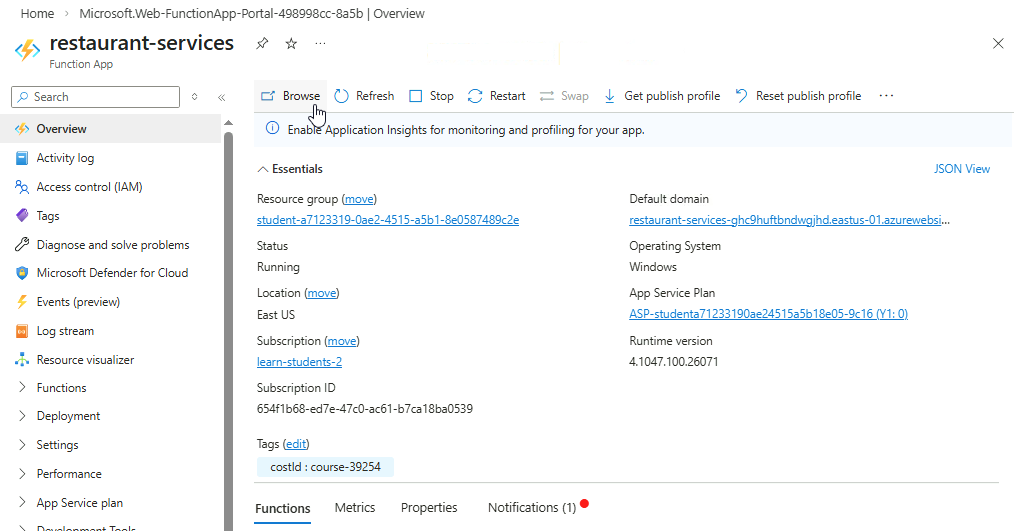
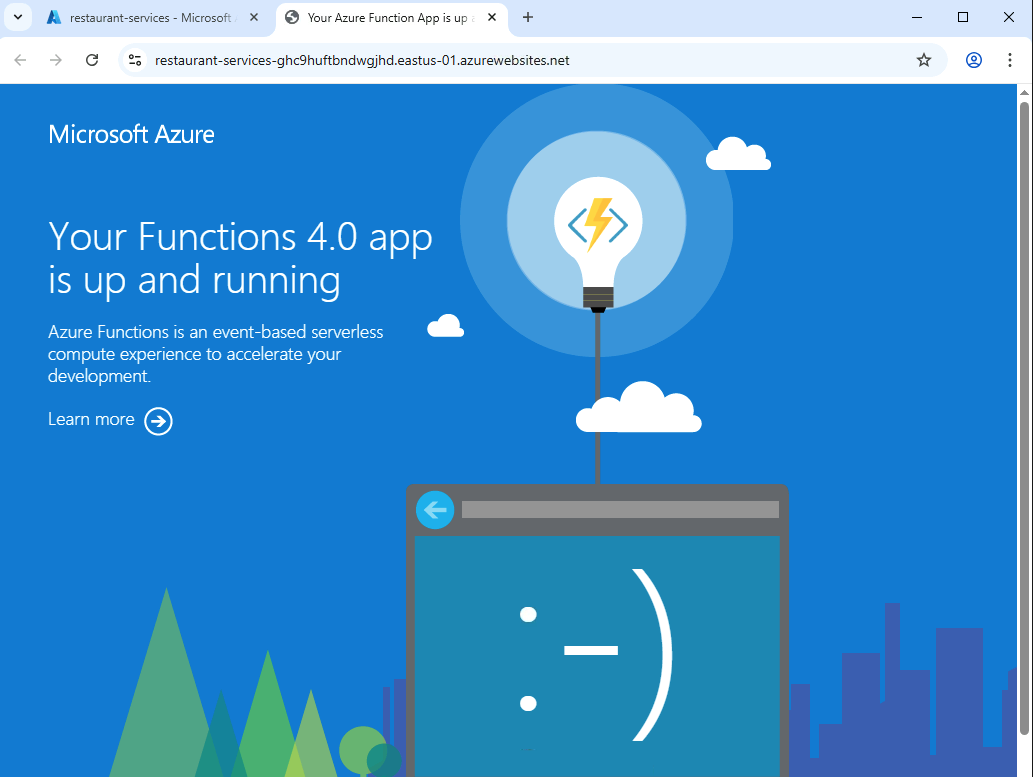
This should open the app in a new tab.
Demo API
Create a Simple Demo API
-
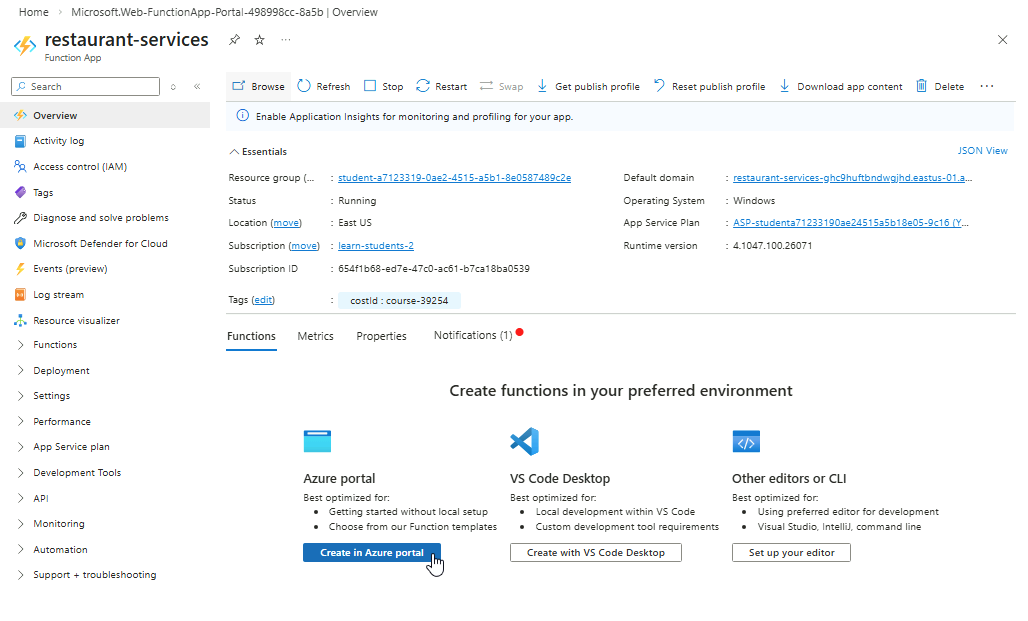
Open your Function App and click Create in Azure portal.
-
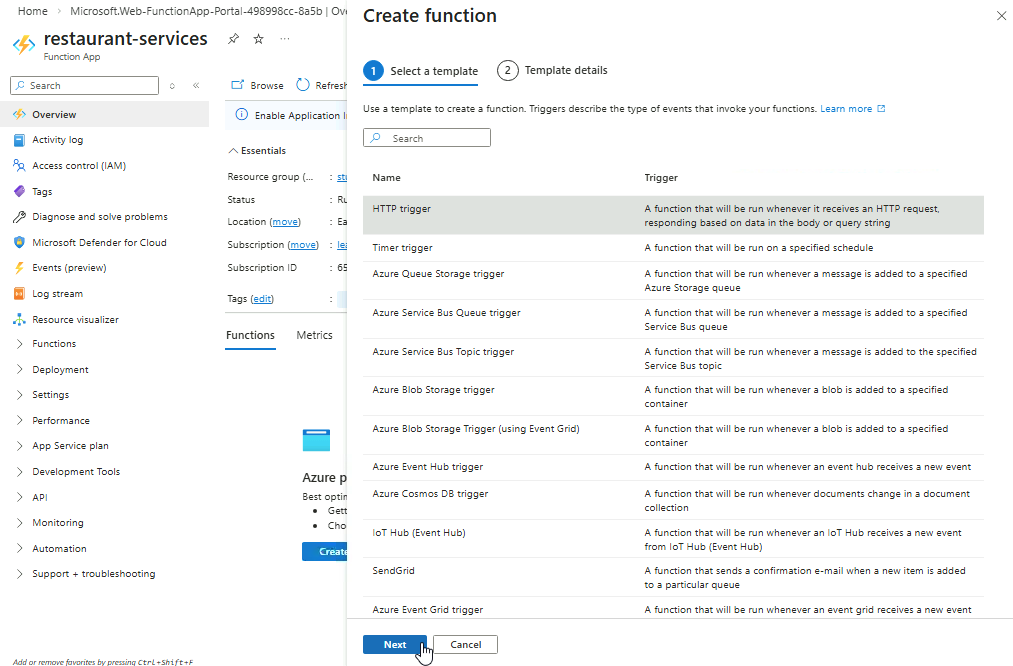
Select HTTP trigger ➔ Next.
-
Provide a name for the function and click Create.
For example:
demo-function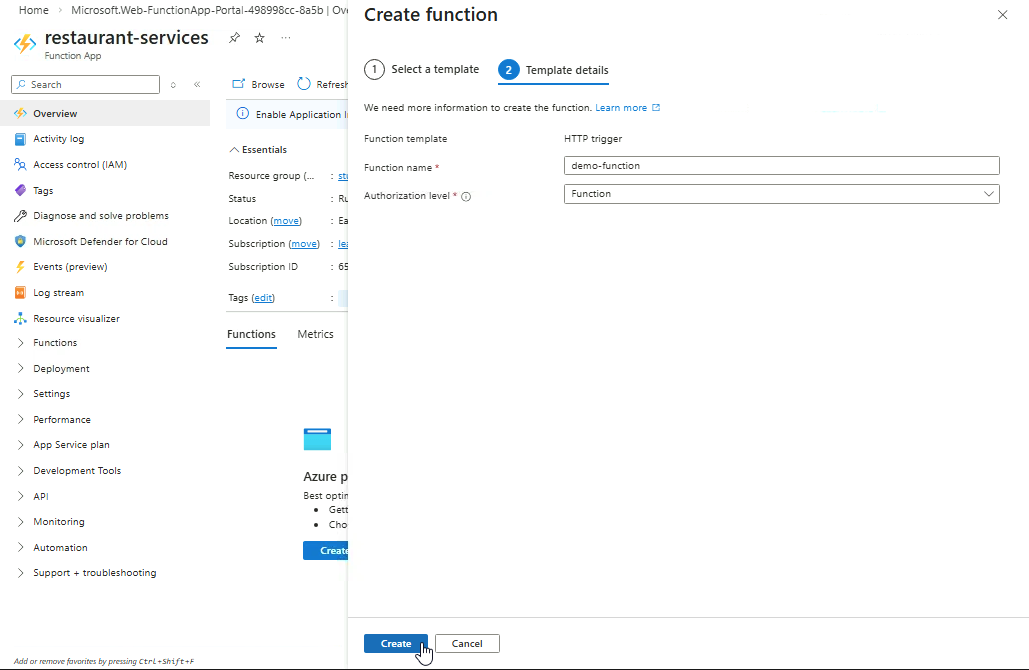
-
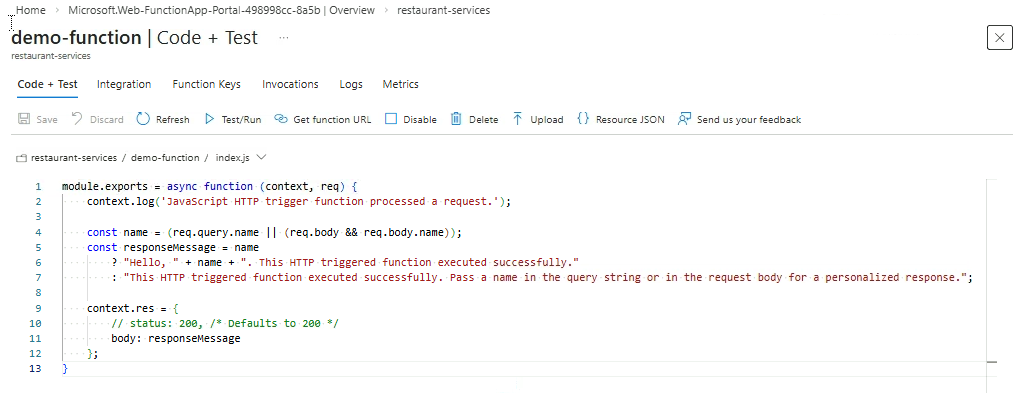
Opening the function, you should see the code.
Note: This would be the code if your App is in Node.js. You might see a different one if you are using Python.
module.exports = async function (context, req) {
    context.log('JavaScript HTTP trigger function processed a request.');

    const name = (req.query.name || (req.body && req.body.name));
    const responseMessage = name
        ? "Hello, " + name + ". This HTTP triggered function executed successfully."
        : "This HTTP triggered function executed successfully. Pass a name in the query string or in the request body for a personalized response.";

    context.res = {
        // status: 200, /* Defaults to 200 */
        body: responseMessage
    };
}
Test the Demo API
-
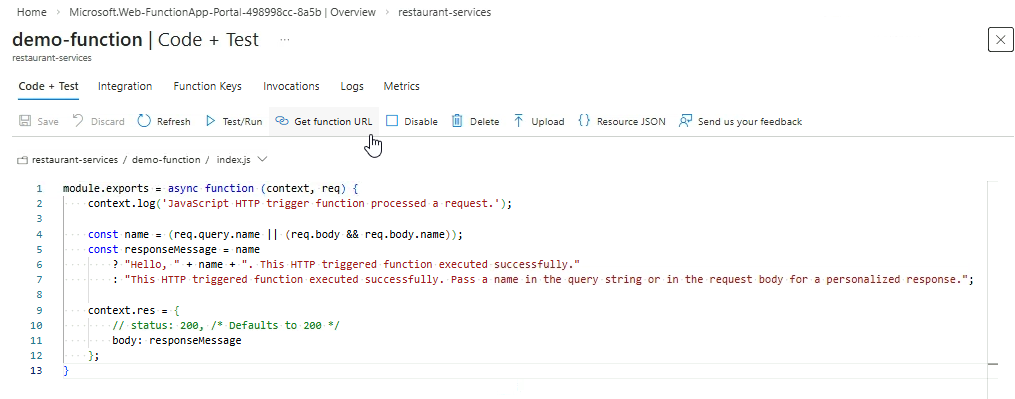
Click Get function URL at the top.
-
Copy any of the URL and open it in a browser.
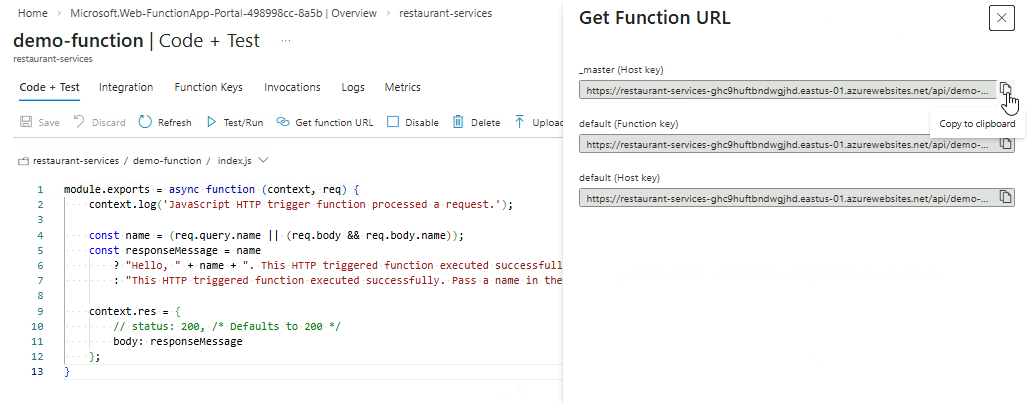
Example URL:
https://restaurant-services-ghc9huftbndwgjhd.eastus-01.azurewebsites.net/api/demo-function?code=TC9S-Cm4w2jWcBTKE_CXfee8Nql2sx13tUUvp5M5DKPiAzFugCV4Ag==If the function works correctly, you should see:
This HTTP triggered function executed successfully. Pass a name in the query string or in the request body for a personalized response.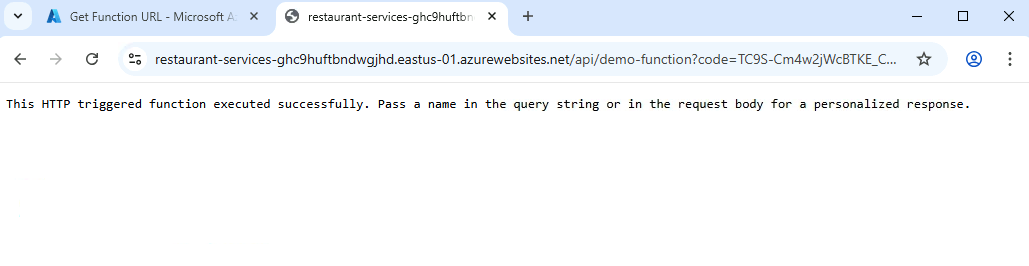
-
To personalize the response, append a query parameter.
As an example, to add the name "Max":
&name=MaxIf the function URL is like this:
https://restaurant_menu_items-axb7bxfxgwg6g4dd.eastus-01.azurewebsites.net/api/restaurant_menu_items?code=HNb7pRQ==Then appending the query parameter will look like this:
https://restaurant_menu_items-axb7bxfxgwg6g4dd.eastus-01.azurewebsites.net/api/restaurant_menu_items?code=HNb7pRQ==&name=Max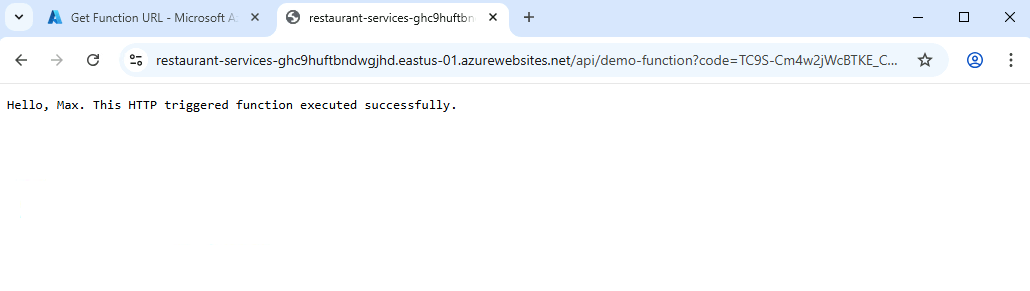
-
You can also test this function using Postman or cURL by sending a POST request with JSON body:
APP_URL="<add-app-url-here>"

curl -X POST $APP_URL \
-H "Content-Type: application/json" \
-d '{"name":"Max"}'; echo
Restaurant Menu API
This API provides the full restaurant menu organized by categories like starters, mains, and desserts. It is a read-only endpoint for now.
Adding the Menu API Endpoint
Add a REST API endpoint to provide a static restaurant menu. This endpoint can later be extended to fetch live data from a database, but for now it returns a fixed JSON object representing menu items.
Start with creating a new HTTP Trigger Function:
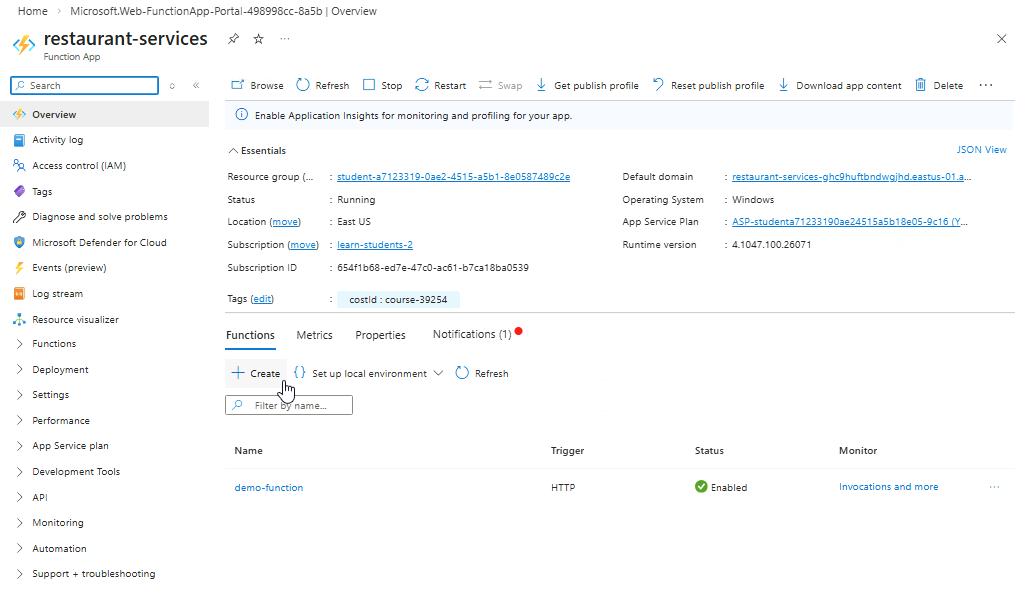
-
In your Function App, click Create to add another function.
-
Select HTTP trigger → Next.
-
Name the function
restaurant_menu_itemsand click Create.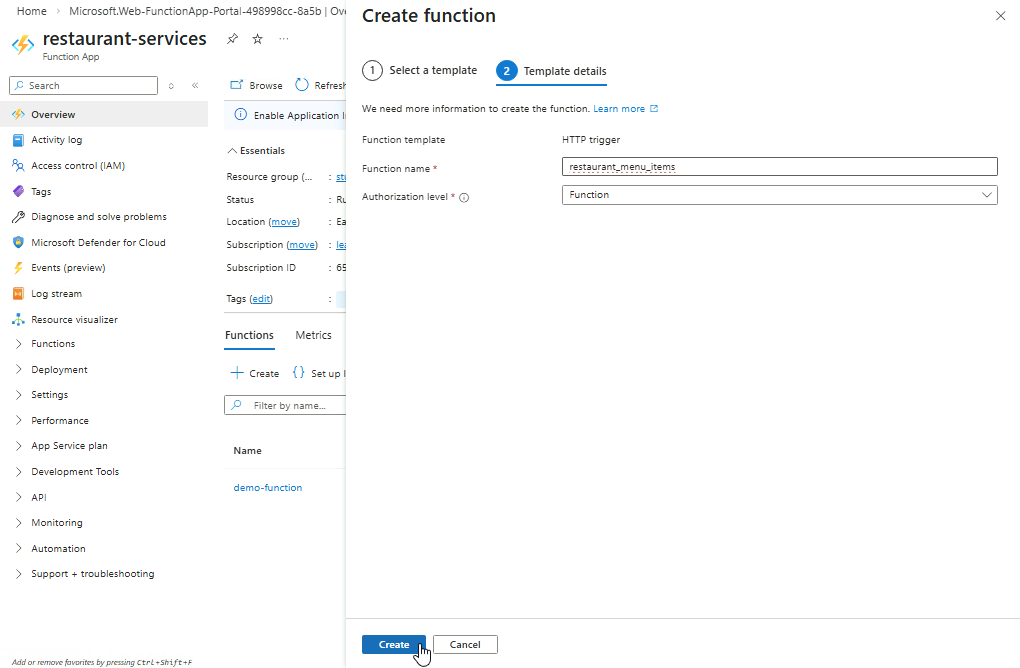
-
If your Azure Function App is in Python: Open the function and replace the default code with the following code.
This is the endpoint code that will return the menu data when invoked
Note: Make sure to click Save.
import azure.functions as func
import json

app = func.FunctionApp(http_auth_level=func.AuthLevel.FUNCTION)

MENU = {
    "starters": ["Tomato Soup", "Garlic Bread"],
    "mains": ["Margherita Pizza", "Pasta Carbonara"],
    "desserts": ["Tiramisu", "Gelato"]
}

@app.route(route="restaurant_menu_items", methods=["GET"])
def get_menu(req: func.HttpRequest) -> func.HttpResponse:
    return func.HttpResponse(
        body=json.dumps(MENU),
        mimetype="application/json",
        status_code=200
    )
This code defines and exposes an HTTP endpoint for the function:
@app.route(...)is a decorator that registers the function as an HTTP-triggered Azure Function.route="restaurant_menu_items"specifies the URL path where the function is accessible (e.g.,/restaurant_menu_items).methods=["GET"]restricts the endpoint to only accept GET requests.def get_menu(req: func.HttpRequest) -> func.HttpResponsedefines the function that runs when the endpoint is called.func.HttpResponse(...)constructs and returns the HTTP response to the client.
-
If your Azure Function App is in NodeJS: Open the function and replace the default code with the following code.
This is the endpoint code that will return the menu data when invoked.
Note: Make sure to click Save.
module.exports = async function (context, req) {
    context.log('Restaurant menu API called');

    // Define the static menu
    const MENU = {
        starters: ["Tomato Soup", "Garlic Bread"],
        mains: ["Margherita Pizza", "Pasta Carbonara"],
        desserts: ["Tiramisu", "Gelato"]
    };

    // Send the menu as a JSON response
    context.res = {
        status: 200,
        headers: { "Content-Type": "application/json" },
        body: JSON.stringify(MENU)
    };
};
Additional: In Node.js, you don't need to create an
appobject or sethttp_auth_levelin code to reference the Azure Function. This configuration is handled by Azure through either:- The function settings (UI / portal)
- Or the
function.jsonfile (behind the scenes)
Instead of code like Python, Node.js uses config like this (auto-generated):
{
  "bindings": [
    {
      "authLevel": "function",
      "type": "httpTrigger",
      "direction": "in",
      "name": "req",
      "methods": ["get", "post"]
    }
  ]
}
You usually don’t edit this manually when using the Azure Portal, it’s set when you create the function.
Testing the Menu API
You can test the API by retrieving the function URL and opening it in a browser, or by using the Test/Run tool in the Azure portal.
-
Click Get function URL and copy any of the URLs.
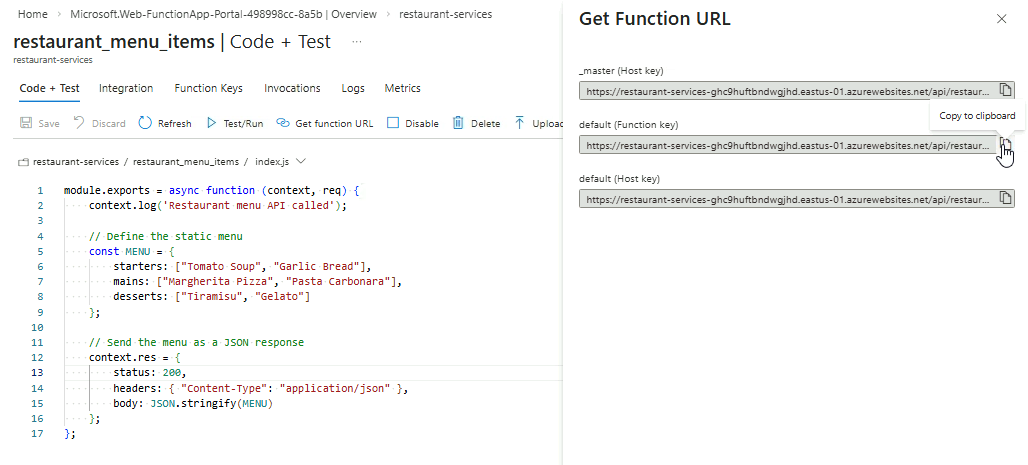
-
Open a new tab and paste the URL. It should return restaurant menu data.
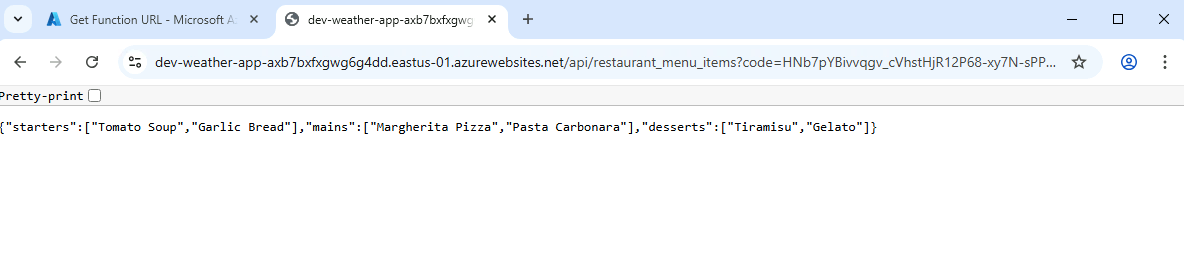
-
Go back to the function and click Test/Run ➔
HTTP method: GETYou can choose any of the URL in the Key dropdown.
Then click Run.
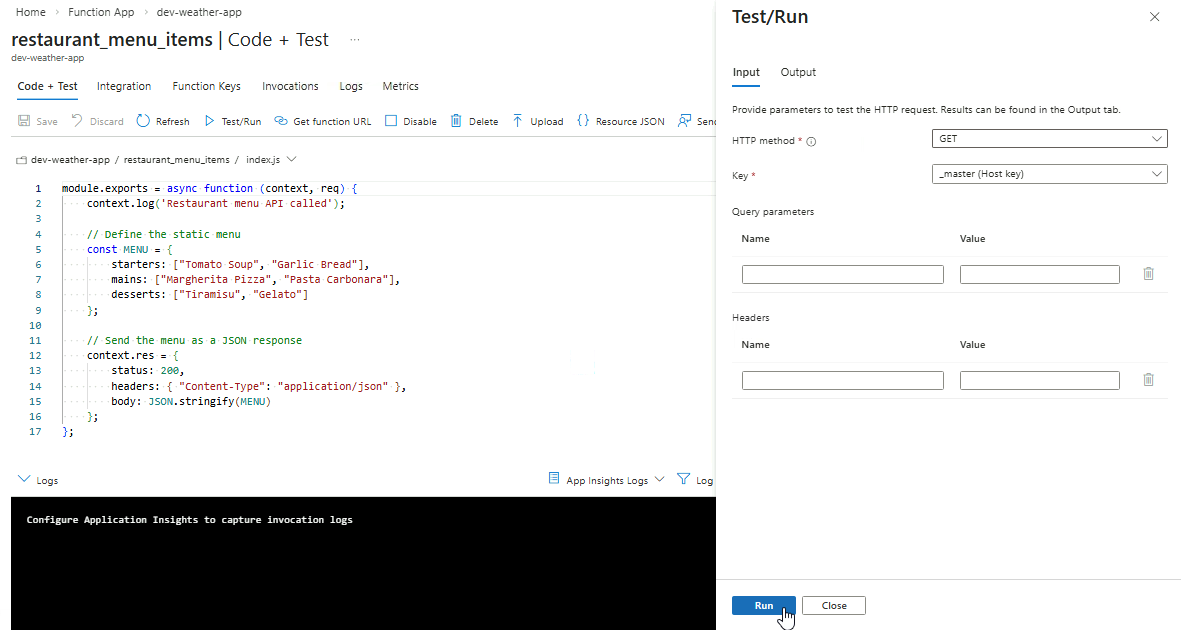
-
The response should return a
200 OKstatus code along with the menu data in the response body.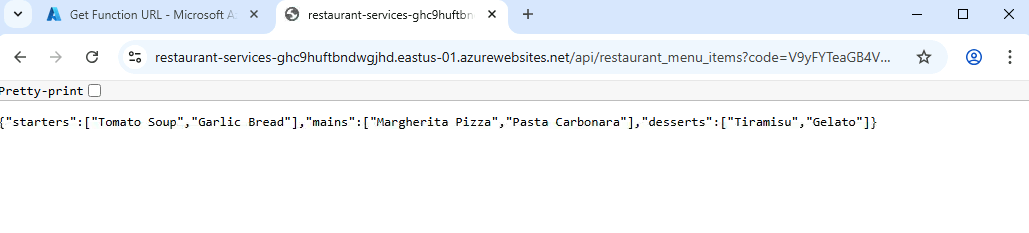
Testing using cURL:
APP_URL="<add-app-url-here>"
curl -sX GET $APP_URL | jq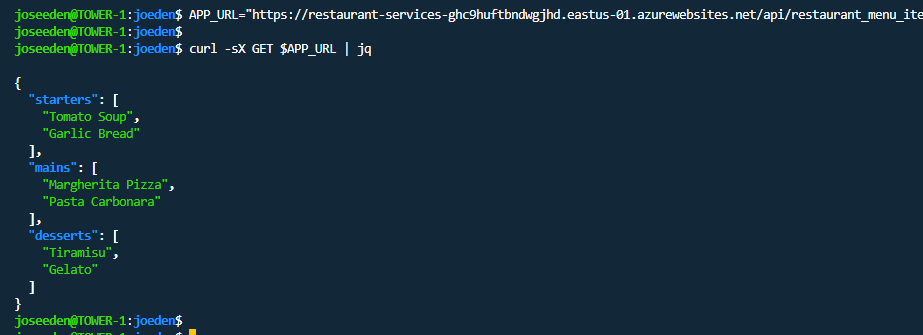
Create the other APIs
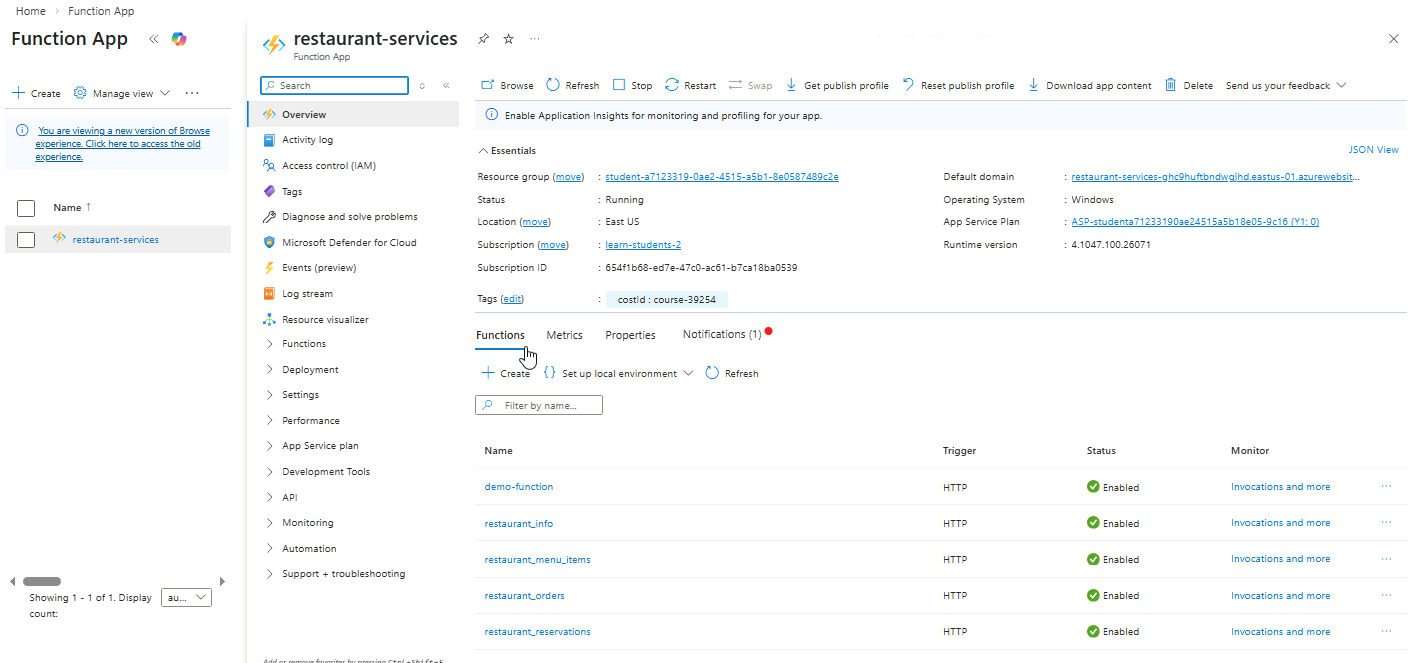
Follow the same steps to set up the other APIs.
After completing them, your Azure Function App should display all the functions like this:
Restaurant Orders API
This API manages customer orders. It allows clients to submit new orders and view existing orders. Currently, it returns a static set of sample orders.
Follow the same steps to create an HTTP trigger function as before.
If you are using Python:
import azure.functions as func
import json

app = func.FunctionApp(http_auth_level=func.AuthLevel.FUNCTION)

ORDERS = [
    {"id": 1, "item": "Margherita Pizza", "quantity": 2},
    {"id": 2, "item": "Pasta Carbonara", "quantity": 1}
]

@app.route(route="restaurant_orders", methods=["GET"])
def get_orders(req: func.HttpRequest) -> func.HttpResponse:
    return func.HttpResponse(
        body=json.dumps(ORDERS),
        mimetype="application/json",
        status_code=200
    )
If you are using Node.js:
module.exports = async function (context, req) {
    const ORDERS = [
        { id: 1, item: "Margherita Pizza", quantity: 2 },
        { id: 2, item: "Pasta Carbonara", quantity: 1 }
    ];

    context.res = {
        status: 200,
        headers: { "Content-Type": "application/json" },
        body: JSON.stringify(ORDERS)
    };
};
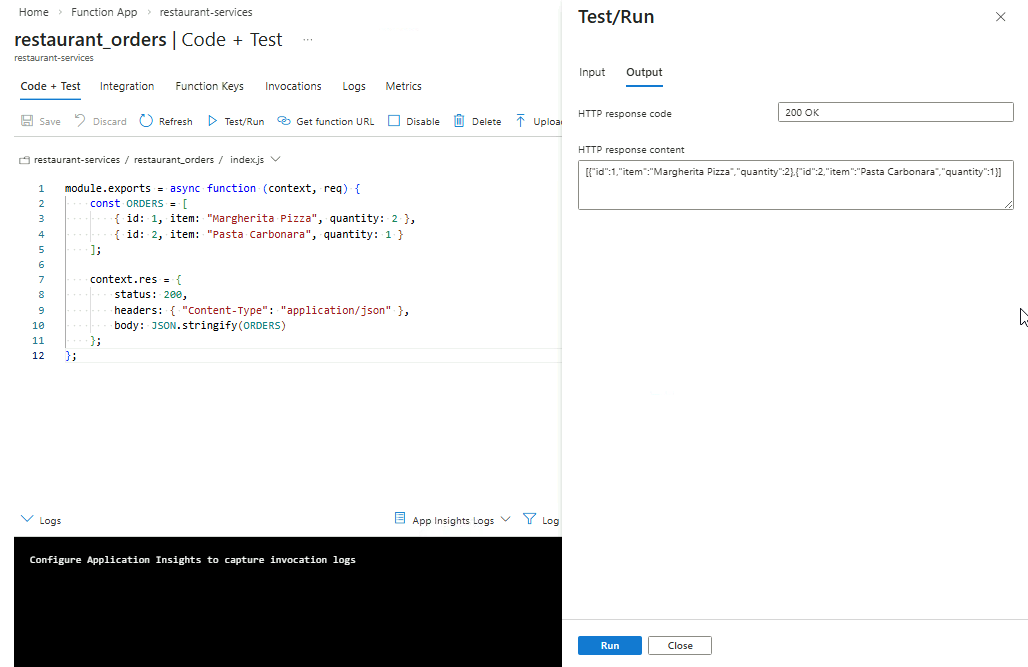
Using Test/Run to confirm the API is working:
Restaurant Reservation API
This API handles table reservations. Clients can view available slots or submit reservation requests. For now, it returns static sample reservation data.
Follow the same steps to create an HTTP trigger function as before.
If you are using Python:
import azure.functions as func
import json

app = func.FunctionApp(http_auth_level=func.AuthLevel.FUNCTION)

RESERVATIONS = [
    {"table": 1, "time": "18:00", "status": "available"},
    {"table": 2, "time": "19:00", "status": "reserved"}
]

@app.route(route="restaurant_reservations", methods=["GET"])
def get_reservations(req: func.HttpRequest) -> func.HttpResponse:
    return func.HttpResponse(
        body=json.dumps(RESERVATIONS),
        mimetype="application/json",
        status_code=200
    )
If you are using Node.js:
module.exports = async function (context, req) {
    const RESERVATIONS = [
        { table: 1, time: "18:00", status: "available" },
        { table: 2, time: "19:00", status: "reserved" }
    ];

    context.res = {
        status: 200,
        headers: { "Content-Type": "application/json" },
        body: JSON.stringify(RESERVATIONS)
    };
};
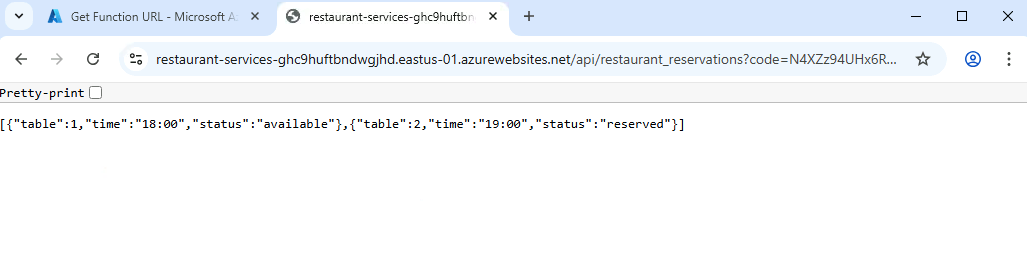
Testing using the function URL in a browser:
Restaurant Info API
This API provides basic restaurant information such as the address, opening hours, and contact details. It is useful for displaying restaurant details in a mobile or web app.
Follow the same steps to create an HTTP trigger function as before.
If you are using Python:
import azure.functions as func
import json

app = func.FunctionApp(http_auth_level=func.AuthLevel.FUNCTION)

INFO = {
    "name": "Hapag Kainan",
    "address": "123 Main Street",
    "hours": "10:00 - 22:00",
    "contact": "123-456-7890"
}

@app.route(route="restaurant_info", methods=["GET"])
def get_info(req: func.HttpRequest) -> func.HttpResponse:
    return func.HttpResponse(
        body=json.dumps(INFO),
        mimetype="application/json",
        status_code=200
    )
If you are using Node.js:
module.exports = async function (context, req) {
    const INFO = {
        name: "Hapag Kainan",
        address: "123 Main Street",
        hours: "10:00 - 22:00",
        contact: "123-456-7890"
    };

    context.res = {
        status: 200,
        headers: { "Content-Type": "application/json" },
        body: JSON.stringify(INFO)
    };
};
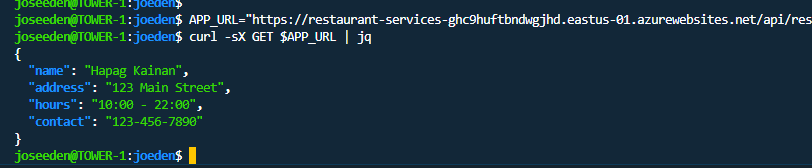
Testing using cURL:
APP_URL="<add-app-url-here>"
curl -sX GET $APP_URL | jq