Lab: Alert Rule with Email Notification
Overview
In this lab, we will create an Azure Monitor alert for a storage account that sends an email when availability drops below 99%.
- Use an existing storage account
- Configure an alert rule for availability
- Create an action group with email notification
This ensures you are notified automatically if the storage account has issues.
Open Storage Account
Go to your Storage account in the Azure portal.
Note: If you don’t have one, follow Create an Azure storage account.
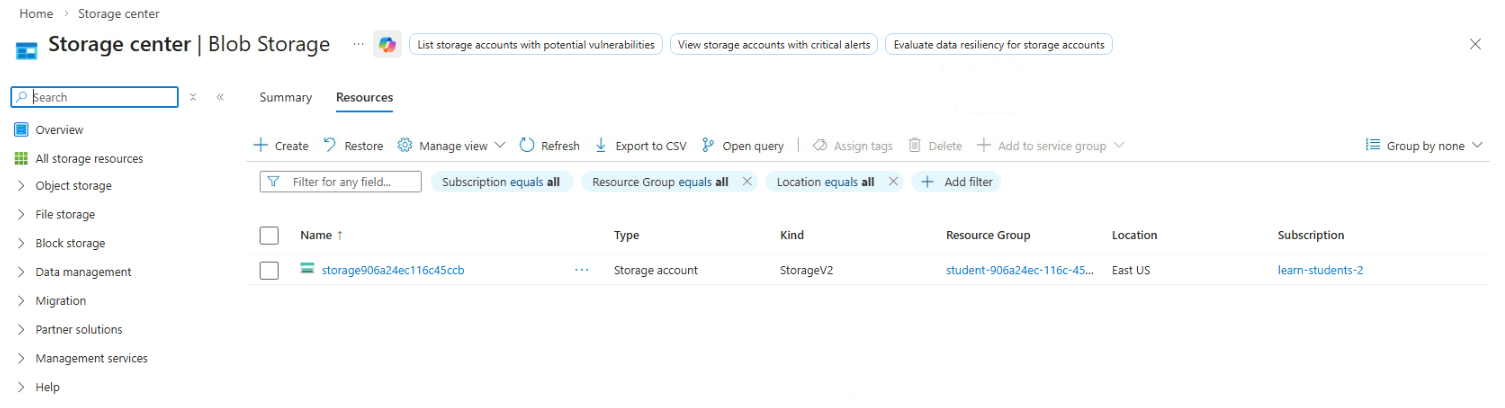
Create Availability Alert Rule
Navigate to Monitoring → Alerts → Create alert rule.
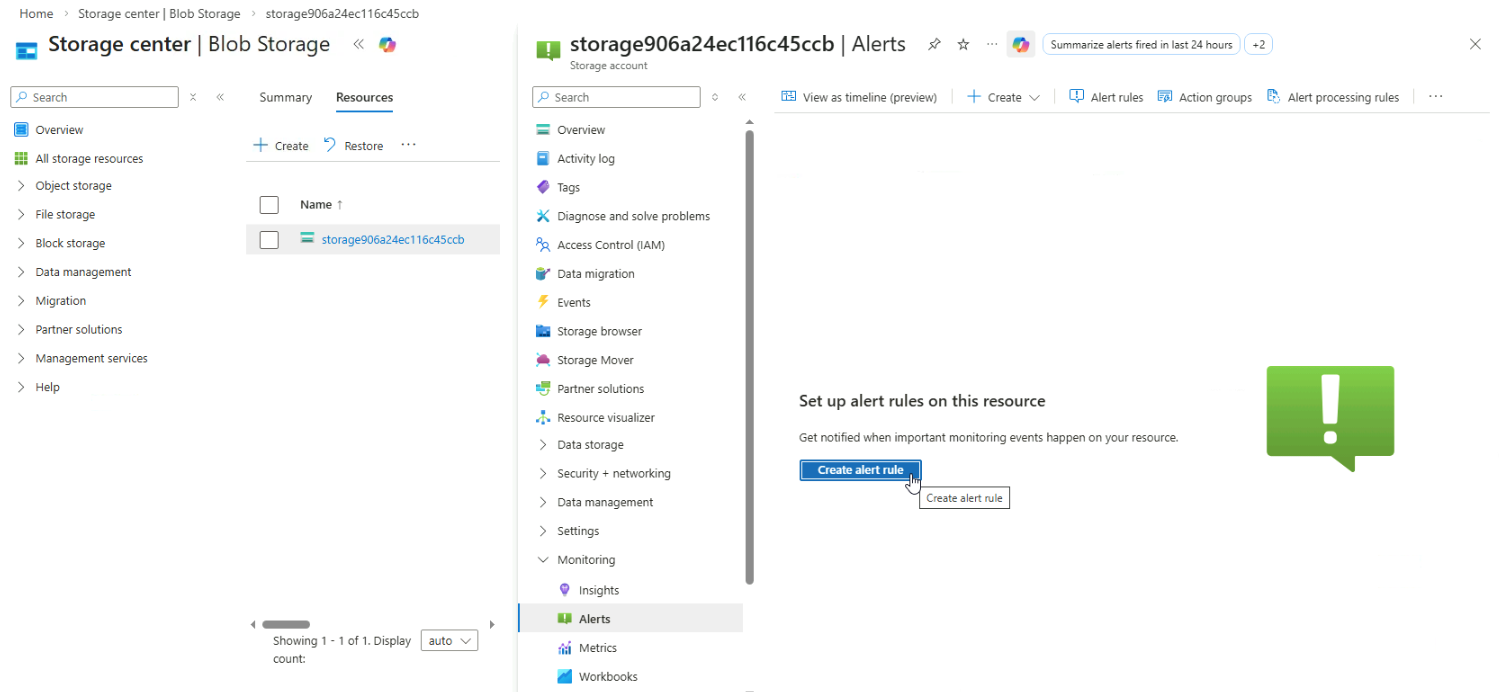
Configure the alert condition:
- Choose Availability as the signal
- Set condition to Less than 99%
- Set Evaluation frequency to every 5 minutes
- Set Lookback period to 5 minutes
This configuration avoids false positives from brief fluctuations.
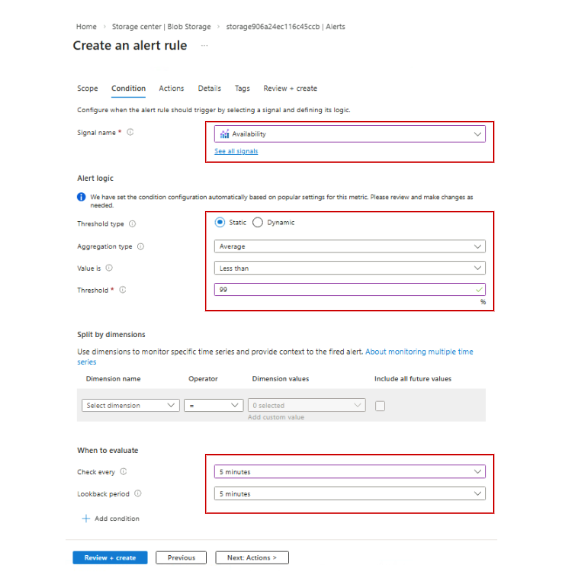
Create Action Group for Alerts
Go to the Actions section and click Create action group.
Fill in the required details and go to Notifications.
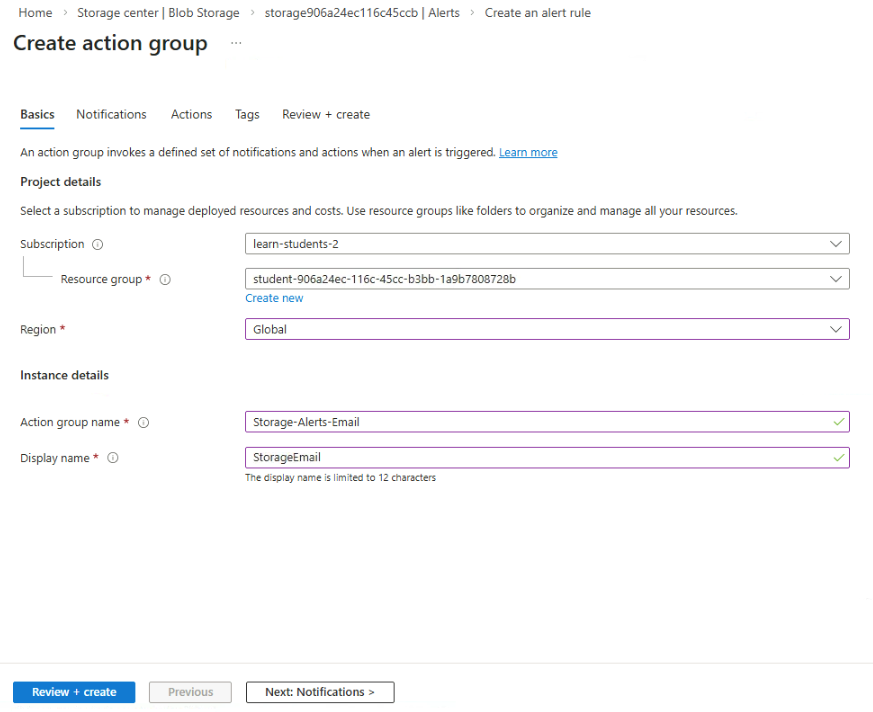
Add a new email notification, enter your email address, and click OK
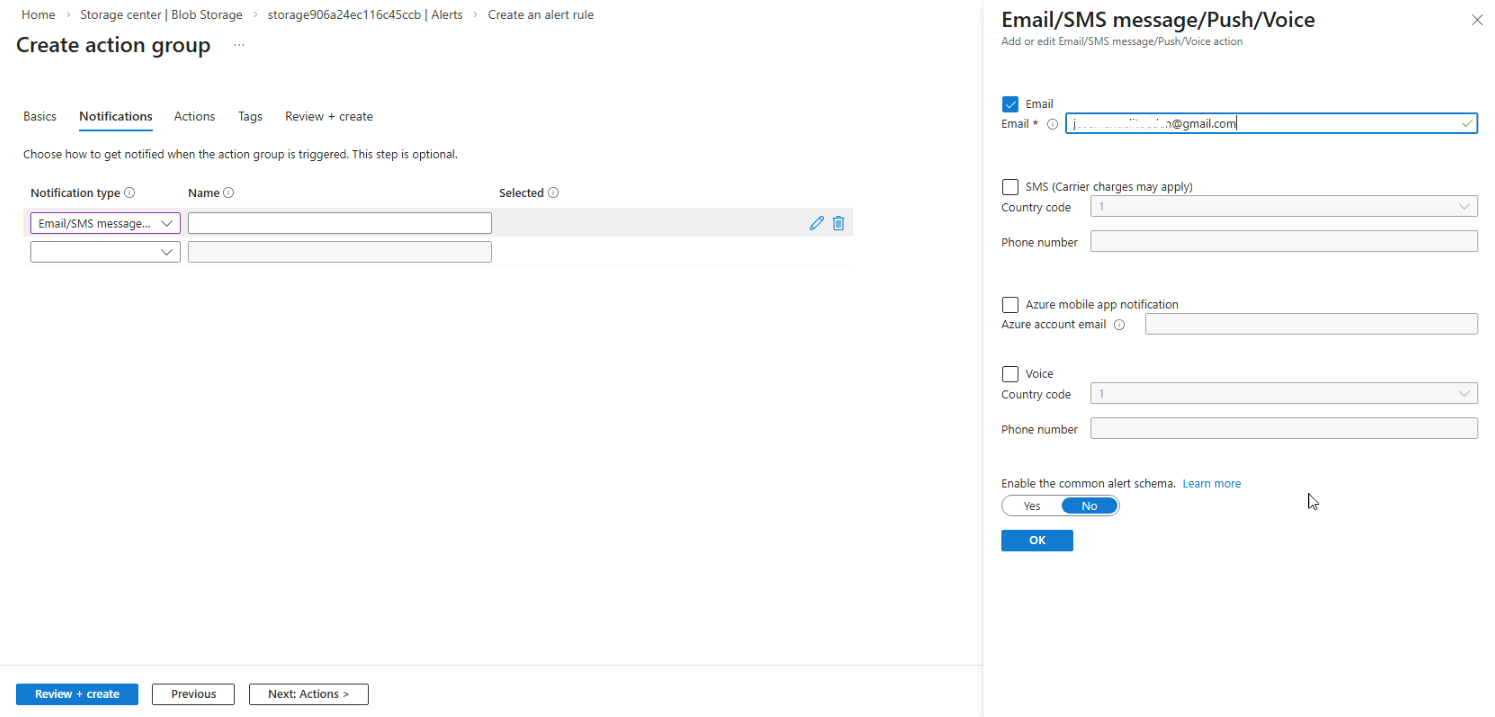
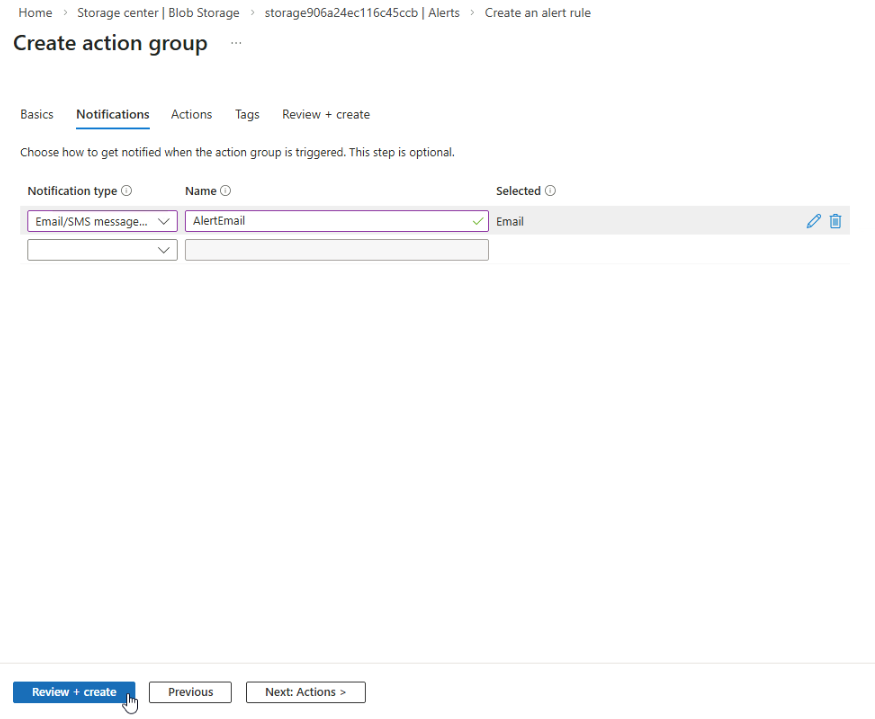
Provide an action group name, then click Revew + create and Create.
You will see the new action group in the list. Go to the Details tab.
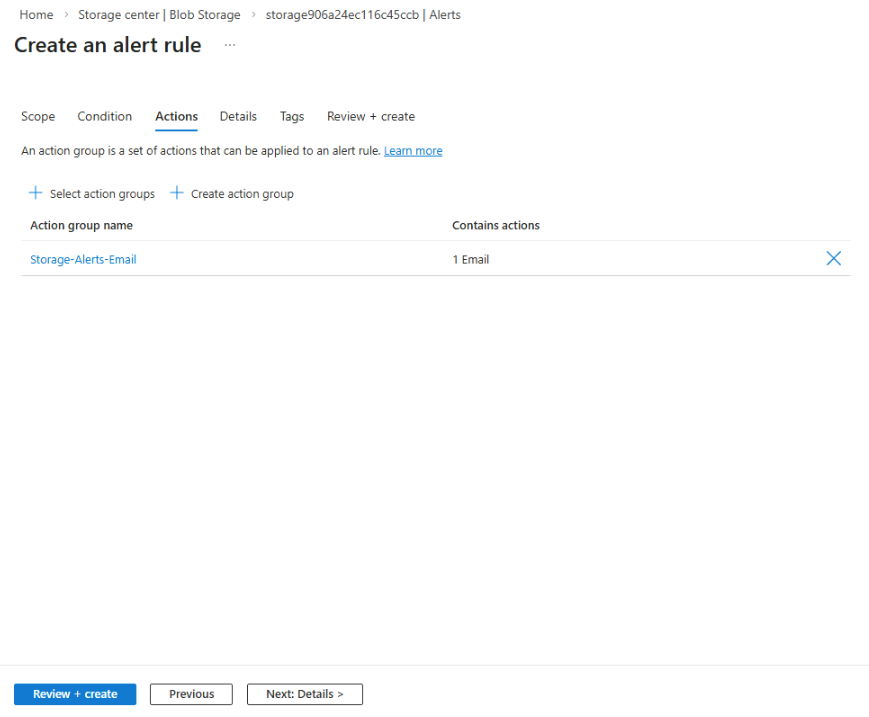
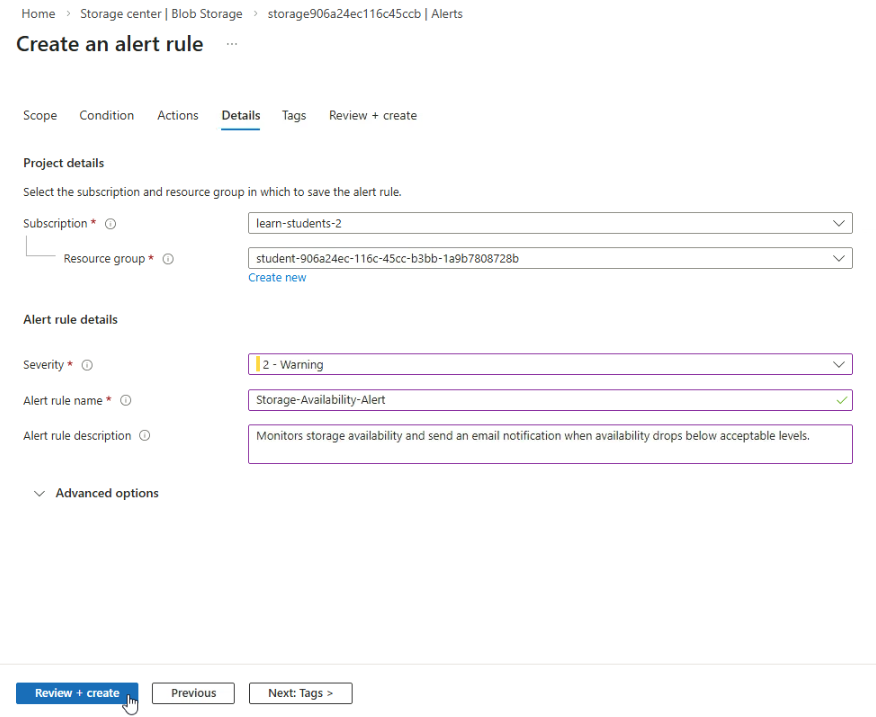
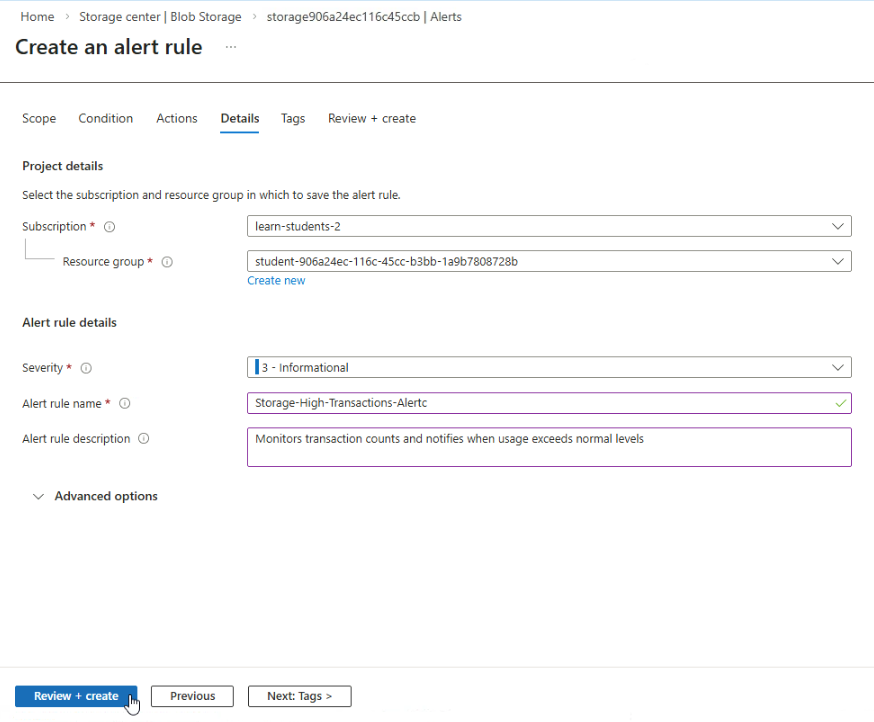
Configure Alert Rule Details
Fill in the severity, alert rule name, and description.
Then click Revew + create and Create.
Verify Email Notification
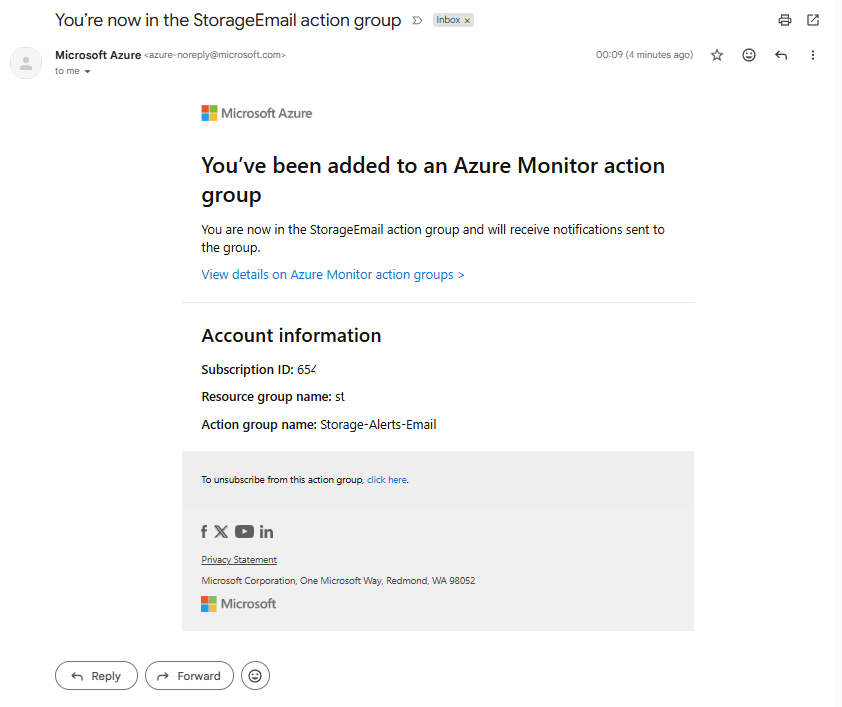
Check your inbox for the alert notification.
You’ve been added to the Azure Monitor action group and will receive alerts automatically.
Create Transaction Alert Rule
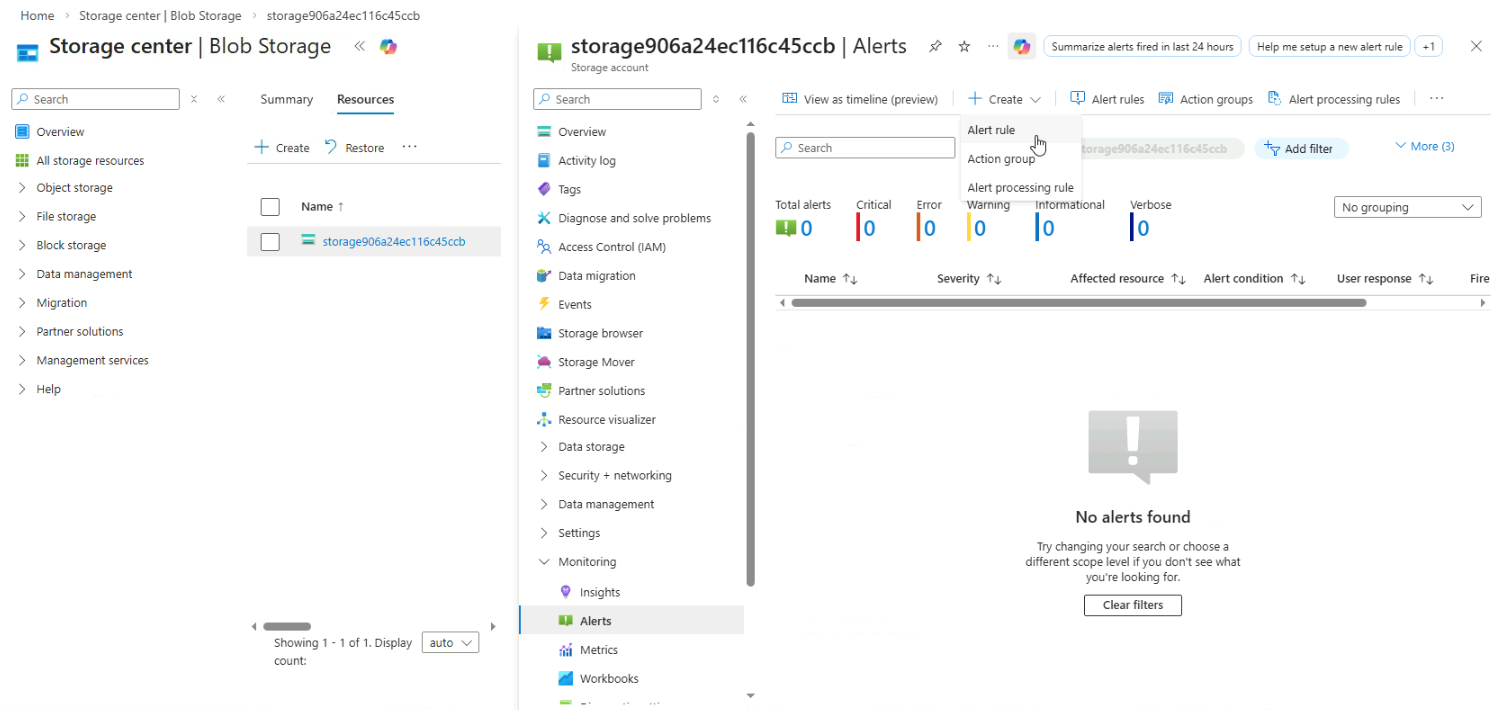
Navigate to Storage account → Alerts → Create → Alert rule.
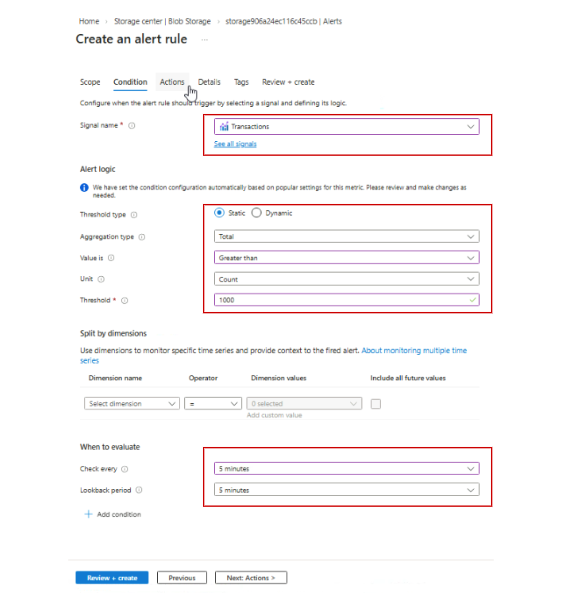
Configure the alert rule as follows:
- Select Transactions as the signal
- Set condition: Total transactions > 1000 in 15 minutes
- Set Evaluation frequency to every 5 minutes
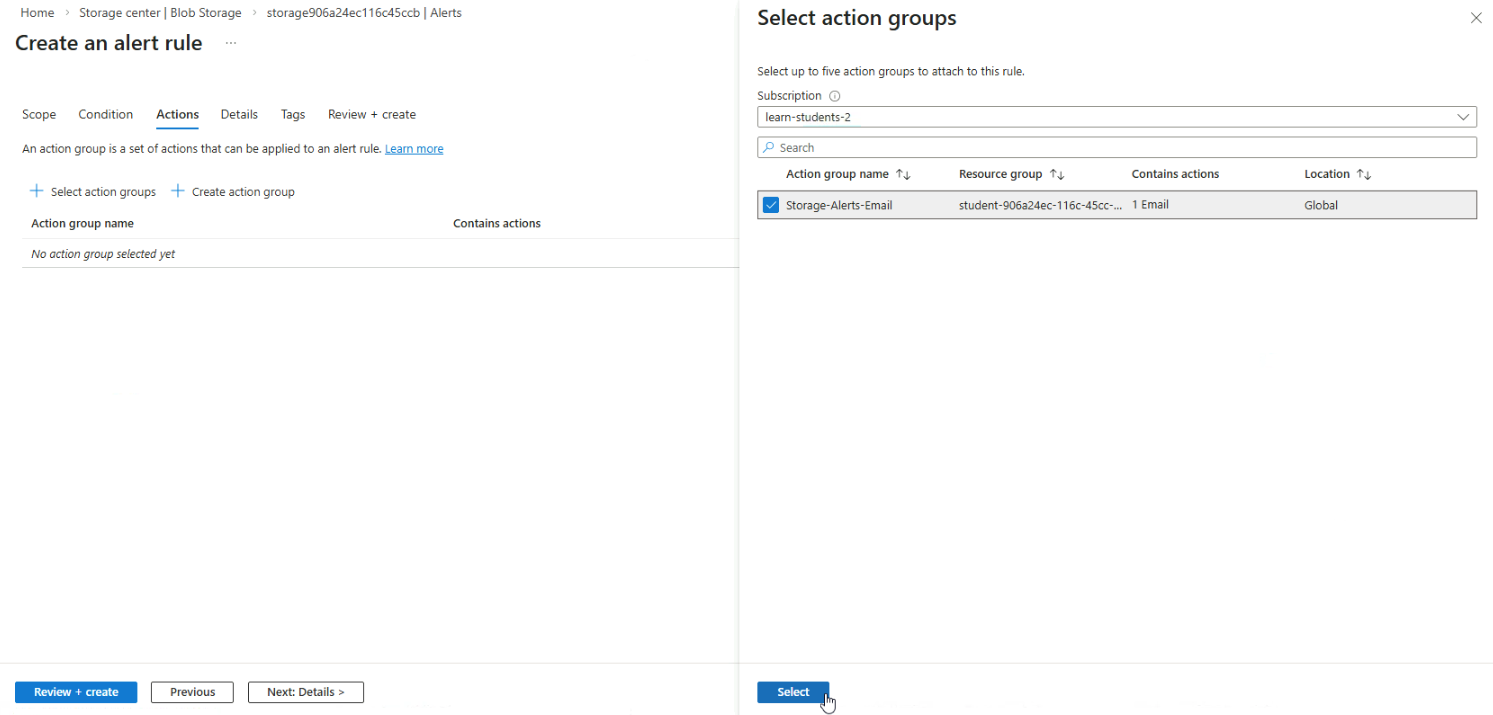
- Then go to Actions
Click Select action groups, choose your action group, and click Select
Then proceed to the Details tab.
Provide A Severity, Name, and Description
Verify All Alert Rules
Back in your storage account, go to Alert rules to see all alerts created.
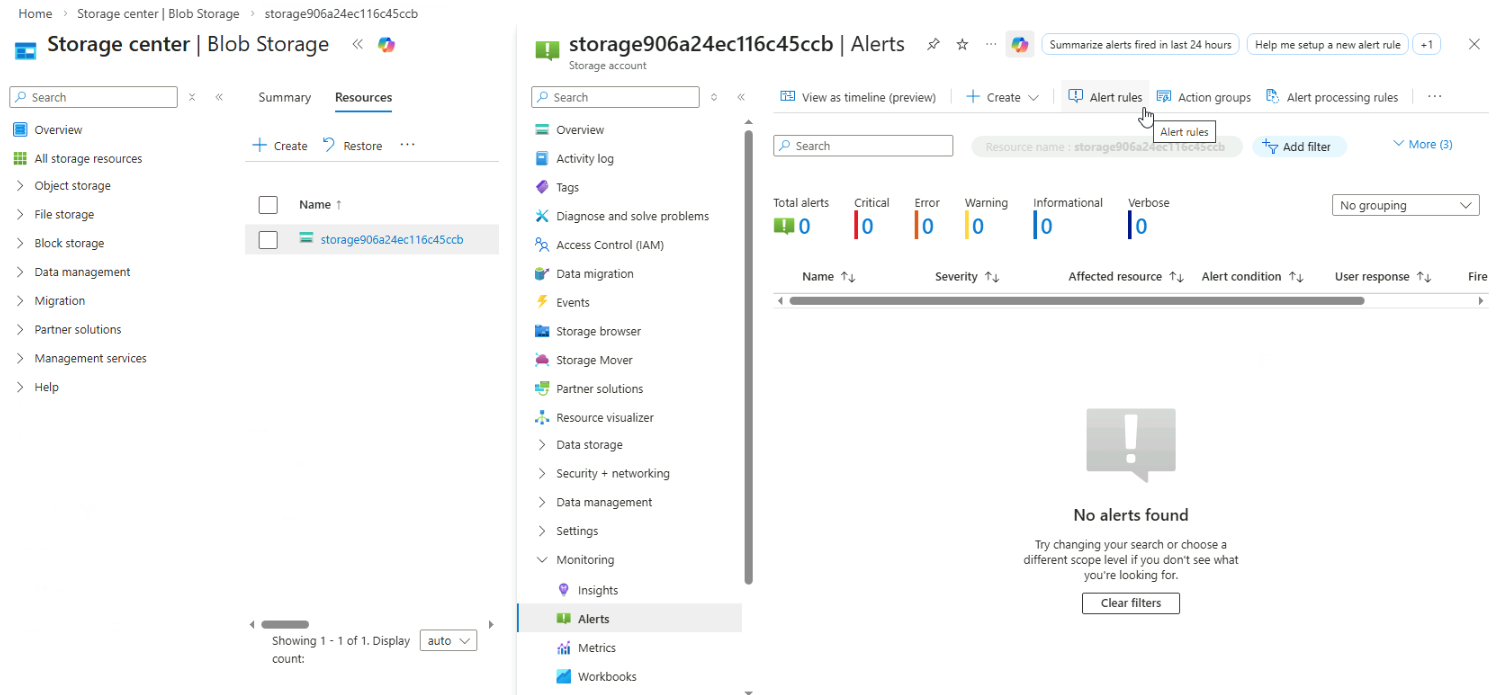
Both the Availability and Transaction alert rules should be listed here.
You are now set to receive email notifications automatically for both availability and transaction issues.
