Lab: Create Application Insights
Overview
In this lab, we'll set up Application Insights to collect telemetry and monitor a Function App application. This helps detect performance issues early and ensures users can access the app without delays.
Preparation
I've already created the resources in the lab, but you can follow these steps to replicate them manually.
- Create a resource group
- Create a Log Analytics workspace
- Use same region for all resources
In the example below, myResourceGroup and myWorkspace are used.
az group create \
  --name myResourceGroup \
  --location southeastasia
az monitor log-analytics workspace create \
  --resource-group myResourceGroup \
  --workspace-name myWorkspace \
  --location southeastasia
Create Application Insights
Create an Application Insights resource and link it to the workspace.
-
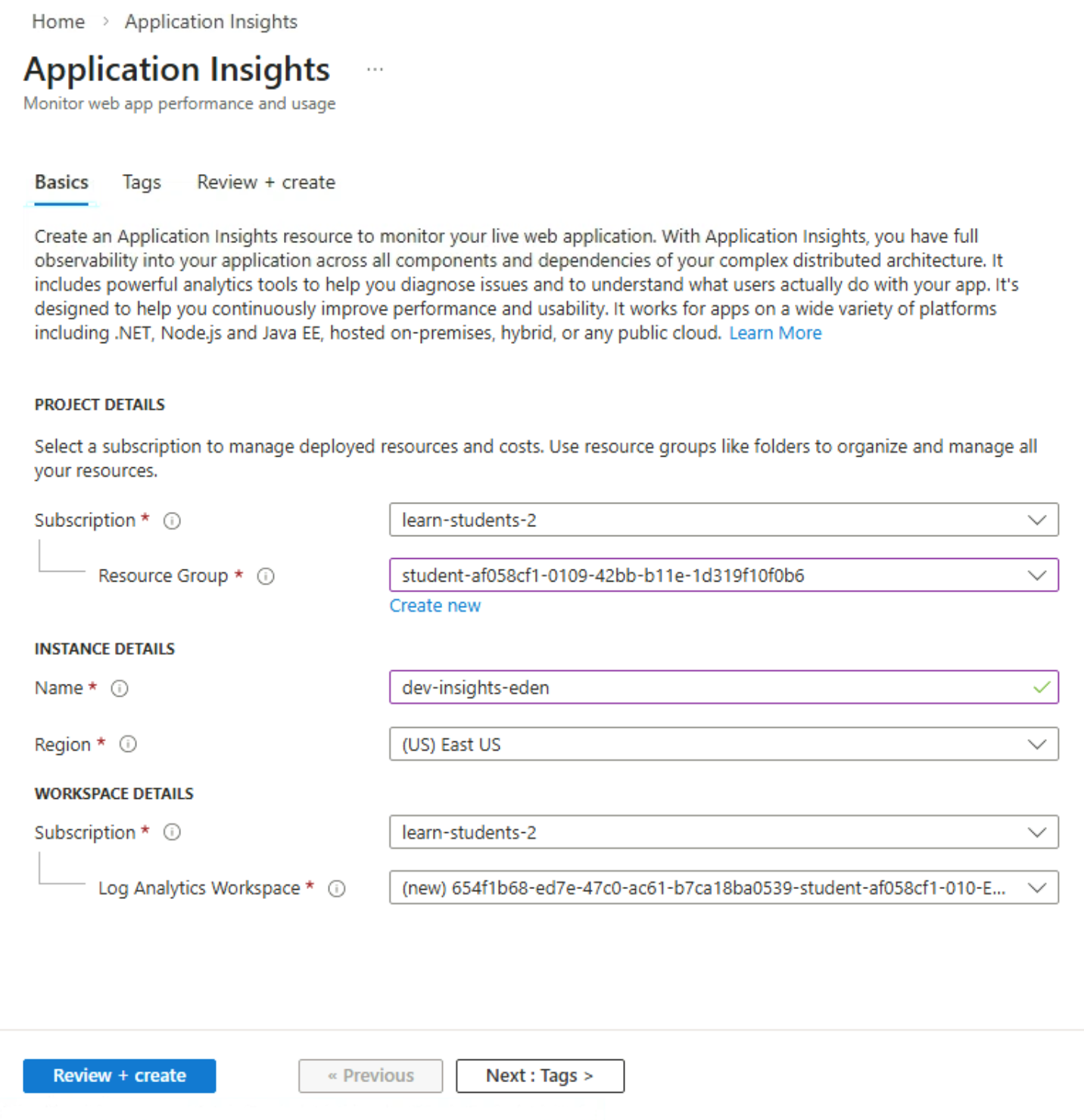
In Application Insights, click Create

-
Fill in the necessary details for the Application Insights resource, such as the name, region, and resource group.
Make sure to select your Log Analytics Workspace.
Click Review + create, and then Create.
Create Function App with Monitoring
Create a Function App and connect it to Application Insights during setup.
-
Navigate to Function App in the Azure Portal.
-
Click Create to begin creating a new function app.
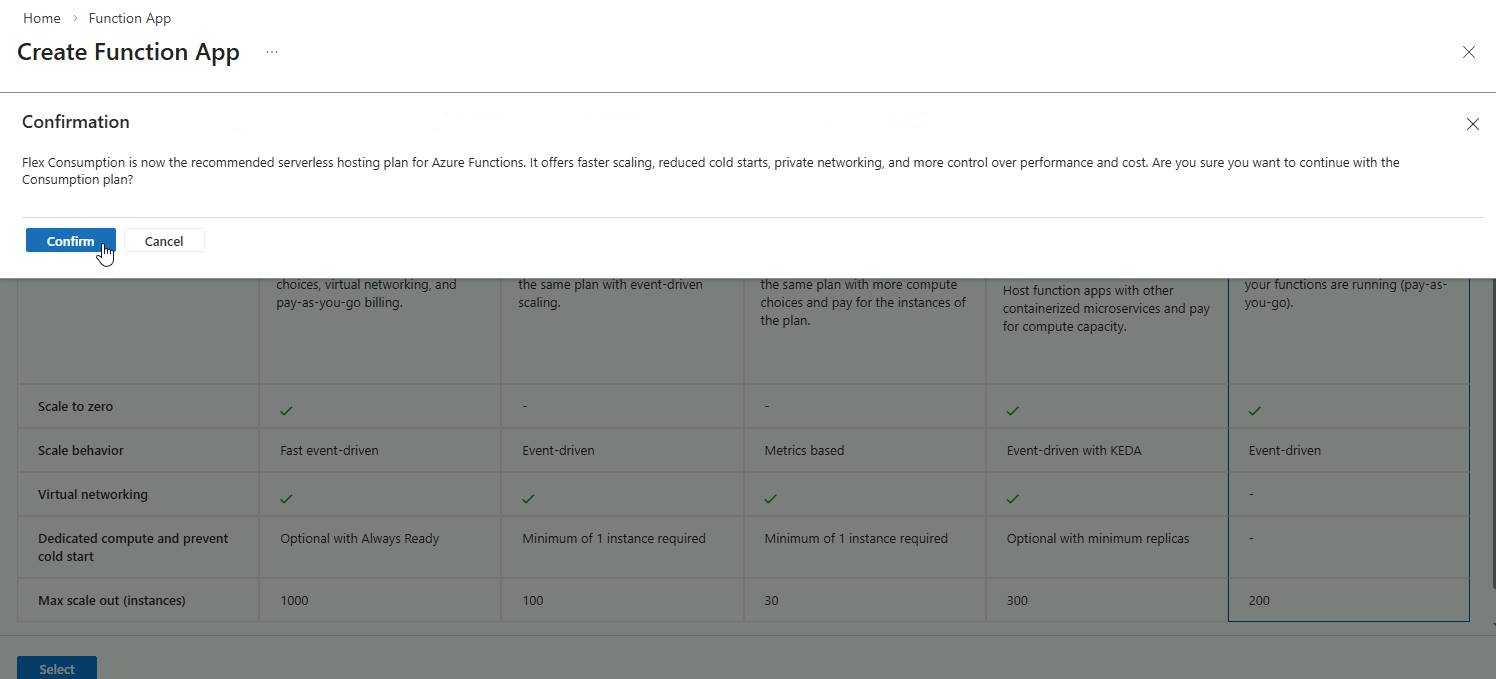
Select Consumption plan (Serverless) as the plan.
Confirm selection if prompted.
-
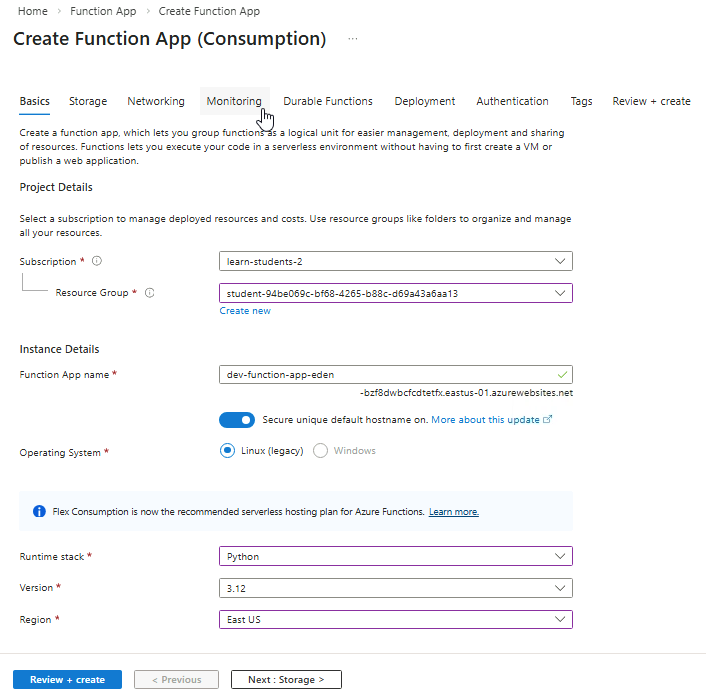
Under Basics, fill in the necessary details for the Function app.
Then move to the Monitoring tab.
-
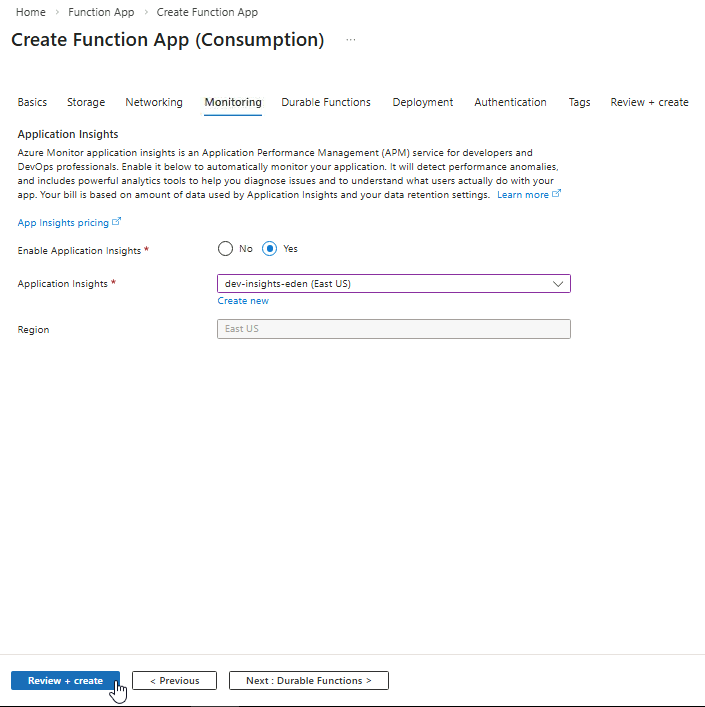
In the Monitoring tab, enable Application Insights.
Select the Application Insights resource you created in the previous step.
Click Review + create, and then Create.
Verify Connection
Open the new function app and go to Monitoring ➔ Application Insights.
Verify the connection to your Application Insights resource is active.
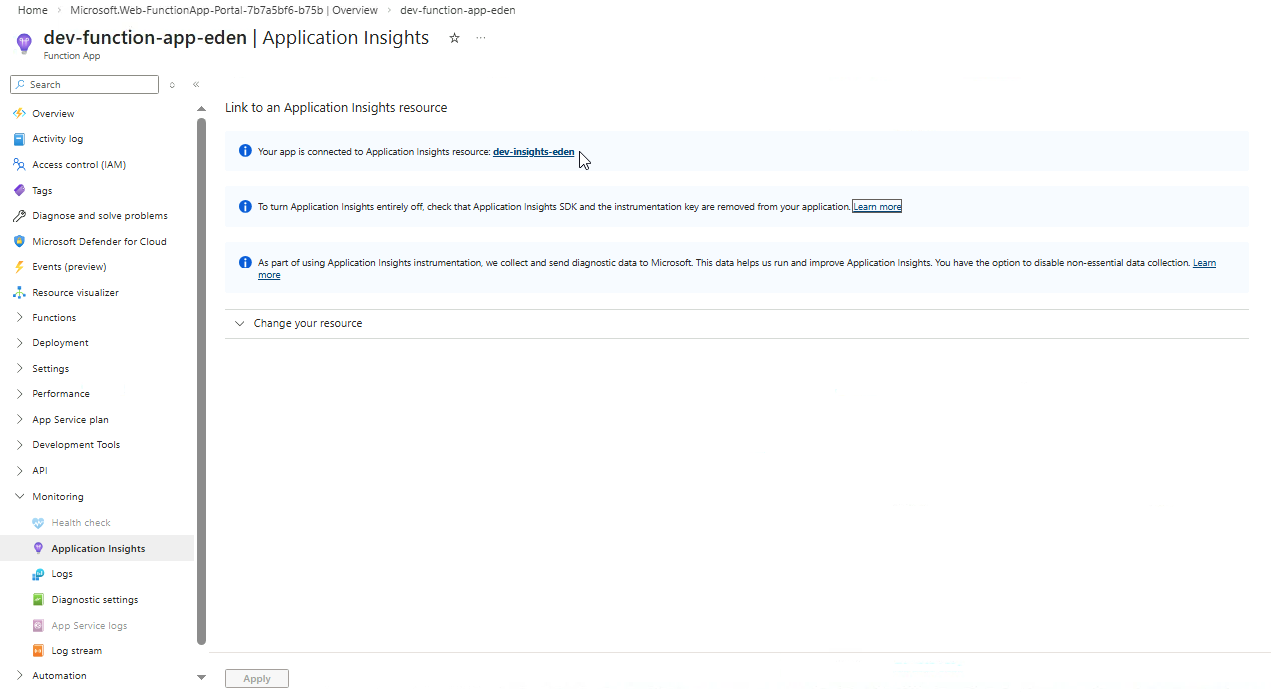
This confirms telemetry is being collected successfully.
Why Enable Monitoring Early
Connecting Application Insights during creation ensures full visibility from the start.
- Telemetry starts immediately
- No data is missed during deployment
- Easier troubleshooting and performance checks
Adding it later can miss early failures and performance issues, which makes debugging harder.