Initial Setup
Overview
Before creating any resources in Google Cloud Platform (GCP), spend 15–30 minutes securing your account and setting up cost controls.
This helps prevent:
- Unexpected charges
- Accidental resource creation
- Cryptocurrency mining attacks
- Forgotten resources running for weeks
- Exceeding your free credits
Quick Checklist
☐ Enable MFA
☐ Create a dedicated project
☐ Verify free trial credits
☐ Create a billing budget
☐ Configure billing alerts
☐ Review cost reports
☐ Learn the Always Free services
☐ Install the gcloud CLI
☐ Set your default project
☐ Use labels on resources
☐ Avoid creating unnecessary service account keys
☐ Delete unused resources after each lab
☐ Monitor running resources regularly
☐ Be cautious with high-cost services
☐ Review your billing dashboard weekly
1. Enable Multi-Factor Authentication (MFA)
Your Google account is the root account for GCP.
Protect it first.
-
Go to your Google Account. You can also go to:
https://myaccount.google.com/security -
Open Security.
-
Enable:
- 2-Step Verification
- Passkeys (optional)
- Google Authenticator or hardware key
Never rely on password-only authentication.
2. Create a Dedicated GCP Project
Avoid using the default project for everything.
Example:
my-lab
or
gcp-learning
Different projects make it easier to:
- isolate resources
- delete everything later
- separate billing
- manage IAM
3. Verify Billing Account
Go to:
Billing
Verify:
- Billing account is attached
- Free trial credits are active
- Credits are visible
4. Create a Billing Budget
This is the most important step.
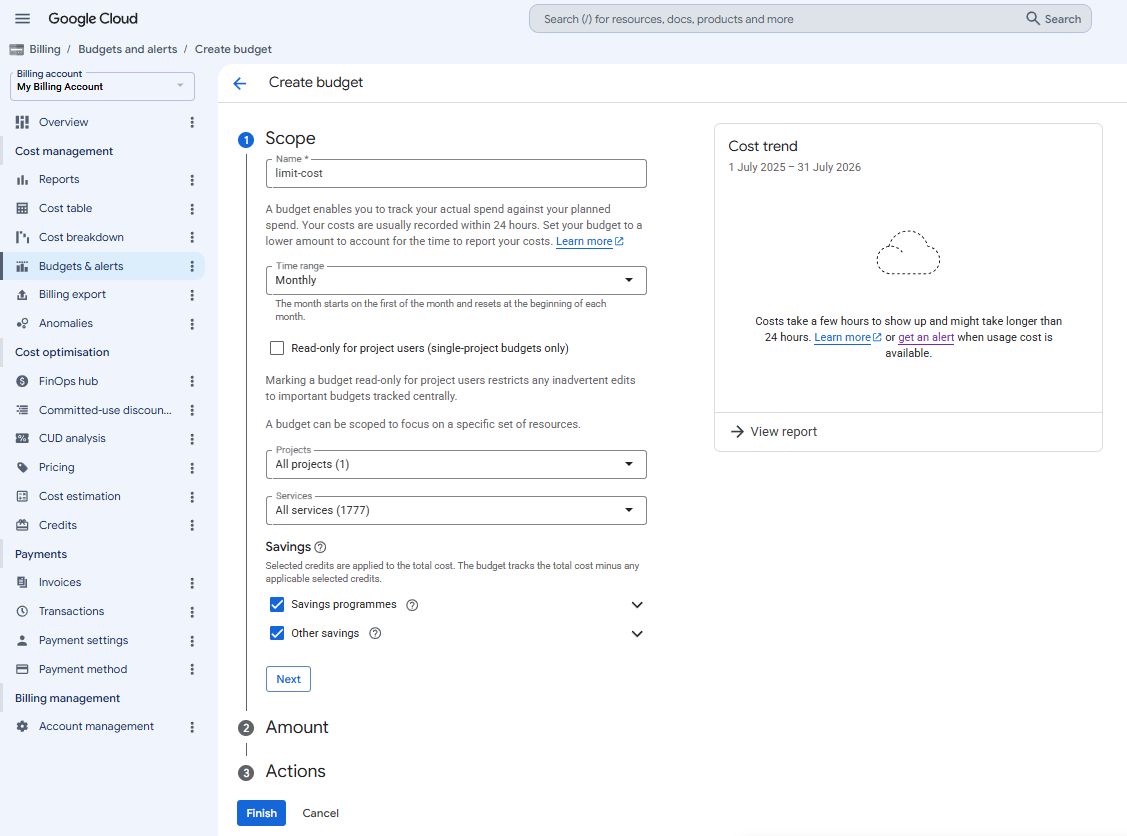
Go to Billing ➜ Budgets & alerts ➜ Create Budget
-
Scope:
-
Amount - You can set a smaller amount such as:
$5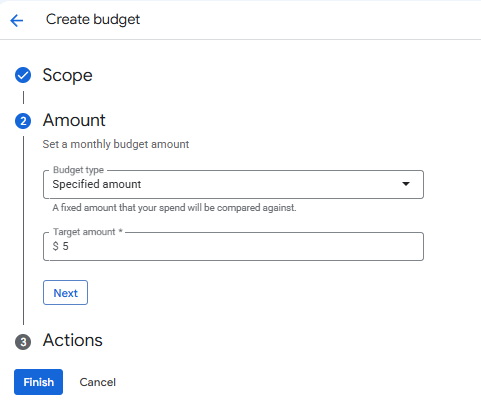
-
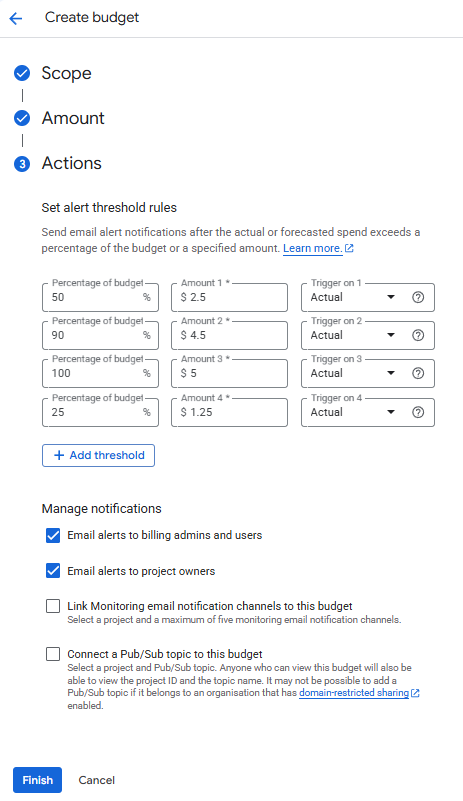
Actions - Set the alert rules
Recommended Alert Thresholds:
- 25%
- 50%
- 75%
- 90%
- 100%
Enable email notificationS, then click Finish.
NOTE: This does not stop spending. It only sends alerts.
5. Budget vs Spending Limit
Budgets do not stop charges.
Budget
- Sends alerts
- Does not stop resources
Quota
- Limits service usage
- Only applies to certain services
No global "maximum spend" exists in GCP.
Always monitor your usage.
6. Enable Cost Reports
Go to Billing ➜ Reports
Learn how to view:
- Daily spending
- Service breakdown
- Resource costs
- Credits consumed
Check this page every few days.
7. Review Free Tier Services
Google offers two types of free usage:
-
Free Trial Credits (valid for a limited period)
These credits can be used on many Google Cloud services.
$300 credits -
Always Free Tier
Certain services remain free within monthly limits.
- Compute Engine (selected VM types in eligible regions)
- Cloud Run
- Cloud Functions
- Cloud Storage
- Firestore
- Cloud Build
Always verify the current Always Free limits before assuming a service is free.
8. Enable APIs Only When Needed
Many services require enabling APIs.
Avoid enabling everything.
Enable only services you plan to use.
Examples:
- Compute Engine API
- Cloud Run API
- Cloud Storage API
- Cloud Functions API
9. Understand IAM
Never work as the Owner account long-term.
Eventually create separate users or service accounts with least privilege.
For personal labs, Owner is acceptable initially.
10. Secure Service Account Keys
Avoid downloading long-lived JSON keys unless absolutely necessary.
Prefer:
- Workload Identity
- Application Default Credentials
gcloud auth application-default login
If you create a key:
- Store it securely
- Rotate it regularly
- Delete unused keys
11. Install Google Cloud CLI
-
Install
gcloudCLI on your local machine.See Quickstart: Install the Google Cloud CLI
Verify:
gcloud versionSample output:
joseeden@TOWER-1:Git$ gcloud versionGoogle Cloud SDK 576.0.0alpha 2026.07.10beta 2026.07.10bq 2.1.34bundled-python3-unix 3.14.6core 2026.07.10gcloud-crc32c 1.0.0gsutil 5.37preview 2026.07.10 -
Login:
gcloud auth loginIt will return a URL. Open it in your browser and login.
Back in the terminal, it should return a success message.
You are now logged in as [*********************@gmail.com].Your current project is [None]. You can change this setting by running:$ gcloud config set project PROJECT_ID -
Set project:
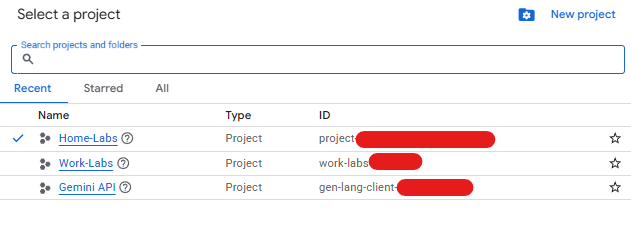
gcloud config set project PROJECT_IDTo get the project ID, go to your GCP console, click on the project name, and copy the Project ID.
-
Verify the current project:
gcloud config listSample output:
[core]account = **************@gmail.comdisable_usage_reporting = Trueproject = project-********************Your active configuration is: [default]
12. Configure Regions Carefully
Resources in different regions have different prices.
Choose a region close to you.
For Singapore:
asia-southeast1
Avoid creating duplicate resources across multiple regions unless needed.
13. Label Resources
Apply labels from the beginning.
Example:
project=learning
owner=max
environment=lab
Labels help:
- Identify resources
- Filter costs
- Simplify cleanup
14. Delete Idle Resources
The biggest source of unexpected bills is forgetting resources.
Common examples:
- Running VMs
- Static external IPs
- Persistent disks
- Load Balancers
- Cloud SQL
- Kubernetes clusters
Always delete resources after finishing a lab.
15. Monitor Running Resources
Useful pages:
- Compute Engine
- Cloud Storage
- Cloud Run
- Cloud SQL
- Kubernetes Engine
Regularly review what is currently running.
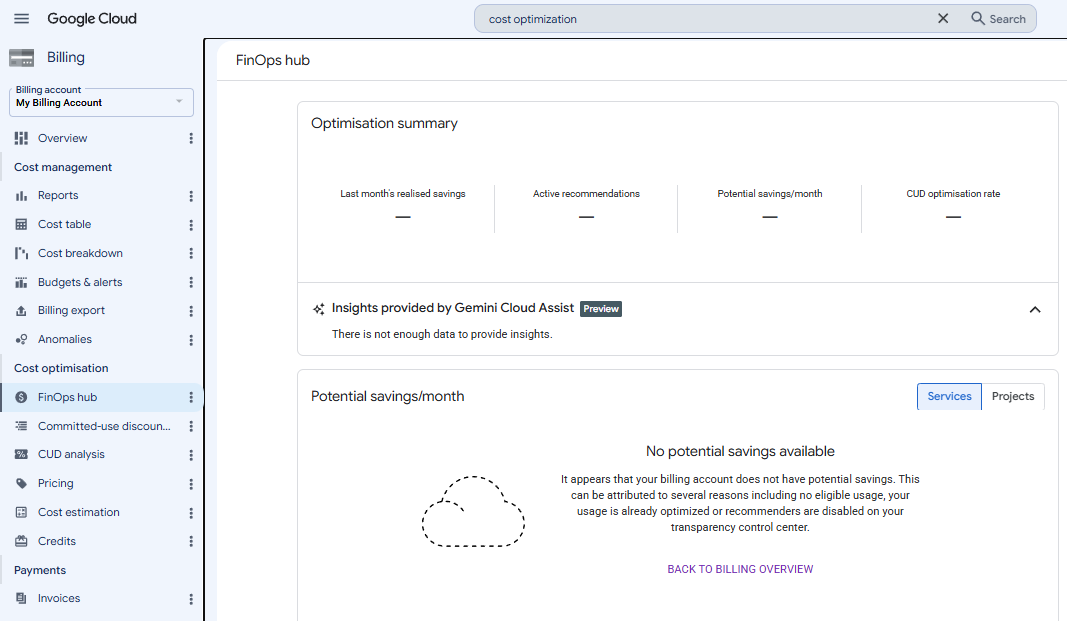
16. Enable Cost Recommendations
Go to Cost Optimization
Google can recommend:
- Deleting idle disks
- Downsizing VMs
- Removing unused IPs
- Reducing costs
17. Set Quotas (When Available)
Some services support quotas.
Examples:
- CPUs
- GPUs
- API requests
Lower quotas reduce the risk of accidentally creating expensive resources.
18. Learn Which Services Become Expensive Quickly
Be cautious with:
- GPU instances
- Large Compute Engine VMs
- Kubernetes Engine (GKE)
- Cloud SQL
- Memorystore
- BigQuery (large queries)
- Load Balancers
- Persistent SSD disks
These can consume credits quickly.
19. Create a Cleanup Habit
After every lab session:
- Stop VMs.
- Delete unused disks.
- Delete unused snapshots.
- Delete test buckets.
- Delete test databases.
- Delete test load balancers.
- Review Billing reports.
20. Recommended First Learning Services
These services are inexpensive or have generous free usage for learning:
- Cloud Run
- Cloud Storage
- Cloud Functions
- Secret Manager
- Artifact Registry
- Cloud Build
- Cloud Logging
- Cloud Monitoring
- IAM
- Compute Engine (small instances)
- Cloud Shell
21. Services to Avoid Initially
Until you're comfortable with pricing, avoid:
- GPU instances
- Large Compute Engine machines
- Kubernetes Engine (GKE)
- Cloud SQL
- BigQuery with large datasets
- Managed Redis (Memorystore)
- Load Balancers
- Multi-region storage
- High-performance SSD storage