Heroku
Overview
Heroku is a cloud platform that lets you deploy, manage, and scale web applications without worrying about servers.
heroku login
In your terminal, use Heroku CLI to login:
heroku login
This will open a web browser. Click Log in.
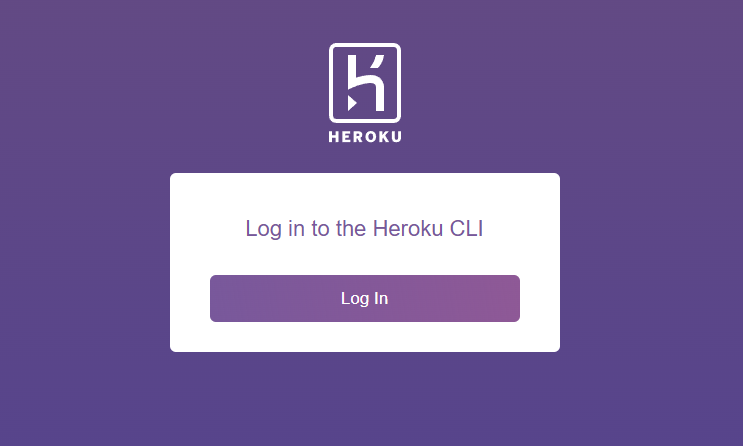
Note: If you're using the Heroku CLI from WSL, you may get an “IP address mismatch" because the CLI opens a browser in Windows, not inside WSL. Heroku will detect theat the browser's IP (from Windows) is different from the CLI session IP (from WSL) so it blocks the login.
If you haven't enabled MFA: You can try interactive login, which will prompt you for your email and password:
heroku login -i

heroku: Enter your login credentials
Email:
Password:
If you have enabled MFA: Interactive login won't work because Heroku no longer allows this method if MFa is on. You can use an SSH key.
Other option: You can also use an API key to authenticate CLI.
heroku create
Go to our project directory and run:
heroku create
Sample output:
Creating app... done, ⬢ warm-sierra-86094
https://warm-sierra-86094-3d39930d25c6.herokuapp.com/ | https://git.heroku.com/warm-sierra-86094.git
If you get an error, please see the Errors section.
Back in the Heroku UI, you should see the new app:

Rename the App
You could change the app name from your terminal:
heroku rename ted-mosbius-creations
Output:
Renaming warm-sierra-86094 to ted-mosbius-creations... done
https://warm-sierra-86094-3d39930d25c6.herokuapp.com/ | https://git.heroku.com/ted-mosbius-creations.git
Git remote heroku updated
Git remote heroku updated
›   Warning: Don't forget to update git remotes for all
›   other local checkouts of the app.
Now run:
heroku open

Back in the Heroku UI, the app should now show the new name:

Adding an SSH key
Firstly, generate an SSH key from your terminal:
ssh-keygen -t rsa -b 4096 -C "your_email@example.com"
This should generate a private key and a public key (.pub). Open the public key and copy the contents.
In you Heroku account, go to Account > SSH Keys > Add New SSH Key

Paste the public key and click Save changes.
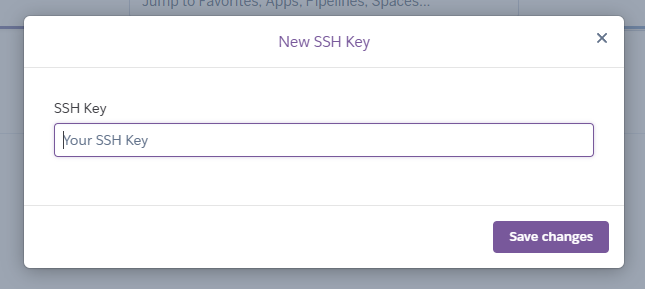
Alternative: You can try adding it from your terminal:
heroku keys:add ~/.ssh/id_rsa.pub
Sample output:
Uploading ~/.ssh/id_rsa.pub key... done
Adding an API Token
In you Heroku account, go to Account > API Keys > Regenerate API Key Click Reveal and copy the key.

In your terminal, set it:
export HEROKU_API_KEY=your_api_key_here
Or add it permanently to your ~/.bashrc or ~/.zshrc:
echo 'export HEROKU_API_KEY=your_api_key_here' >> ~/.bashrc
source ~/.bashrc
Error: Verify your account
If you haven't verified your account yet and you try to create an app via Heroku CLI, you will get an error:
Creating app... !
 ›   Error: To create an app, verify your account by adding
 ›   payment information. Verify now at
 ›   https://heroku.com/verify Learn more at https://devcent
 ›   er.heroku.com/articles/account-verification
 ›
 ›   Error ID: verification_required
Go to the link and add a payment method to have your account verified.
https://heroku.com/verify