Different Max Resolutions on Same-Sized Monitors
Overview
Two monitors can have the same physical screen size (for example, 27-inch) but still support different maximum resolutions. This is because the maximum resolution depends on the monitor's panel and hardware capabilities, not just its size.
In my case, I have:
| Monitor | Monitor Size | Native Resolution |
|---|---|---|
| Dell S2721QS | 27-inch | 3840 × 2160 (4K) |
| HP 27e | 27-inch | 1920 × 1080 (FHD) |
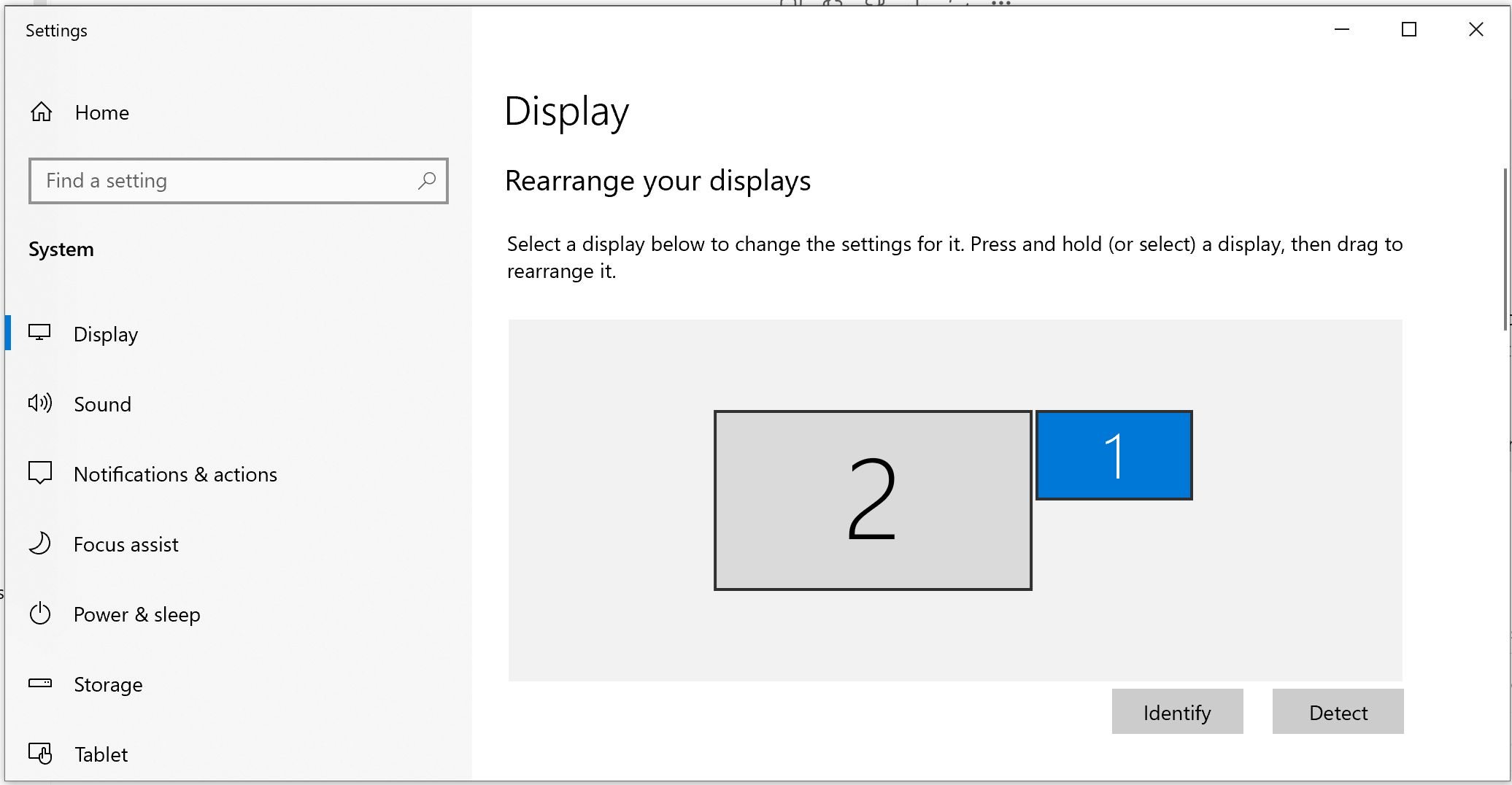
Because of this, Windows may display one monitor as “larger” or “smaller” inside Display Settings even though both monitors are physically the same size.
Keep the monitor with larger resolution at its native 4K resolution and adjust scaling settings to make UI elements larger, rather than lowering the resolution to 1080p which would reduce image quality.
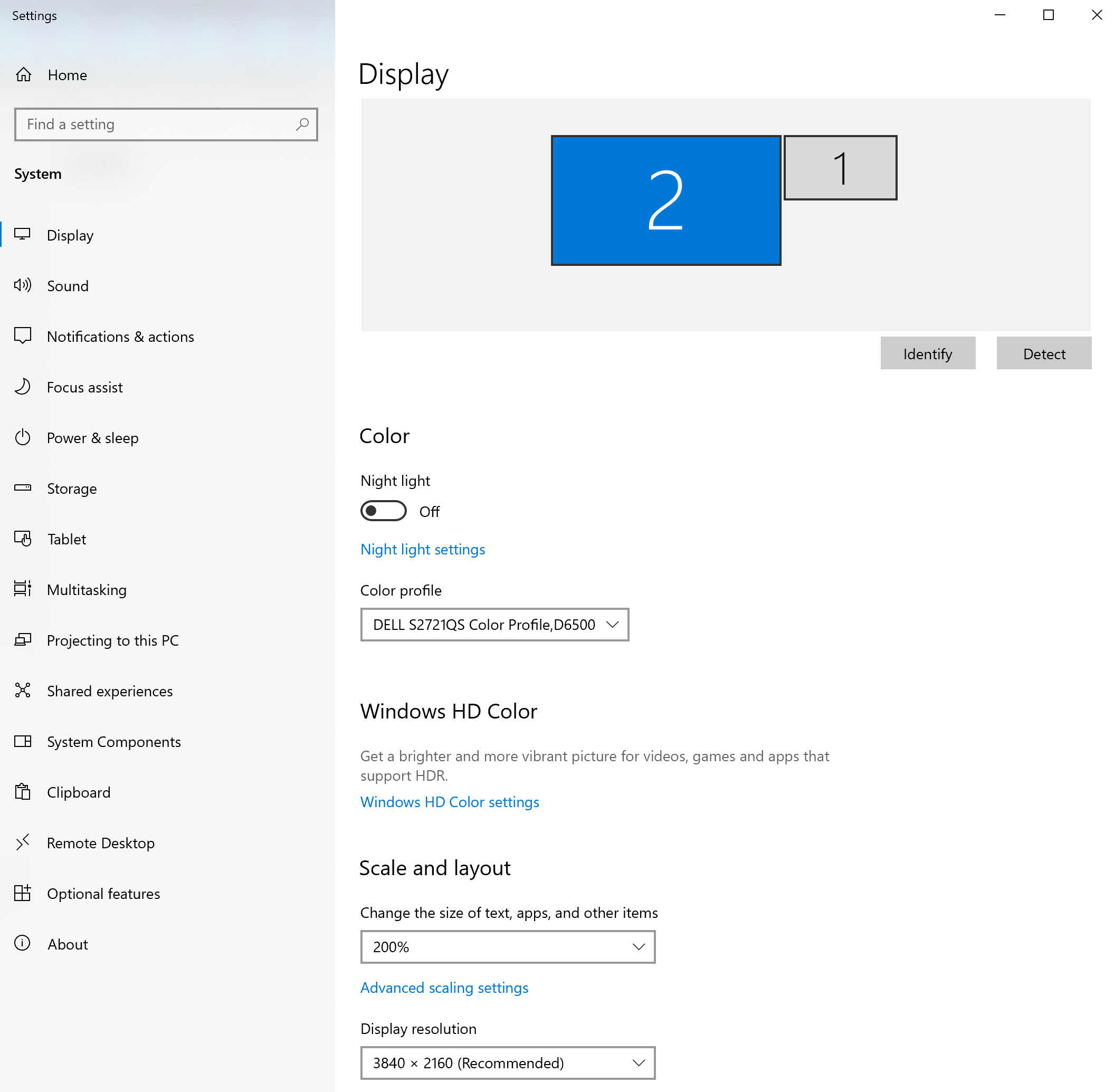
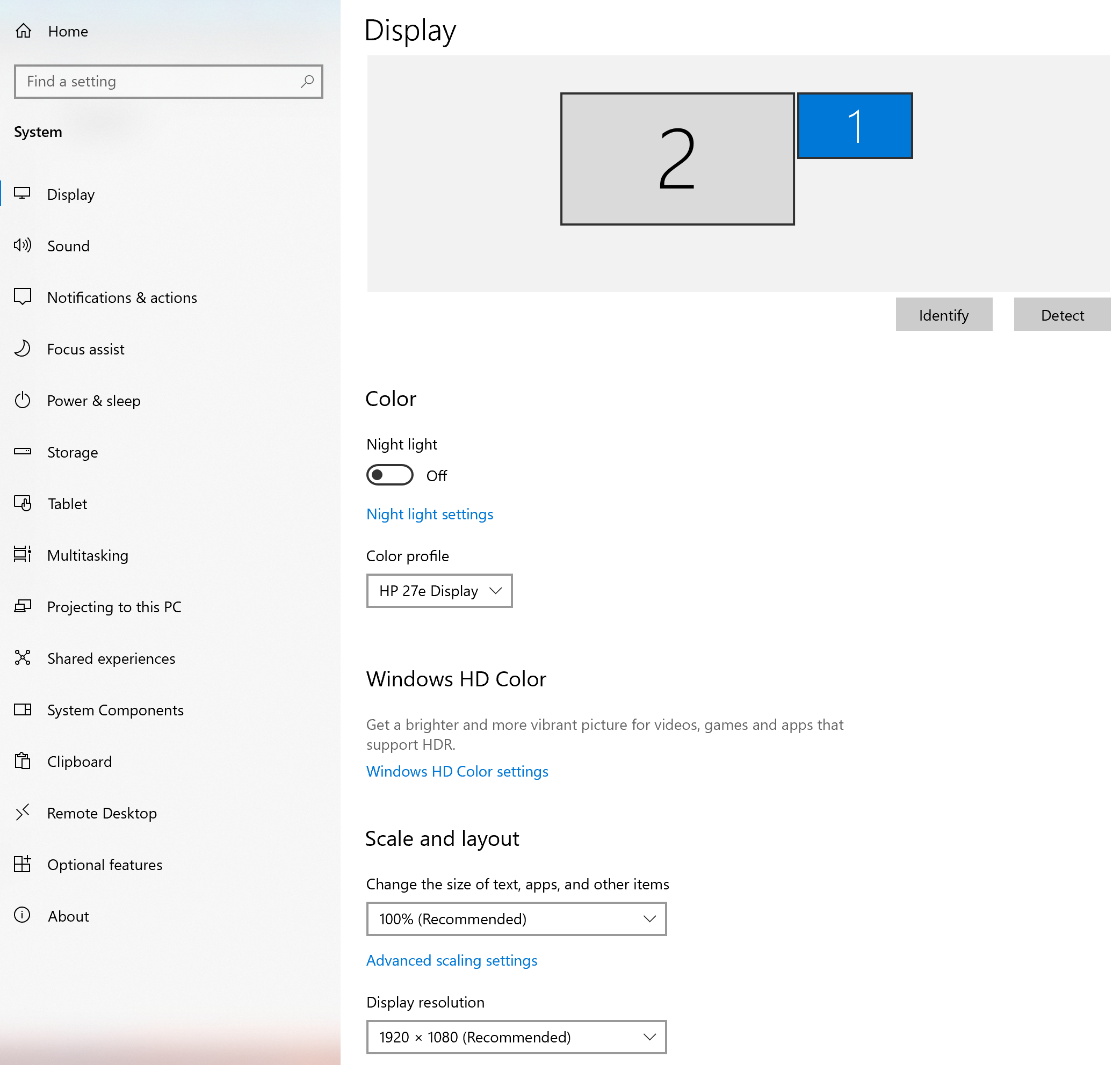
Screenshot of Display settings showing both 27-inch monitors:
Display resolution for Dell S2721QS is set to 3840 × 2160 (maximum resolution)
Display resolution for HP 27e is set to 1920 × 1080 (maximum resolution)
Screen Size vs Resolution
Monitor size and monitor resolution are different things:
- Screen size - physical dimensions of the monitor
- Resolution - number of pixels displayed on the screen
A 27-inch monitor can be:
- 1920 × 1080 (Full HD)
- 2560 × 1440 (2K/QHD)
- 3840 × 2160 (4K)
Higher resolution means:
- More pixels
- Sharper image
- More desktop space
Why Windows Shows Different Sizes
Windows Display Settings visually arranges monitors based on:
- Resolution
- Scaling settings
Since the Dell monitor runs at:
- 3840 × 2160
and the HP monitor runs at:
- 1920 × 1080
Windows treats the Dell as having a much larger desktop area, which causes it to appear larger in the display arrangement view.
Both Monitors Use 1920 × 1080 (NOT RECOMMENDED)
Steps:
- Right click on Desktop
- Select Display settings
- Select the Dell monitor
- Under Display resolution
- Change from
3840 × 2160to1920 × 1080 - Click Keep changes
After this:
- Both monitors will run at 1920 × 1080
- Both displays will appear more similar in Windows
However, this is not recommended because The Dell monitor is a native 4K display. If You set it to 1920 × 1080, you will lose image quality and sharpness. LCD monitors generally look best at their native resolution.
- Pixels will be stretched to fill the screen
- Slight blurriness
- Less sharp text and images
Recommended Alternative (Better Quality)
Instead of lowering the Dell resolution, keep it at 3840 × 2160 and set the HP monitor to 1920 × 1080. This way, both monitors run at their native resolutions, then adjust the scaling settings to make the UI elements larger on the Dell monitor.
- Open Display settings
- Select the Dell monitor
- Under Scale, set to 150%, 175%, or 200%
Recommended for 27-inch 4K monitors:
- 150% or 175% for balanced workspace
- 200% for UI size similar to
1080p
This keeps:
- Sharp image quality
- Comfortable text size