Lab Setup and Installation
Overview
Before working with Ansible, prepare the systems that will be managed and a control machine where Ansible will run.
Inventory Servers
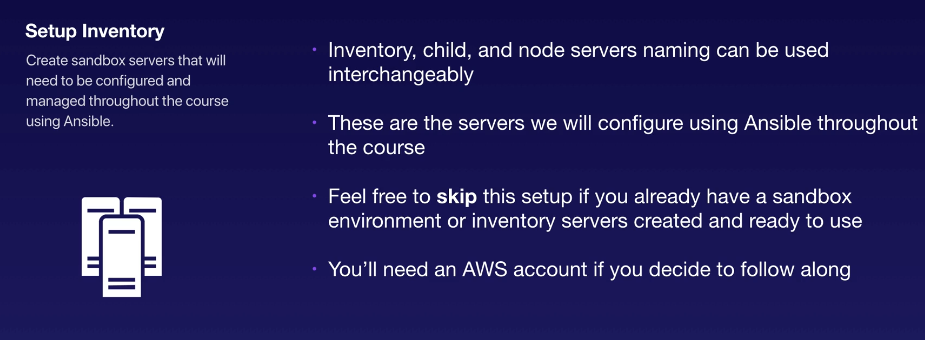
Inventory servers are the systems that Ansible will configure and manage throughout the course. The terms below may be used interchangeably:
- Inventory server
- Child server
- Node server
This guide provides instructions for creating inventory servers in AWS. You can also use your own inventory servers if you have them available. These servers will be configured and managed using Ansible.
Note: An AWS account is required if you want to create the sandbox servers in AWS.
Ansible Control Machine
The control machine is the system where Ansible is installed. Ansible commands and playbooks are executed from this machine to manage the inventory servers.
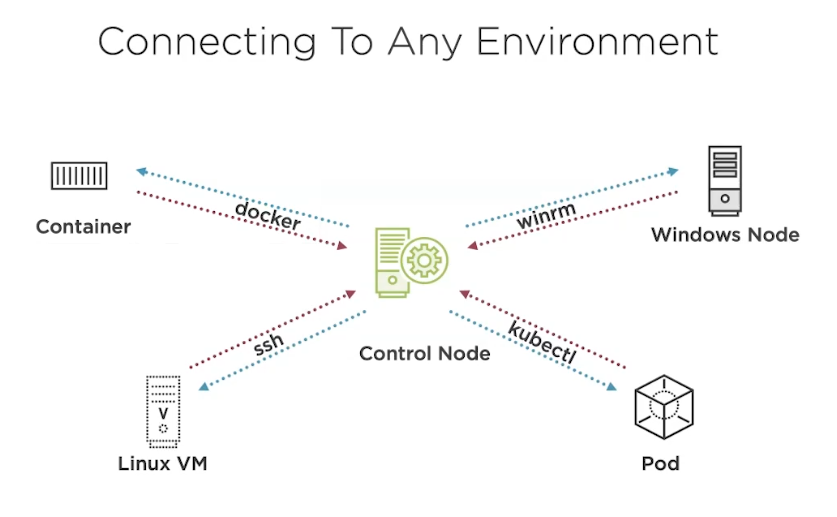
Components required:
| Component | Purpose |
|---|---|
| Control machine | Runs Ansible commands and playbooks. |
| Inventory servers | Systems configured and managed by Ansible. |
| Python | Required on the control machine to run Ansible. |
| SSH | Commonly used by the control machine to connect to Linux inventory servers. |
For the control machine:
- Prefer a Linux or Unix-based system.
- Ensure Python is installed.
- Install Ansible locally on this machine.
For a new environment, use a currently supported Python 3 version.
DNS Resolution
I added all the servers first to the /etc/hosts file of the control machine(in this case, tstmaster) to enable DNS resolution.
127.0.0.1   localhost localhost.localdomain localhost4 localhost4.localdomain4
::1         localhost localhost.localdomain localhost6 localhost6.localdomain6

# EDEN: Servers
13.251.146.254	  tstsvr1
122.248.203.239   tstsvr2
52.76.189.254	    tstsvr3
54.255.28.202	    tstsvr4
Know How to Know
There's a lot to explore about Ansible, which can be found on their official documentation.
Similarly, we can check the ansible documentation from the commandline by running:
ansible-doc -l
As example, can search for the ping module.
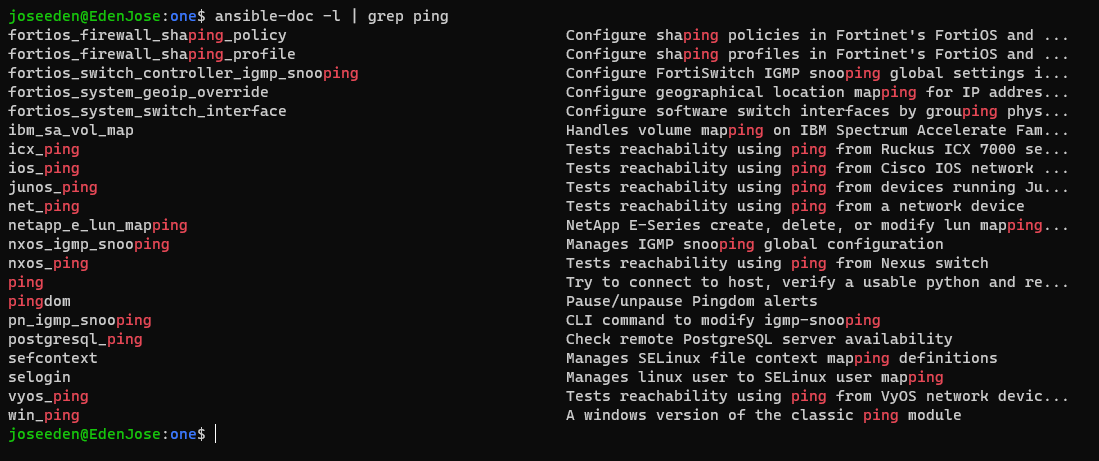
To read about the ping module,
ansible-doc ping
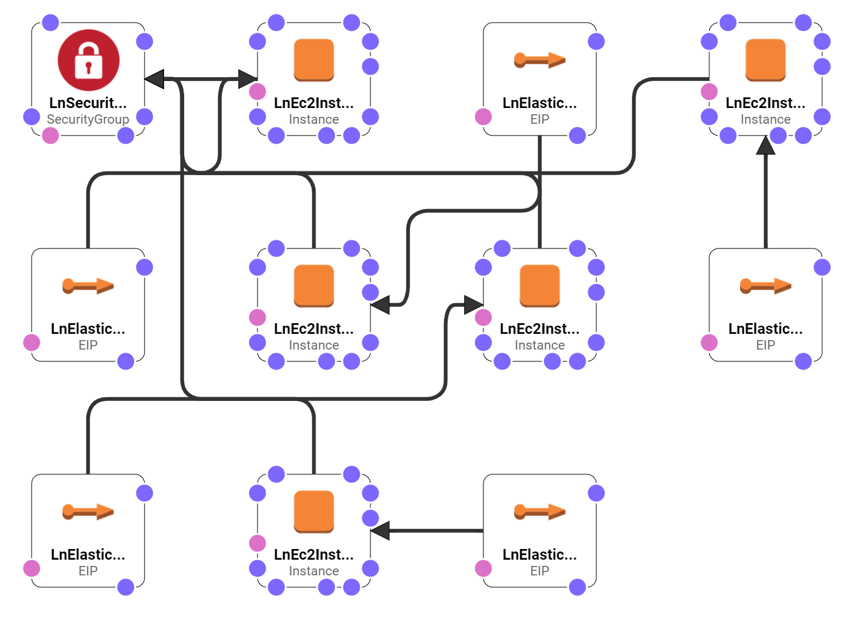
For this setup, I used a CloudFormation template and modified it to launch four EC2 instances. The template is included in this folder.
--
Setting up Ansible Lab
1. Using a Cloudformation Template
This is personally preferred but there's still some requirement because the template will only launch a loadbalancer and four instances which will serve as four web servers. This means the main controller has to be on your laptop or another machine. Since I'm on a Windows laptop, this would mean I have to set it up for Ansible and stuff (which isn't really difficult).
Things to consider:
- Main controller is in a location 'remote' from all the webservers
- This template doesn't setup a VPC so the webservers doesn't actually see each other
- Only the main controller knows that there are a bunch of webservers
- From the servers' point of view, they are standalone
- Also, note that you are limited to 5 Elastic IPs per region, thus you can only launch 4 servers at max
Steps:
-
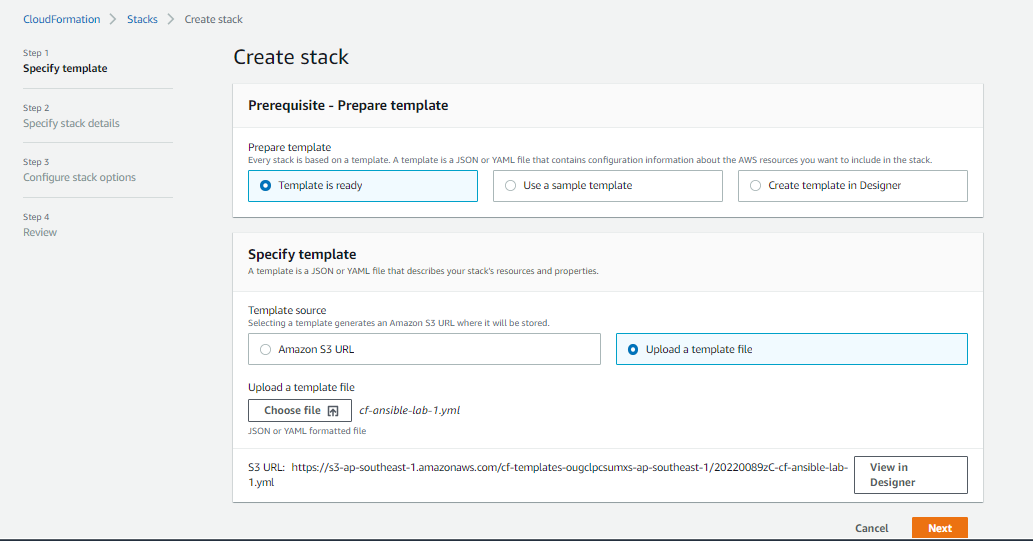
Create the stack from Cloudformation menu by uploading the template.
-
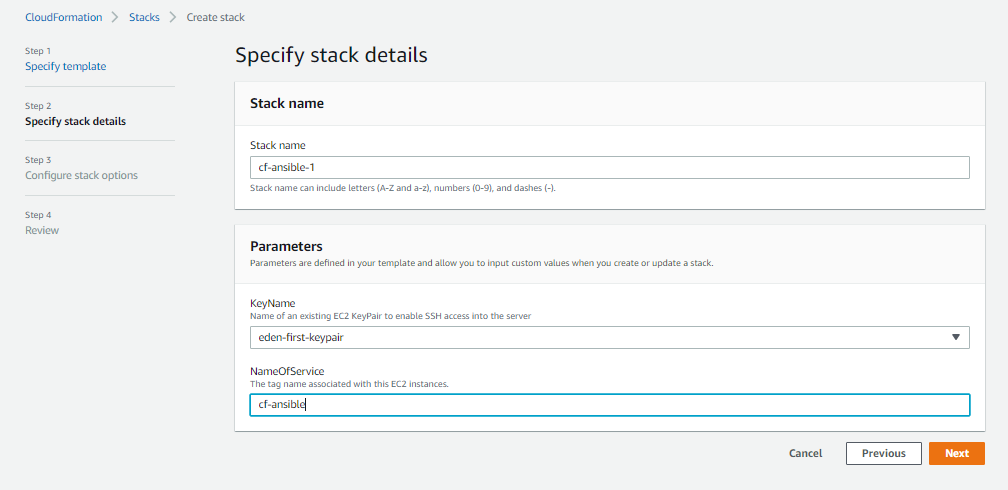
Provide stack details. Give the stack a name and then provide it a keypair.
For the NameOfService, provide a tag that you want to associate with the instances. This will be appended to the tag for each instance that is specified in the template. Click Next until you reach the last part, and then hit Create stack.
-
Wait for Cloudformation to finish provisioning the resources.
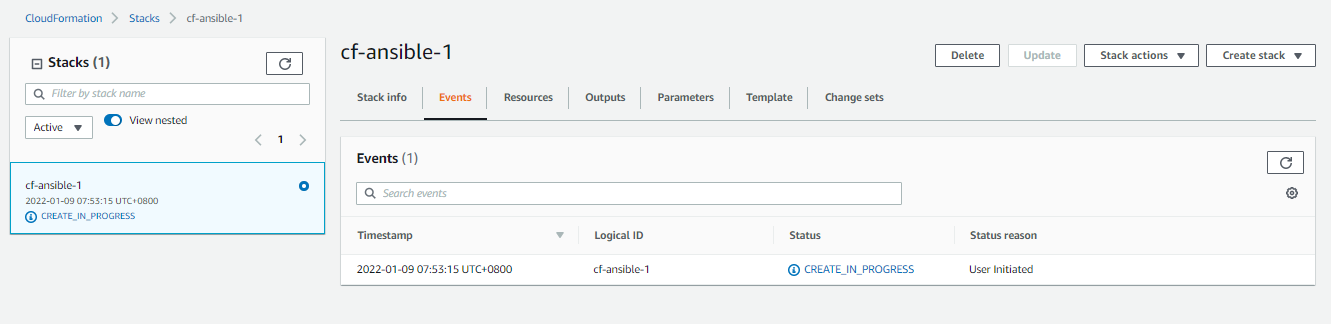
On the stacks menu:

-
Once done, it should show as complete.

A few reminders: Cloudformation is generally free, but the resources that it provisions will incur cost.
- Make sure to delete the stack when not in use
- There's a limit of 5 Elastic IPs per region
- This is the reason why I only set 4 instances, with 1 loadbalancer
- You may send a request to AWS support to increase your limit
2. Setup all servers + controller locally
You may also launch your own servers locally, either in VirtualBox or VMware Workstation.
Things to consider:
- Since they are running locally, they consume resources
- This means the VMs are bounded by your laptop's resources
- You might need to setup some networking as well
3. Setup all servers + controller in the cloud
Similar with option 3, but this would utilize unbounded resources in the cloud.
Things to consider:
- All servers + the controller will reside on the cloud
- You may opt to use elastic IPs, but remember that there's 5 elastic IPs per region limit
- Similarly, you can use the private IP addresses
- You will also need to setup the VPC, subnets, gateways, and route table - quite some work
4. Similar to option 3, but through Cloudformation
Of course, it'll be much easier if we can use a readily available template. This approach will let Cloudformation take care of all the setting up of the resources, you just need to upload the template
Things to consider:
- Another preferrable one since everything can be manipulate through the template
- The only thing that would require work is creating the template
- This may seem complicated, but you may check out available templates online
I haven't created a CF template for this approach yet, but there's a ton of resources online. However, this may require you to do some modifications on the template itself.
5. Setting up using a Vagrant file
A Vagrantfile is another option for spinning up a local Ansible environment.
Here, a vagrantfile is used to spin up the environment which can be done even on a Windows machine.
Use this approach when you want repeatable local virtual machines for controller and managed-node testing.
Install Ansible
Servers that will be used for this lab setup are as follows:
| Hostname | Role |
|---|---|
tstmaster | Ansible controller |
tstsvr1 | server |
tstsvr2 | server |
tstsvr3 | server |
tstsvr4 | server |
We'll be installing ansible on the tstmaster using pip. The other servers will be managed by Ansible, so we don't need to install Ansible on them.
Note: If you prefer, you can also install Ansible using your operating system's package manager or by using a virtual environment.
- Verify that Python and
pipare available.
python3 --version
pip3 --version
- If
pipis not installed, install it using the package manager for your operating system. For example, on Ubuntu or Debian:
sudo apt update
sudo apt install python3-pip
- Install Ansible:
python3 -m pip install --user ansible
- Verify the installation:
ansible --version
Sample output:
[DEPRECATION WARNING]: Ansible will require Python 3.8 or newer on the controller starting with Ansible 2.12. Current
version: 3.6.8 (default, Sep  9 2021, 07:49:02) [GCC 8.5.0 20210514 (Red Hat 8.5.0-3)]. This feature will be removed from
ansible-core in version 2.12. Deprecation warnings can be disabled by setting deprecation_warnings=False in ansible.cfg.
ansible [core 2.11.7]
  config file = None
  configured module search path = ['/root/.ansible/plugins/modules', '/usr/share/ansible/plugins/modules']
  ansible python module location = /usr/local/lib/python3.6/site-packages/ansible
  ansible collection location = /root/.ansible/collections:/usr/share/ansible/collections
  executable location = /usr/local/bin/ansible
  python version = 3.6.8 (default, Sep  9 2021, 07:49:02) [GCC 8.5.0 20210514 (Red Hat 8.5.0-3)]
  jinja version = 2.10.
Note: The sudo easy_install pip and sudo pip install ansible commands are older installation methods. For modern environments, Python 3 and a virtual environment, pipx, or the operating system's supported Ansible package are generally preferred.