Ad Hoc Commands, Playbooks, and Variables
Ad-hoc Commands
These are commands tha can be ran on the command line which can be one-off command or for testing and troubleshooting. Type ansible and press tab twice.
joseeden@EdenJose:one$ ansible
ansible             ansible-connection  ansible-doc         ansible-inventory   ansible-pull
ansible-config      ansible-console     ansible-galaxy      ansible-playbook    ansible-vault
Listing hosts
joseeden@EdenJose:one$ ansible --list-hosts webservers
  hosts (4):
    tstsvr1
    tstsvr2
    tstsvr3
    tstsvr4
joseeden@EdenJose:one$ ansible --list-hosts loadbalancers
  hosts (1):
    lb1
joseeden@EdenJose:one$ ansible --list-hosts local
  hosts (1):
    localhost
We can also use wildcards.
joseeden@EdenJose:one$ ansible --list-hosts "*"
  hosts (6):
    app1
    app2
    app3
    app4
    lb1
    localhost
joseeden@EdenJose:one$ ansible --list-hosts app*
  hosts (4):
    app1
    app2
    app3
    app4
List webservers or loadbalancers.
joseeden@EdenJose:one$ ansible --list-hosts webservers:loadbalancers
  hosts (5):
    app1
    app2
    app3
    app4
    lb1
List everything except local.
joseeden@EdenJose:one$ ansible --list-hosts \!local
  hosts (5):
    app1
    app2
    app3
    app4
    lb1
List first and fourth element in the array.
joseeden@EdenJose:one$ ansible --list-hosts webservers[0]
  hosts (1):
    app1
joseeden@EdenJose:one$ ansible --list-hosts webservers[3]
  hosts (1):
    app4
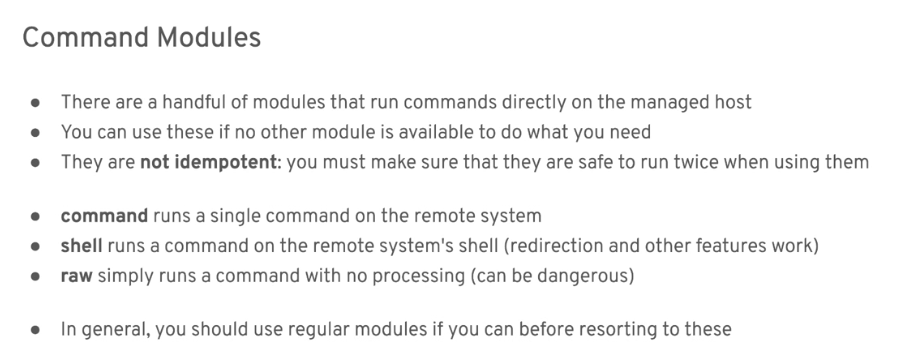
Running shell commands
joseeden@EdenJose:data-eden$ ansible -m shell -a "uname" webservers
app1 | CHANGED | rc=0 >>
Linux
app4 | CHANGED | rc=0 >>
Linux
app2 | CHANGED | rc=0 >>
Linux
app3 | CHANGED | rc=0 >>
Linux
Note the rc. This is a return code.
- rc-0 means sucess
- rc=1 means failed
Diplaying ansible_facts
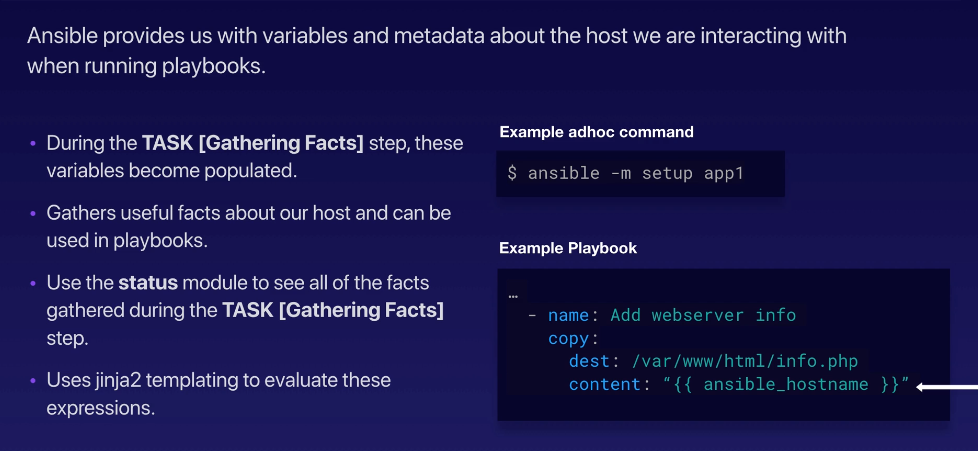
Ansible facts are information about the servers that are gathered by Ansible whenever you run your playbook. This is normally done on the Gathering phase, but can also be run on the command line using the setup module.
# Display information on all the servers in the webservers group
ansible -m setup webservers

# Display the information on localhost
ansible -m setup localhost

# Display the information on app1 only
ansible -m setup app1

# Display the information on the first device under the webservers group that's defined on the inventory list
ansible -m setup webservers[0]

# Display the information on the first three devices under the webservers group that's defined on the inventory list
ansible -m setup webservers[0:2]
Creating Users on the Web servers
We'll first add some config for privilege escalation to our ansible.cfg to make sure that we can run the command on our web servers as the root user.
$ vim ansible.cfg

[defaults]
# E: variables for my personal lab
inventory = ~/proj-ansible-1/one/inventories/edendev.inv
remote_user = eden
private_key_file = ~/.ssh/id_rsa
host_key_checking = False
retry_files_enabled = False

[privilege_escalation]
become_method = sudo
become=True
become_user=root
become_ask_pass=False
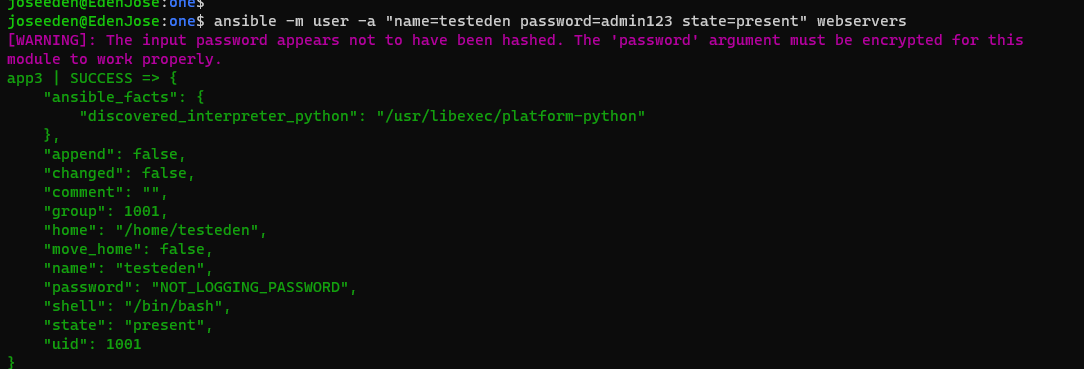
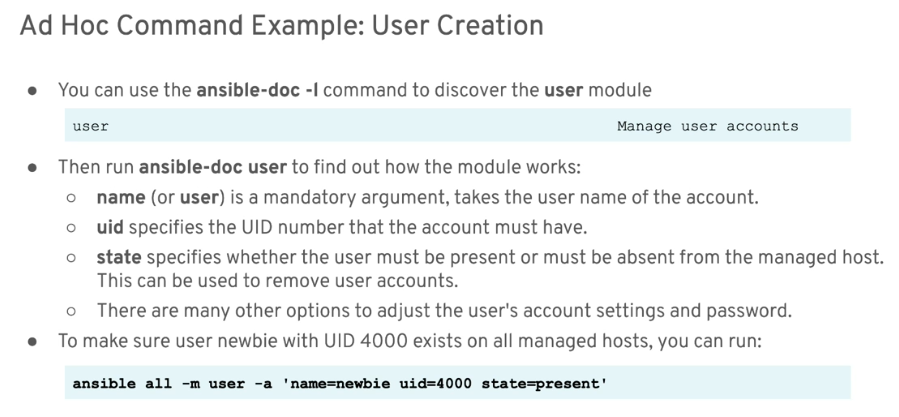
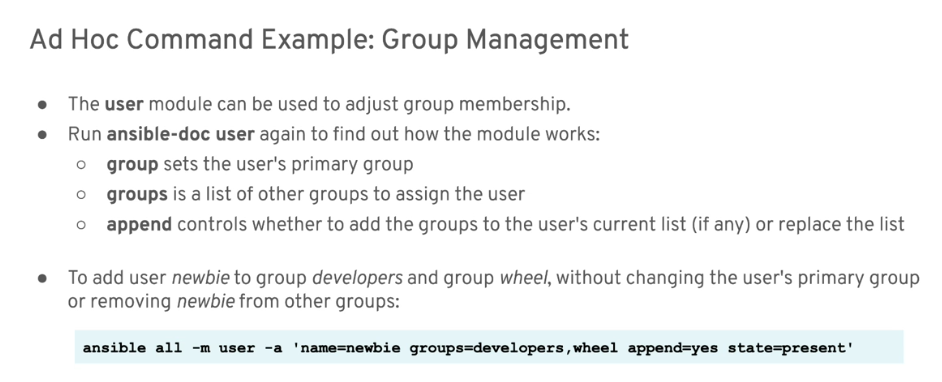
Now, to add users on all our webservers
$ ansible -m user -a "name=testeden password=admin123 state=present" webservers
Note that on te output, the password are not display for security purposes.
Deleting Users on the Web servers
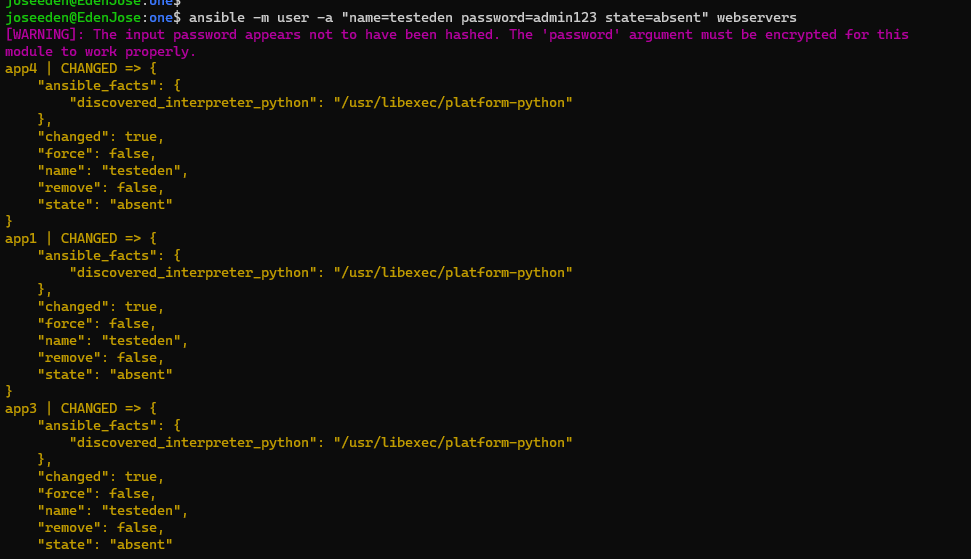
Of course, the users and password we created were not secured so we need to delete them. To do this, we just changed the state in the arguments to absent.
$ ansible -m user -a "name=testeden password=admin123 state=absent" webservers
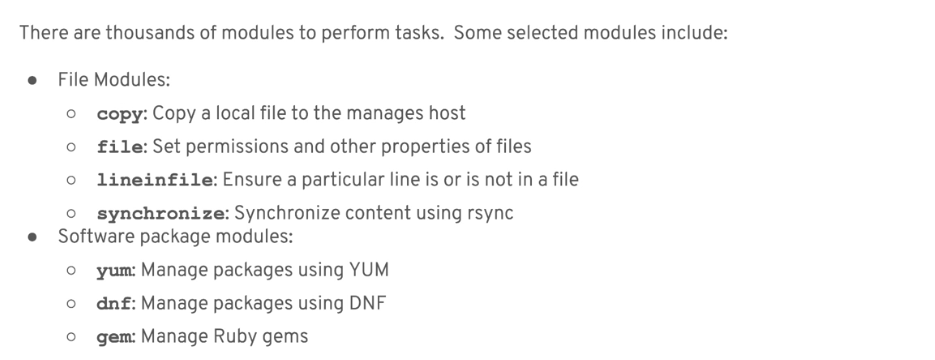
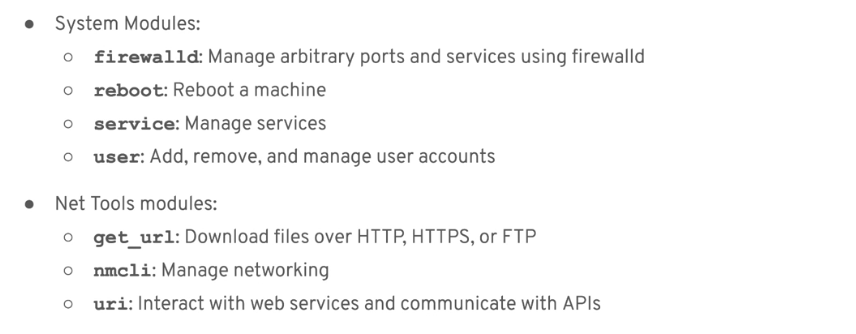
Useful Modules
Command Modules
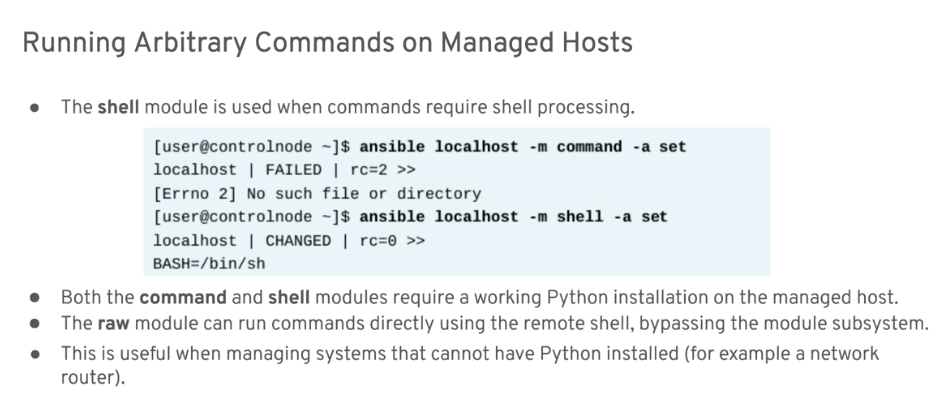
When and When Not to Use Ad-Hoc Commands
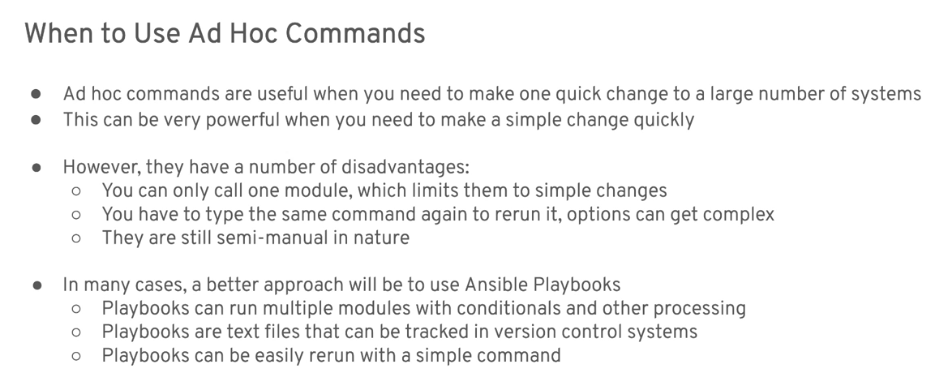
Playbooks
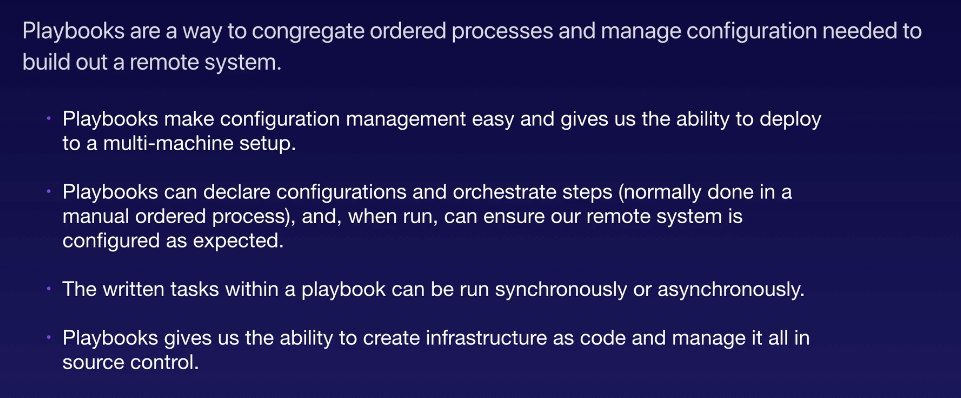
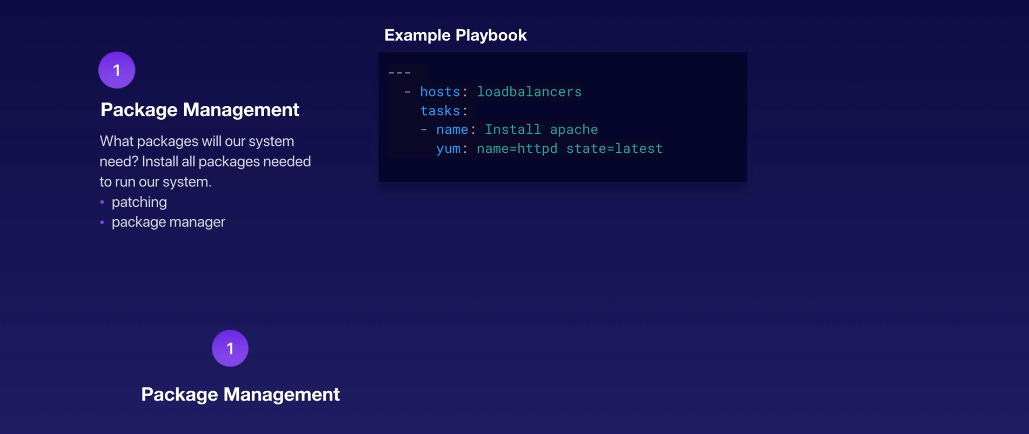
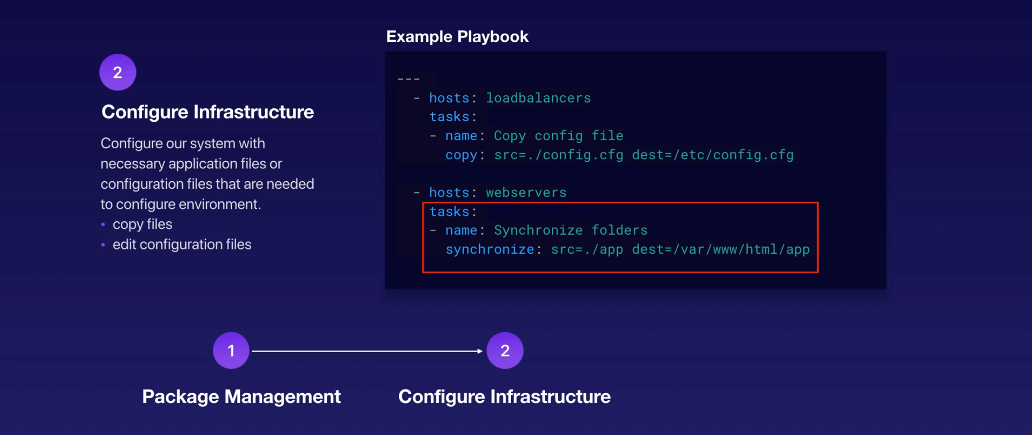
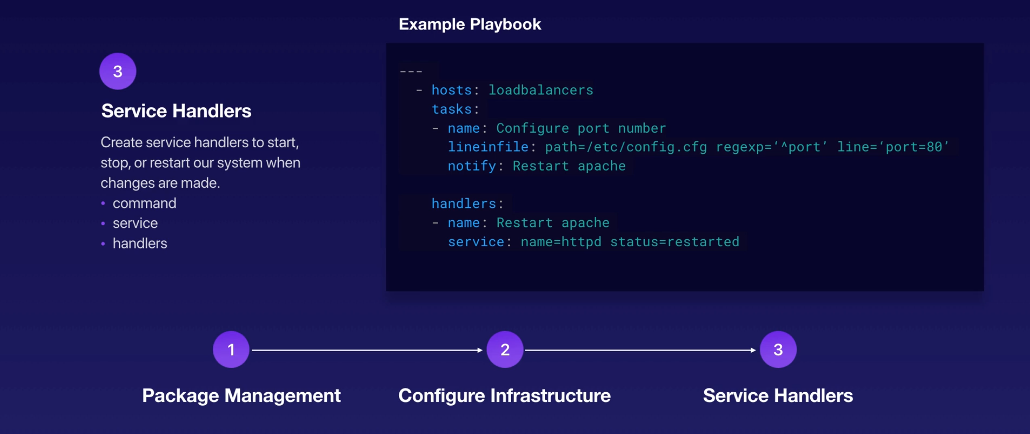
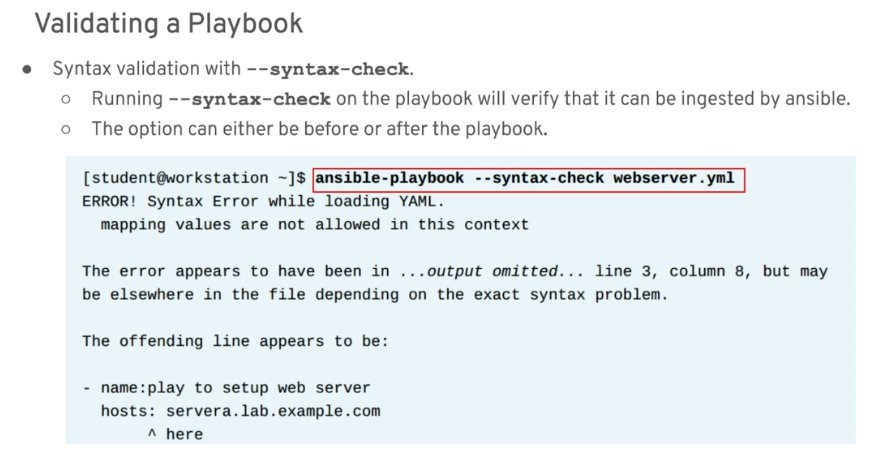
Validating Playbooks
Variables
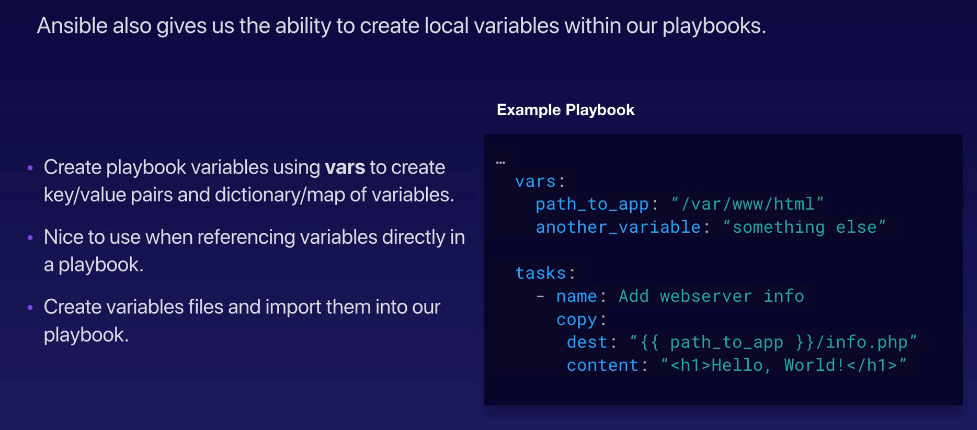
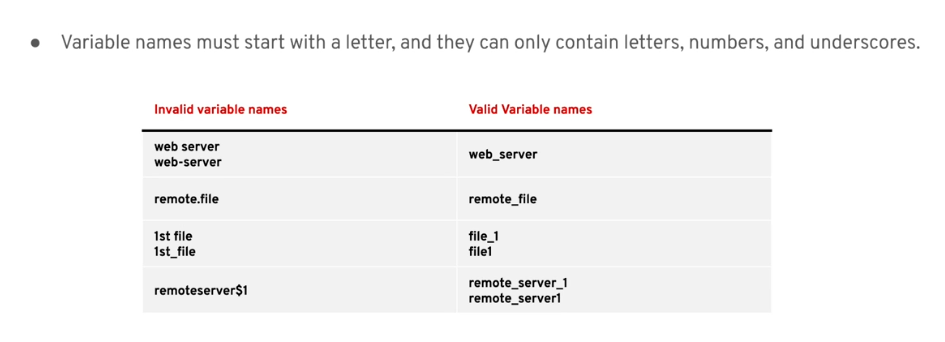
Naming Variables
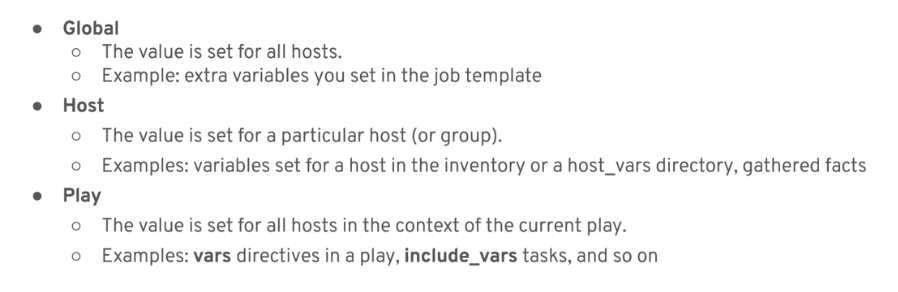
Variable Scope
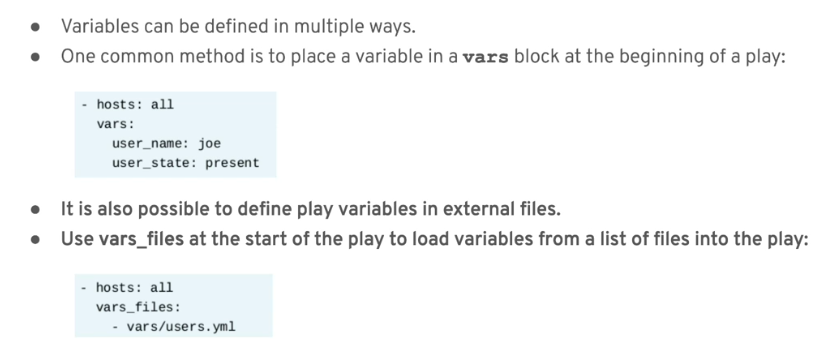
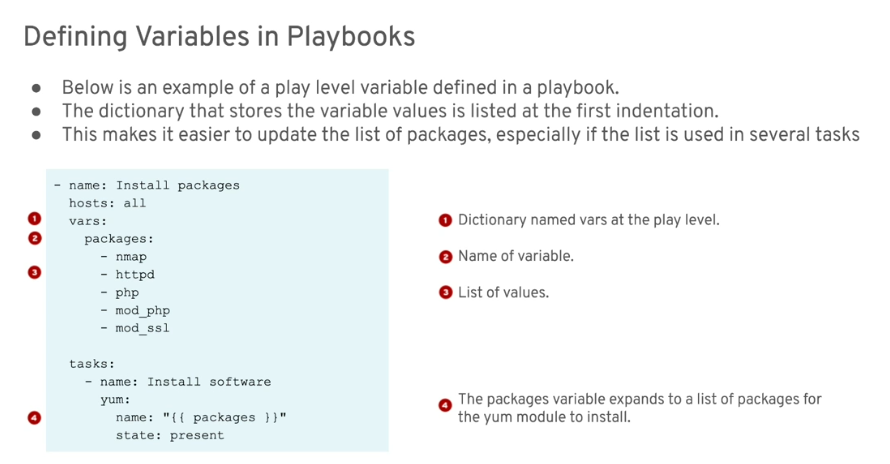
Defining Variables
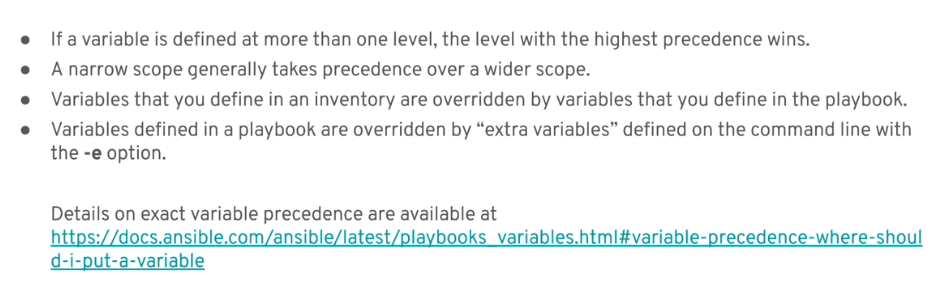
Managing Variables
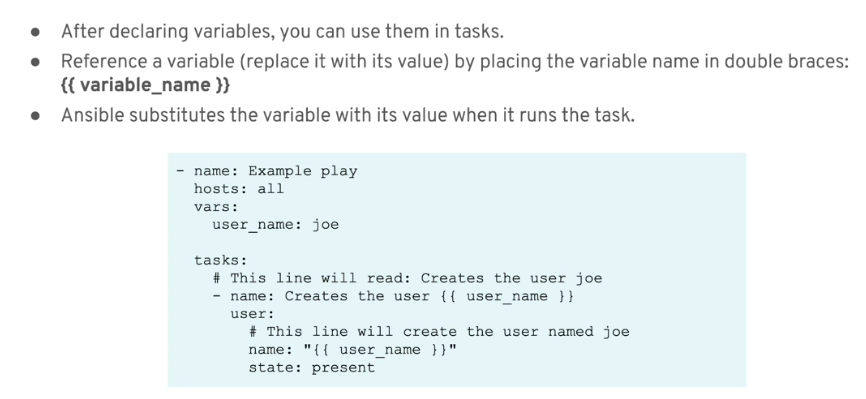
Referencing Variables
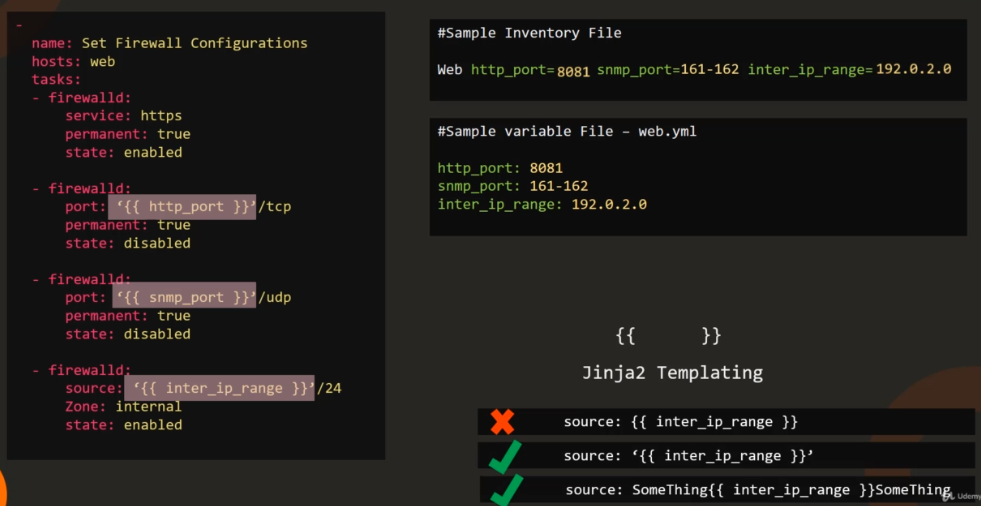
Host Variables and Group Variables
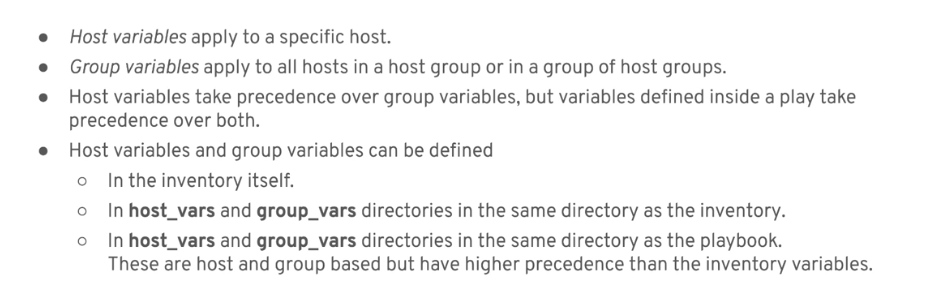
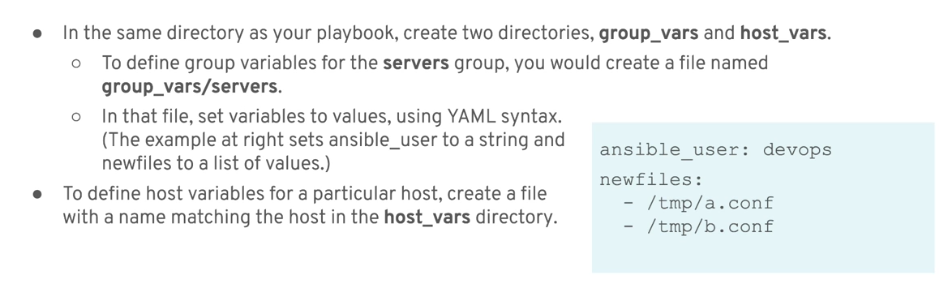
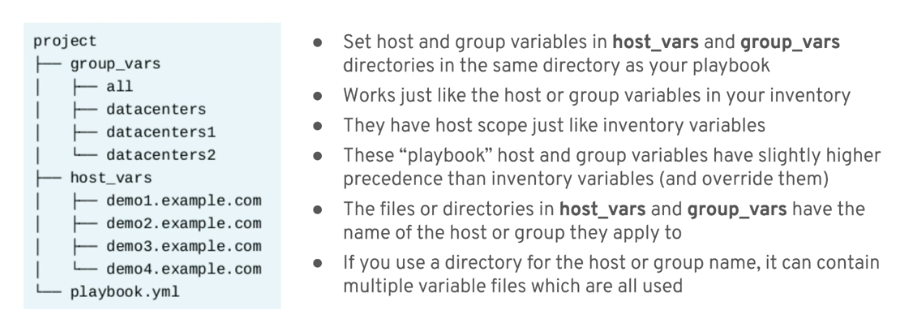
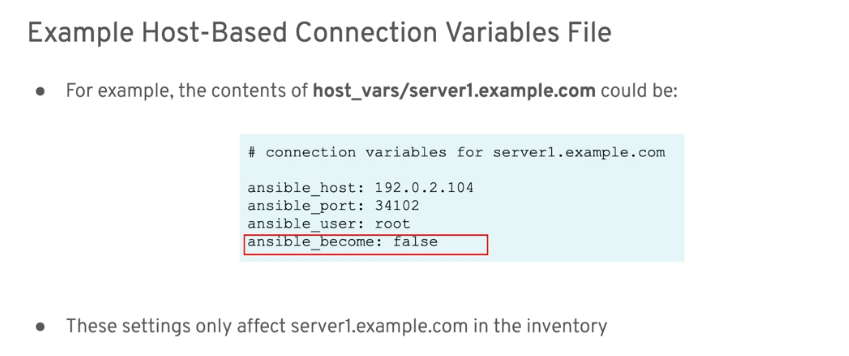
Host-based Connection Variables
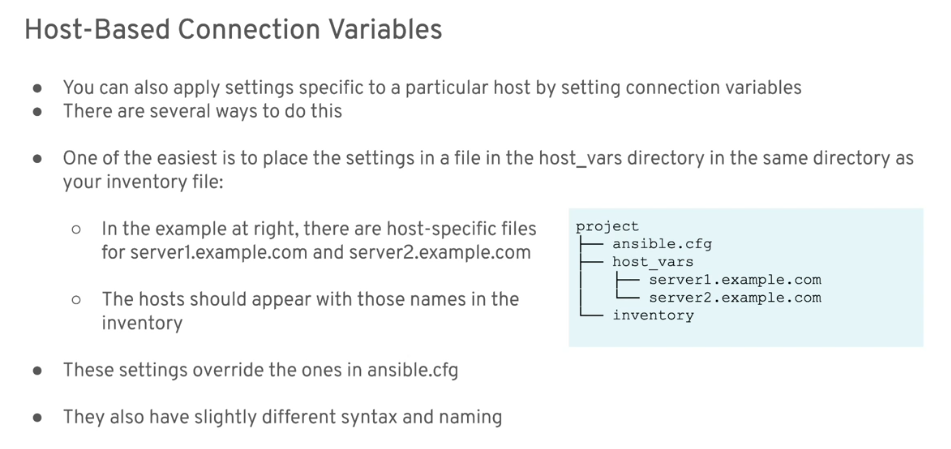
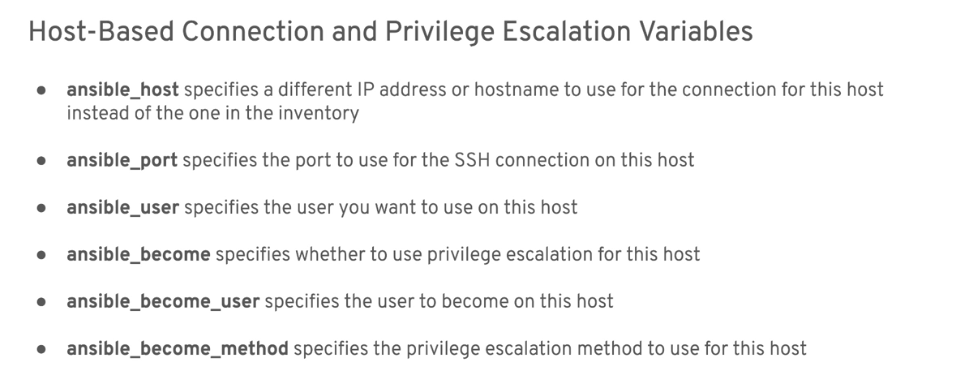
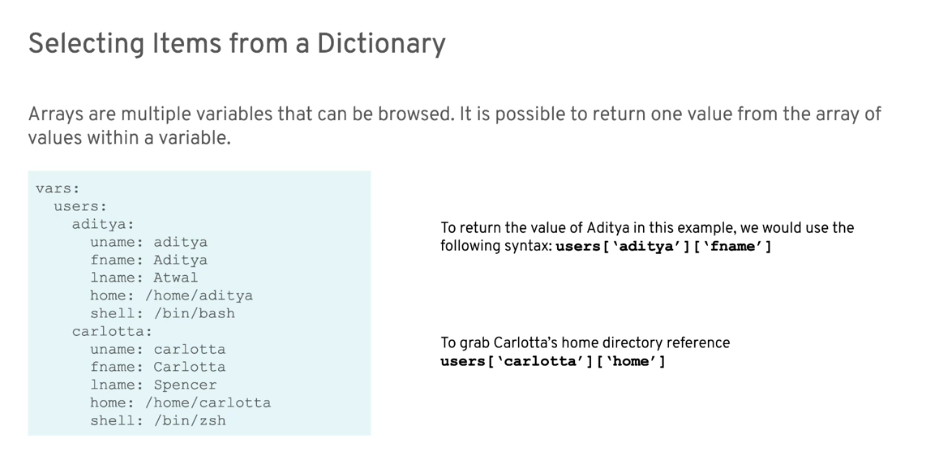
Local Variables
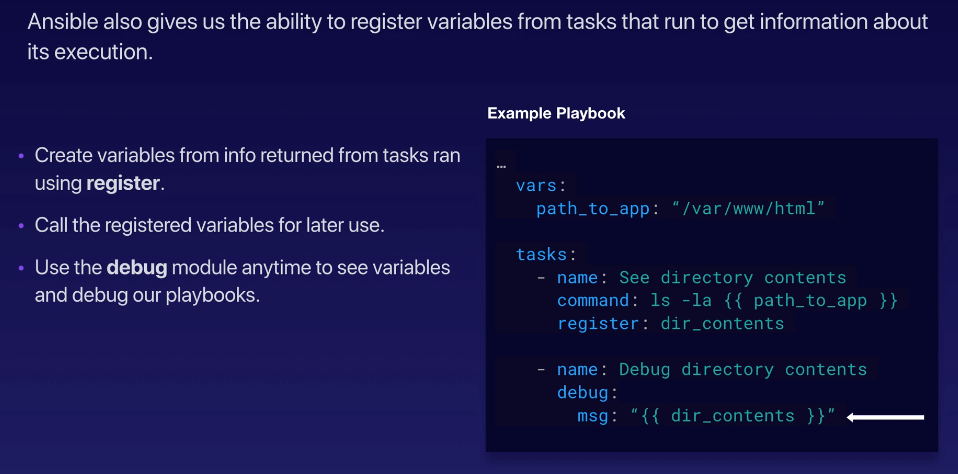
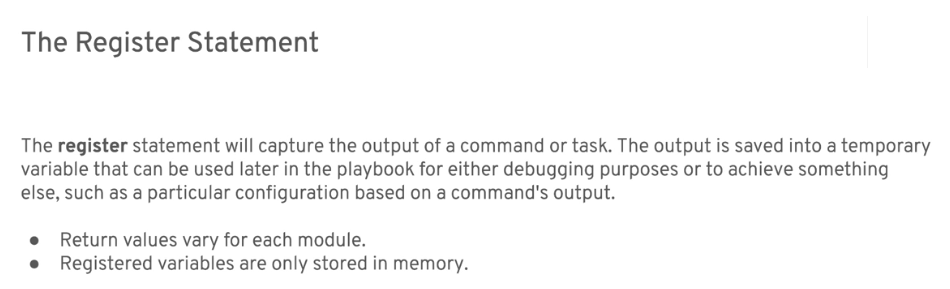
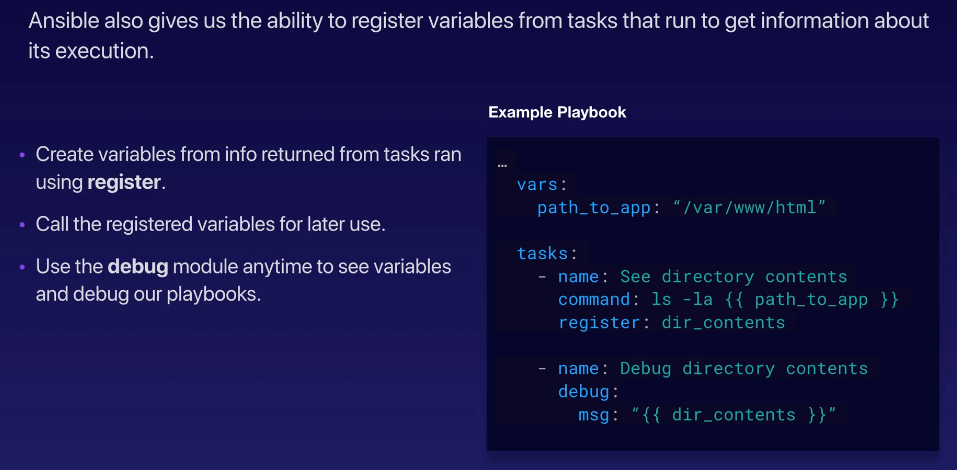
Registered Variables
Sample ad-hoc command: We can check the details of a particular host by using the setup module. This will return a JSON object which will ontain the ansible facts about the host. These same facts are also gathered during the Gathering Facts stage.
ansible -m setup app1