DVC for Data Versioning
Overview
DVC, or Data Version Control, is an open source tool for dataset versioning. It works together with Git.
- Git tracks code changes
- DVC tracks dataset changes
- Both work together in one workflow
DVC helps manage large datasets without storing them directly inside Git repositories.
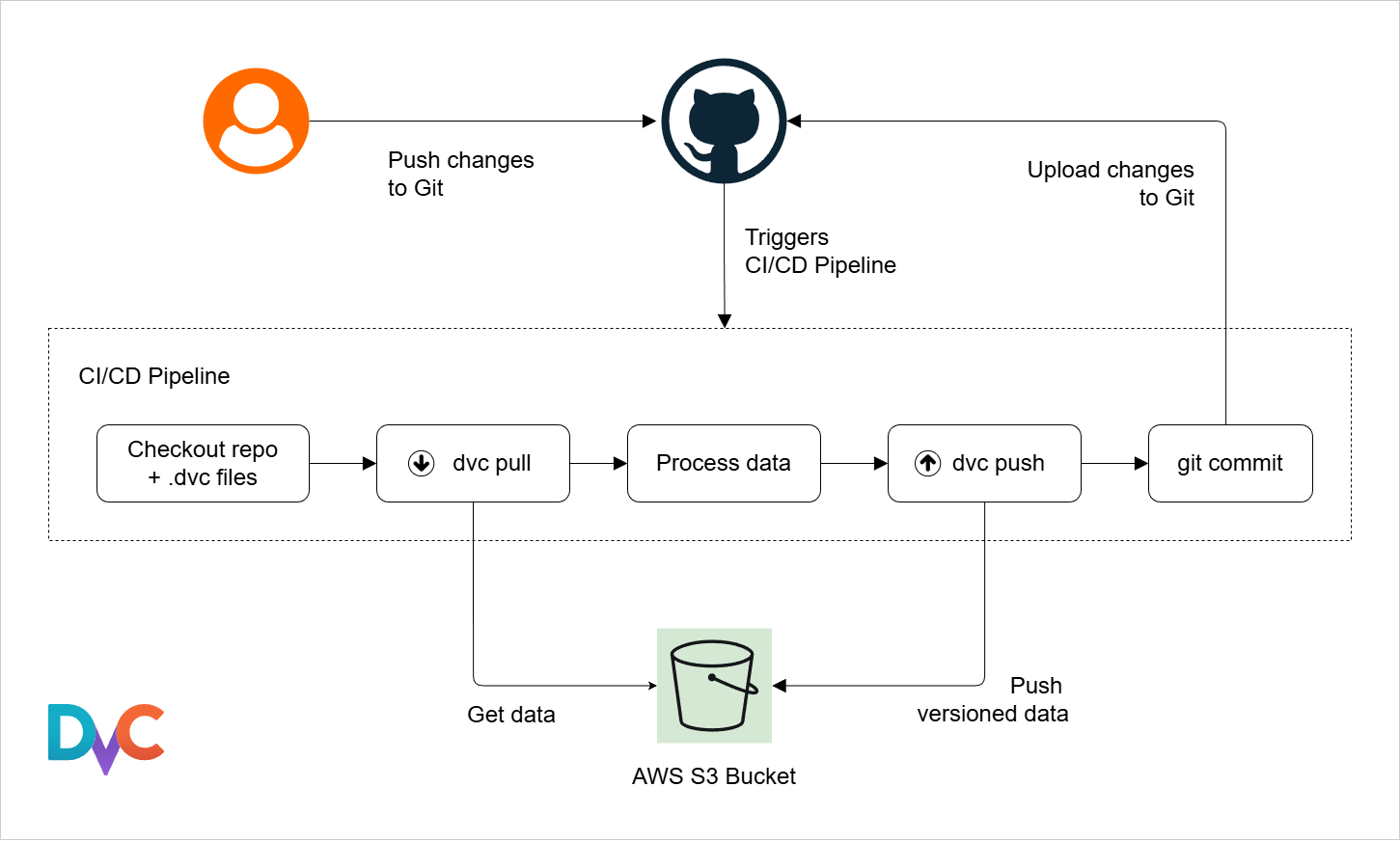
DVC Storage
DVC stores dataset metadata in Git while keeping the actual files in separate storage, which keeps repositories lightweight. It supports various storage backends:
- Local storage
- SSH storage
- Cloud storage
You can use pip to install DVC into the Python environment.
pip install dvc
Getting Started
Initializing DVC
DVC works together with Git, so Git must be initialized first.
git init
dvc init
The dvc command creates a .dvcignore file and a .dvc directory which contains important configuration files.
/project-directory/
├── .dvcignore
└── .dvc
    ├── .gitignore
    ├── config
    └── tmp
| File/Directory | Purpose |
|---|---|
.gitignore | Ignores DVC cache files |
config | Stores DVC settings |
tmp | Stores temporary logs and cache data |
Adding Files to DVC
To track large datasets and files, use dvc add.
- Creates
.dvcmetadata files - Stores cached files inside
.dvc/cache
In the example below, data.csv is added to DVC tracking.
dvc add data.csv
Expected result:
Adding...
Creating data.csv.dvc
The actual dataset remains outside Git tracking while metadata is stored inside Git.
.dvc Metadata Files
A .dvc file stores metadata about tracked datasets.
outsdefines tracked outputsmd5stores the file checksumsizestores the file size in byteshashdefines the hash typepathstores the dataset location
Example data.csv.dvc file:
outs:
- md5: 3f786850e387550fdab836ed7e6dc881
  size: 28
  hash: md5
  path: data.csv
Note: md5 changes when file contents change.
These metadata values allow DVC to detect dataset changes reliably.
DVC Remotes
DVC remotes are external storage locations used to store large datasets and models outside Git.
- Git storage limits make large data difficult to manage
- DVC remotes store datasets and models externally
- Supports cloud and on-prem storage systems
DVC remotes solve storage limitations by moving large files outside Git while still tracking them efficiently.
Creating Remotes
To create a remote:
dvc remote add <storage> <url>
To change settings:
dvc remote modify <storage> <option> <value>
The DVC remote configuration is stored in .dvc/config
In the example below, a storage location named aws-storage is added as a remote.
dvc remote add aws-storage s3://mybucket
DVC will automatically use existing cloud credentials when available.
Local and Default Remotes
DVC supports both local and cloud-based storage, and one remote can be set as the default.
- Local storage can use disks or mounted drives
- Useful for testing and offline environments
- Default remote is set using the
-dflag
In the example below, a local folder is set as the default remote:
dvc remote add -d local-store /mnt/dvc-storage
DVC will automatically use this remote for commands like push and pull. This simplifies workflows by eliminating the need to specify the remote each time.
Uploading and Retrieving Data
DVC uses different commands to move data between local storage and remote storage.
-
To upload data to the remote:
dvc push -
To download data from the remote:
dvc pull -
To retrieve data without updating the workspace:
dvc fetch
DVC only uploads actual data, while Git stores the metadata in .dvc files. This separation allows teams to share datasets efficiently across different environments.
Tracking Data Changes
When a dataset changes, DVC requires a simple update process to keep everything in sync.
- Run
dvc addto update tracking - Commit
.dvcfiles with Git - Push metadata using
git push - Push data using
dvc push
In the example below, a modified dataset file named data.csv is updated in DVC. It is added to DVC tracking, committed to Git, and then pushed to the remote storage.
dvc add data.csv
git add data.csv.dvc
git commit -m "update dataset version"
dvc push
DVC Pipelines
DVC pipelines break workflows into stages and ensure that only changed steps are executed.
- Defined in
dvc.yaml - Contains stages like preprocess and train
- Tracks dependencies and outputs
The configuration file defines the workflow structure and execution logic. Each stage defines:
- Input data and scripts (
deps) - Commands to execute (
cmd) - Outputs for a step in the workflow (
outs)
The DVC pipeline works similarly to GitHub Actions workflows but is specifically designed for machine learning tasks.
Pipeline Stages
Pipeline stages are created using the dvc stage add command.
-ndefines the stage name-ddefines dependencies-odefines outputs- Command defines execution logic
In the example below, a preprocessing stage is created using a Python script called preprocess.py.
dvc stage add \
 -n preprocess \
 -d data/raw.csv \
 -d scripts/preprocess.py \
 -o data/processed.csv \
 python preprocess.py
This automatically writes a corresponding stage into dvc.yaml.
stages:
  preprocess:
    cmd: python preprocess.py
    deps:
      - data/raw.csv
      - scripts/preprocess.py
    outs:
      - data/processed.csv
Dependency Graphs
We can also define multiple stages that depend on each other. This creates a directed acyclic graph (DAG) of the workflow.
- One stage outputs data
- Next stage uses that output
- Forms a directed workflow structure
For example, preprocessing feeds into training.
preprocess → train
Using the dvc stage add command:
dvc stage add \
 -n train \
 -d data/processed.csv \
 -d scripts/train.py \
 -o model.pkl \
 python train.py
The resulting dvc.yaml will show the the train stage depends on the processed.csv that will be produced by the preprocess stage.
stages:
  preprocess:
    cmd: python preprocess.py
    deps:
      - data/raw.csv
      - scripts/preprocess.py
    outs:
      - data/processed.csv
  train:
    cmd: python train.py
    deps:
      - data/processed.csv
      - scripts/train.py
    outs:
      - model.pkl
Reproducing a Pipeline
DVC pipelines can be executed automatically using a single command. To run the entire pipeline, use:
dvc repro
This creates a dvc.lock file that captures the exact state of the pipeline execution, including the versions of data, code, and outputs used.
- Similar to
.dvcfiles but for the entire pipeline - Tracks the state of all stages and their outputs
It is a good practice to commit the dvc.lock file to Git immediately after it is created or modified. This way, you can track changes to the pipeline state over time and ensure that others can reproduce your results accurately.
Using Cached Results
DVC uses caching to avoid rerunning stages that haven't changed. If the inputs and code for a stage remain the same, DVC will skip executing that stage and use the cached outputs instead.
- Saves time and compute resources
- Useful for large pipelines
If preprocessing is unchanged, only training may rerun when parameters change.
Visualizing DVC Pipelines
DVC can display pipelines as graphs to help understand workflow structure. To visualize the pipeline, use:
dvc dag
This command generates a graph of the pipeline stages and their dependencies. This is especiailly useful for complex pipelines with many stages, as it provides a clear visual representation of how data flows and how different stages are connected.
Sample output:
+------------+
| preprocess |
+------------+
|   train    |
+------------+