Configuring Algolia Search
Overview
This guide walks through the complete process of setting up Algolia DocSearch for a Docusaurus documentation site, from account setup to implementation.
Prerequisites:
- Docusaurus site deployed and publicly accessible
- Algolia account (free tier available)
- DocSearch approval from Algolia team
Login to Algolia
-
Create Algolia Account:
- Go to algolia.com
- Click Sign Up to create a free account
- Verify your email address
- Complete the onboarding process
-
Apply for DocSearch:
- Visit docsearch.algolia.com
- Click Apply button
- Fill out the application form with:
- Website URL: Your documentation site URL
- Email: Your contact email
- Repository: Link to your GitHub repository (if applicable)
- Description: Brief description of your documentation
-
Wait for Approval:
- Algolia team will review your application
- Approval typically takes 1-3 business days
- You'll receive an email with DocSearch credentials once approved
-
Access Your Dashboard:
- Once approved, you'll receive an invitation email
- Click Accept this invitation to get started!
- You'll be redirected to the Algolia dashboard
- Your DocSearch app will be pre-configured and ready to use
Add Algolia to Docusaurus
-
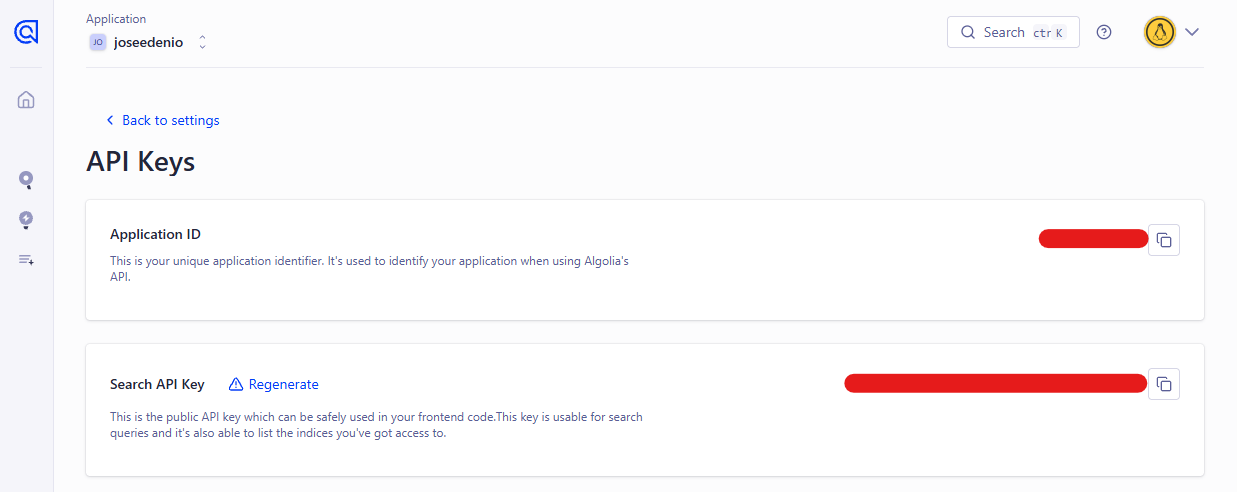
Login to your Algolia account and Go to Settings ➔ API Keys
-
Application ID: Copy this value for
YOUR_APP_ID -
Search-Only API Key: Copy this value for YOUR_SEARCH_API_KEY (NOT the Admin API Key)
-
-
Go to Search ➔ Index in your dashboard
- Your index name will be listed there (you may need to create one if you haven't)
- Common naming: your-site-name or joeden for your case
If you don't have an index yet:
- Create a new index in your Algolia dashboard
- Name it something like your website name (e.g.
joedenor joeden-docs) - Use this name for
YOUR_INDEX_NAME
-
Install Algolia Search Plugin:
npm install @docusaurus/theme-search-algolia -
Update Docusaurus Configuration:
Add the Algolia configuration to your
docusaurus.config.ts:// docusaurus.config.tsconst config: Config = {// ... other configthemeConfig: {// ... other theme configalgolia: {appId: 'YOUR_APP_ID',apiKey: 'YOUR_SEARCH_API_KEY',indexName: 'YOUR_INDEX_NAME',contextualSearch: true,searchParameters: {},searchPagePath: 'search',},// ... rest of theme config},};Configuration Options:
Option Description Required appIdYour Algolia Application ID ✅ apiKeySearch-Only API Key (NOT Admin API Key) ✅ indexNameName of your Algolia search index ✅ contextualSearchEnable search within current section ❌ searchParametersAdditional Algolia search parameters ❌ searchPagePathURL path for dedicated search page ❌ -
Deploy Your Changes:
For GitHub Pages deployment:
git add .git commit -m "feat: add Algolia search functionality"git pushGitHub Actions will automatically:
- Install the required dependencies
- Build your site with search functionality
- Deploy to GitHub Pages
-
Verify Search Functionality:
- Wait for deployment to complete
- Visit your documentation site
- Look for the search bar in the navbar (right side, next to dark mode toggle)
- Test search functionality with your content
Crawler Configuration
-
Automatic Indexing
- Algolia's crawler automatically indexes your site content
- Initial indexing may take several hours
- Crawler runs periodically to keep content updated
-
Manual Crawler Management
- Go to dashboard.algolia.com
- Navigate to Data Sources ➔ Crawler
- Click on your crawler to view/modify settings
- Important: Don't delete or recreate the crawler - it's pre-configured
-
Crawler Settings
The crawler is optimized for Docusaurus sites and includes:
- Automatic content extraction
- Proper heading hierarchy
- Metadata indexing
- Duplicate content handling
Troubleshooting
-
Search Bar Not Appearing
- Verify Algolia plugin is installed:
@docusaurus/theme-search-algolia - Check configuration syntax in
docusaurus.config.ts - Ensure all required fields are present
- Clear browser cache and rebuild site
- Verify Algolia plugin is installed:
-
No Search Results
- Wait for initial crawler indexing (can take hours)
- Check if your site is publicly accessible
- Verify crawler is running in Algolia dashboard
- Check for crawler errors in dashboard
-
API Key Issues
- Use Search-Only API Key, not Admin API Key
- Verify API key hasn't expired
- Check key permissions in Algolia dashboard
Best Practices
-
Content Optimization
- Use clear, descriptive headings
- Include relevant keywords in content
- Structure content with proper HTML hierarchy
- Add meta descriptions to pages
-
Search Experience
- Test search with common user queries
- Monitor search analytics in Algolia dashboard
- Customize search parameters if needed
- Consider adding search shortcuts/hotkeys
-
Maintenance
- Monitor crawler status regularly
- Update search configuration as site grows
- Review search analytics for improvements
- Keep Algolia plugin updated
Example Implementation
Here's the complete configuration used in this documentation:
// docusaurus.config.ts
export default {
  themeConfig: {
    algolia: {
      appId: '1ZR3DE355U',
      apiKey: '3672b86f92bc4e796d84bb241974d430',
      indexName: 'joseedenio',
      contextualSearch: true,
      searchParameters: {},
      searchPagePath: 'search',
    },
  },
};
Resources
- Algolia DocSearch Documentation
- Docusaurus Search Documentation
- Algolia Dashboard
- DocSearch Application
Support
- Algolia Support: support@algolia.com
- DocSearch Discord: Algolia Community Discord
- Docusaurus Discord: Docusaurus Community