Azure Monitor
Overview
Cloud applications can fail without anyone noticing. Monitoring helps detect problems early so they can be fixed before users are affected.
- Applications can fail silently
- Production environments experience traffic spikes and network issues
- Monitoring provides visibility into system health
In real environments, systems behave differently under load. Without monitoring, issues may only be discovered when users report them. This makes troubleshooting slower and can impact availability.

Azure Monitor acts as a safety net for your resources.
- Collects telemetry from Azure resources
- Tracks services like virtual machines, storage accounts, and web apps
- Helps detect and respond to issues early
Azure Monitor continuously gathers data about how your resources behave. This visibility helps identify problems quickly and keeps applications healthy and reliable.
Using Azure Monitor
Azure Monitor can be used to check the health of resources, like for example, checking the activity of an Azure Storage account. We can use it to monitor storage transactions to confirm that requests are being processed normally.
Steps:
- Navigate to the Azure portal
- Open your Storage account resource
- Go to the Metrics section
- Select the
Transactionsmetric - Set the time range to the last 24 hours
In this example, the Transactions metric shows how many read and write operations occur on the storage account. Viewing the last 24 hours helps you quickly see usage patterns or detect unusual spikes or drops in activity.
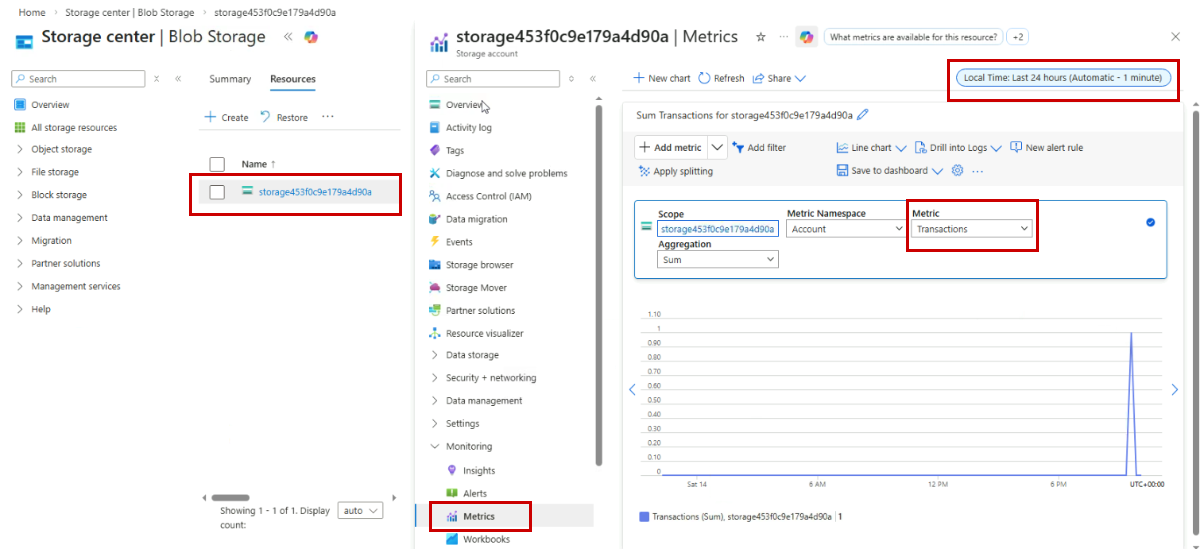
Monitoring metrics like transactions gives a quick view of the storage account’s health and activity, which helps detect issues early and maintain reliable services.
Core Components
Azure Monitor uses several components that work together to monitor applications.
| Component | Description |
|---|---|
| Metrics | Provide real-time performance measurements |
| Logs | Capture detailed event information |
| Alerts | Notify you when conditions are met |
| Dashboards | Display monitoring data in one place |
Metrics
Metrics provide real-time measurements of resource performance and health.
- Metrics track numerical performance data
- Examples include CPU usage, memory usage, and network activity
- Metrics update frequently for near real-time visibility
In the example below, the metric cpuPercentage tracks CPU load for a VM. You can use this to detect overload quickly.
az monitor metrics list \
  --metric CPUPercentage \
  --resource /subscriptions/<sub>/resourceGroups/<rg>/providers/Microsoft.Compute/virtualMachines/<vm>
Expected result: A JSON response with CPUPercentage values over time and the measurement timestamps.
{
  "cost": 0,
  "timespan": "2021-03-14T22:00:00Z/2021-03-14T22:10:00Z",
  "interval": "PT1M",
  "value": [
    {
      "id": "/subscriptions/<sub>/resourceGroups/<rg>/providers/Microsoft.Compute/virtualMachines/<vm>/providers/microsoft.insights/metrics/CPUPercentage",
      "type": "Microsoft.Insights/metrics",
      "name": {
        "value": "Percentage CPU",
        "localizedValue": "CPU Percentage"
      },
      "unit": "Percent",
      "timeseries": [
        {
          "metadatavalues": [],
          "data": [
            {"timeStamp": "2021-03-14T22:00:00Z", "average": 12.1},
            {"timeStamp": "2021-03-14T22:01:00Z", "average": 15.0},
            {"timeStamp": "2021-03-14T22:02:00Z", "average": 18.9},
            {"timeStamp": "2021-03-14T22:03:00Z", "average": 23.4},
            {"timeStamp": "2021-03-14T22:04:00Z", "average": 27.8}
          ]
        }
      ]
    }
  ]
}
Collect and View Metrics
Metrics show how your Azure resources are performing. They give real-time numbers to track health and usage.
- Metrics are like a heartbeat for your resources
- Azure collects them automatically when you create resources
- No installation or coding is needed
Azure tracks things like transaction counts, data uploaded and downloaded, availability, and latency for services such as storage accounts, virtual machines, and databases.

Here are sample metrics for a storage account managing files and documents:
| Metric | Description |
|---|---|
| Transactions | Number of read and write operations |
| Ingress | Amount of data uploaded |
| Egress | Amount of data downloaded |
| Availability | Percentage of time storage is accessible |
Customize Metrics Views
You can adjust how metrics are displayed in Metrics Explorer:
- Change the time range to last hour, day, week, or custom period
- Add multiple metrics to the same chart for comparison
- Split metrics by dimensions like API name or response type
- Apply aggregations such as sum, average, minimum, or maximum

Metrics vs Logs
Metrics and logs serve different purposes:
| Type | Details |
|---|---|
| Metrics |
|
| Logs |
|
Metrics give fast insights, while logs provide detailed context for investigation.

Logs
Logs store detailed event-level information about what happened in the system.
- Logs capture specific events and operations
- Logs include error messages and timestamps
- Logs provide context for troubleshooting problems
While metrics show trends, logs explain exactly what happened. This detailed information helps identify the root cause of issues.
Example: The command below queries the Log Analytics workspace for failed requests (non-200 status codes) and shows the top 10 by time.
az monitor log-analytics query \
  --workspace <workspace-id> \
  --query "AppRequests | where ResultCode != 200 | top 10 by TimeGenerated"
Expected result: Response shows rows of failed requests, result codes, and operation names.
[
  {
    "TimeGenerated": "2021-03-14T22:05:21.0000000Z",
    "RequestId": "12345678-90ab-cdef-1234-567890abcdef",
    "ResultCode": "500",
    "OperationName": "GET /api/checkout",
    "ClientIpAddress": "203.0.113.45"
  },
  {
    "TimeGenerated": "2021-03-14T22:06:03.0000000Z",
    "RequestId": "23456789-01bc-def0-2345-678901bcdef0",
    "ResultCode": "404",
    "OperationName": "GET /api/product/999",
    "ClientIpAddress": "203.0.113.46"
  }
]
Alerts
Instead of constantly watching dashboards, alerts can automatically notify you when something requires attention.
- Alerts watch resources continuously
- Alerts trigger when conditions are met
- Alerts notify you or run actions automatically
Alerts work like an automated monitoring system. You define rules, and Azure checks those rules continuously.
- Alert rules define what to monitor
- Conditions define when an alert should trigger
- Notifications inform the responsible team
In this example, we're creating an alert rule in Azure Monitor so we can be notified when the VM is under heavy load.
az monitor metrics alert create \
  --name "HighCpu" \
  --resource-group <rg> \
  --scopes /subscriptions/<sub>/resourceGroups/<rg>/providers/Microsoft.Compute/virtualMachines/<vm> \
  --condition "avg CPUPercentage > 80" \
  --window-size 5m \
  --evaluation-frequency 1m \
  --action /subscriptions/<sub>/resourceGroups/<rg>/providers/Microsoft.Insights/actionGroups/<ag>
Expected result: Alert rule is created and returns an object with rule details and state.
{
  "name": "HighCpu",
  "type": "Microsoft.insights/metricAlerts",
  "id": "/subscriptions/<sub>/resourceGroups/<rg>/providers/microsoft.insights/metricAlerts/HighCpu",
  "location": "global",
  "properties": {
    "enabled": true,
    "scopes": [
      "/subscriptions/<sub>/resourceGroups/<rg>/providers/Microsoft.Compute/virtualMachines/<vm>"
    ],
    "condition": {
      "odata.type": "Microsoft.Azure.Management.Insights.Models.ThresholdRuleCondition",
      "dataSource": {
        "resourceUri": "/subscriptions/<sub>/resourceGroups/<rg>/providers/Microsoft.Compute/virtualMachines/<vm>",
        "metricName": "CPUPercentage"
      },
      "operator": "GreaterThan",
      "threshold": 80,
      "windowSize": "PT5M"
    },
    "evaluationFrequency": "PT1M",
    "actions": [
      {
        "actionGroupId": "/subscriptions/<sub>/resourceGroups/<rg>/providers/Microsoft.Insights/actionGroups/<ag>"
      }
    ],
    "autoMitigate": false
  }
}
Example: Monitoring a Storage Account
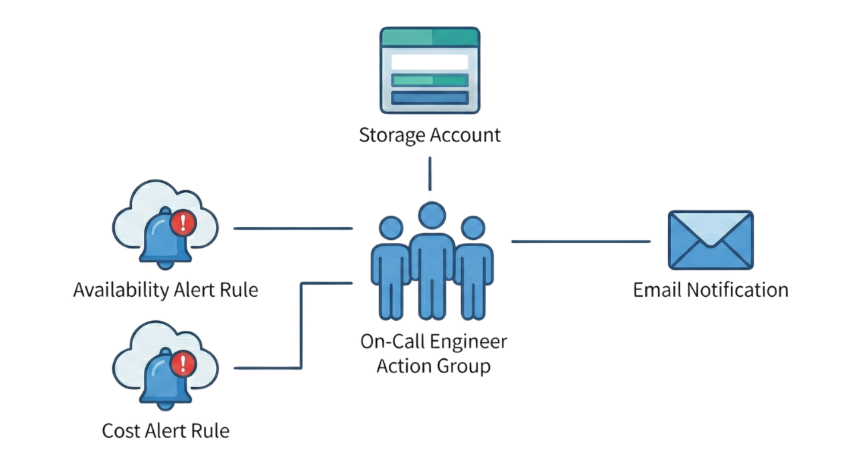
Consider a storage account that needs to be monitored for availability and cost.
- One alert rule monitors availability
- Another alert rule monitors transaction spikes
- Both alert rules use the same action group
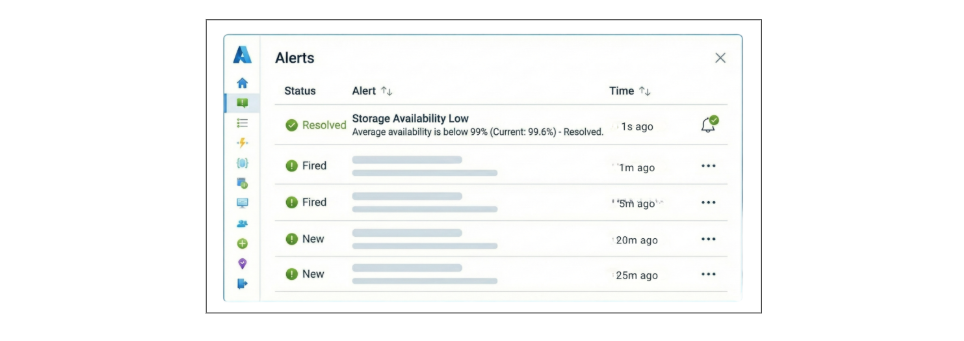
If availability drops during the night, the alert triggers and notifies the on-call engineer.
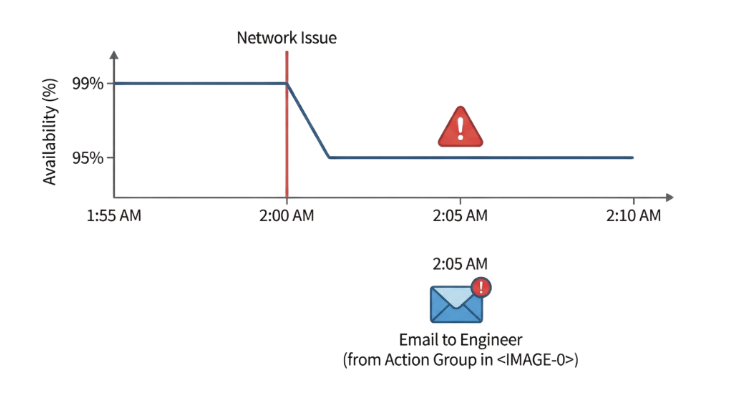
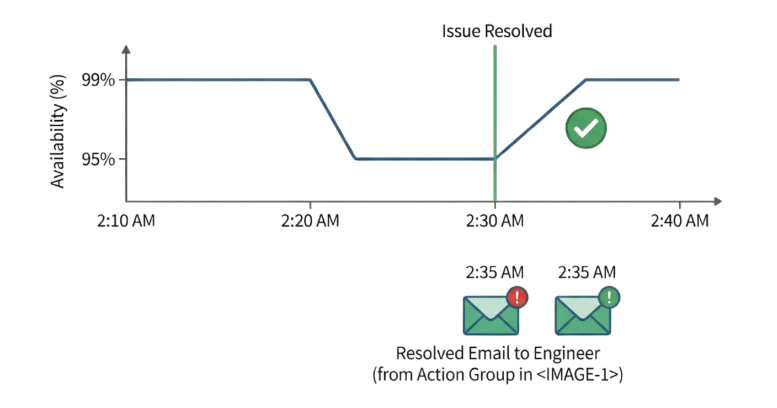
Later, when the problem is fixed, Azure sends a resolved notification. If transaction activity suddenly increases, a separate alert warns the team before unexpected billing occurs.
This setup allows one resource to be monitored for multiple risks using reusable alert responses.
Alert Rules
Alert rules define how monitoring works.
| Component | Description |
|---|---|
| Signal | Identifies what metric or log to monitor |
| Condition | Defines when the alert triggers |
| Evaluation frequency | Defines how often Azure checks the condition |
For example, an alert rule might monitor a storage account's availability. If the average availability drops below 99%, Azure triggers the alert.
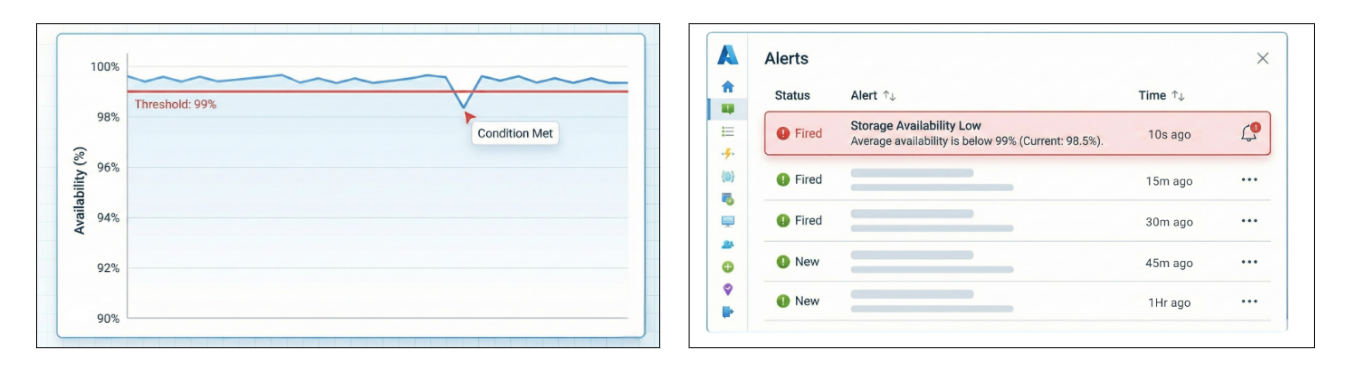
Alerts are also stateful.
| Alert State | Meaning |
|---|---|
| Triggered | Problem is active |
| Resolved | Problem is fixed |
When the availability drops, Azure sends a notification. When the availability recovers, Azure automatically sends a resolved notification. This helps teams know when the issue starts and when it is fixed.
Action Groups
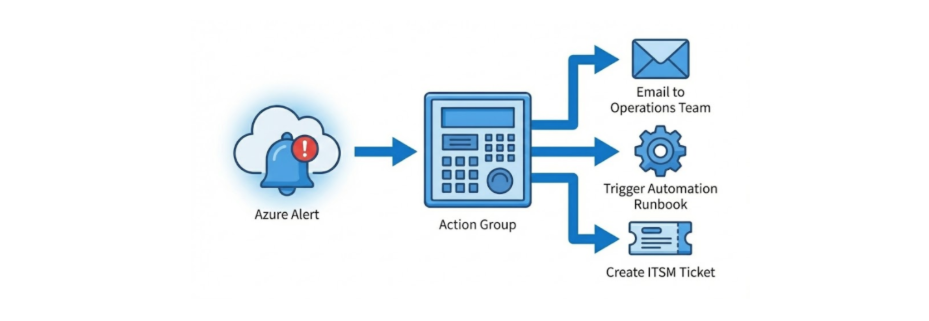
Action groups are your emergency response mechanisms that define what happens when an alert triggers.
- Email notifications
- SMS and voice calls
- Run automation tasks
- Azure Functions
- Logic Apps
- Webhooks
- Create support tickets
Action groups are reusable. You can create one action group called operations_team and attach it to multiple alert rules.
For example, the same action group can respond to:
- Availability alerts
- Cost alerts
- Transaction alerts
- Error alerts, etc.
Lookback Period
The lookback period defines how far back Azure checks for activity when evaluating an alert.
- It defines the monitoring time window
- It determines which recent data Azure evaluates
For example, a 15 minute lookback period means Azure checks whether the condition occurred within the last 15 minutes.
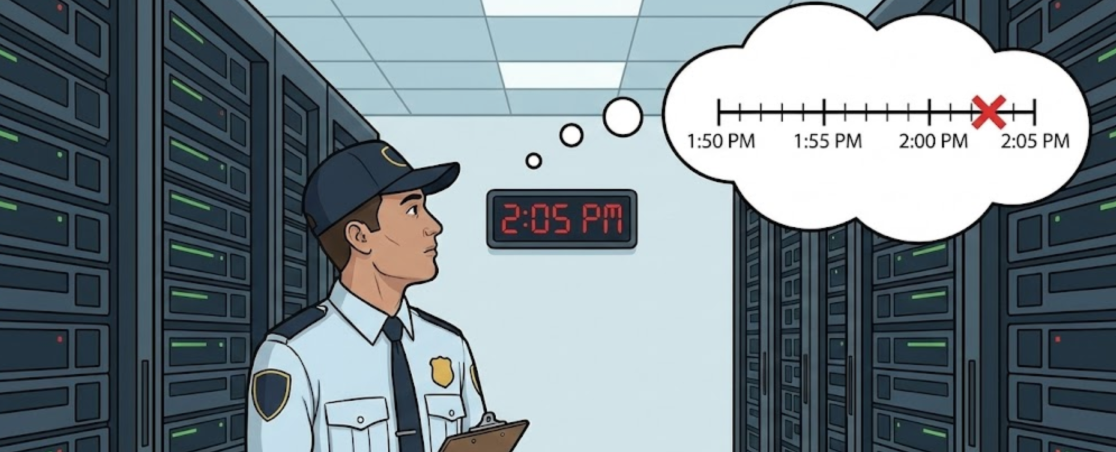
This helps alerts evaluate recent activity rather than only the most recent metric.
Evaluation Frequency
Evaluation frequency defines how often Azure checks the alert condition.
- Determines how often Azure evaluates the rule
- Works together with the lookback period
For example:
- Lookback period: 15 minutes
- Evaluation frequency: 5 minutes
Azure checks every 5 minutes while analyzing the last 15 minutes of data.
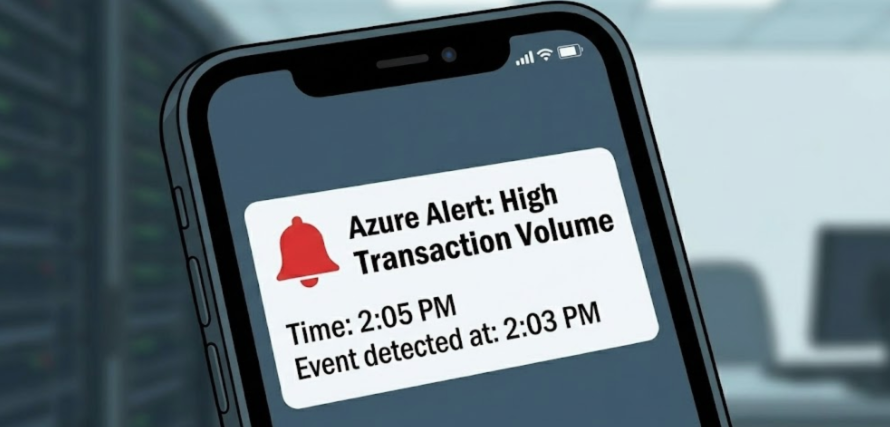
This creates overlapping checks. If a transaction spike occurs at 2:03 PM, Azure may detect it by 2:05 PM instead of waiting until 2:15 PM. Overlapping windows allow faster detection while avoiding excessive alerts.
Best Practices for Alerts
Following a few simple practices helps create useful alerts.
- Start with critical metrics such as availability and errors
- Use realistic thresholds based on normal system behavior
- Use severity levels carefully
- Create action groups based on team responsibility
- Test alerts regularly
For example, critical outages may require immediate notifications, while informational alerts should not trigger urgent pages.
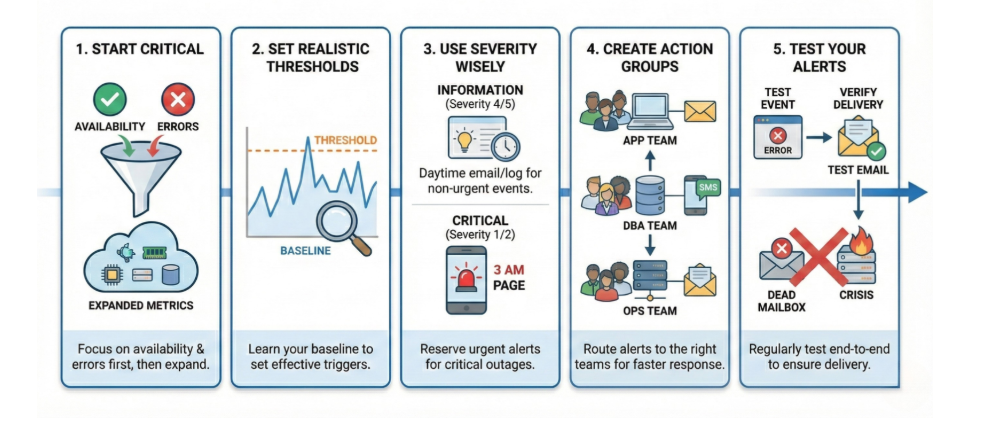
Testing alerts is also important. Generate test conditions and confirm notifications are delivered correctly. This ensures alerts work when a real incident occurs.
Dashboards
Dashboards provide a single view of system health.
- Dashboards combine metrics, logs, and alerts
- Data from multiple resources can be displayed together
- Teams can quickly understand system status
A unified dashboard makes monitoring easier by showing important information in one place.