Application Security
Azure App Configuration
Azure App Configuration lets you update app settings or toggle features without changing code or redeploying. It centralizes configuration so your apps stay manageable and secure.
- Store settings and feature flags in one place
- Update values instantly without redeploying apps
- Fully managed by Azure with built-in security
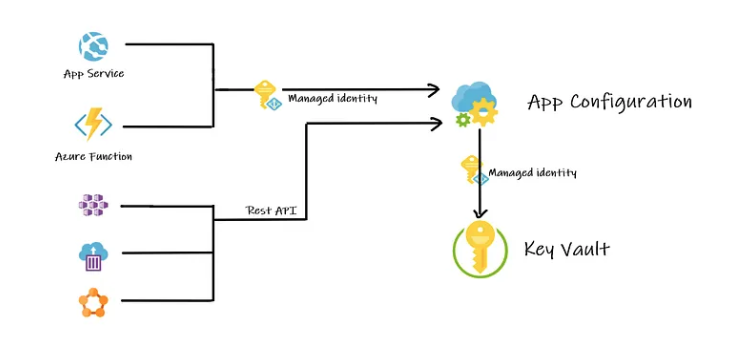
Settings are organized as key-value pairs. Keys identify each setting and can be simple or hierarchical using prefixes.
- Keys can be flat or structured (e.g.,
MyApp:HR:ThemeColor) - Values store the actual data and metadata (e.g. descriptions)
- Labels allow environment-specific values like Dev or Prod
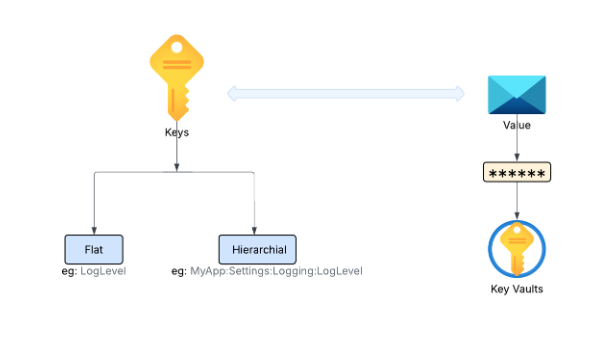
All values are encrypted at rest and in transit. Metadata is descriptive only and not encrypted like values, so it should not contain sensitive information.
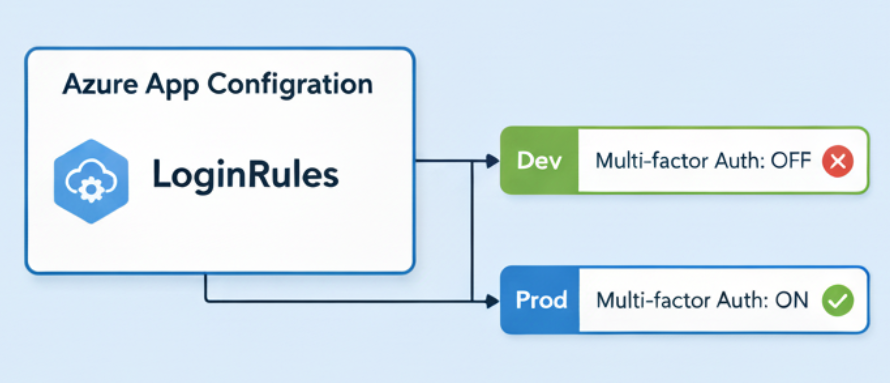
Feature Management
Feature management controls parts of your application like dark mode, beta features, or banners without changing code.
-
Feature flags
- Act as switches to turn features on or off
- Enable gradual rollout or testing of new features
-
Feature manager
- A library or SDK integrated into your app
- Reads feature flags and applies the correct behavior
- Caches values for performance and refreshes automatically
-
Filters
- Define when features are active
- Conditions can be based onuser group, region, or time
Caching ensures your app always uses the latest settings while minimizing service calls. Feature management keeps your app flexible and responsive to changes without touching the code.
Securing App Configuration
Azure App Configuration supports multiple security layers to protect your data.
| Security Option | Description |
|---|---|
| Customer managed keys |
|
| Private endpoints |
|
| Managed identities |
|
For Managed identities, there are two types:
| Managed Identity Type | Description |
|---|---|
| System-assigned |
|
| User-assigned |
|
For more information, please see Managed Identities.
Deploy App Configuration
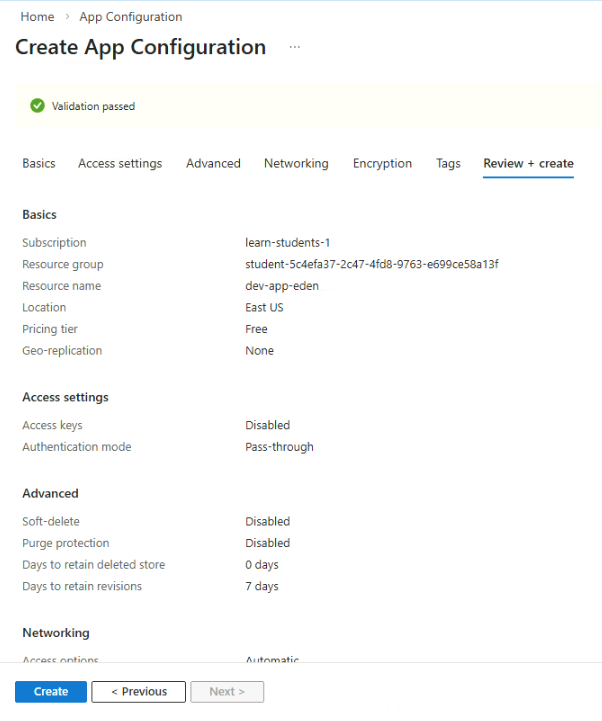
To deploy an App Configuration instance, log in to the Azure portal and navigate to App Configuration.
Click Create and provide the details. To start the validation, click Review + create.
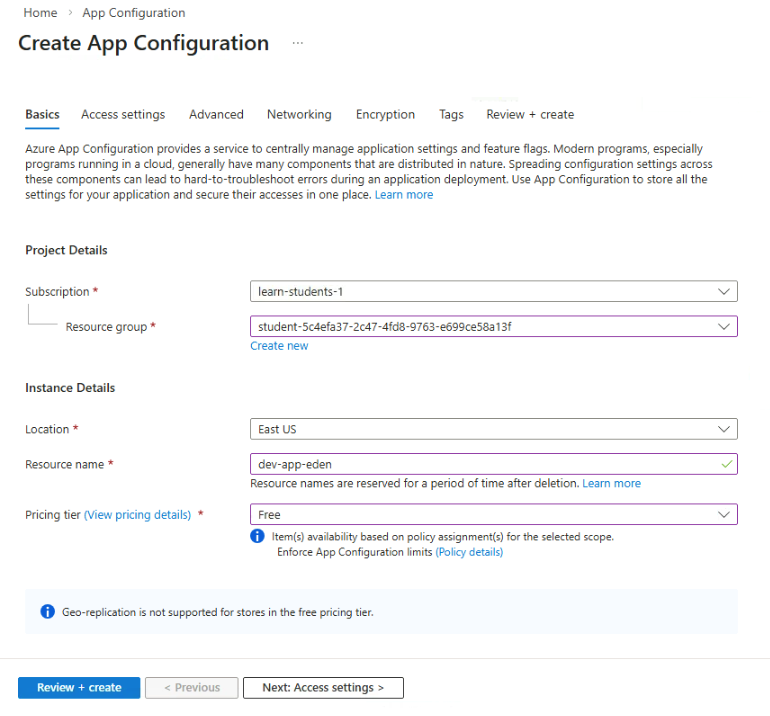
Once the validation passed, click Create.
Azure Key Vault
Azure Key Vault is a secure place to store secrets, keys, and certificates away from your code.
- Rotate and manage credentials without touching code
- Removes the risk of hardcoding secrets.
- Integrates with Azure apps and pipelines
Why Not Hardcode Secrets?
Hardcoding secrets in code is risky. Passwords or API keys in your app can be copied, leaked, or forgotten. Managing them is difficult and can lead to breaches.
- Hardcoded secrets are hard to rotate
- Secrets in code are difficult to track
- One leak can compromise your app
Key Vault solves this by centralizing sensitive data securely.
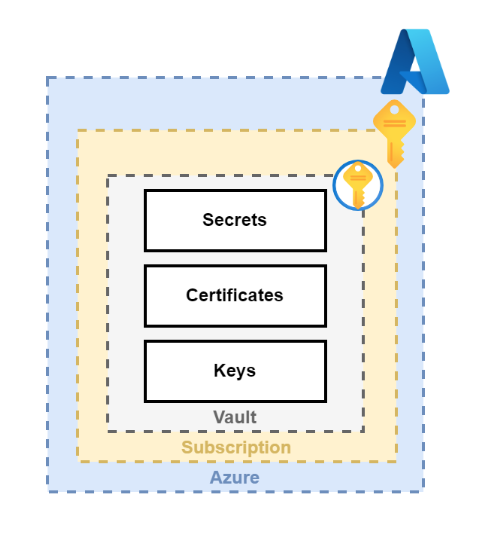
Key Vault Components
Key Vault manages three main components: Secrets, Certificates, and Keys. Each has a specific role in keeping your app secure.
Secrets
Secrets are credentials or API keys your app needs to connect to services. Key Vault stores them encrypted, versioned, and accessible only to authorized applications.
- API keys, passwords, connection strings
- Encrypted and versioned
- Accessible only to authorized services
For example, a company app called "MyWebApp" stores its payroll database password in Key Vault instead of hardcoding it in the app.
Certificates
Certificates prove your app’s identity and enable secure HTTPS connections. Key Vault can store and automatically renew them when integrated with trusted certificate authorities like DigiCert or GlobalSign.
- Prove app identity
- Enable secure HTTPS connections
- Can auto-renew with trusted CAs
Example: "MyWebApp" can use Key Vault to store certificates for secure connections between its HR portal and third-party payroll processors.
Keys
Keys are cryptographic tools used to encrypt, decrypt, sign, and verify data. Key Vault ensures keys never appear in code and can rotate them automatically if a policy is set.
- Encrypt, decrypt, sign, and verify data
- Never exposed in code
- Automatic rotation possible
Example: "MyWebApp" can store keys in Key Vault to protect employee records.
Key Vault Tiers
Azure Key Vault offers two tiers for different security needs.
| Tier | Description |
|---|---|
| Standard Key Vault |
|
| Managed HSM Pools |
|
Standard is ideal for general workloads, while Managed HSM is best for high-security or compliance-critical scenarios.
Using Key Vault
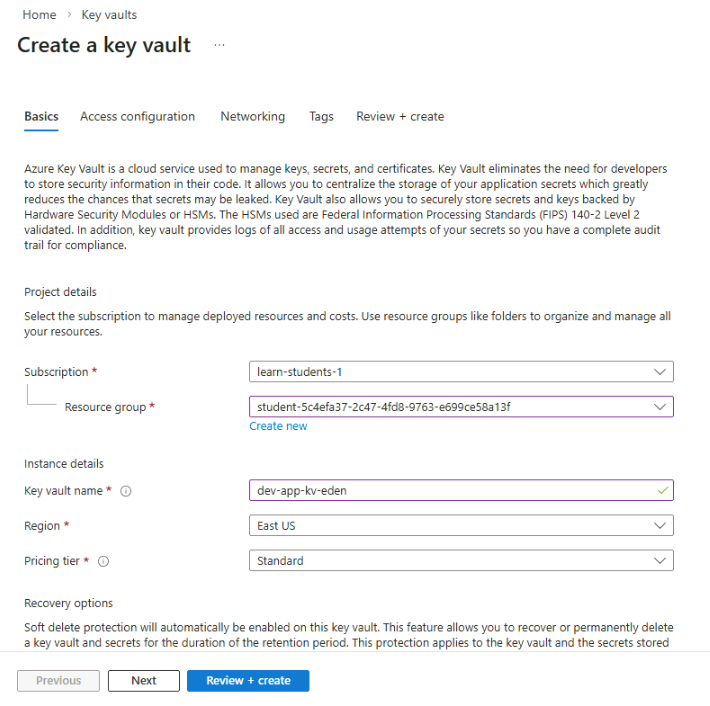
To use Azure Key Vault, log in to Azure portal and navigate to Key Vault.
-
Click Create and provide the details for the key vault.
-
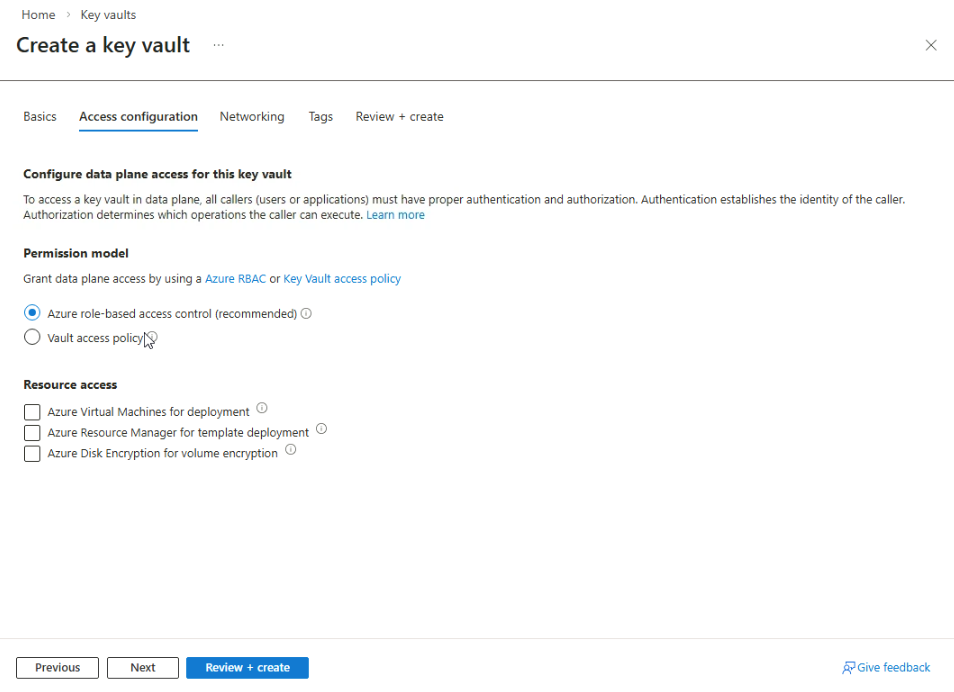
Go to the Access configuration tab and set the Permission model: Vault access policy
-
Once you're done, click Review + create.
-
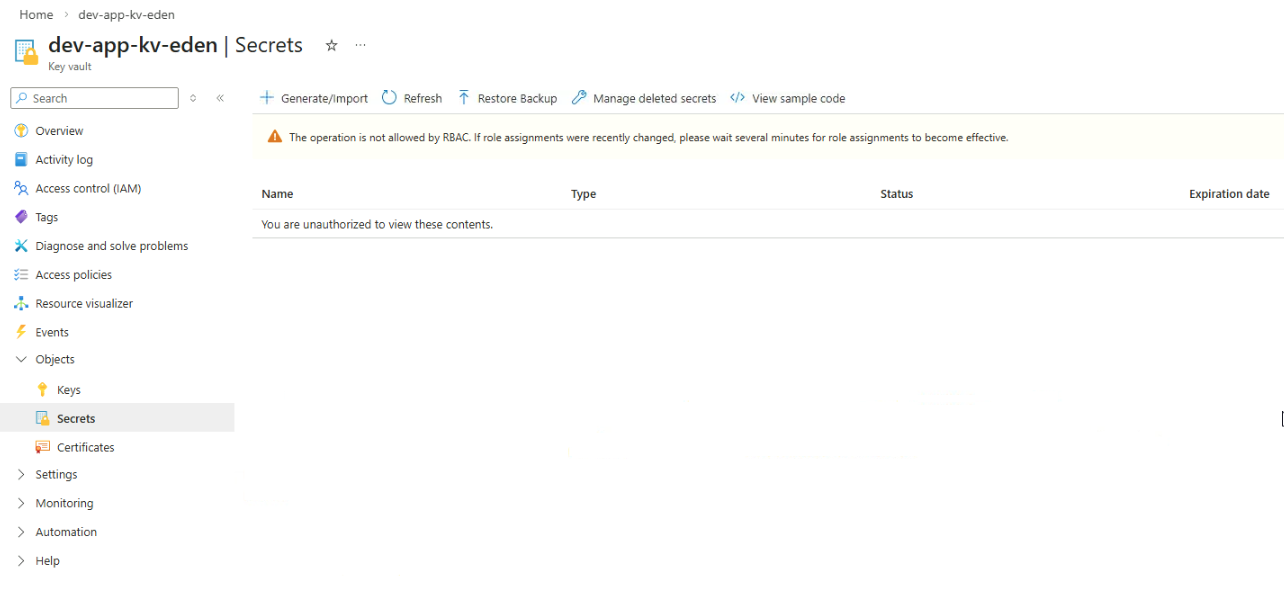
Open your key vault and go to Objects ➔ Secrets.
-
Click Generate/Import to add your secret.
-
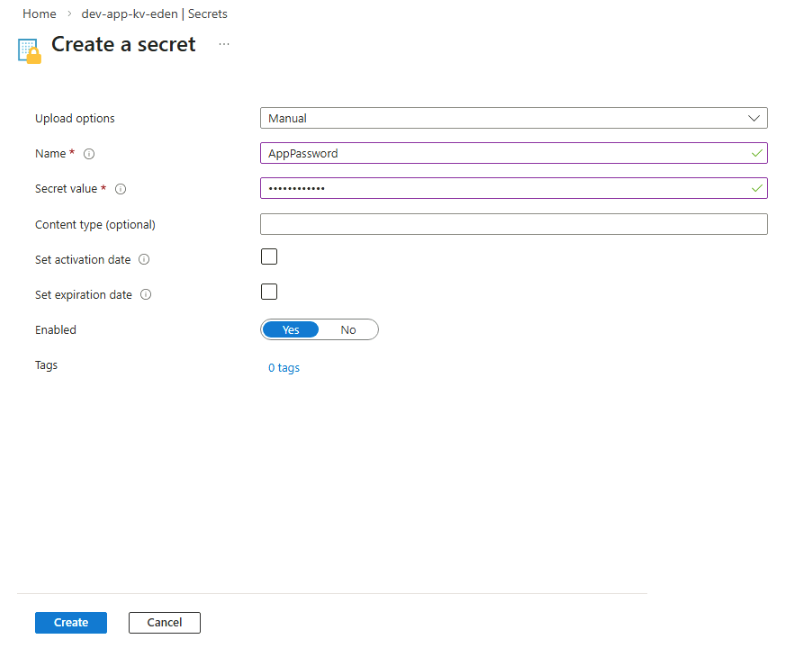
Provide a name for the secret and add the secret value.
Make sure the secret is enabled.
-
Click Create.
Authentication in Key Vault
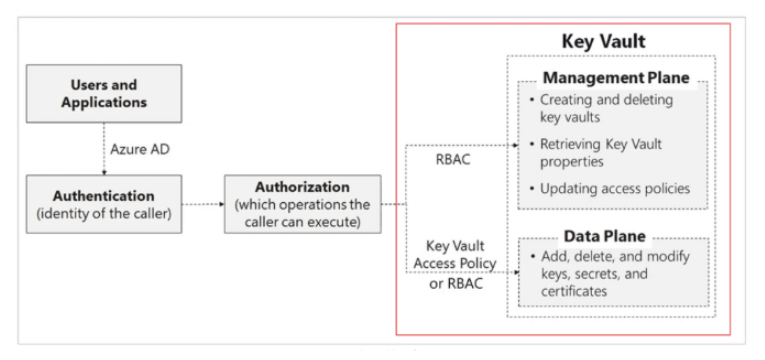
Azure Key Vault uses Microsoft Entra ID to verify identities before allowing access. When a user or application requests data from Key Vault, Azure first confirms who they are through authentication.
Identity Types
These identities define who is requesting access.
- User represents a real person
- Group represents a collection of users
- Service principal represents an application or service
Authentication Methods
Applications use specific authentication methods to prove their identity when connecting to Azure services.
- Managed Identity allows Azure to create and manage the identity automatically
- App Registration requires developers to create and manage credentials
Managed identities are usually preferred because Azure handles credential management automatically.
For more information, please see Managed Identities.
Authorization in Key Vault
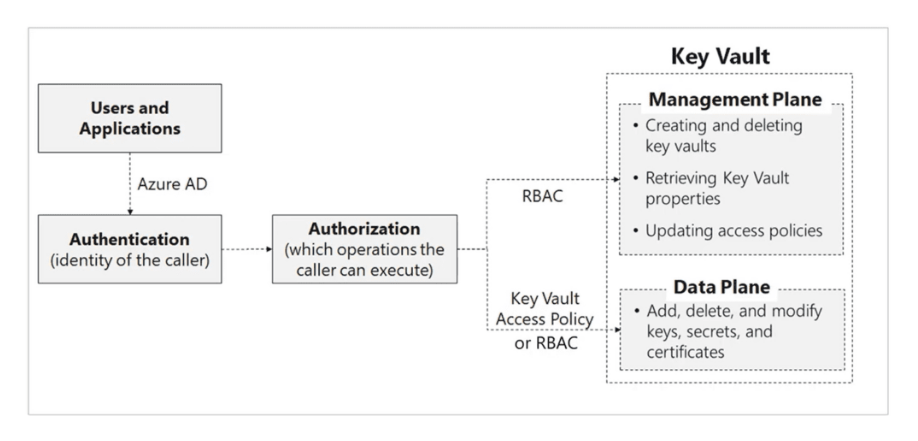
After authentication, Azure determines what actions the identity is allowed to perform. This process is called authorization.
- Access policies provide the older access control method
- Azure RBAC provides modern role-based permissions
Authorization ensures identities only perform actions they are permitted to do in Key Vault.
Access Policies
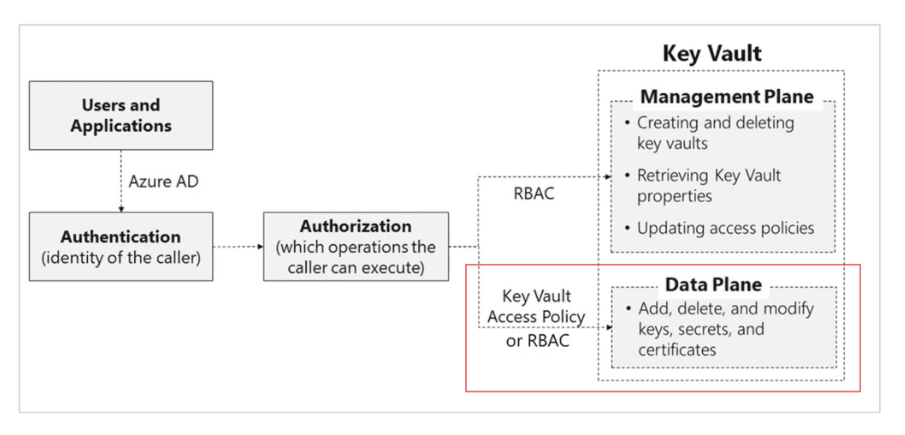
Access Policies are the older permission model in Key Vault. They control actions related to the data stored in the vault.
- Control the data plane
- Manage actions like reading secrets or creating keys
- Simple model suitable for smaller environments
Access Policies do not manage administrative operations on the vault itself, which limits their flexibility in larger environments.
Azure RBAC
Azure Role-Based Access Control is the recommended authorization model for Key Vault. It provides centralized access management across Azure.
- Controls both management plane and data plane
- Integrates with Azure security features
- Supports enterprise access control policies
RBAC works well for large environments because it integrates with other Azure security features such as PIM (Privilege Identity Management), MFA (Multifactor Authentication), and Conditional Access.
Advanced Key Vault Settings
Soft Delete
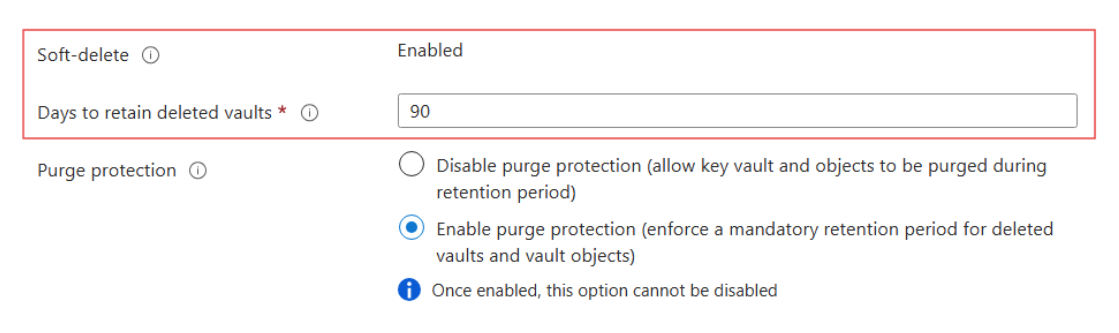
Soft Delete protects your data from accidental or malicious deletion. When an item is deleted, it moves into a recoverable state instead of being permanently removed.
- Deleted items remain recoverable
- Applies to vaults, keys, secrets, and certificates
- Prevents accidental data loss
Soft delete configuration:
- Retention period ranges from 7 to 90 days
- Enabled by default for new vaults
- Cannot be disabled after it is configured
This protection guarantees that deleted items remain recoverable during the configured retention period.
Purge Protection
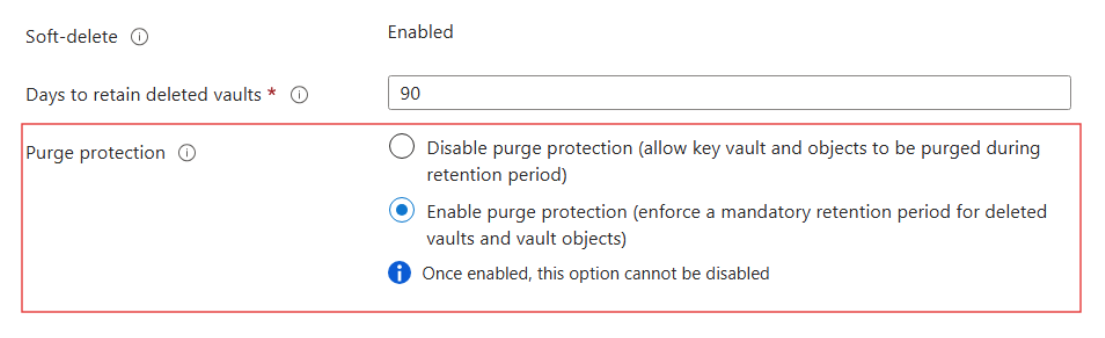
Purge Protection prevents permanent deletion of Key Vault items during the retention period.
- Blocks permanent deletion during retention period
- Protects both the vault and its contents
- Prevents attackers from removing recovery options
Even users with high permissions cannot permanently delete protected items until the retention period ends.
Purge Protection Configuration:
- Soft Delete must be enabled first
- Recovery remains possible during the retention period
- Cannot be disabled once enabled
Key Vault Security Best Practices
Below are some security best practices to help protect secrets and maintain control over sensitive data.
- Create separate vaults for each application or environment
- Grant only the minimum required permissions
- Enable Soft Delete and Purge Protection
- Perform backups after important changes
- Enable diagnostic logging
Logs can be sent to Azure Monitor or Microsoft Sentinel to detect suspicious activity and maintain a full audit trail to ensure Key Vault remains secure and manageable.