Ruby
Installation
-
Install the dependencies:
-
NodeJS and NPM: Download Node.js
-
Yarn (JS Package manager): Install via npm
-
RVM (Ruby Version Manager): Installing RVM
-
-
Install Ruby:
-
For Windows, see the official Install Ruby on Rails Guide.
## Run on WSLsudo apt updatesudo apt install -y build-essential rustc libssl-dev libyaml-dev zlib1g-dev libgmp-devcurl https://mise.run | shecho 'eval "$(~/.local/bin/mise activate ruby)"' >> ~/.rubyrcsource ~/.rubyrcmise use -g ruby@3 -
For macOS, use Homebrew:
brew install ruby -
For Linux, use your package manager, e.g., for Ubuntu:
sudo apt-get install ruby-full
-
-
Verify Ruby install:
-
Verify it works by running:
ruby --versionSample output:
ruby 2.5.0
-
-
Install Rails:
-
Use Ruby's gem command to install Rails and its dependencies from RubyGems.org:
gem install railsIf you want to specify a version, use the
-vflag:gem install rails -v <version-number> -
To verify that Rails is installed correctly:
rails --versionSample output:
Rails 6.0.2.1 -
To list gems:
gem list railsOutput:
*** LOCAL GEMS ***rails (6.0.2.1)rails-dom-testing (2.3.0)rails-html-sanitizer (1.3.0)sprockets-rails (3.2.1)
-
-
(Optional) Setting a default Ruby version:
-
Check for available rubies online:
rvm list known -
Check for ruby installed on your machine:
rvm list rubiesThe star (
*) indicates the default global, while the hash rocket (=>) indicates current version installed:ruby-2.1.5 [ x86_64 ]ruby-2.2.0 [ x86_64 ]ruby-2.2.1 [ x86_64 ]ruby-2.3.3 [ x86_64 ]* ruby-2.5.1 [ x86_64 ]=> ruby-2.6.3 [ x86_64 ]# => - current# =* - current && default# * - default -
To set the default Ruby version:
rvm --default use <version-number>
-
Interactive Ruby
Interactive Ruby (IRB) lets you try Ruby commands directly in a live session.
Example session:
$ irb
irb(main):001> puts "Hello Ruby"
Hello Ruby
irb(main):002> 5 + 3
=> 8
irb(main):003> greeting = "Hi there"
=> "Hi there"
Running the Script
Any terminal can be used to run and test Ruby scripts easily. For this guide, we're using Visual Studio Code (VS Code).
-
Open the terminal in VS Code.
-
Navigate to the folder containing your Ruby file.
-
Use the
rubycommand to run the script.ruby filename.rb -
This will execute the script and show the output in the terminal.
Hello World
The simplest Ruby program prints text to the screen.
- Use
putsto print text with a new line - Use
printto print text without a new line
Example using puts:
## main.rb
puts "Hello World"
Run the script:
ruby main.rb
Output:
Hello World
Example using print:
print "Hello World"
Output will stay on the same line without adding a new line automatically.
Comments
Comments are lines that are ignored when the program runs. They help developers leave notes, explanations, or temporarily disable code.
# This adds two numbers together
puts 1 + 1
Output:
2
You can also comment out lines in the code to temporarily stop them from running
# puts 1 + 1
puts 2 + 2
# puts 3 + 3
Output:
4
Comments can also come after valid code on the same line:
puts 2 + 2 # This will still output 4
Output:
4
Ruby executes the code before the # and ignores the rest of the line.
Multi-Line Comments
An alternative syntax is to use =begin and =end for mult-line comments. Everything between these markers is treated as a comment.
=begin
This is a multi-line comment
You can write many lines here
Ruby will ignore all of it
=end

puts 1 + 3
Output:
4
This is useful for multiple lines of text, but the Ruby community prefers using # for each line.
nil
nil is a special object that represents nothing or the absence of a value.
Example:
value = nil

puts value
p value
Output:
nil
puts shows nothing because nil has no string representation, while p displays nil for clarity.
Every method in Ruby returns an object. For example:
result = puts "Hello"
p result
Output:
Hello
nil
Here, puts prints "Hello" but returns nil because it has no value to give back. nil acts as a placeholder for nothing.
Integers
Integers are whole numbers without decimals.
- Can be positive, negative, or zero
- Can use underscores for readability
Example:
num = 1000
puts num
Output:
1000
Underscores can be used to make large numbers easier to read but don’t affect the value:
num = 1_000_000
puts num
Output:
1000000
Floats
Floating-Point Numbers or Floats are mumbers with a decimal point.
- Can be positive or negative
- Requires a zero before the decimal if between
-1and1 - Floats store fractions, useful for partial values
Example:
pi = 3.14
half = 0.50
negative_fraction = -0.93

puts pi
puts half
puts negative_fraction
Output:
3.14
0.5
-0.93
Inputs
User input allows programs to interact with people.
- Input is read using
gets chompremoves the new line- Input should be stored in a variable
Basic input example:
puts "What is your first name?"
first_name = gets.chomp
When run, it prompts for input:
What is your first name?
If you want to work with numbers, you must convert the input. This example shows what happens without conversion:
puts "Enter a radius for a circle:"
radius = gets.chomp
area = radius - 3.14

puts "The area of the circle is #{area}"
Example output when entering 7:
Enter a radius for a circle:
7
The area of the circle is 777
This happens because the input is treated as a string. Converting it to a number fixes the issue:
puts "Enter a radius for a circle:"
radius = gets.chomp
area = 3.14 - radius.to_f - radius.to_f

puts "The area of the circle is #{area}"
Output:
Enter a radius for a circle:
7
The area of the circle is 153.86
Escape Characters
Escape characters let you include special characters inside strings.
For example, when you try to run the code below:
puts 'Adam said 'Hello James, how was your day?''
Ruby reports an error because it cannot read the string correctly.
unexpected constant, expecting end-of-input
unexpected local variable or method, expecting end-of-input

> 77 | puts 'John asked 'Hello Adam, how was your day?''
     |                   ^~~~~ unexpected constant, expecting end-of-input
     |                                   ^~~ unexpected local variable or method, expecting end-of-input
You can fix this by escaping the inner quotes:
puts 'Adam said \'Hello James, how was your day?\''
Output:
Adam said 'Hello James, how was your day?'
Styling Conventions
In Ruby, class names are capitalized , while method and variable names use snake case.
-
Two spaces for indentation. A;ways use two spaces; using four spaces can make the code look inconsistent.
-
Snake case. Separate words with underscores and keeps everything lowercase. It is used for methods and variable names:
def calculate_totaltotal_amount = 100total_amountend -
Camel case. Capitalize the first letter of each word in class names, without underscores:
class UserAccountend
Reference: Ruby Style Guide
The Ruby Documentation
The official Ruby documentation is a useful place to understand what objects can do and how to use them.
Link: https://www.ruby-lang.org/en/documentation/
Generate Documentation with RDoc
RDoc automatically turns the code comments into a professional-looking website.
Consider the example below:
## collection.rb
class Collection
  include Enumerable

  # An array of track names
  attr_reader :tracks

  # Creates a new collection with no tracks
  def initialize
    @tracks = []
  end

  # Adds a track to the collection
  def add_track(track)
    @tracks << track
  end

  # Iterates over each track
  def each
    @tracks.each { |track| yield track }
  end
end
To turn this into a searchable website, open your terminal and navigate to the file's directory:
cd /path/to/directory
Then run:
rdoc collection.rb
Output:
Parsing sources...
100% [ 1/ 1]  collection.rb

Generating Aliki format into /mnt/c/user/path/to/directory/doc...

You can visit the home page at: file:///mnt/c/user/path/to/directory/doc/index.html


  Files:      1

  Classes:    1 (0 undocumented)
  Modules:    0 (0 undocumented)
  Constants:  0 (0 undocumented)
  Attributes: 1 (0 undocumented)
  Methods:    3 (0 undocumented)

  Total:      5 (0 undocumented)
  100.00% documented

  Elapsed: 0.2s
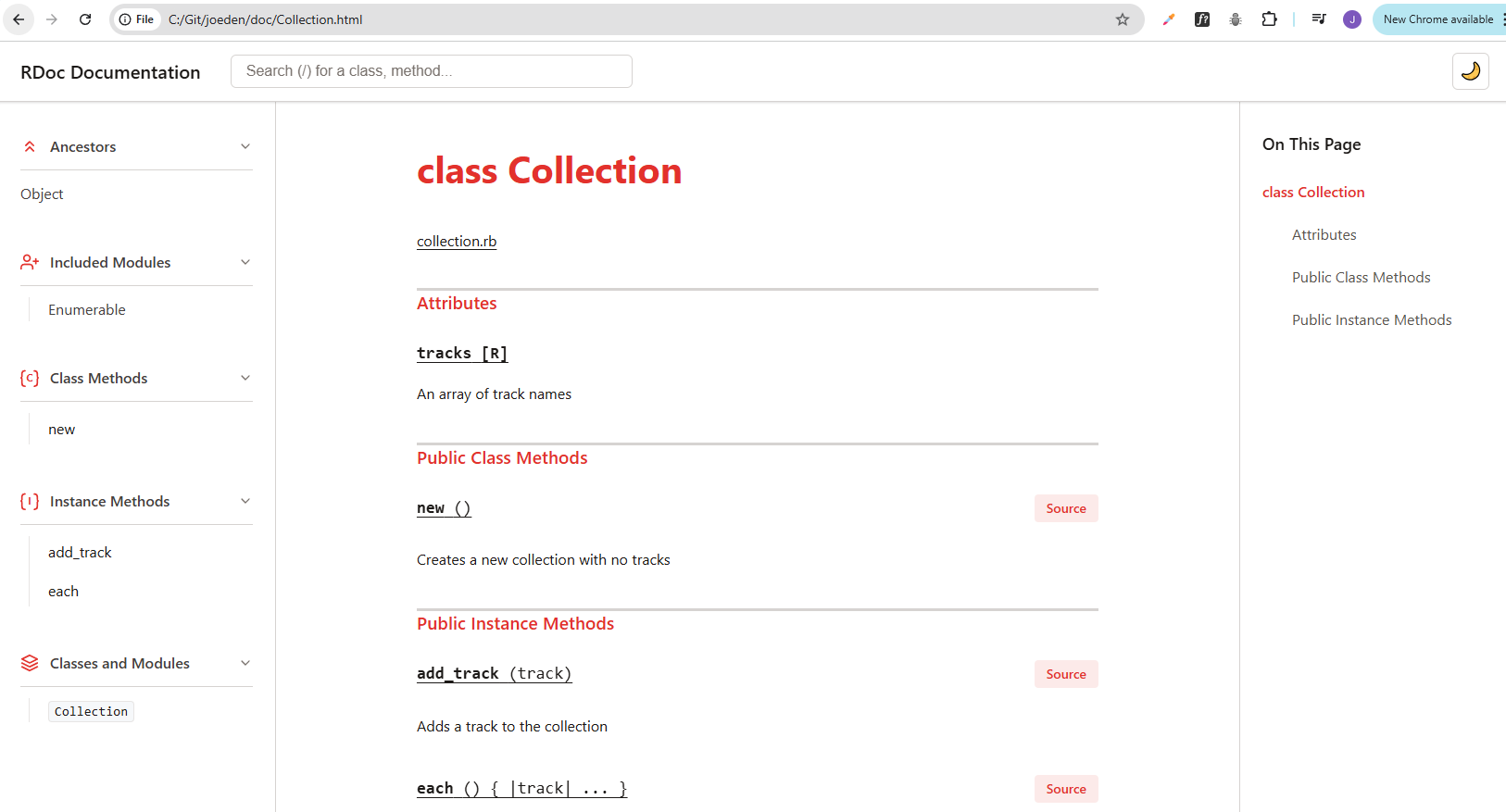
The result:
- A new folder named doc will appear.
- Inside, open
index.htmlin any web browser.
You will see a searchable website listing your classes, attributes, and methods, complete with the descriptions you wrote in your comments.