Copilot Modes
Overview
GitHub Copilot can be used in different parts of Visual Studio Code, including the editor, the chat panel, the terminal, and source control views. It's basically anywhere you can see the "sparkle" icon.
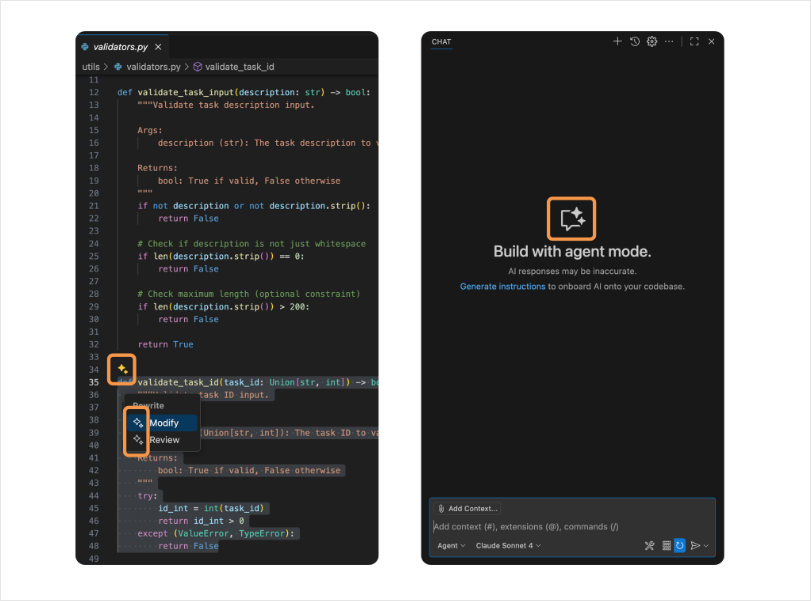
In practice, the main modes you will use most often are:
- Autocomplete
- Inline Chat
- Ask Mode
- Edit Mode (Replaced by Plan Mode)
- Agent Mode
Autocomplete and Inline Chat
Autocomplete works directly in the editor while you write code.
Inline Chat also works in the editor, but it is better when you want to modify an existing block of code.
- Use Autocomplete for quick suggestions while typing
- Use Inline Chat for focused changes in a selected block
To accept suggestions, simply click the tab key. You can also cycle through multiple suggestions with Ctrl + ] and Ctrl + [.
To trigger Inline Chat, select a block of code and click the sparkle icon, then Modify
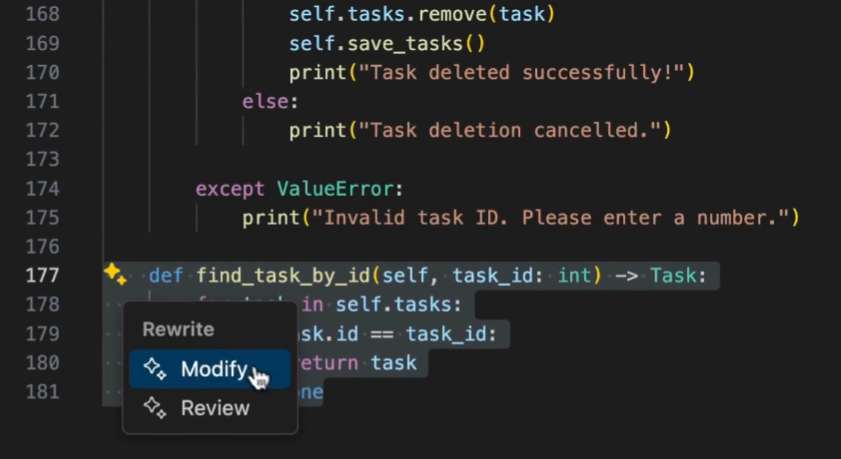
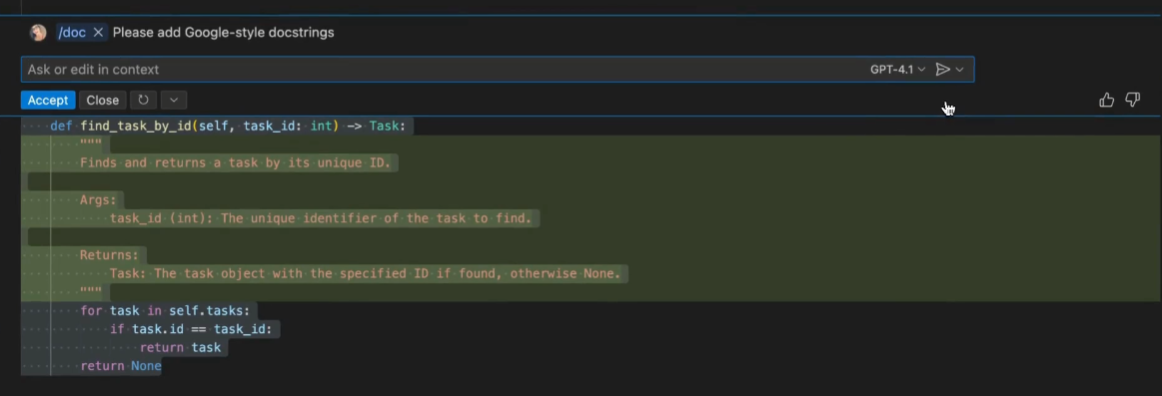
This opens the chat panel where you can give instructions to modify the selected code block.

Copilot will generate a response that modifies the code block according to your instructions. You can review the changes and accept or reject them as needed. This mode works best for small updates, missing logic, bug fixes, and local refactoring.
Ask Mode
Ask Mode is useful when you want guidance before making changes. It helps you think through a problem without directly modifying your code.
- Plan application architecture
- Explore different approaches
- Break down implementation steps
- Ask questions across multiple files and concepts
To open Ask Mode, click the sparkle icon in the chat panel and select Open Chat.
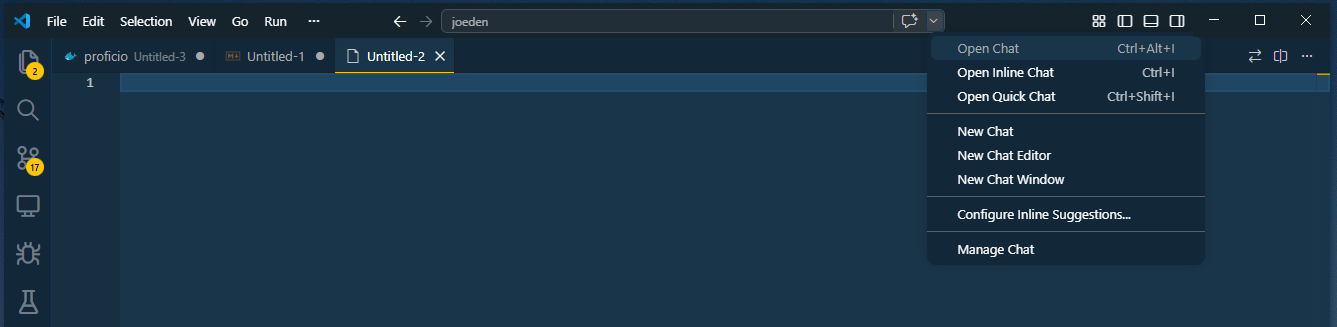
This will open a new chat on the right side of the editor where you can ask questions and get guidance without affecting your code until you're ready. If you have previous chat sessions, it will also appear in the chat history.
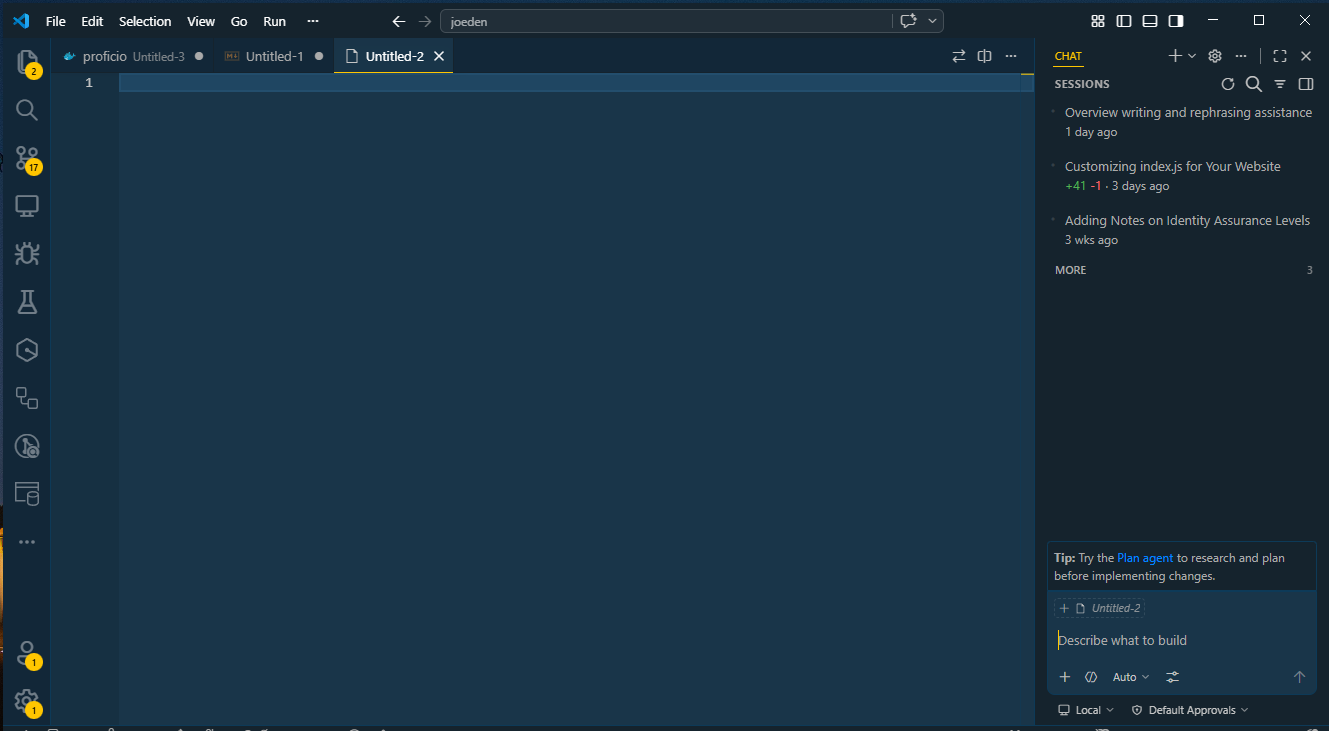
You can set the chat mode using buttons like Ask, Plan, and Explain to tailor Copilot's responses to your needs.
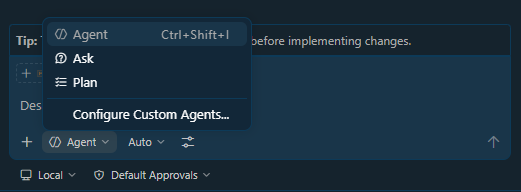
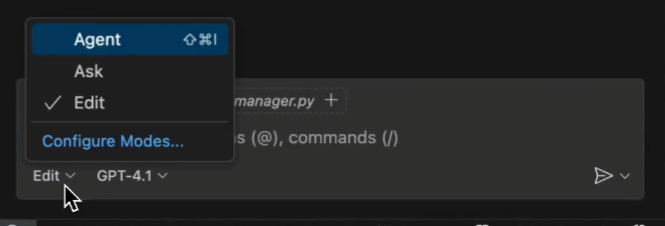
In older versions, there was an Edit Mode that allowed you to make broader code changes across multiple files. This mode has been replaced by Plan Mode, which is better suited for execution and larger code changes.
| Mode | Use Case | When to Use |
|---|---|---|
| Agent Mode | Complex multi-step tasks | Involved workflows and autonomous execution |
| Ask Mode | Guidance and planning without changes | Thinking through problems, exploring approaches |
| Plan Mode | Larger changes across multiple files | Broader refactoring and feature implementation |
Plan Mode (Replaced Edit Mode)
This mode is for making broader code changes. It is useful when you already know the outcome you want and want Copilot to apply the changes for you.
- Implement features across related components
- Set up new project structure
- Make larger changes with reviewable diffs
Note: Plan mode is not really a rename of Edit. It is a separate mode focused on creating a step-by-step implementation plan.
Agent Mode
Agent Mode is different from the other Copilot modes because it is designed for complex, multi-step tasks. Instead of suggesting a single change, it works iteratively and more autonomously.
- It can make changes across multiple files
- It can use tools and run commands when needed
- It can try another approach if the first one does not work
For example, in a project with several scripts and many print statements, you could ask Copilot to add logging with the logging module and remove the print statements.
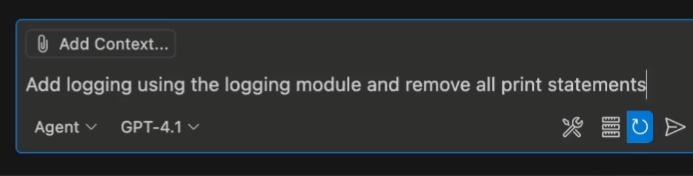
Agent Mode would search the codebase, update the relevant files, and ask for approval if it needs to run commands such as installing a package or running tests.
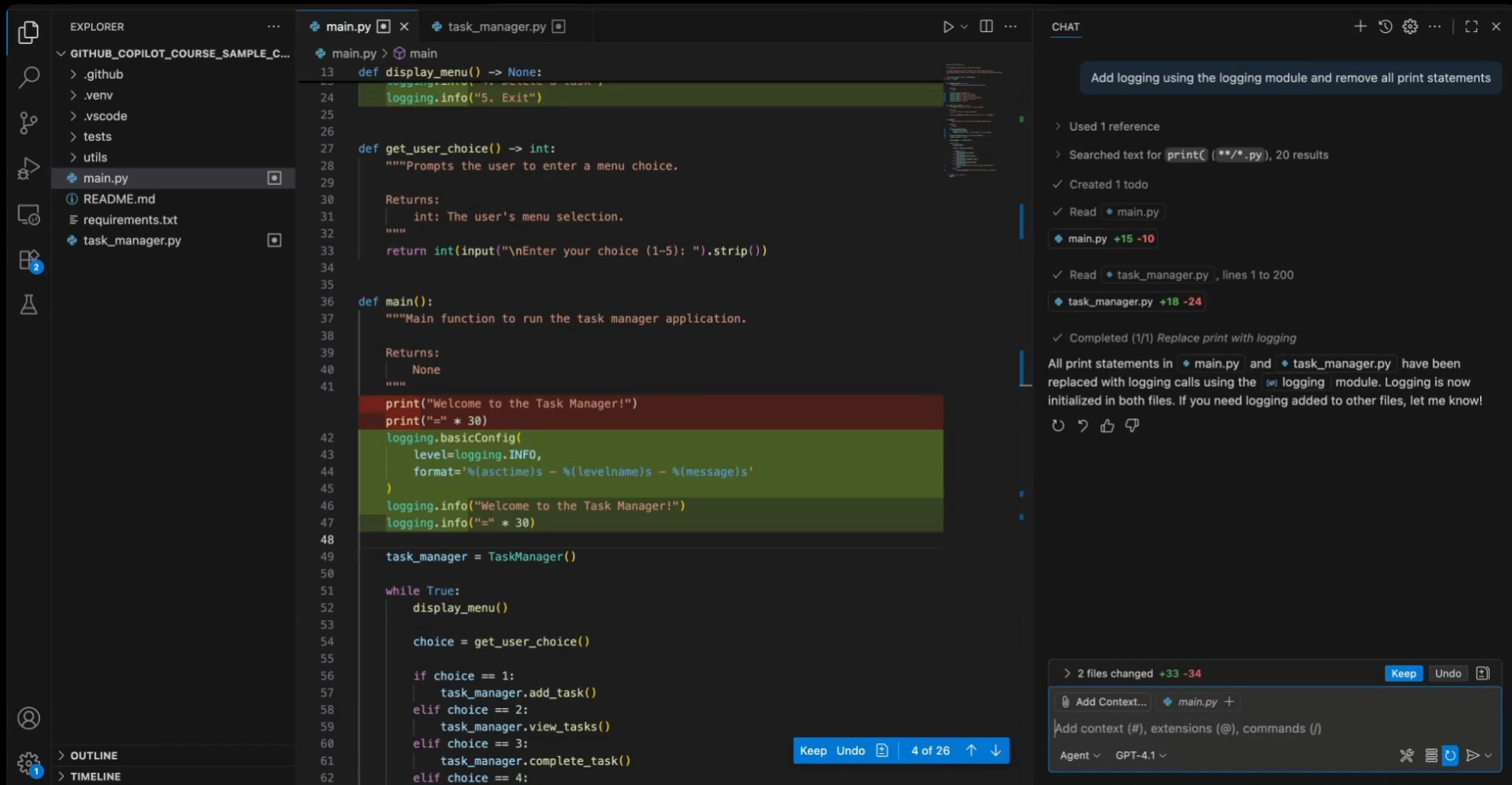
You can click Keep at the bottom to accept all changes, or you can review each change and accept or reject them individually.
Tools in Agent Mode
Agent Mode can use tools to perform actions that go beyond just editing code. These tools can help with tasks like running tests, installing dependencies, or even interacting with external systems.
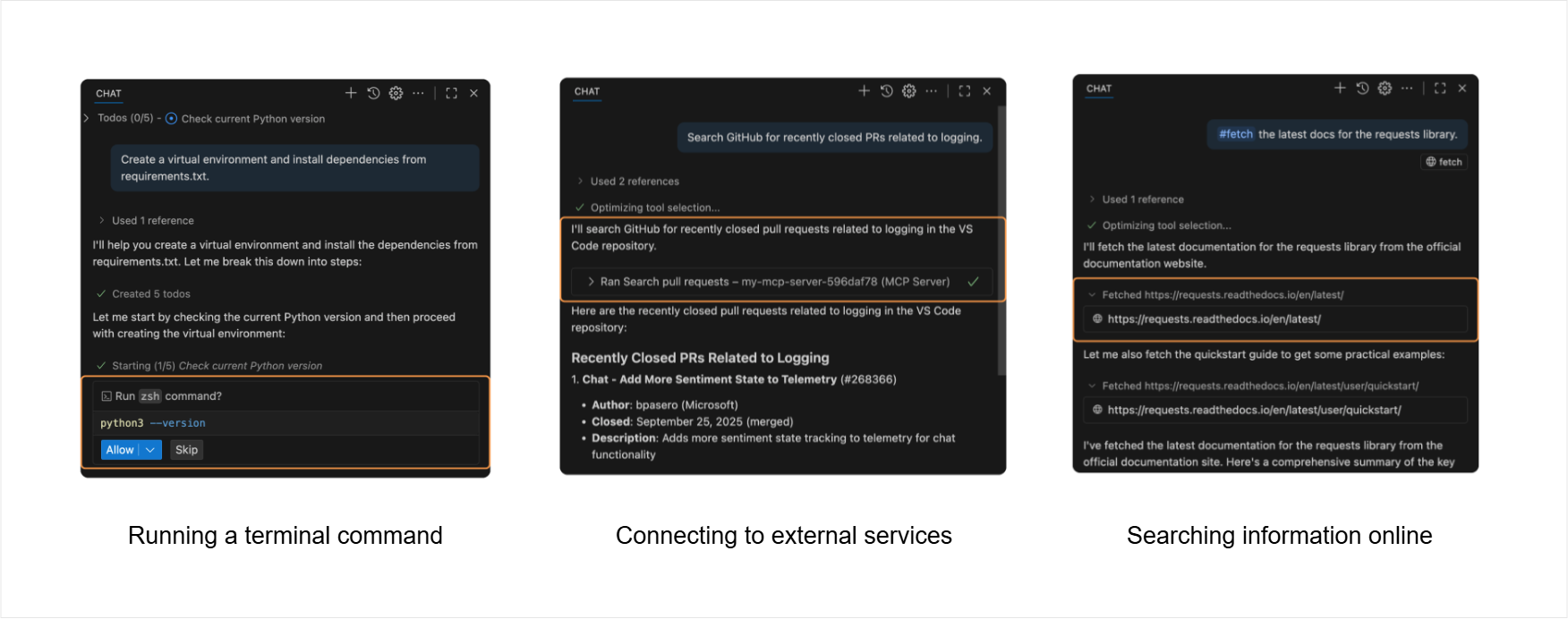
The tools available in Agent Mode can include:
- Built-in development tools
- MCP tools for external systems
- Marketplace extensions that add extra capabilities
The tools also depend on the context and the task at hand. For example, if you're working on a Python project and ask Copilot to set up a testing framework, it might use tools to install pytest and run test commands.
Approval and Control
By default, Copilot asks for approval before it uses a tool or runs a command. You can approve a tool once, approve it for the session or workspace, or allow it automatically in the future.
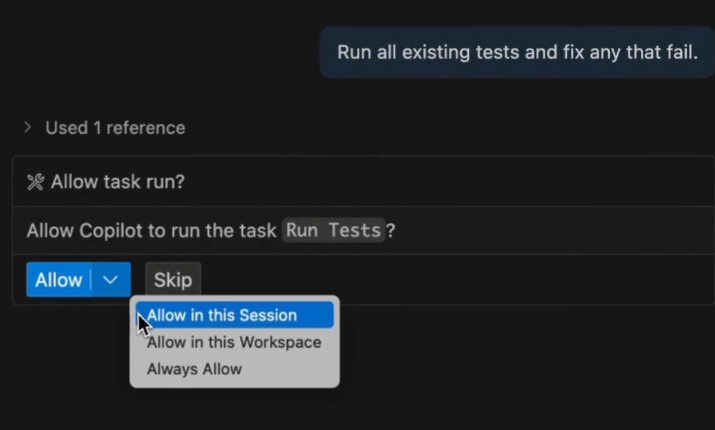
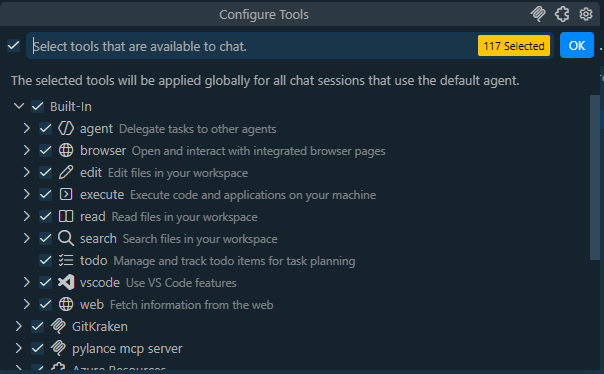
You can also manage tool access from the Tools icon in the chat input.
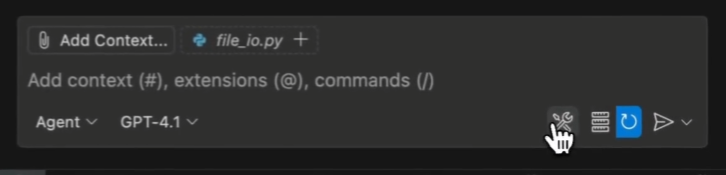
In newer interfaces:
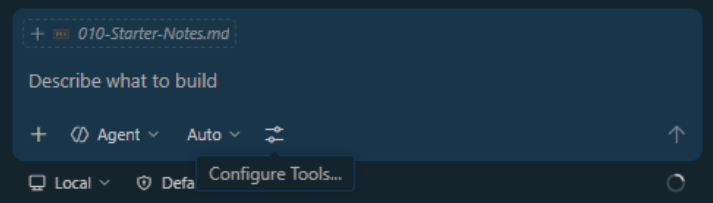
You can then select which tools to allow and set permissions for them. This gives you control over what actions Copilot can take while still enabling it to perform complex tasks when needed.