Switching Models
Overview
GitHub Copilot supports multiple models from providers such as OpenAI, Anthropic, and Google. The model you choose will depend on the kind of work you are doing.
- Use faster models when you want quick responses or lightweight autocomplete help.
- Use reasoning-focused models when you need deeper analysis, multi-step problem solving, or broader code changes.
It is also worth checking feature support before switching. Not every model supports every Copilot feature, and some models may not be available in Agent mode or in other workflows.
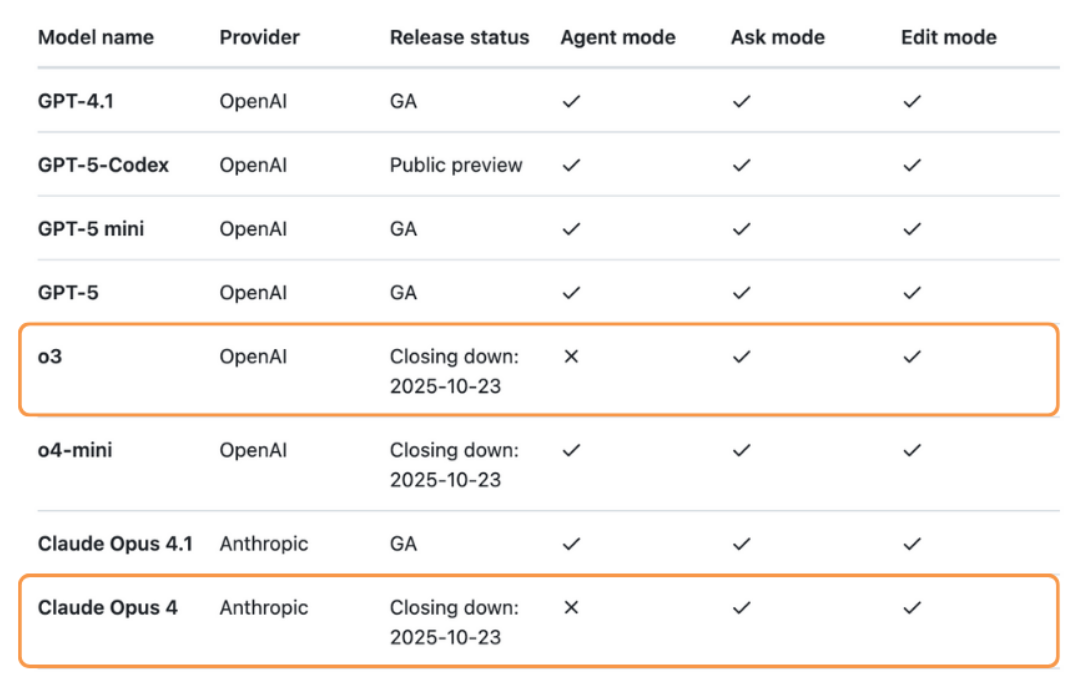
At the time of writing, that default is GPT-4.1.
It is a practical general-purpose choice because it is fast, reliable, and supported across Copilot modes, including Agent mode.
Reasoning Models
If you are working on something more involved, a reasoning model may be a better fit.
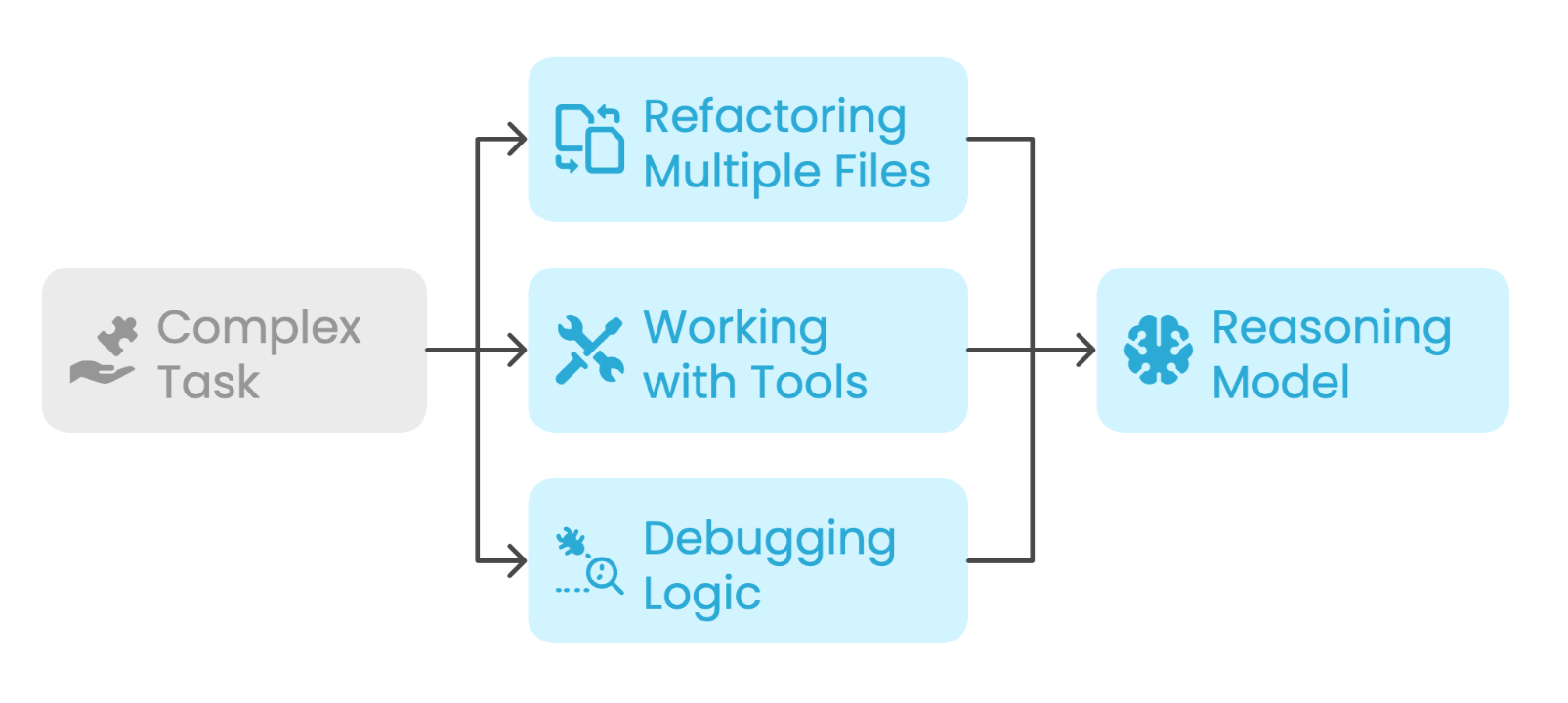
These models usually take a bit longer to respond, but they often produce better structure and better accuracy when the task involves several steps or a larger amount of context.
They are especially useful for:
- Refactoring across multiple files
- Debugging backend logic
- Planning larger changes
- Working with tools in Agent mode
Sample reasoning models:
- Claude Sonnet 4
- GPT-5
- Claude Opus 4.1
Different Models for Different Work
You do not have to use the same model everywhere. You can use one model for chat, where depth matters more, and another model for code completions, where speed matters more. This is useful if you want stronger reasoning in chat but faster inline suggestions while coding.
To switch the model used in Copilot Chat, open the chat model picker and select the model you want to use. The change applies immediately to new messages.
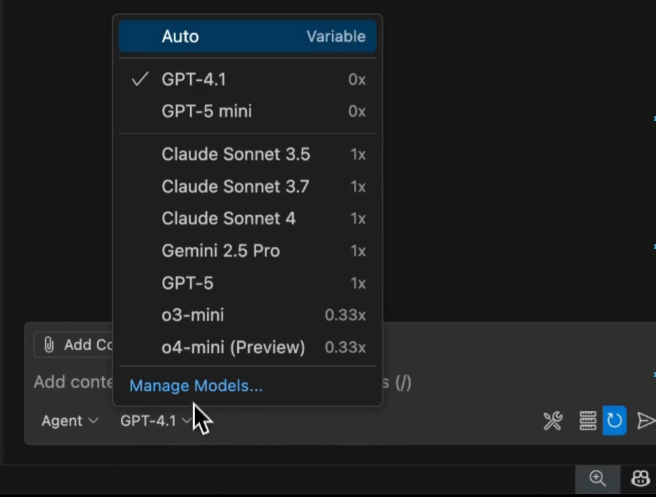
If you are on a paid Copilot plan, you may see usage multipliers next to some models (as seen in the image above). These show how each model counts against your premium request quota.
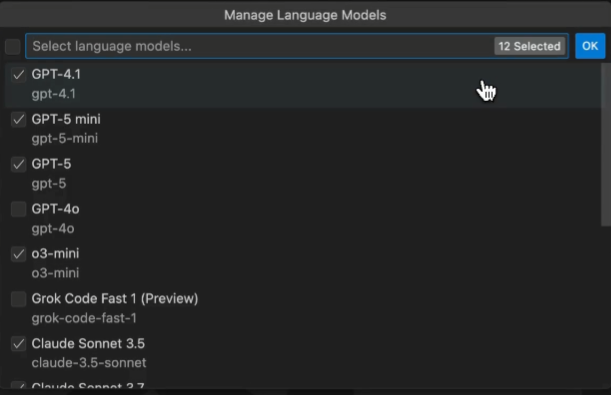
You can also customize the list of models that appears in the picker:
- Open the model picker.
- Select Manage Models.
- Choose which models you want to keep visible.
This makes it easier to switch quickly between the models you actually use.
Custom Models
Copilot can also connect to a model through your own API key. This can be useful if you want to:
- Test a newer model
- Connect to a private deployment
- Work around limits on the built-in options
- Explore advanced use cases
To add your own model:
-
Open the chat model picker and click Manage Models.
-
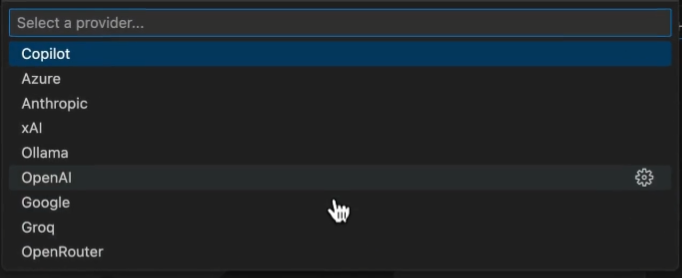
Choose your provider (e.g. OpenAI).
-
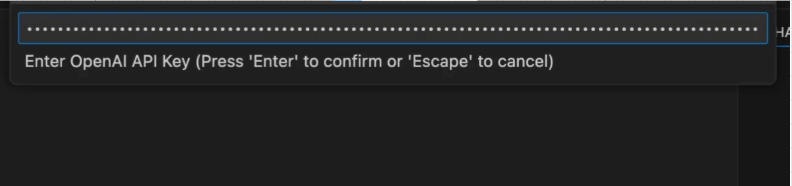
Enter your API key and any required connection details, such as an endpoint URL or a model name.
-
The model should appear in the picker and can be selected like any built-in option.
A few important notes about custom models:
- It applies to chat only.
- It does not apply to code completions or commit message generation.
- It may not support all Copilot features, such as tools, vision, or syntax-aware behavior.
Copilot still relies on its own systems for capabilities such as indexing and some workspace features.
At the moment, custom models are only available for individual users, but not for Copilot Business or Copilot Enterprise accounts.
Switching the Code Completions Model
You can also choose a separate model for code completions.
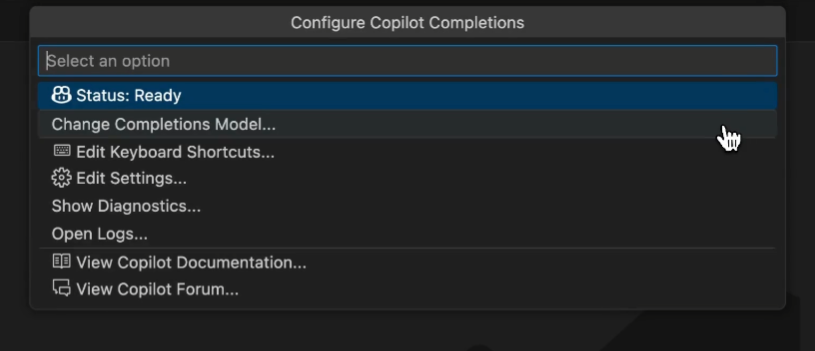
To change it:
-
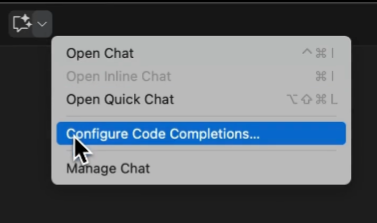
Open the Copilot menu from the title bar.
-
Select Configure Code Completions.
-
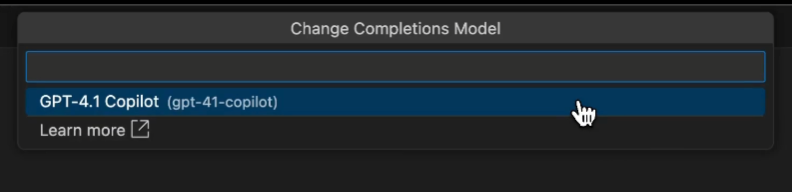
Choose Change Completions Model.
-
Pick the model you want to use.