Guiding with Context
Overview
Copilot works best when it understands your code and your intent.
- Better context gives better results
- Less context leads to weak or wrong code
- You control what Copilot can see
Your IDE already provides some context automatically, but you can add more when needed.
- Active file is included automatically
- Selected code is included automatically
- Files and folders can be added manually
You can drag files into chat or use Add Context (+ button) to include more details.
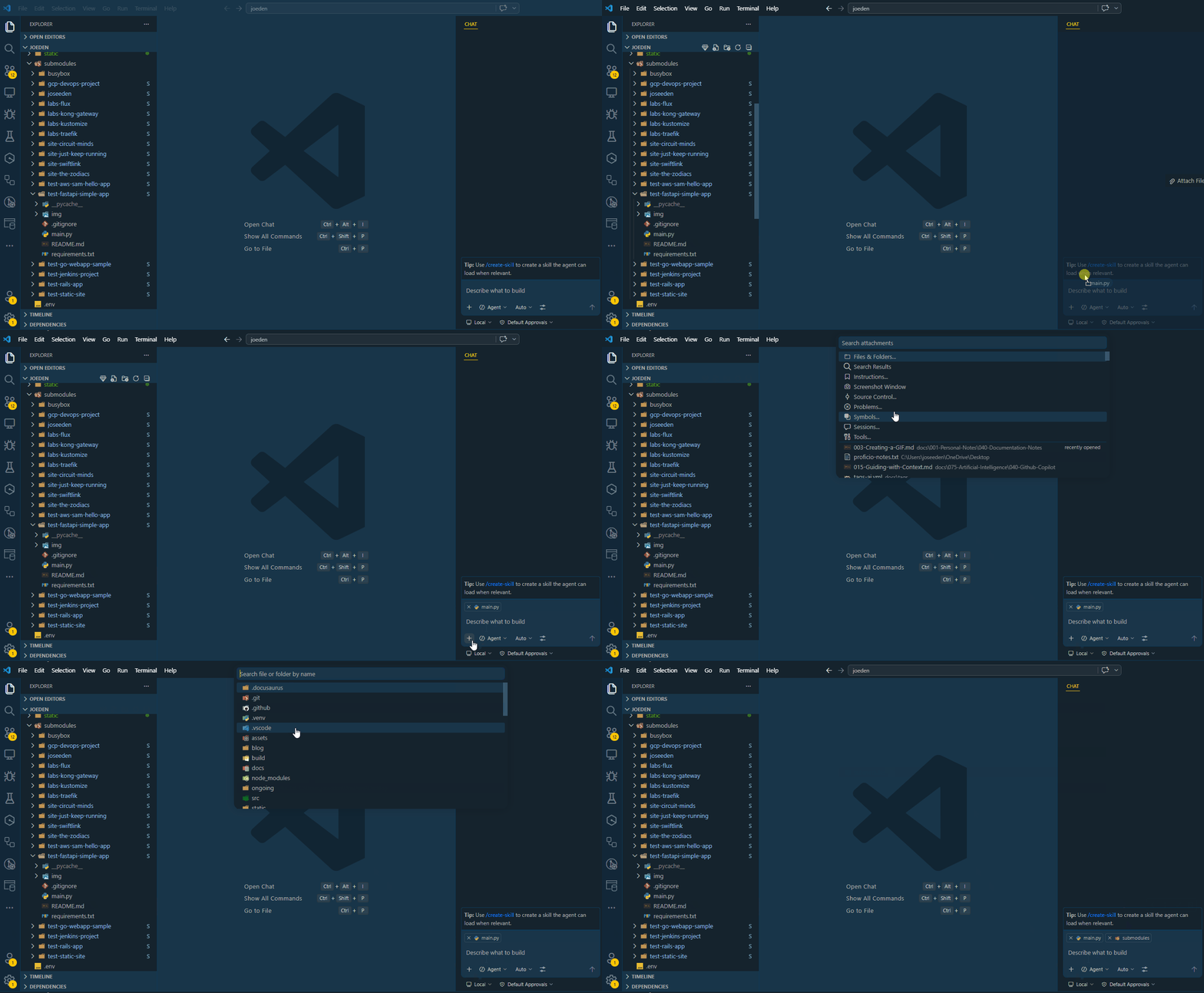
Using Chat Variables
Chat variables help you control exactly what Copilot looks at.
| Variable | Description | When to use it |
|---|---|---|
#codebase | Searches across the whole project | When you need full project context |
#selection | Uses highlighted code in the editor | When working on a specific code block |
#files | Includes specific files | When analyzing or reviewing certain files |
#changes | Looks at recent edits or commits | When checking impact of recent changes |
#fetch | Pulls content from external URLs | When using docs, APIs, or web references |
#search | Searches for relevant code snippets | When looking for patterns or usage in code |
#terminalLastCommand | Uses the last terminal command output | When working with CLI or debugging commands |
#testFailure | Analyzes recent test failures | When debugging failing tests |
Chat variables can be used in all three modes: Ask, Agent, and Plan.
| Mode | How # is used | Purpose |
|---|---|---|
| Ask mode | #file, #codebase, #selection, #changes, #terminalLastCommand | Answer questions using provided context |
| Agent mode | Adds context and enables tools like search, read, edit, execute, web fetch | Perform tasks using both context and actions |
| Plan mode | #file, #codebase, #changes | Plan steps and solutions, not direct actions |
A few caveats matter:
- Not every
#item is available everywhere. Some depend on where you are, for example#selectiononly appears if you have an active editor selection. - Some
#items depend on enabled tools or features. For example, web or browser-related items may require settings or approvals. - Inline Chat also supports
#references, not just the main Chat view.
Indices/Indexes
When you use these variables in your prompts, Copilot will look at the indexes and content you specify to generate more relevant and accurate code. There are two types of indices:
| Index Type | Description |
|---|---|
| Local index | Stored on your machine, includes your code and files |
| Remote index | Used for GitHub repositories, includes code and files from the repo |
You can check which index is active in the Copilot status dashboard in your IDE.
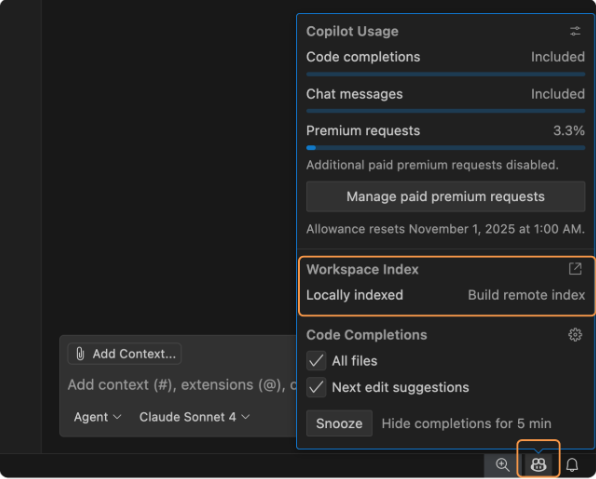
If you see:
- "Using local index" ➔ Copilot is using the code and files on your machine
- "Using remote index" ➔ Copilot is using the code and files from the GitHub repository
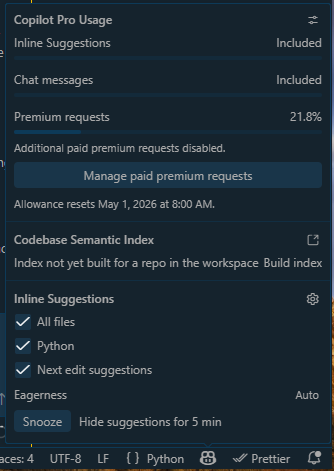
You might also see "Index not yet built for a repo in this workspace" if you haven't opened a file from the repo yet. In that case, open any file from the repo to trigger the indexing process. You can also simply click "Build index" to start it immediately.
#codebase
As an example, you can use #codebase to ask about FastAPI is used in the selected Python project and it will return all relevant files and functions across the project that involve FastAPI.
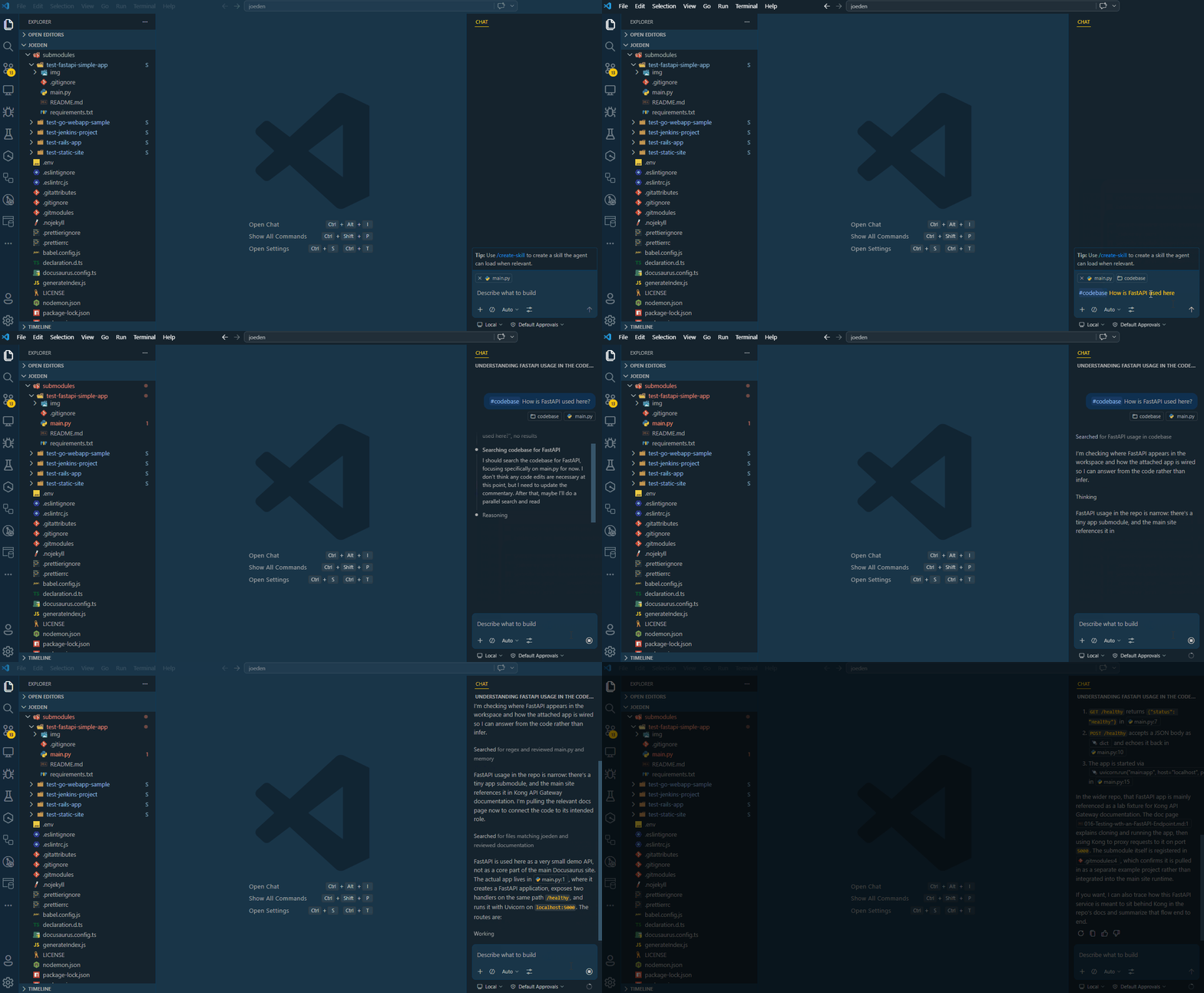
Behind the scenes, Copilot is searching through your local and remote indexes to find relevant code snippets that match your query. This allows you to get a comprehensive view of how a particular pattern is used throughout your codebase without having to manually search for it.

#selection
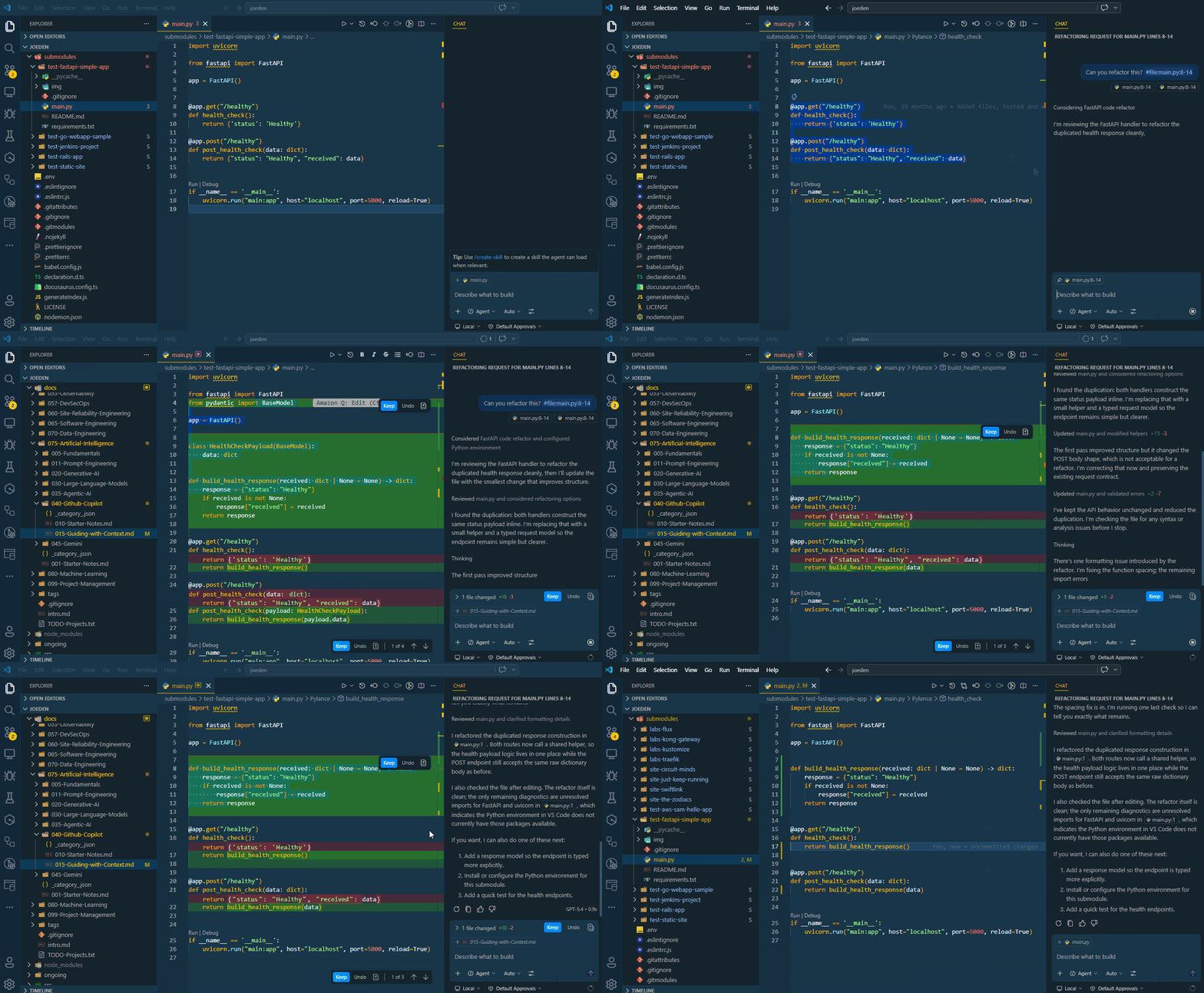
The #selection variable focuses on highlighted code in your editor.
In the example below, a function is selected and passed to Copilot. You can then ask Copilot to refactor the selected code, and it will only consider that specific block of code for its suggestions.
Can you refactor this? #selection
#files
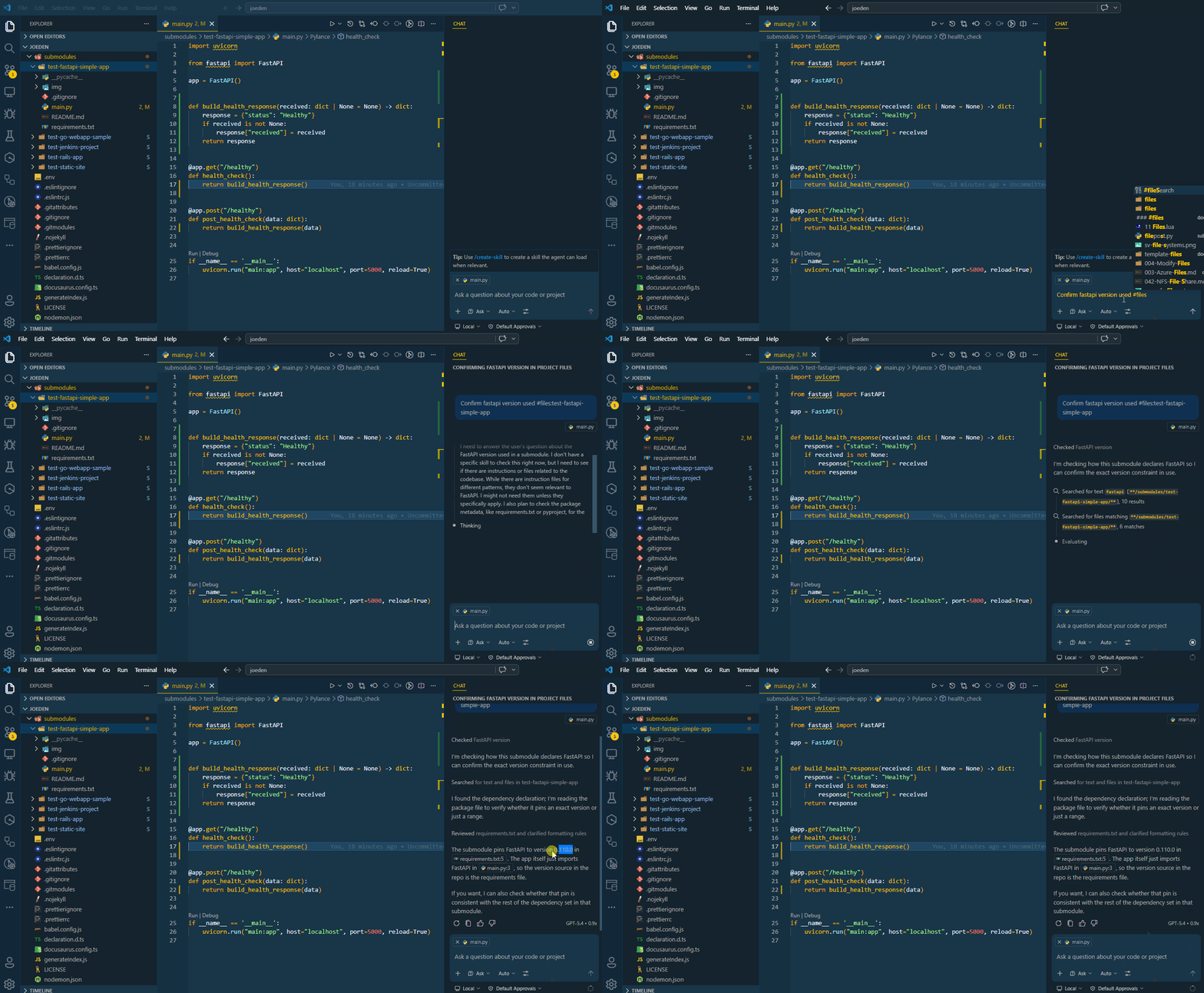
The #files variable lets you include specific files in your prompt.
In the example below, the project folder test-fastapi-simple-app is referenced.
Confirm the fastapi version used #files:test-fastapi-simple-app
#changes
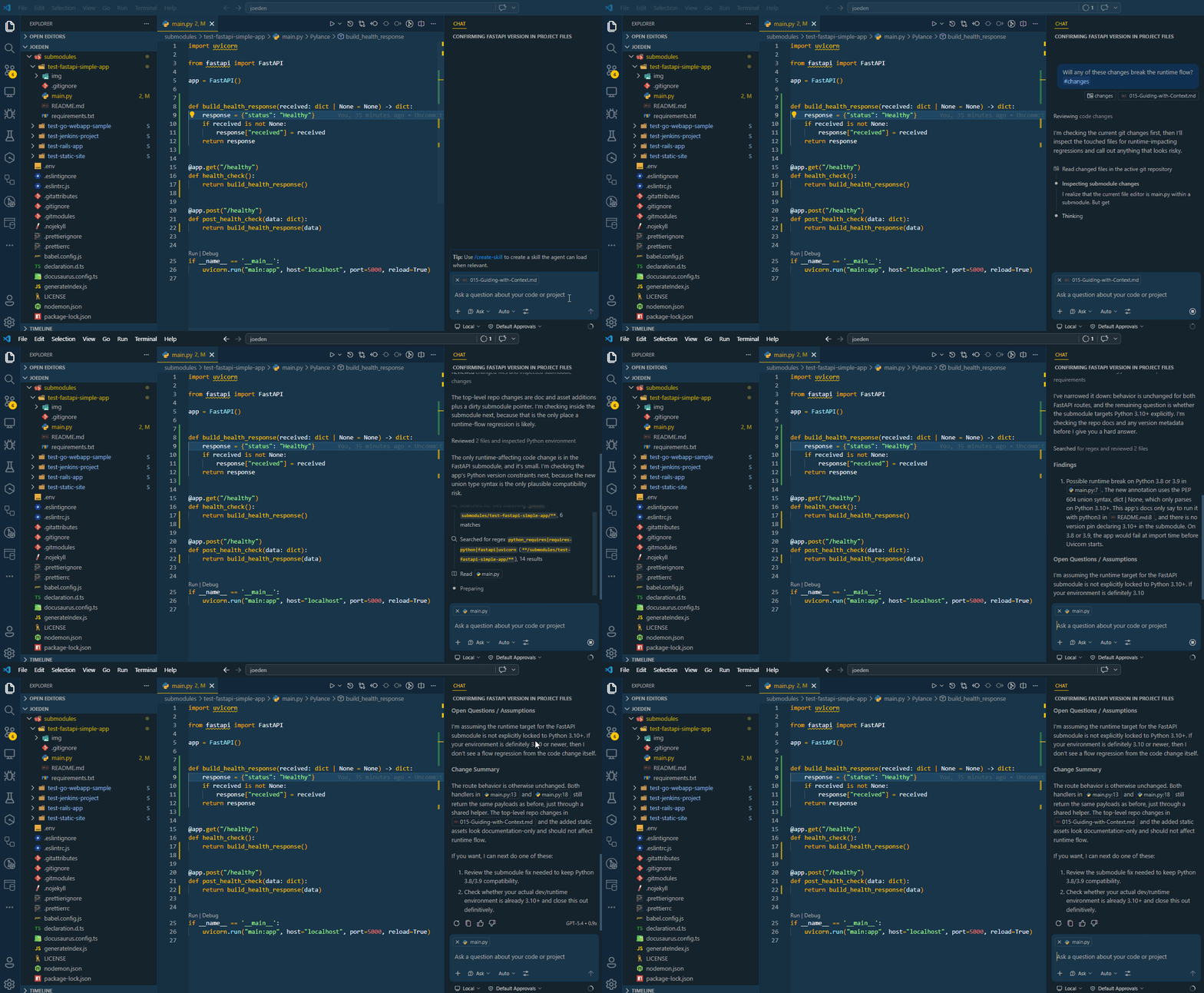
The #changes variable looks at your recent edits.
In the example below, you ask Copilot to review recent modifications.
Will any of these changes break the runtime flow? #changes
Copilot analyzes recent commits or edits and highlights potential issues.
This is useful for quick validation after making changes.
#fetch
The #fetch variable pulls in external content like documentation.
In the example below, a URL is provided.
Summarize this documentation #fetch https://docusaurus.com/docs
Copilot will read the page and summarizes key points.
This helps when working with APIs or external references.
Using Chat History as Context
Copilot maintains chat history automatically, including all previous messages in the conversation. This lets you reference earlier prompts and build incrementally on prior responses without repeating yourself.
- Ask for improvements or refinements
- Build solutions step by step
- Avoid repeating information
As best practice, break complex tasks into smaller prompts.
For example:
What is the best approach for database persistence? #codebase
Implement the database connection
Design schema for User and Task classes
Add session management and error handling
Each step builds on the previous one, which results in better, more controlled output.
Resetting context
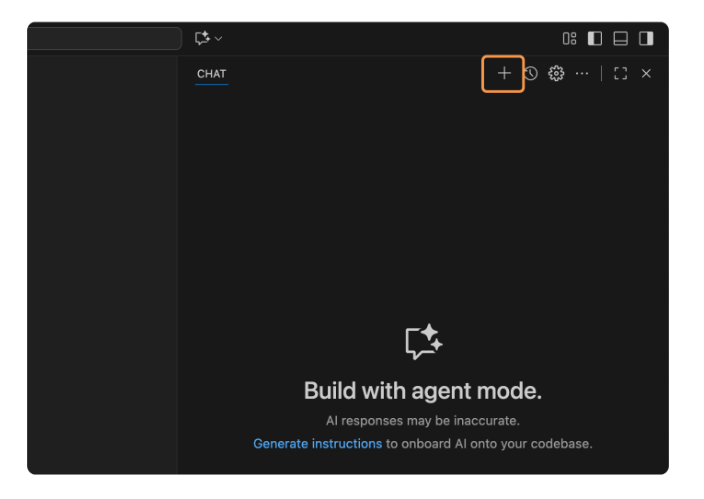
If you want to start fresh, you can reset the context by starting a new chat. This clears the previous history and allows you to begin with a clean slate.
Chat Participants
Chat participants let you direct your prompt to a built-in Copilot expert by using @. You can use them when you want help from a tool-aware or domain-specific assistant.
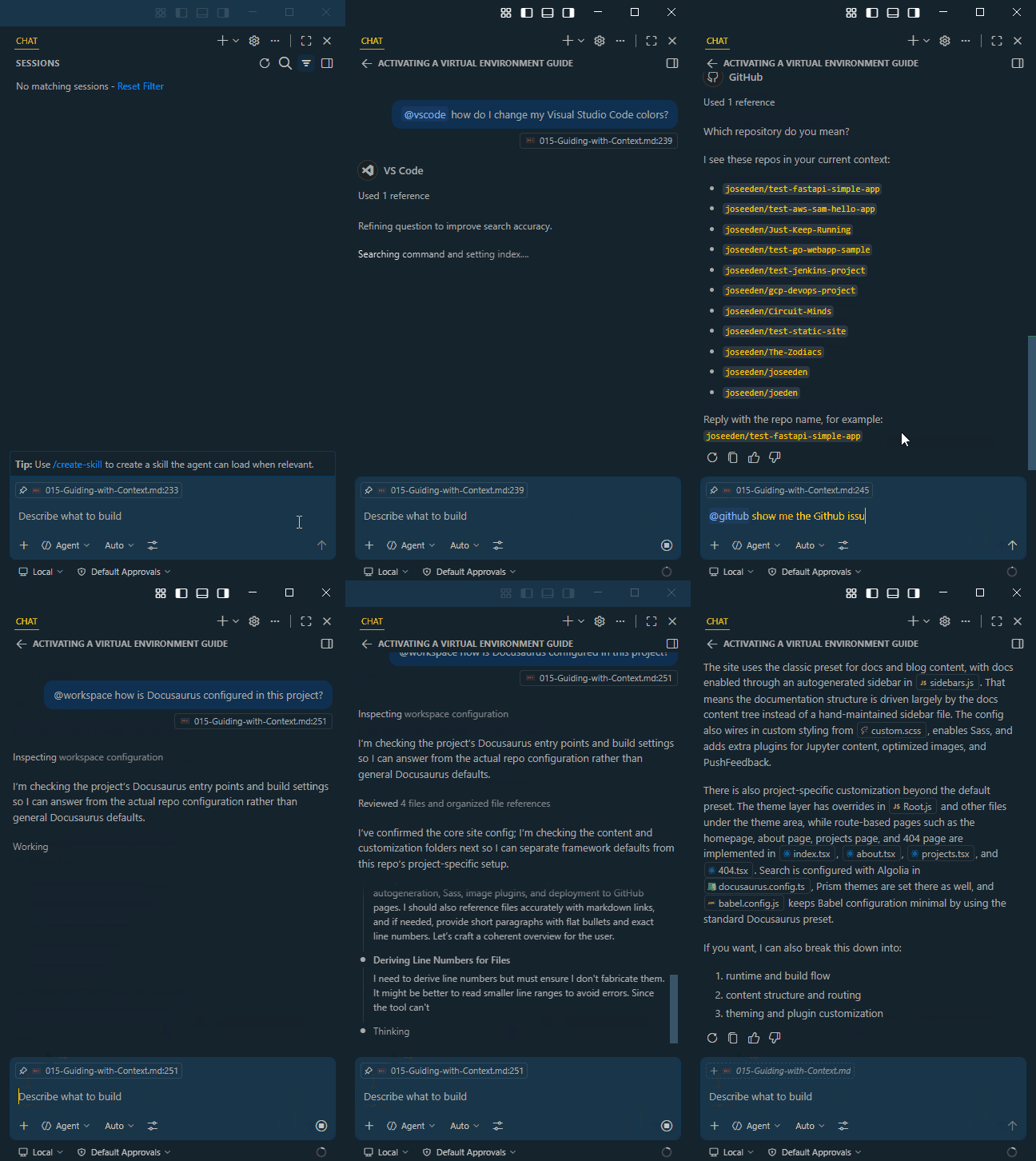
Common examples:
-
Use
@terminalwhen you want help with shell commands, terminal output, or environment setup.@terminal how do I activate a virtual environment? -
Use
@vscodewhen you want help with editor settings, features, or workflows.@vscode how do I change my Visual Studio Code colors? -
Use
@githubwhen you want information from GitHub, such as pull requests and repository activity.@github show me the Github Issues in the repo -
Use
@workspacewhen you want Copilot to inspect your project and explain how something is implemented.@workspace how is Docusaurus configured in this project?
Participants vs. Variables
Use chat variables when you want to guide Copilot toward specific context, such as a file, a code block, or recent changes.
Use chat participants when you want Copilot to respond as a domain-aware expert, such as a terminal helper, a GitHub assistant, or a workspace guide.
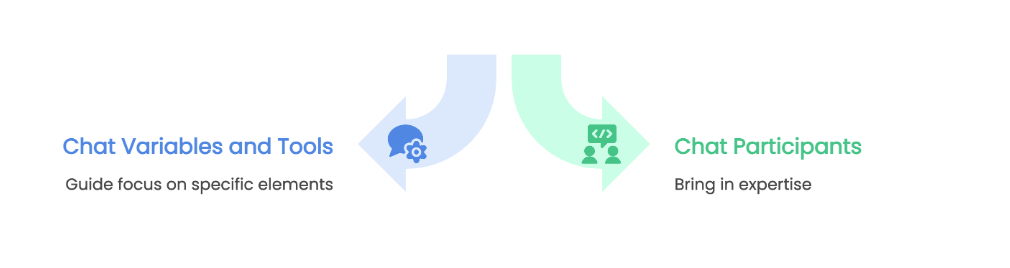
You can also use chat participants and chat variables in the same prompt.
For example, the prompt below asks the workspace expert to analyze recent changes:
@workspace how do these changes affect routing? #changes
You can also combine the terminal expert with the last command output:
@terminal explain the error from the command #terminalLastCommand
Slash Commands
Slash commands are built-in shortcuts for common Copilot tasks. Use them when you already know the action you want and do not need to write a full prompt.
| Slash command | Purpose |
|---|---|
/fix | Analyze selected code and suggest a correction |
/explain | Explain the selected code in plain language |
/tests | Generate tests for the selected code or relevant file |
/new | Scaffold a new project or create a new app from chat |
/clear | Reset the current chat and start with a clean context |
Type a slash (/) in chat to see the available commands. Copilot will then run the selected action with the context from your current file, selection, or chat session.
Examples:
-
Use
/fixwhen you want Copilot to analyze selected code and suggest a correction./fix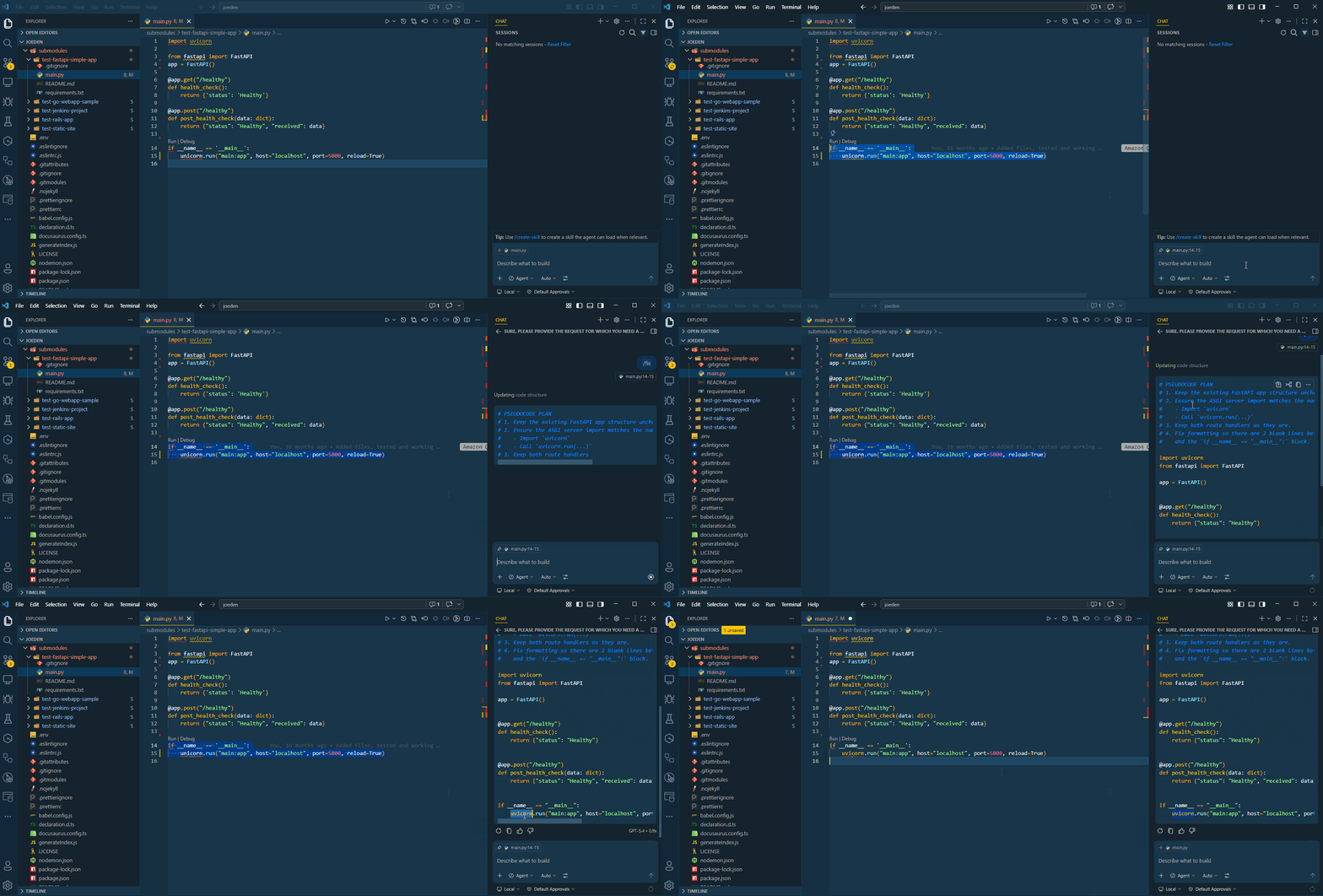
-
Use
/explainwhen you want a plain-language explanation of the selected code./explain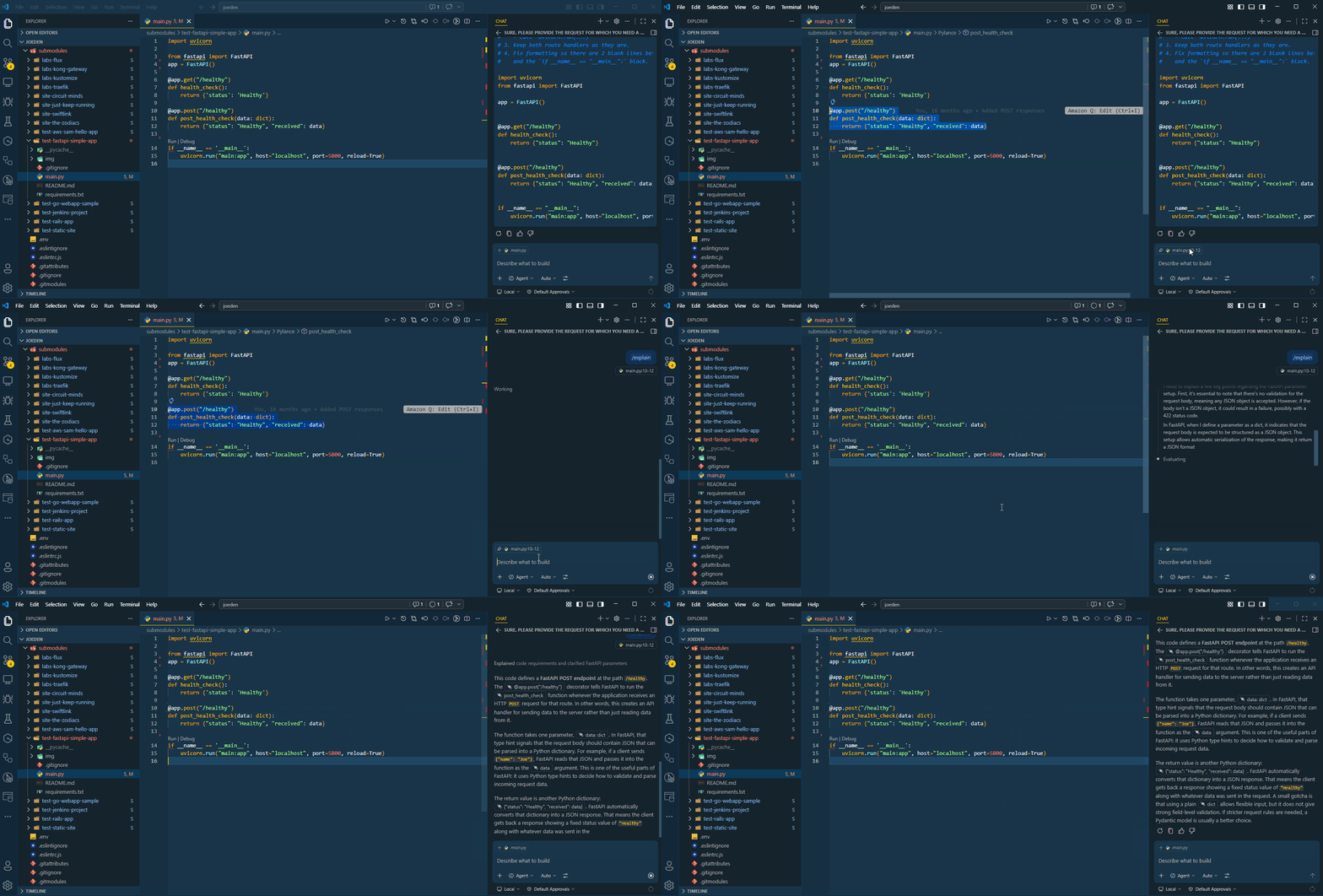
Slash commands are useful when the goal is already clear and you want Copilot to act quickly with minimal prompting.
Reference: https://code.visualstudio.com/docs/copilot/reference/copilot-vscode-features#_slash-commands
Smart Actions
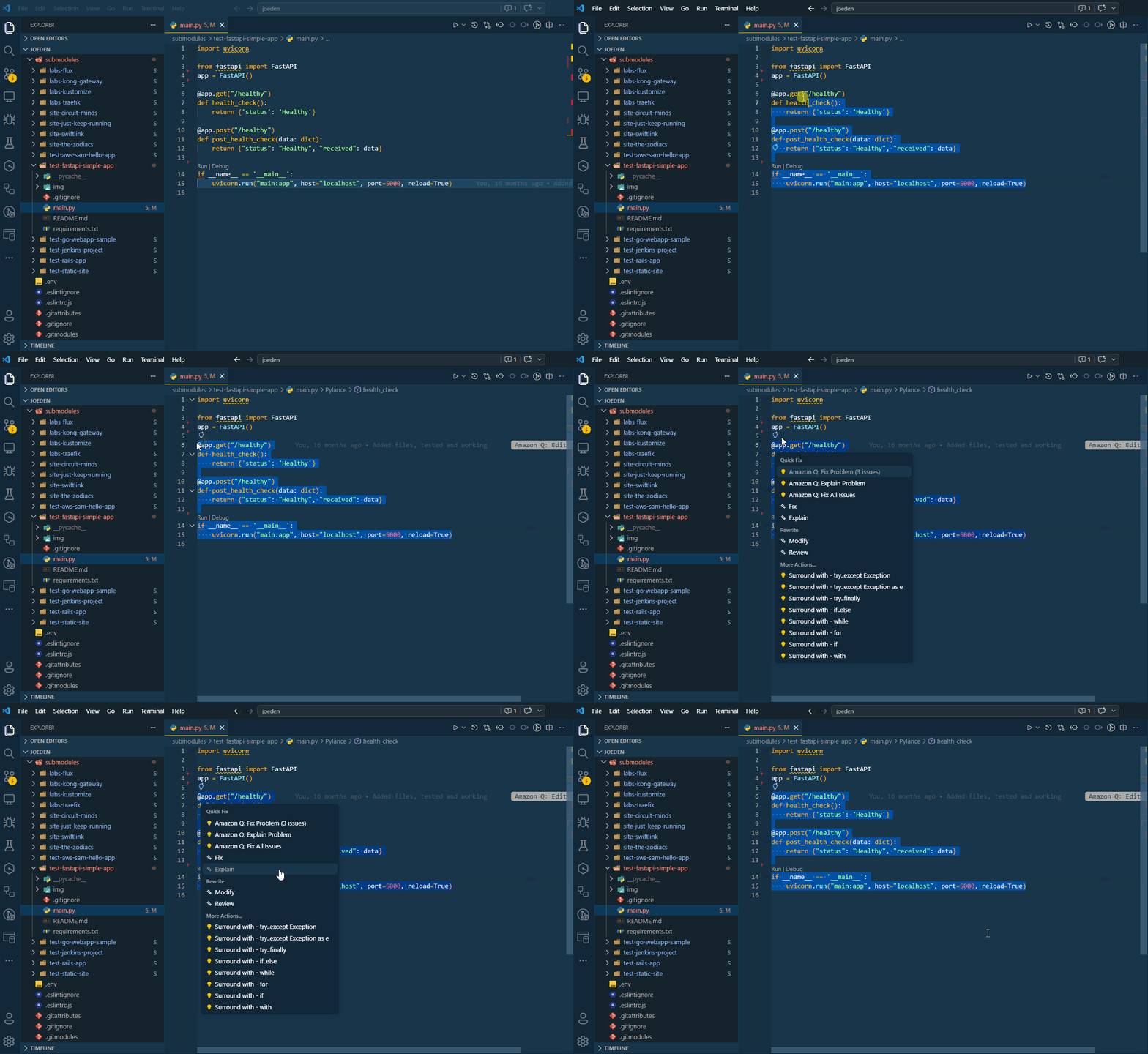
Smart actions are context-aware suggestions that appear directly in the editor. They help you take the next likely step without writing a prompt in chat. You will usually see them as a "sparkle" icon or a "light bulb" near the relevant code. The exact suggestions depend on what you are doing and what Visual Studio Code detects in the current context.
For example, if you highlight a function, you may see actions such as Modify or Review.
- Modify opens inline chat so you can change the code in place
- Review adds review comments in the editor and in the Comments panel.
If Visual Studio Code detects a warning or issue, the light bulb menu may offer actions such as Fix or Explain. These let Copilot suggest a correction or describe the problem without requiring a separate prompt.
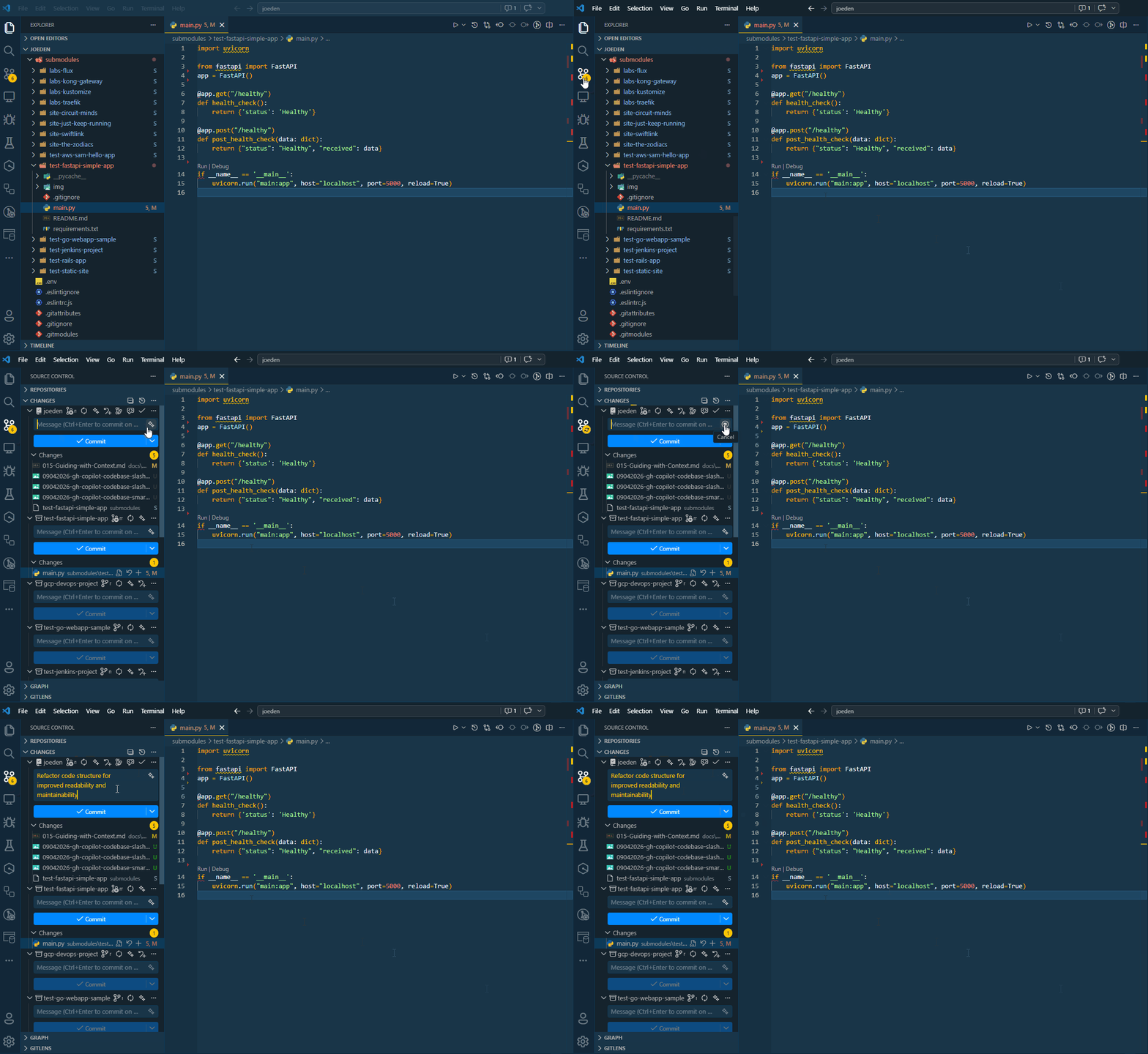
Smart actions also appear in places outside the editor. For example, in Source Control, Copilot can suggest a commit message based on your staged changes.
Slash commands and smart actions work well together. Slash commands are best when you want to trigger a specific action yourself, while smart actions are useful when you want Visual Studio Code to surface relevant suggestions based on your current work.