Customizing Copilot
Overview
You can guide GitHub Copilot on how to write code by giving it custom instructions about your project, your conventions, and your preferred tools. This is useful when you want Copilot to follow patterns consistently instead of relying on you to restate them in every chat.
Custom Instructions
Custom instructions give Copilot extra context before it starts generating suggestions. That context can include:
- Coding standards
- Naming conventions
- Testing expectations
- Project-specific rules
For example, you can tell Copilot that your Python code should use type hints, follow PEP 8, use pytest, and include Google-style docstrings. Once that guidance is in place, Copilot can carry it into future suggestions.
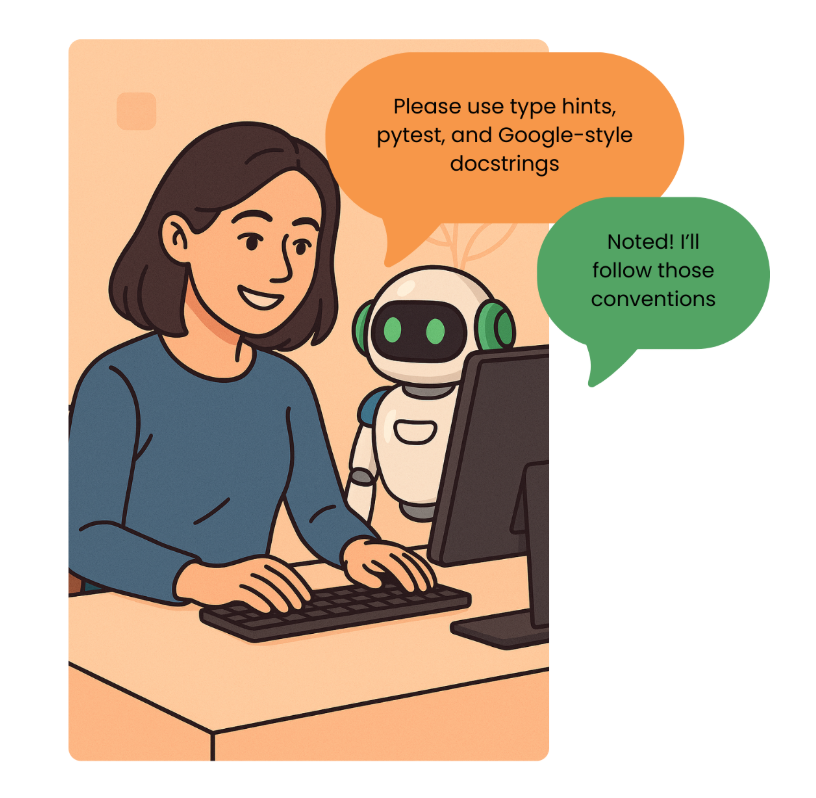
At the repository level, you can create a file named copilot-instructions.md inside the .github folder. You can then use that file to describe how code should be written in the project. Make sure to keep the guidance direct and practical.
Example instructions:
- Use type hints for all functions.
- Follow PEP 8 naming and formatting.
- Write docstrings in Google style.
- Use
pytestfor tests. - Add at least one test for each new function.
Example:
## Project XYZ

This is a Python project for processing data from XYZ source.

## Coding Standards

- Use type hints for all functions.
- Follow PEP8 naming and formatting.
- Write docstrings in Google style.

## Testing Standards

- Use `pytest` for tests.
- Add at least one test for each new function.
Effective Custom Instructions
The best instructions are short, specific, and self-contained. Each instruction should tell Copilot something it can apply without needing to chase more context.
Effective instructions:
- Describe a concrete coding rule
- Mention a preferred framework, tool, or library
- Add project context that changes how code should be written
Example of ineffective instructions:
- Follow the style guide in org-xyz/project-docs.
- Answer like a friendly teammate using informal language.
- Always keep the reply under 1,000 characters.
Instructions tend to work less well when they rely on outside references or on vague stylistic preferences. Copilot works better with guidance that is direct and clearly tied to the code.
Enabling Instruction Files in VS Code
After you add the instructions file, make sure VS Code is set up to use it. In Copilot settings, enable the setting for instruction files.
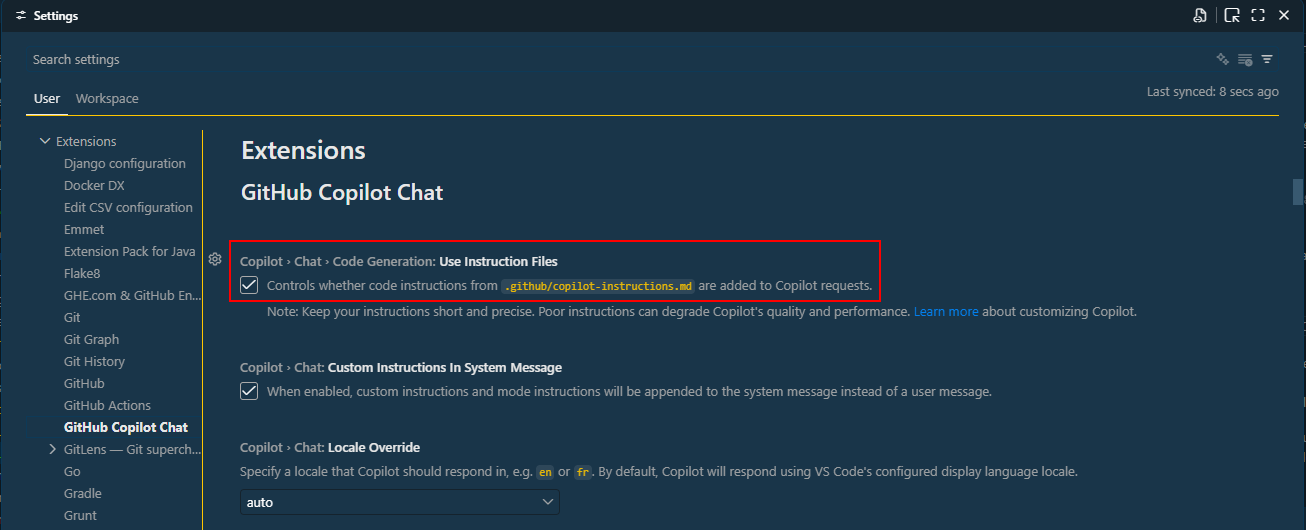
Once that setting is on, Copilot will include the file automatically in the background when it builds context.
Multiple Instruction Files
If one file is not enough, you can place additional instruction files under .github/instructions/. This lets you scope instructions to specific parts of the codebase.
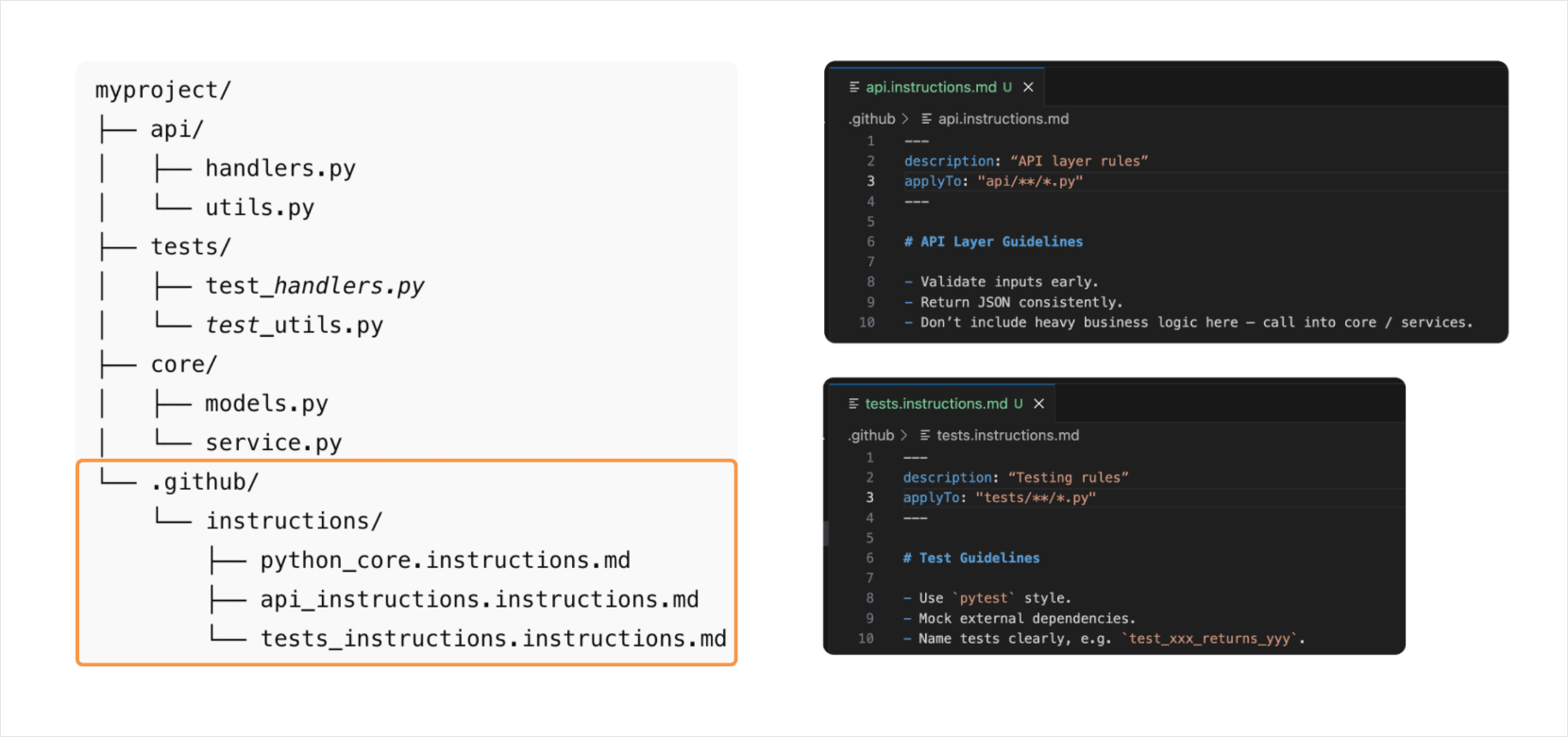
For example, you might apply one instruction file to your API code and another to your test files.
That approach works well when different folders follow different standards or workflows.
Organization-Level Instructions
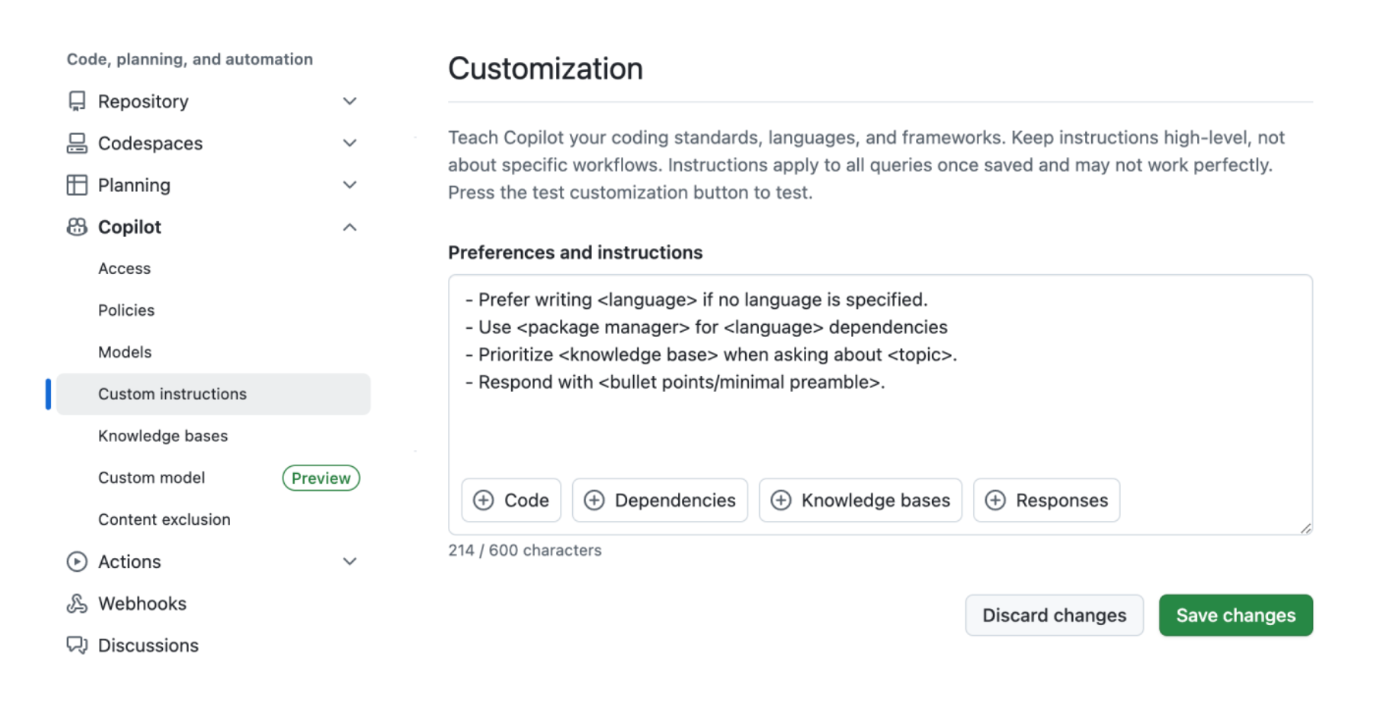
If your team uses Copilot Business or Copilot Enterprise, admins can also define organization-level instructions in GitHub. These can be used for broader standards, such as approved internal tools, required libraries, or warnings about deprecated patterns.
Conflicting Instructions
Copilot can combine instructions from more than one level. When instructions conflict, the more specific level takes priority.
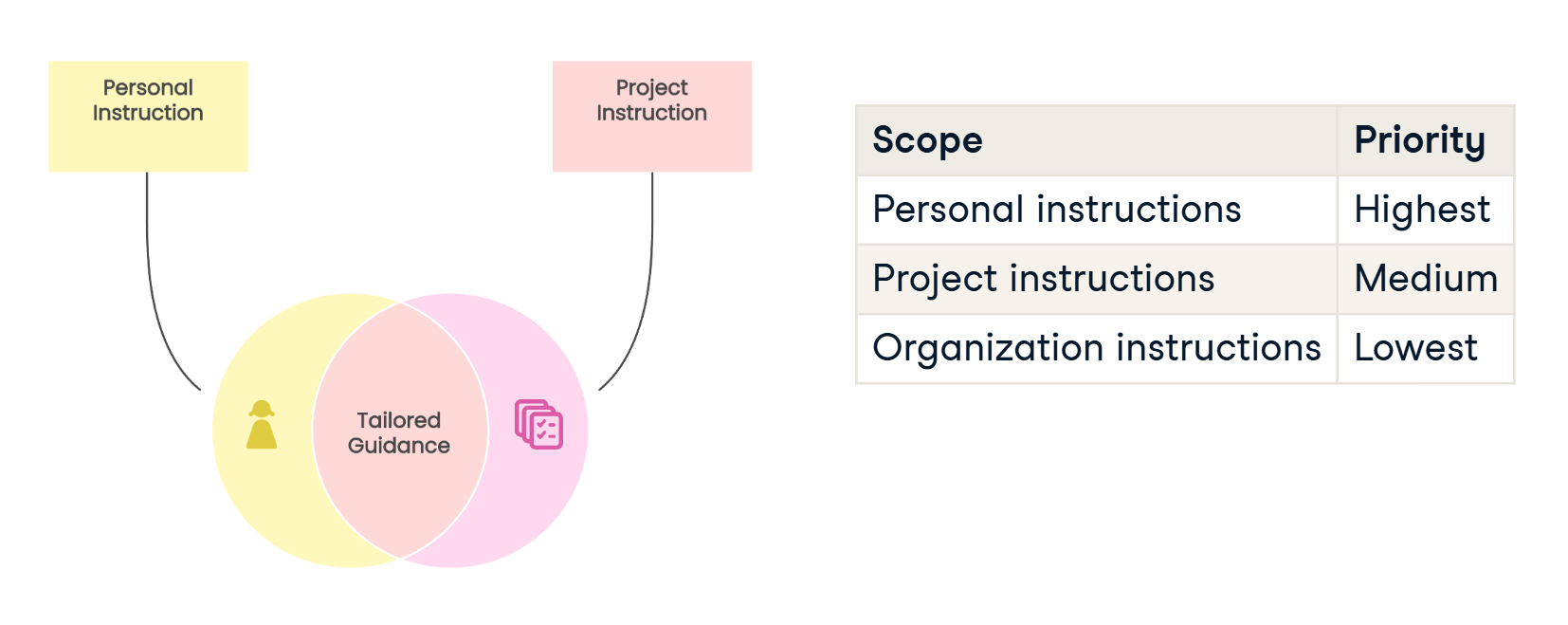
In practice, personal instructions override repository instructions, and repository instructions override organization-level instructions. This means teams can set a baseline while individual users and projects still have room to fine-tune behavior.