APIs and Services
Overview
Most Google Cloud services must be enabled before they can be used in a project.
The switch for a service is its API.
For example, before a project can create Compute Engine virtual machines, the Compute Engine API must be enabled.
This is true even when the user already has the correct IAM permissions.
What an API Does
An API is the interface that allows Google Cloud, users, scripts, and applications to work with a service.
Think of a Google Cloud project as a secure building.
Inside the building are many workshops:
- Compute Engine for virtual machines
- BigQuery for analytics
- Cloud Storage for object storage
- Cloud Build for builds and tests
By default, many service doors are locked.
Enabling an API unlocks the door for that service inside the selected project.
API and IAM
API enablement and IAM are related, but they are not the same thing.
| Requirement | Purpose | Example |
|---|---|---|
| Enabled API | Makes the service available in a project | The Compute Engine API is enabled for the project. |
| IAM permission | Allows a principal to use the service | A user has permission to create Compute Engine VM instances. |
Both must be in place.
If the API is disabled, resource creation can fail even when the user has the right IAM role.
If the API is enabled but the user lacks IAM permissions, the service is available but the user cannot perform the action.
API Library
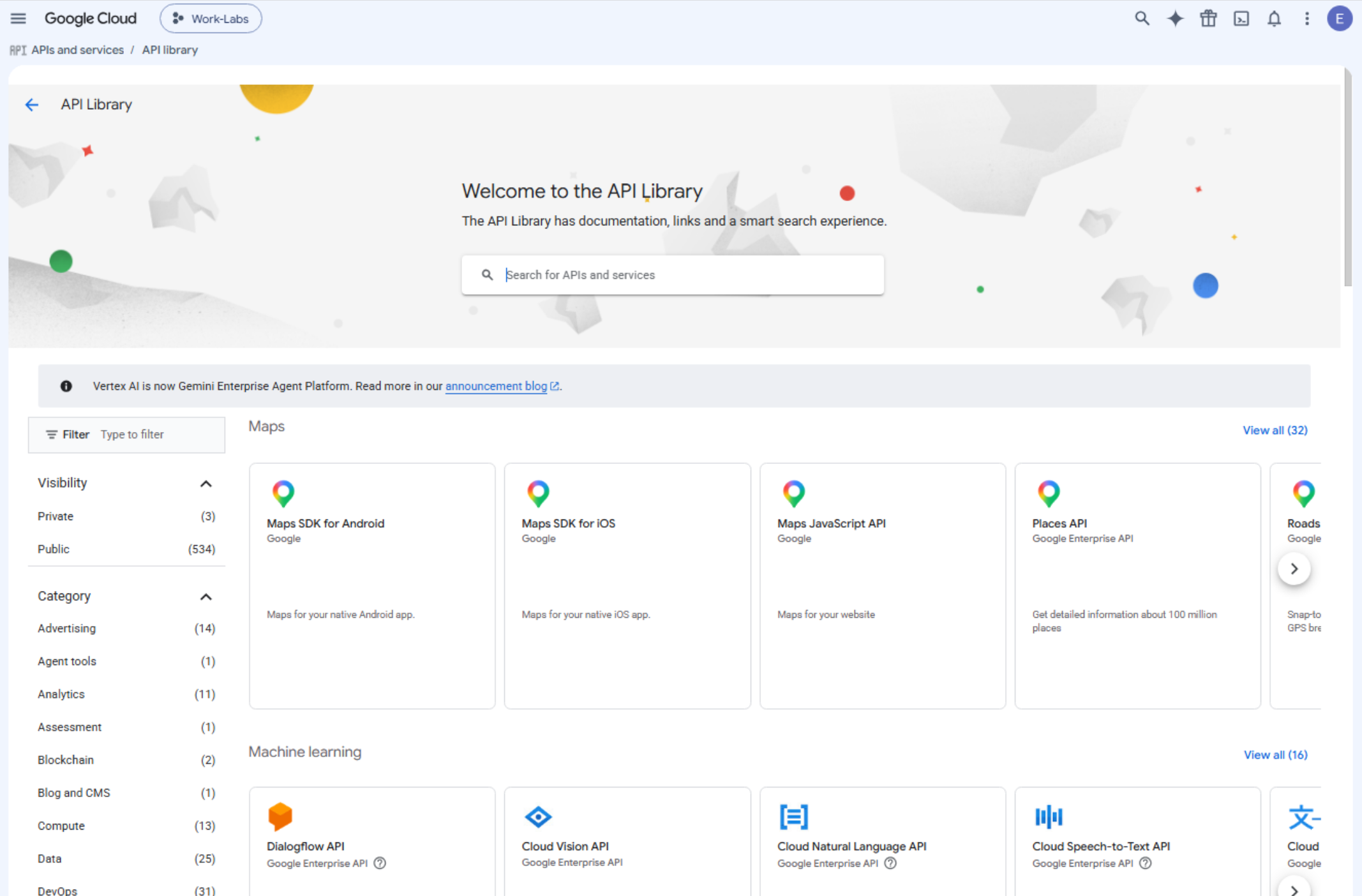
The API library is the central catalog for Google Cloud APIs.
Use it to discover and enable APIs for a project.
APIs are grouped by categories such as:
- Analytics
- Big data
- Compute
- Databases
- DevOps
- Machine learning
- Networking
- Security
The API library is project-scoped.
Make sure the correct project is selected before enabling a service API.
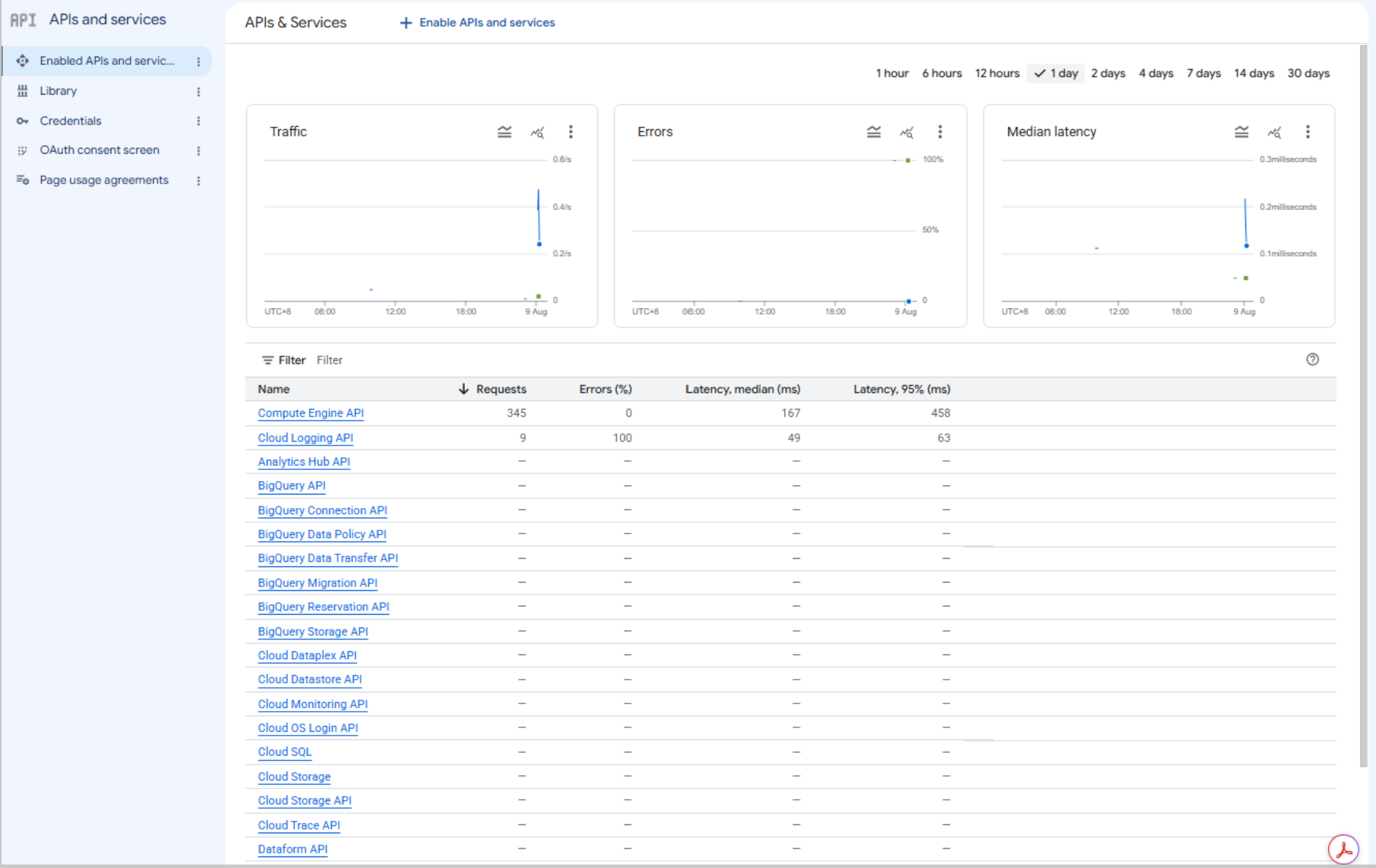
Enable an API
Use these steps to enable an API in the console:
-
Select the correct project.
Check the project name at the top of the console.
-
Open APIs and Services.
-
Select Library.
This opens the API catalog for the selected project.
-
Search for the API.
For example, search for
Cloud Build.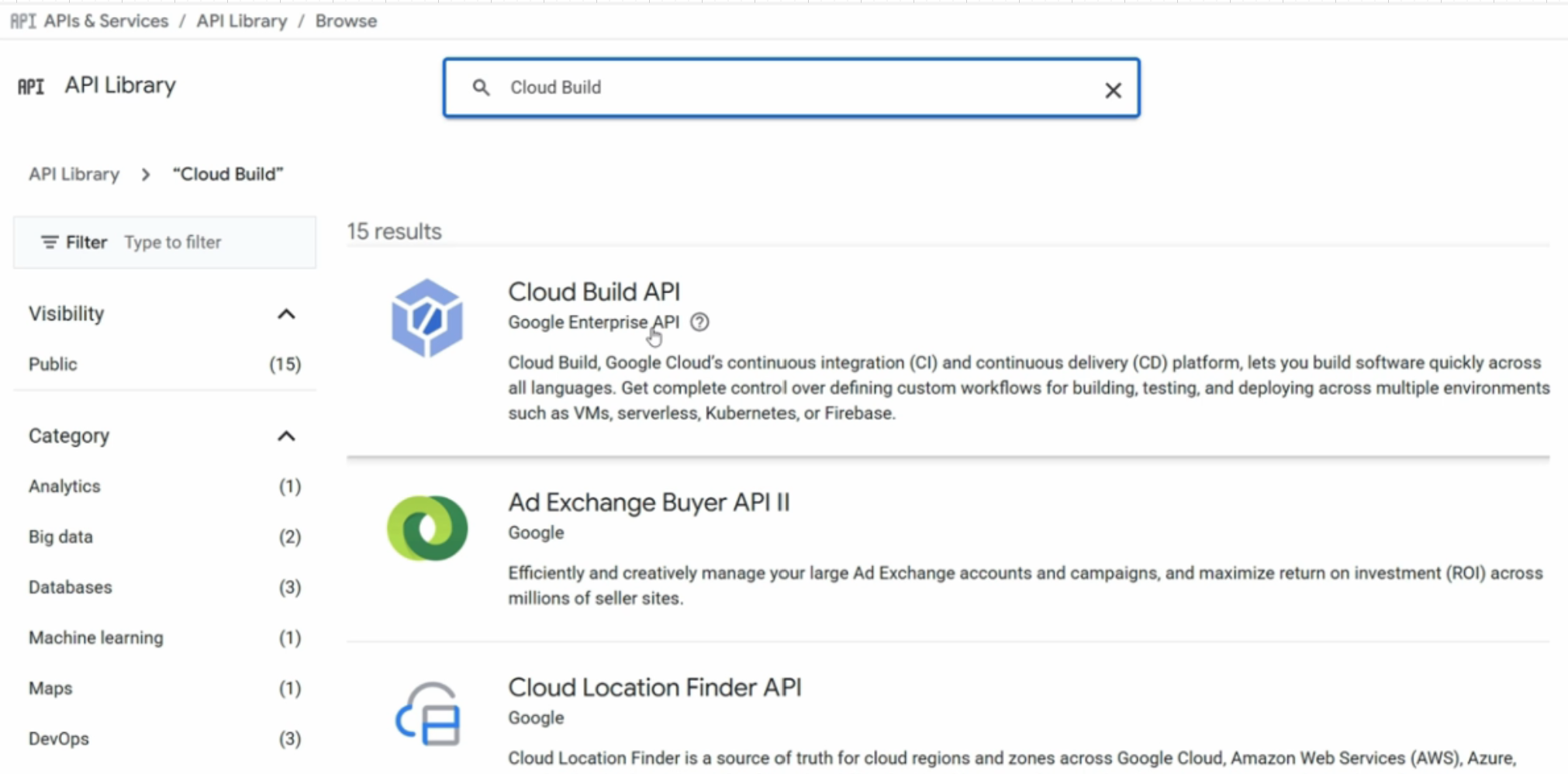
-
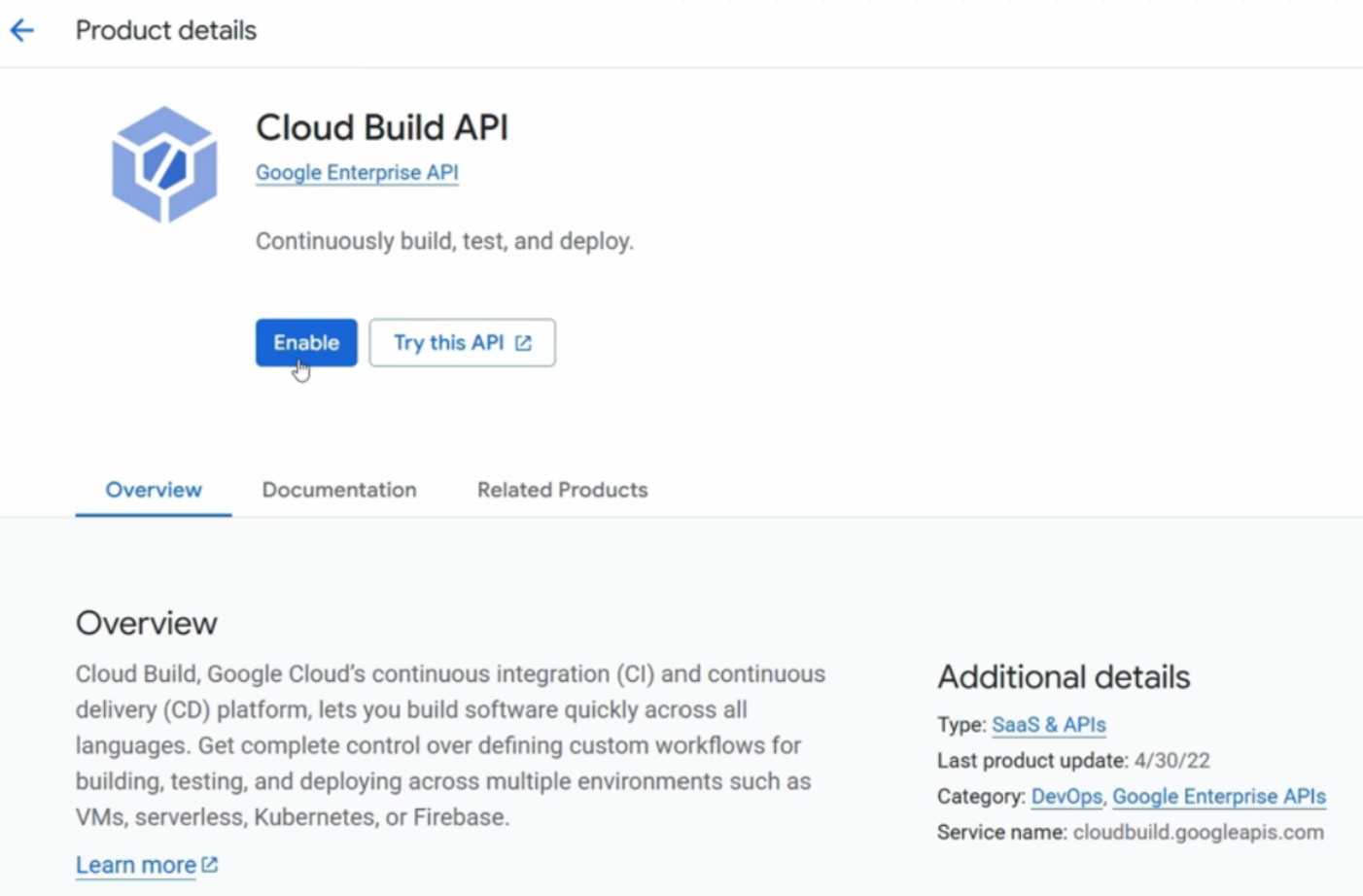
Open the API details page.
Review the service name and description before enabling it.
-
Click Enable.
Google Cloud may take a short time to activate the API in the background.
-
Confirm the API is active.
After the API is enabled, the page usually changes from Enable to Manage.
-
From the dashboard, monitor the API usage, view metrics, and check quotas.
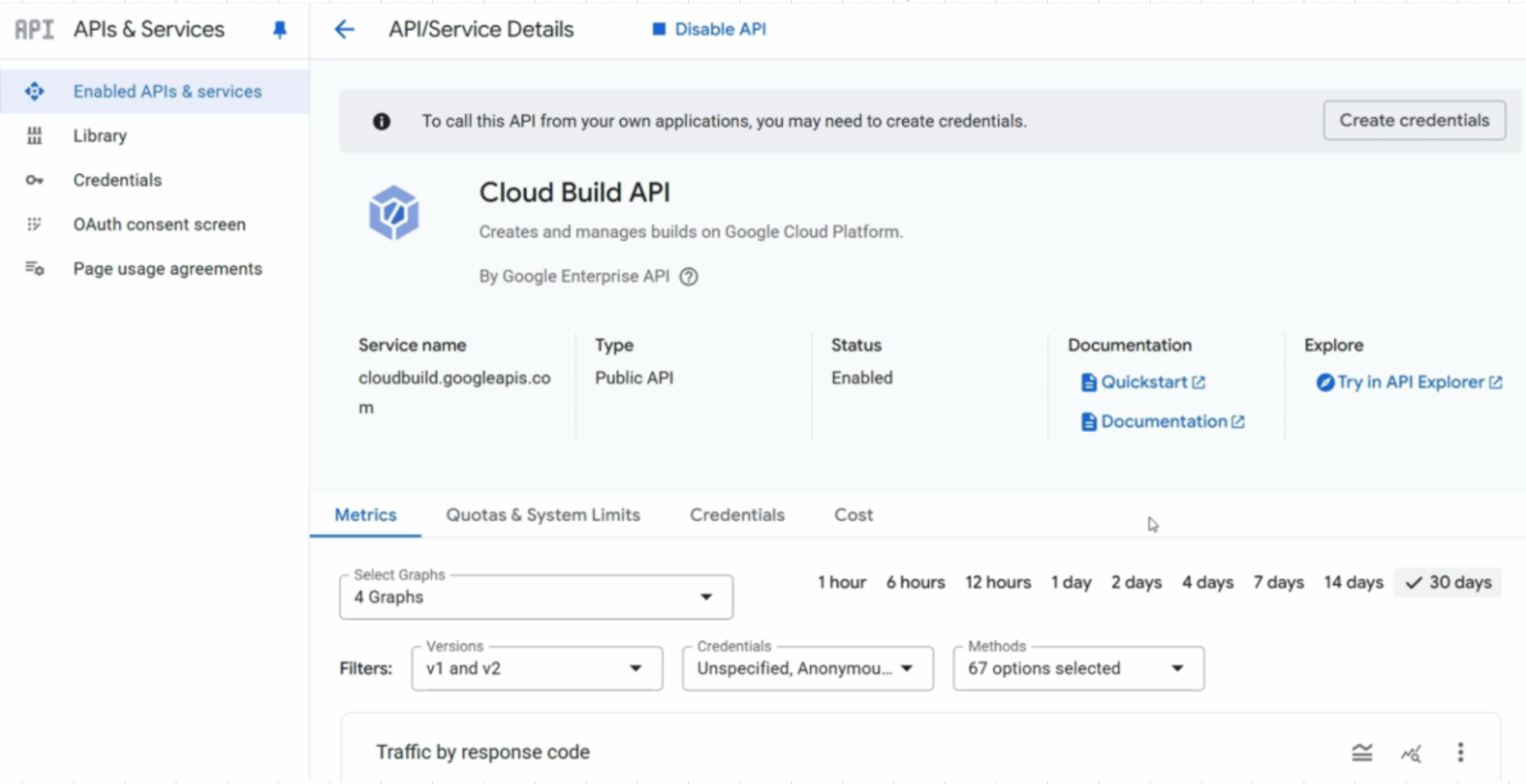
After this, Cloud Build is active for the selected project.
Enabled APIs
Use Enabled APIs and services to see which APIs are already active in a project.
This view is useful for:
- Confirming that a required API is enabled
- Reviewing API usage
- Checking service metrics
- Checking quota
- Disabling unused APIs
A new project does not always start with zero APIs enabled.
Google Cloud may pre-enable core management APIs that are required for basic project operations.
Examples include APIs for IAM, Service Usage, and Resource Manager.
Most workload APIs, such as Compute Engine, BigQuery, and Cloud Build, usually need to be enabled before use.
Troubleshooting
Missing APIs are a common cause of errors in scripts, applications, and labs.
When a command fails while creating or managing a resource, check:
- The correct project is selected.
- The required service API is enabled.
- The user or service account has the required IAM permissions.
- Billing is attached when the service requires billing.
- Quota is available for the requested resource.
When troubleshooting a new service, check API enablement before assuming the problem is IAM, networking, or application code.