Resource Hierarchy
Overview
Google Cloud uses a resource hierarchy to organize cloud environments.
Think of it like a company structure.
A company has departments, departments have teams, and teams work on products. Google Cloud uses a similar structure for cloud resources.
At a high level, the hierarchy is:
- Organization
- Folders
- Projects
- Resources
This structure affects permissions, billing, ownership, and governance.
Hierarchy Levels
Each level has a different job.
| Level | Purpose | Example |
|---|---|---|
| Organization | Represents the company or domain | example.com |
| Folder | Groups projects by department or environment | Engineering, Finance, or Production |
| Project | Contains actual cloud resources | web-app-prod or data-analytics-dev |
| Resource | The service object created inside a project | VM instance, storage bucket, or BigQuery set |
Notes:
- The organization is the root container.
- Folders are optional, but they become important when many teams, applications, or environments exist.
- Projects are the main workspace for building.
- Every service resource belongs to a project.
Organization
The organization node represents the company behind the Google Cloud account.
It is linked to a Google Workspace or Cloud Identity account, and it acts as the top-level parent for folders and projects.
Use the organization level for broad controls that should apply across the business.
Examples:
- Grant billing visibility to finance teams.
- Apply security guardrails across all projects.
- Define high-level ownership and administration boundaries.
- Prevent unmanaged personal projects from becoming the center of production systems.
Note: A personal Gmail account can use Google Cloud, but it does not provide a Google Cloud organization by itself.
Folders
Folders group projects inside an organization.
They can represent business units, teams, environments, regions, or compliance boundaries.
Common folder patterns include:
EngineeringFinanceProductionDevelopmentEU-DataShared-Services
Folders can also contain other folders.
For example:
Organization
  Engineering
    Web-Team
      Production
      Development
This structure makes access control and governance easier to manage at scale.
Projects
A project is the fundamental container for Google Cloud resources.
This is where most day-to-day cloud work happens.
A project controls:
- Which APIs are enabled.
- Which billing account is attached.
- Which IAM permissions apply.
- Which resources are created.
- Which logs, quotas, and labels apply.
Use projects to separate workloads, teams, environments, and billing concerns.
Example project names:
corporate-website-prodcorporate-website-devdata-platform-testshared-network-prod
Project Identifiers
Google Cloud projects have several identifiers.
| Identifier | Purpose | Can Change |
|---|---|---|
| Project name | Human-friendly display name | Yes |
| Project ID | Globally unique project identifier | No |
| Project number | Google-generated numeric identifier | No |
The project name is like a nickname.
The project ID is the permanent identifier used by commands, APIs, service accounts, logs, and resource names.
Choose the project ID carefully before creating the project.
Policy Inheritance
Policy inheritance means that policies applied to a parent are inherited by children.
For example:
- A role granted at the organization level can apply across all folders and projects.
- A role granted at a folder level can apply to projects inside that folder.
- A policy set at a parent level can affect resources below that parent.
This makes the hierarchy a security and governance tool, not only an organization tool.
Apply broad, safe permissions high in the hierarchy, and apply powerful or specific permissions closer to the workload that needs them.
Example Hierarchy
A company could structure folders and projects like this:
Organization: example.com
  Engineering
    web-app-prod
    web-app-dev
  Finance
    finance-reporting-prod
  EU-Data
    customer-analytics-prod
Possible access patterns:
| Target | Role or Policy | Effect |
|---|---|---|
| Organization | Billing Viewer role | Finance can view billing across all projects. |
| Engineering folder | Developer role | Engineers can manage engineering projects only. |
| EU-Data folder | Regional guardrail | EU data projects follow stricter controls. |
This keeps broad governance centralized while still allowing teams to manage their own work.
Creating a Project
In the Google Cloud console, the current project appears near the top of the page. This tells you which project is currently selected.
All resources you view, create, or change in the console are scoped to the selected project unless the service uses a broader scope.
-
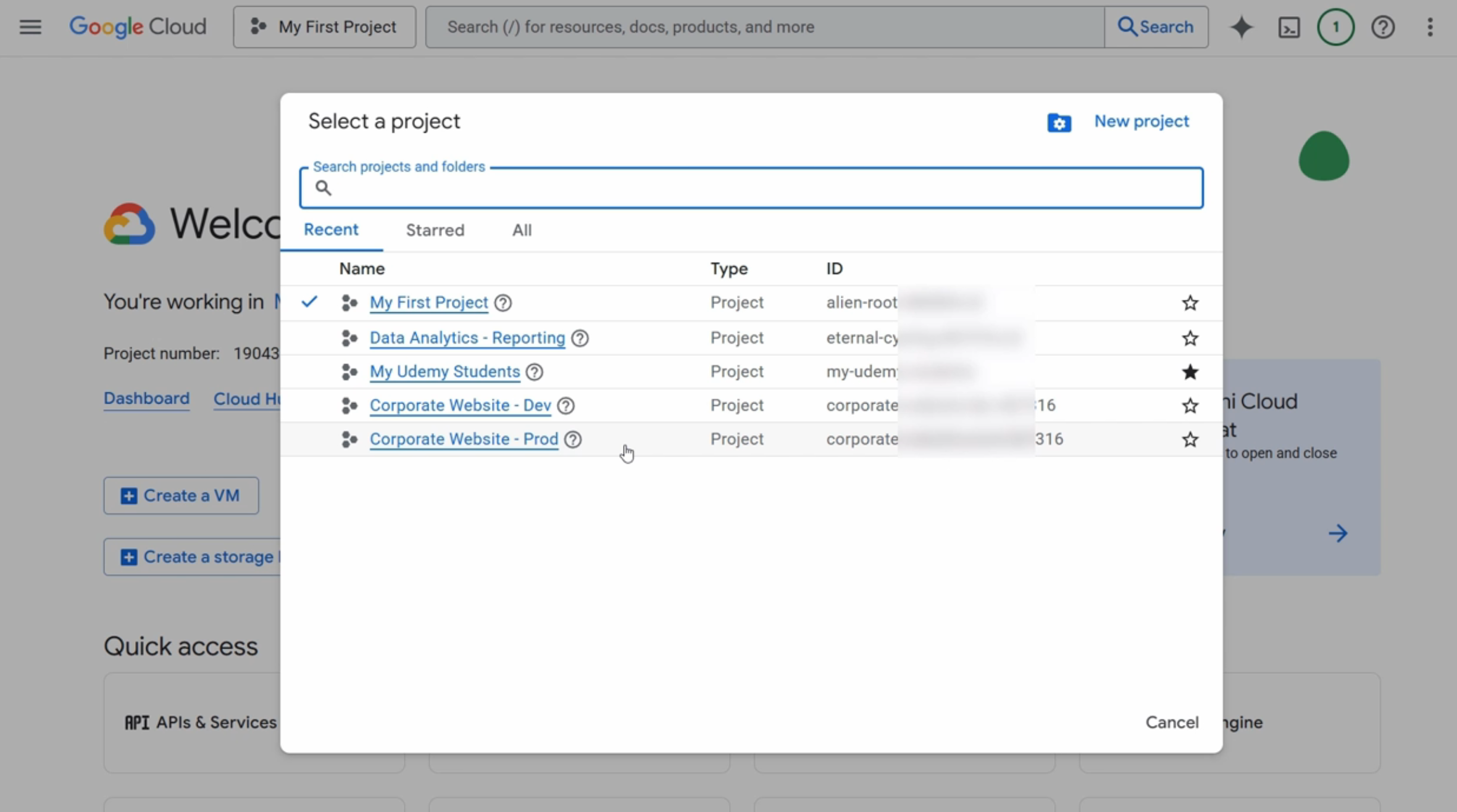
Open the project picker.
Click the current project name near the top of the console.
This opens the project picker, where you can see recent projects, search for projects, or create a new project.
-
Select New Project.
This opens the project creation screen.
-
Review the project fields.
Each field affects how the project is identified, organized, or billed.
Field Purpose Notes Project name Human-friendly display name Can be changed later, so use a clear name for people. Project ID Globally unique project identifier Cannot be changed after creation. Location Parent organization or folder for the project Controls where the project sits in the resource hierarchy. Manage quota message Shows project creation quota for the account New or trial accounts may have a limit on how many projects exist. 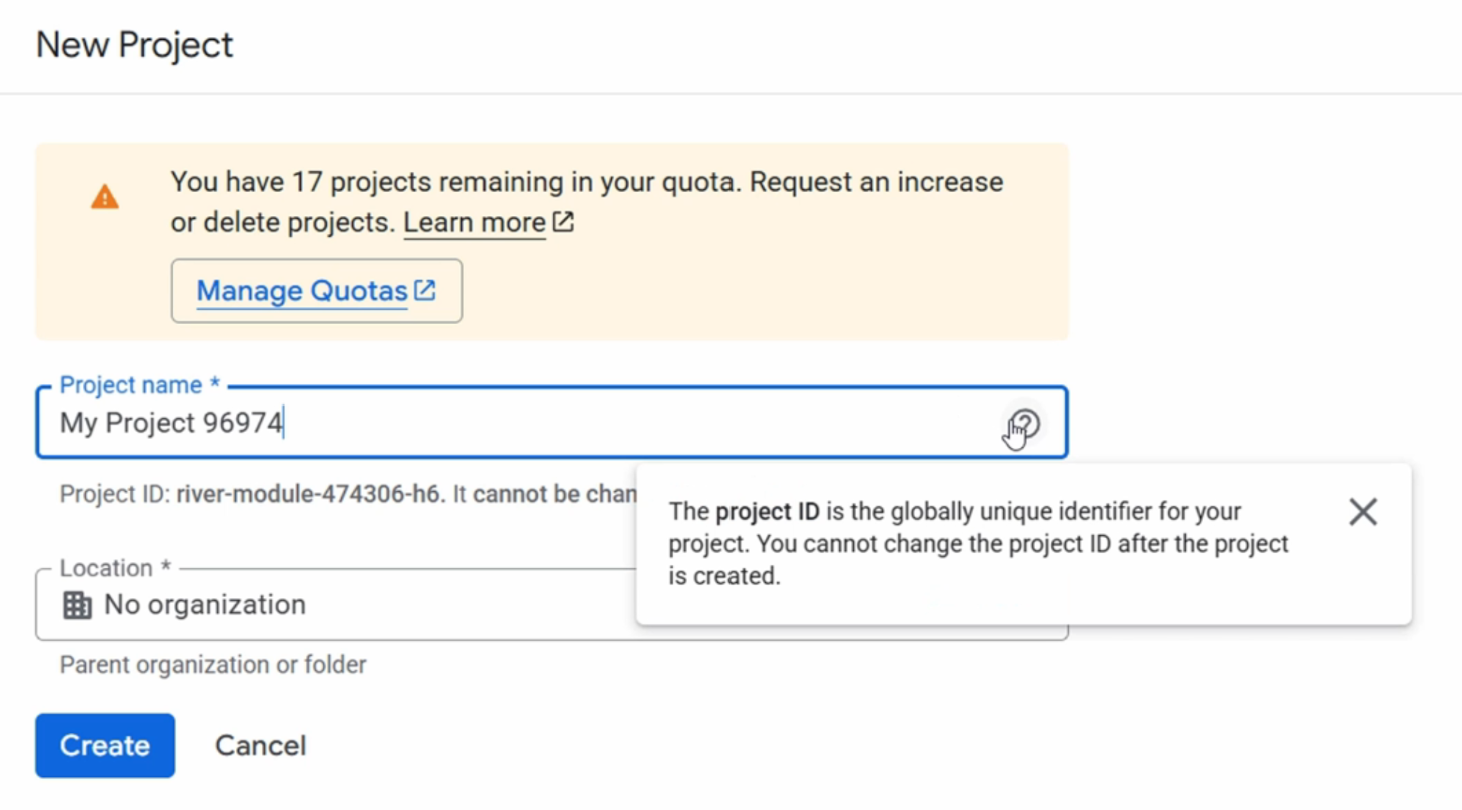
-
Choose a project name.
The project name is like a nickname.
It should be descriptive enough that people can understand the purpose of the project in the console.
Examples:
Corporate website productionData analytics development
-
Confirm the project ID.
The project ID is more important than the project name.
It is the permanent identifier used by Google Cloud APIs, CLI commands, service accounts, logs, and resource paths.
Google Cloud can suggest a project ID, but you should review it before creating the project.
warningThe project ID cannot be changed after the project is created. If the ID is wrong, you usually need to create a new project with the correct ID.
-
Choose the project location.
The location field decides where the project belongs in the hierarchy.
-
For a company account, the project can be placed under the organization or inside a folder.
-
For a personal account, the location may show No organization.
-
-
Create the project.
After a moment, the project is created and becomes available in the project picker.
-
Switch to the new project.
Use the project picker to select the new project.
-
Confirm the project details.
Check the project dashboard and confirm:
- Project name
- Project ID
- Project number
The project number is another unique identifier generated by Google Cloud.
You may need it when working with APIs, service agents, audit logs, or support cases.
Shutting Down a Project
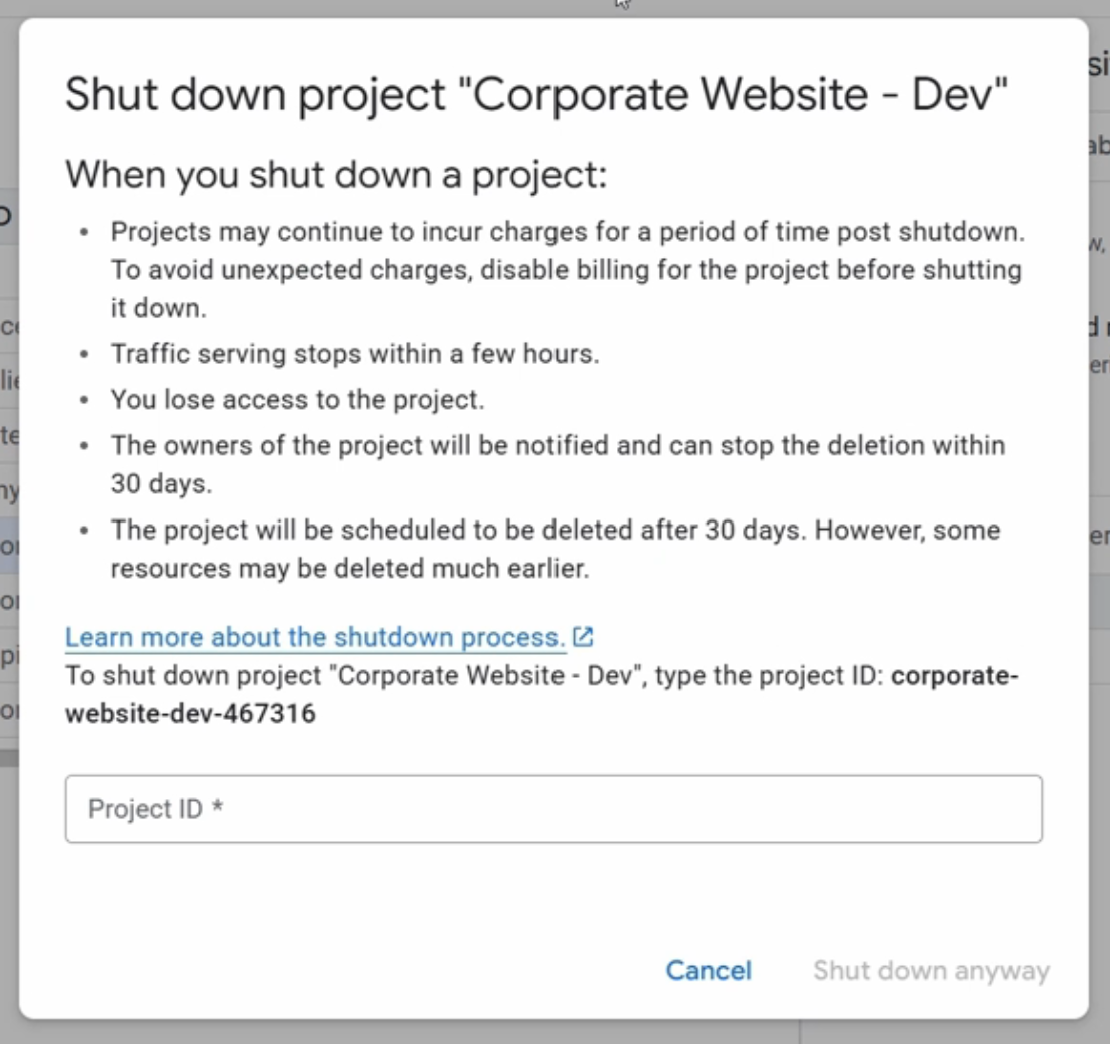
Google Cloud projects are shut down before they are permanently deleted.
This provides a recovery window for accidental deletion.
Typical steps:
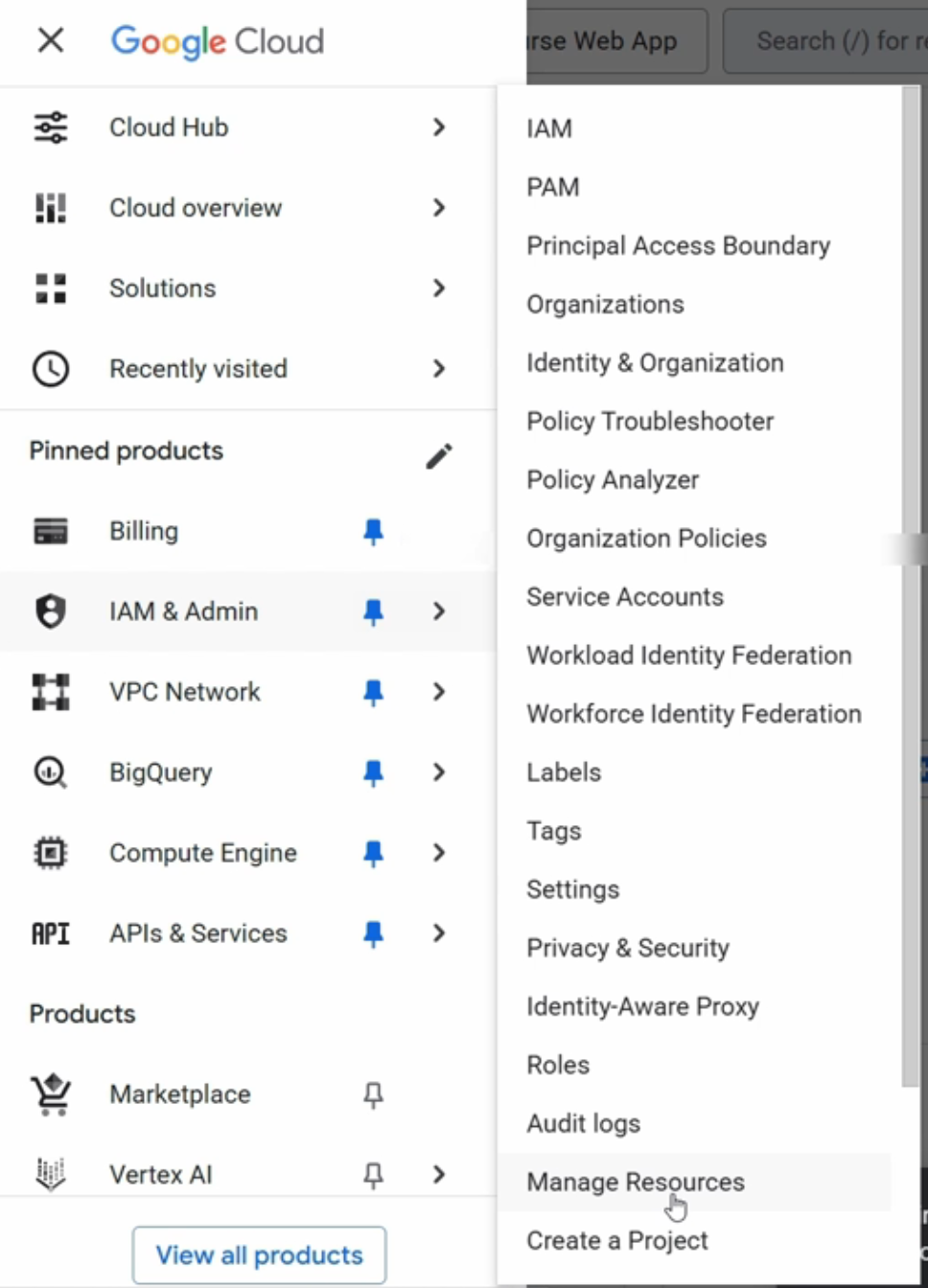
-
Go to IAM and Admin.
-
Open Manage Resources.
-
Select the project and choose Delete or Shut down.
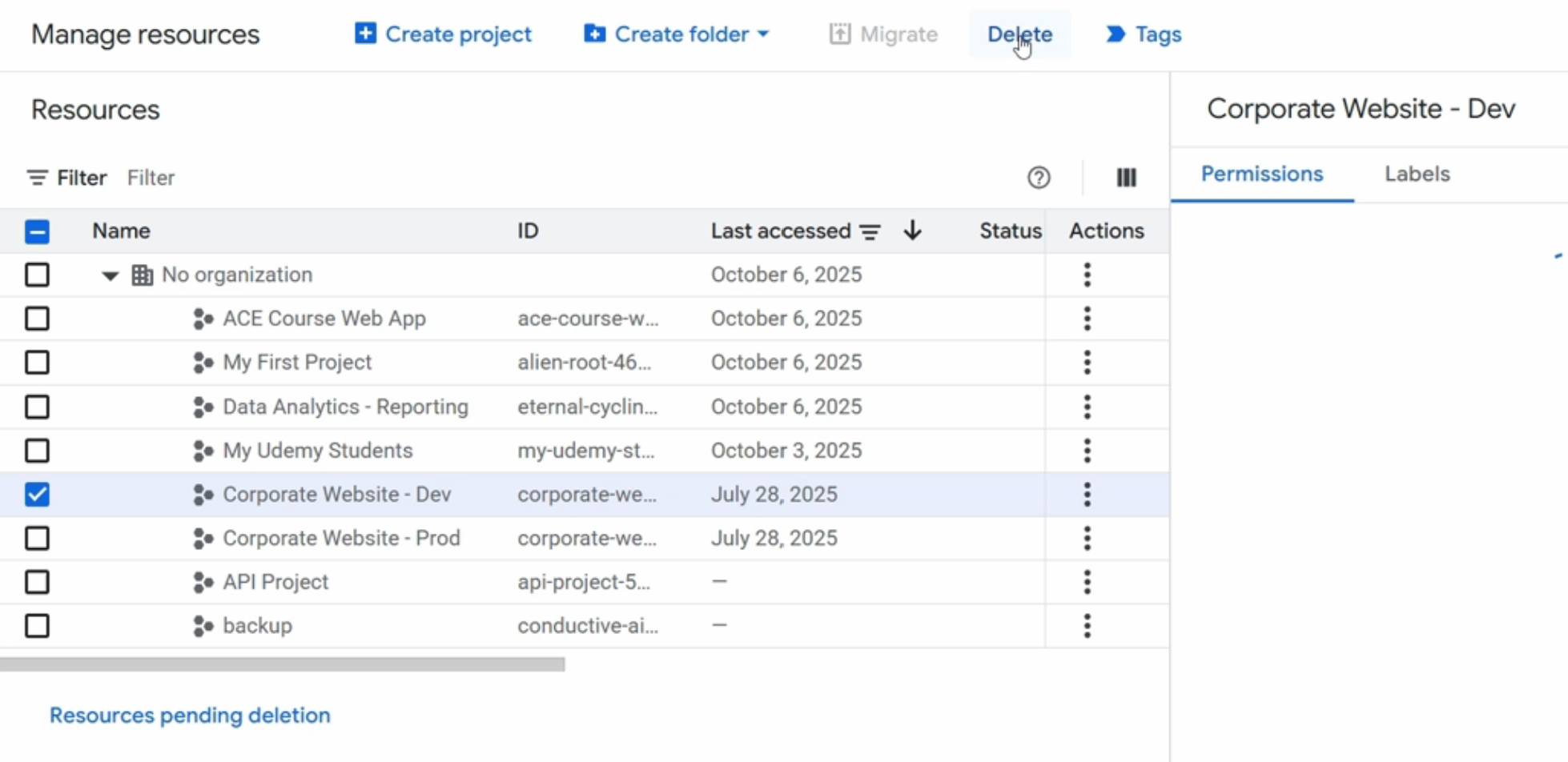
-
Type the project ID to confirm.
warningProject shutdown is a destructive action.
Confirm that required resources, logs, data, and billing records are no longer needed before shutting down a project.