Organization Policies
Overview
Organization policies are guardrails for Google Cloud.
They help administrators define what is allowed across an organization, folder, or project.
This is important because IAM alone does not restrict how resources are configured.
For example, a developer may have permission to create virtual machines, but an organization policy can still prevent those VMs from using external IP addresses.
IAM vs. Organization Policies
IAM and organization policies solve different problems.
| Control Type | Main Question | Example |
|---|---|---|
| IAM | Who can do something? | A developer can administer projects in the Engineering folder. |
| Organization Policy | What is allowed to be done? | VMs cannot be created with external IP addresses. |
| IAM and Organization Policy | Who can act within guardrails? | A developer can create VMs, but only in approved regions. |
Notes:
- IAM grants access.
- Organization policies set limits on how resources can be configured or used.
- Both controls are needed.
Organization Policy Service
Organization Policy Service provides central rules for Google Cloud resources.
It is used to reduce risk and enforce governance across an organization.
- Cost risk
- Security drift
- Compliance violations
- Accidental public exposure
- Inconsistent resource configuration
Note: Organization policies do not replace IAM.
They define what configurations are permitted after a principal already has permission to perform an action.
Constraints
A constraint is a rule that Google Cloud provides.
Administrators choose constraints and configure how they are enforced.
Common constraints include:
| Constraint Example | Purpose |
|---|---|
constraints/compute.vmExternalIpAccess | Restricts external IPv4 addresses on VM instances. |
constraints/gcp.resourceLocations | Restricts where supported resources can be created. |
iam.managed.allowedPolicyMembers | Restricts IAM grants to approved principals. |
You do not create the constraint itself.
You choose an available constraint and define the policy behavior.
Policy Inheritance
Organization policies follow the Google Cloud resource hierarchy.
If a policy is applied to a parent resource, child resources inherit it by default.
For example:
- A policy set at the organization can apply to all folders and projects.
- A policy set on a folder can apply to all projects inside that folder.
- A policy set on a project can define behavior for that specific project.
This allows administrators to create broad rules at the top and more specific rules lower in the hierarchy.
Common Guardrails
Organization policies are useful when teams need freedom to build, but within clear boundaries.
| Guardrail | Why It Matters |
|---|---|
| Restrict external VM IP addresses | Reduces accidental internet exposure. |
| Restrict resource locations | Helps meet data residency and regional design standards. |
| Restrict IAM member domains | Reduces accidental sharing with personal accounts. |
| Restrict service usage | Prevents teams from enabling unapproved services. |
These guardrails help prevent mistakes before resources are created.
Resource Location Restriction
The resource location constraint controls where supported resources can be created.
Use it when location matters for:
- Data residency
- Compliance
- Latency
- Internal governance
- Regional architecture standards
Example:
| Requirement | Policy Choice |
|---|---|
| Keep regulated data in Europe | Allow only approved European locations. |
| Keep lab resources in one region | Allow only a low-cost training region. |
| Separate US and EU workloads | Apply different location policies to each folder. |
Note: Resource location policies generally apply to newly-created resources. Review service-specific behavior before relying on the policy for compliance.
Lab: Setting Organization Policies
To configure an organization policy in the console:
-
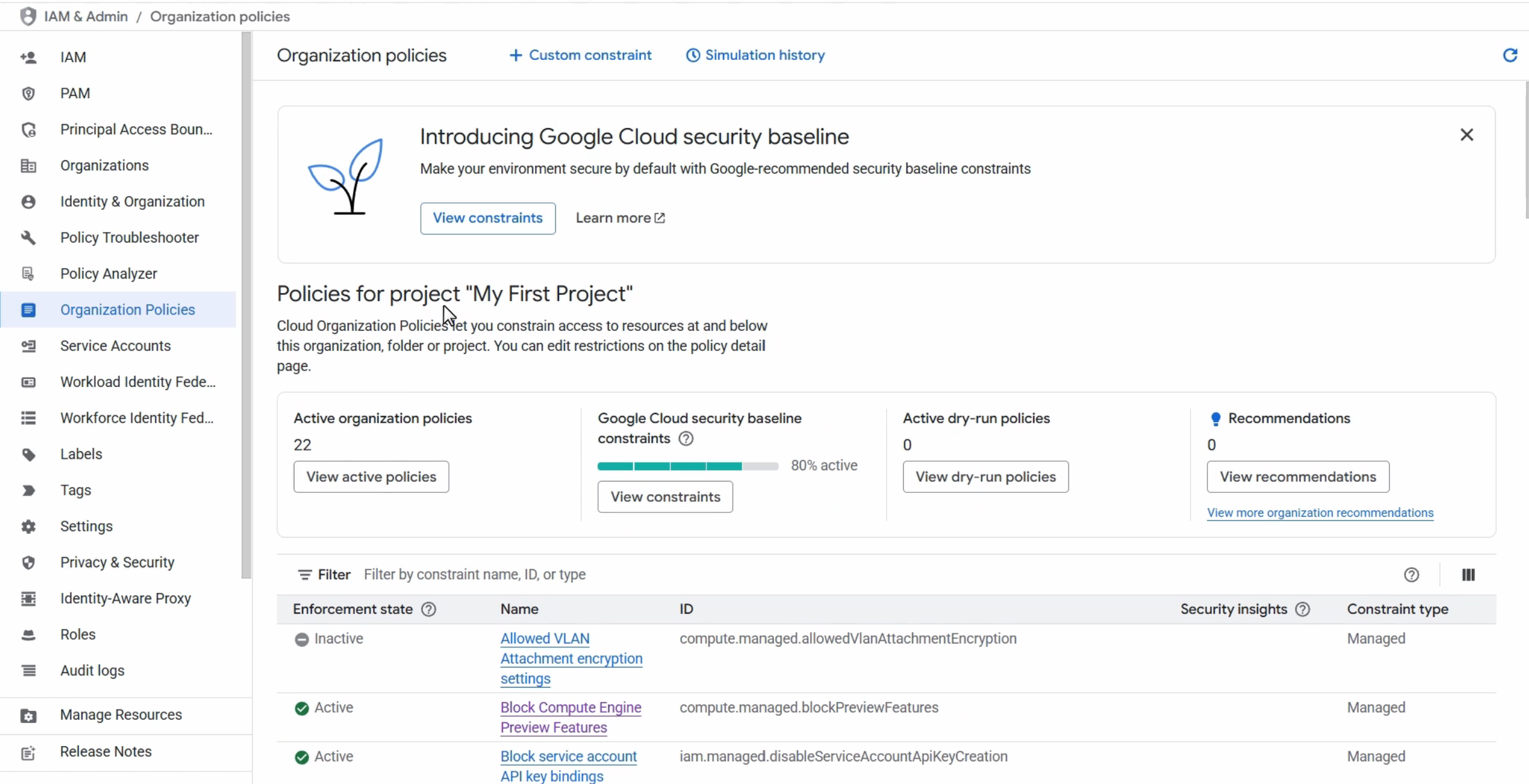
Open IAM and Admin ➜ Organization Policies.
-
Search for the policy or constraint.
In this example, we will configure the resource location constraint.

-
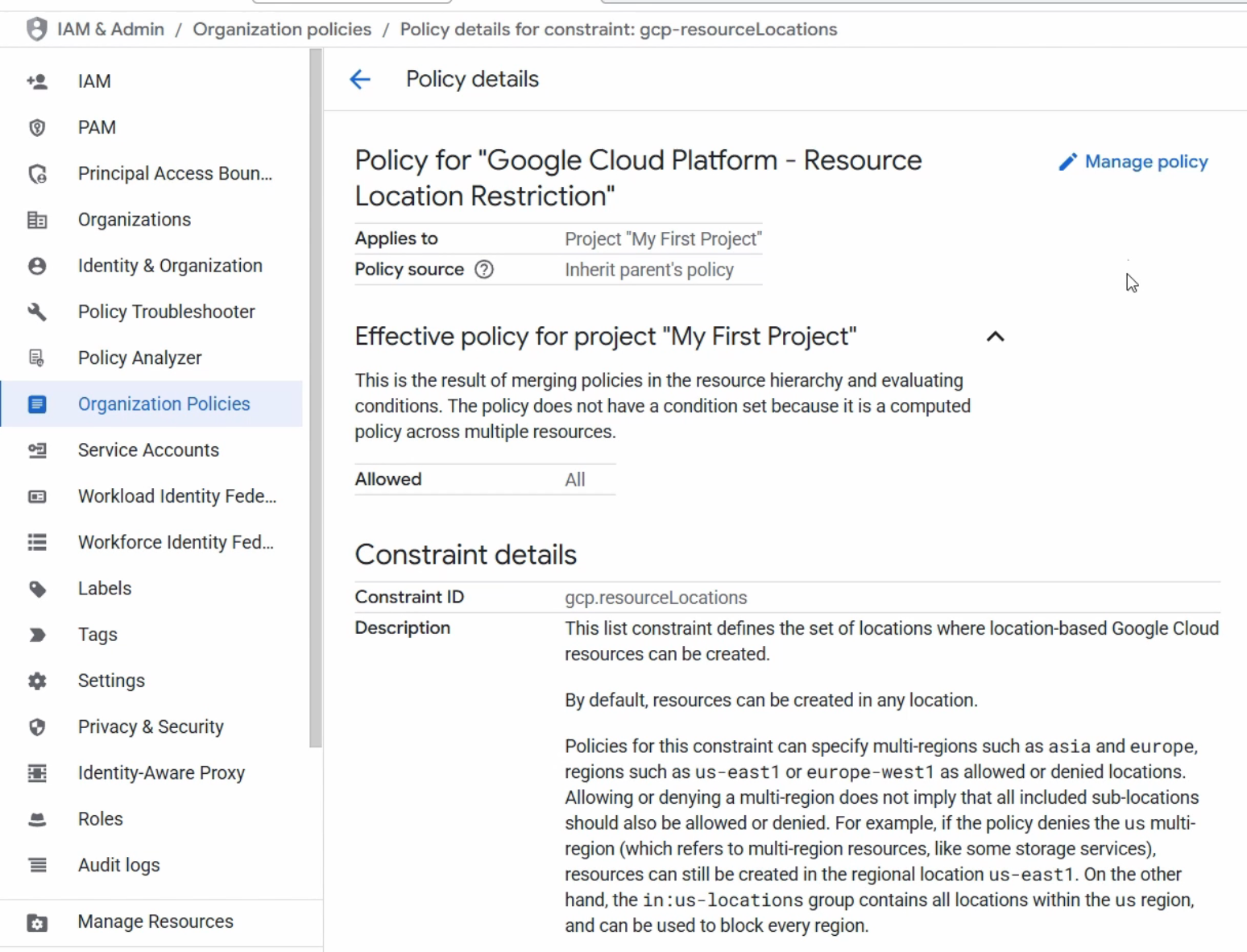
Open the policy details and select Manage Policy.
If the Manage Policy is greyed out, it means that you do not have permission to edit the policy.
You will need the Organization Policy Administrator role to edit policies.
See Required Permissions for more information.
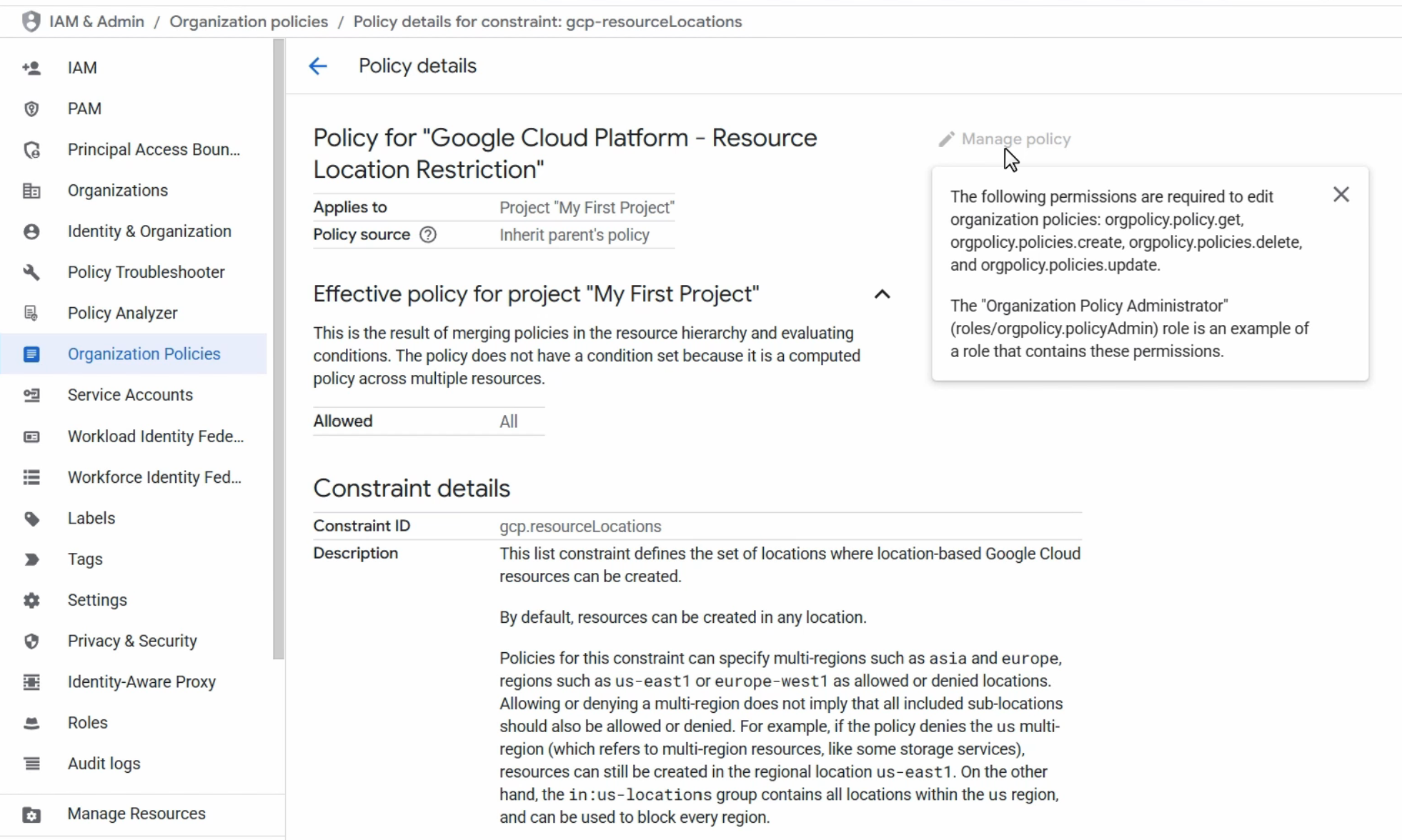
If it's not greyed out, click on it.
-
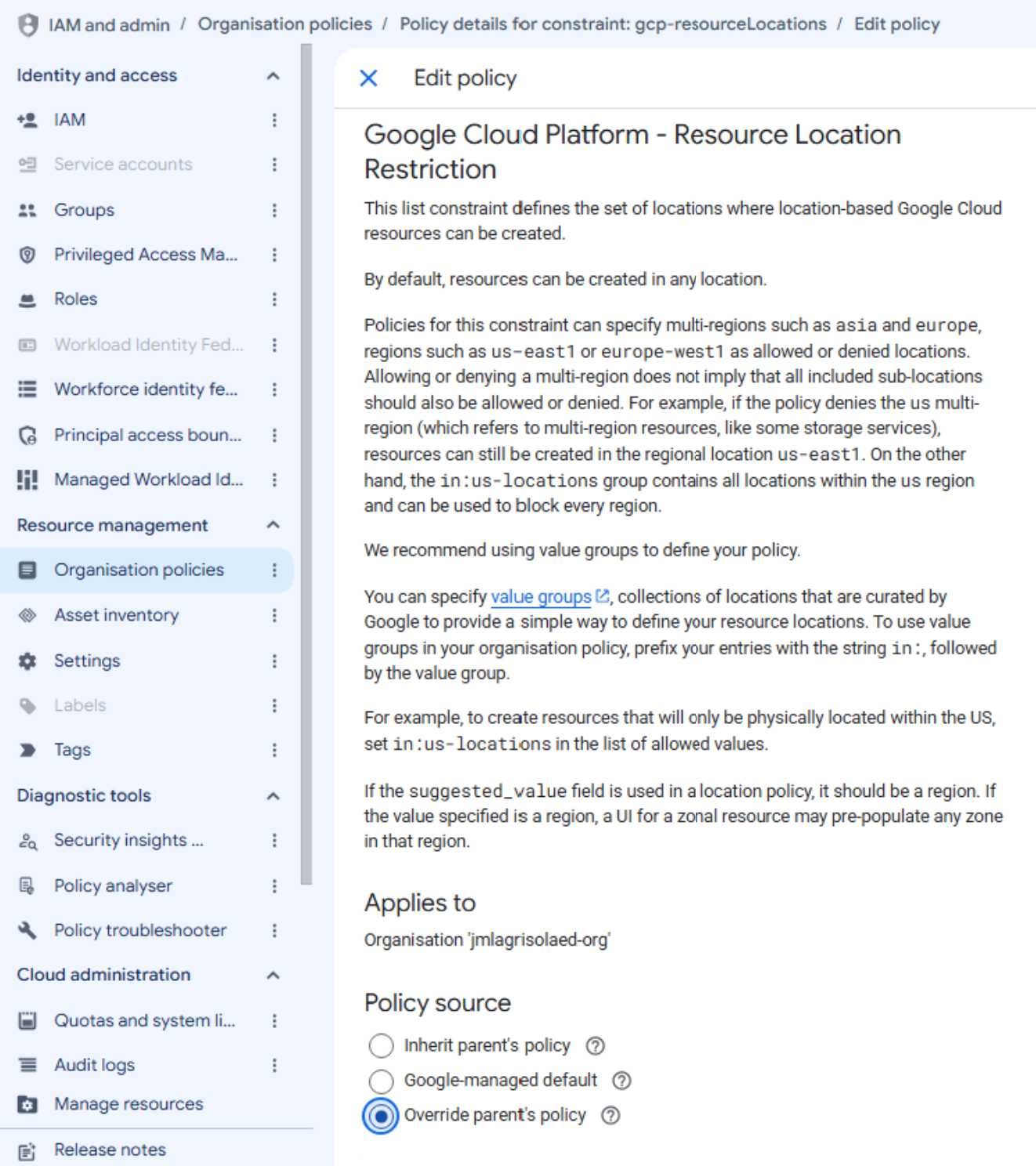
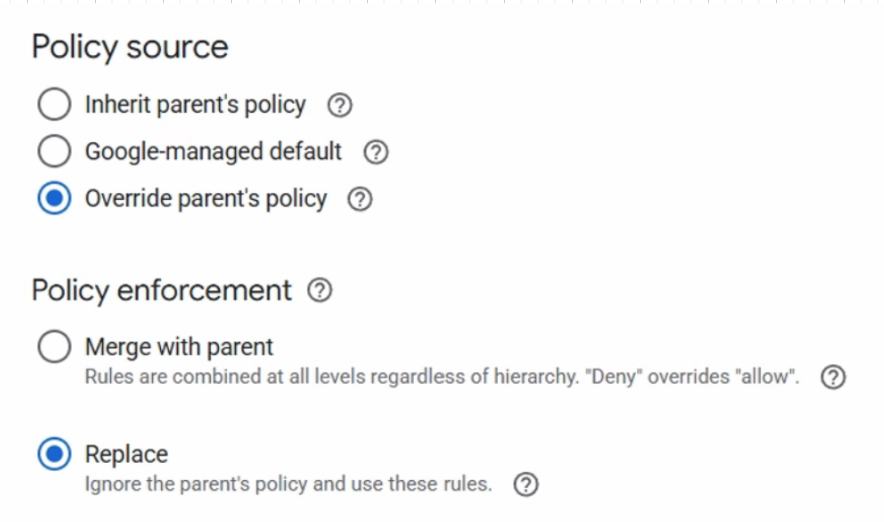
Define whether to inherit from the parent or override it.
In this example, we will override the parent policy.
Instead of inheriting the parent policy, we will define our own policy for this resource.
-
Set the policy enforcement mode.
Choose Replace. This will allow us to ignore the parent policy and define our own.
-
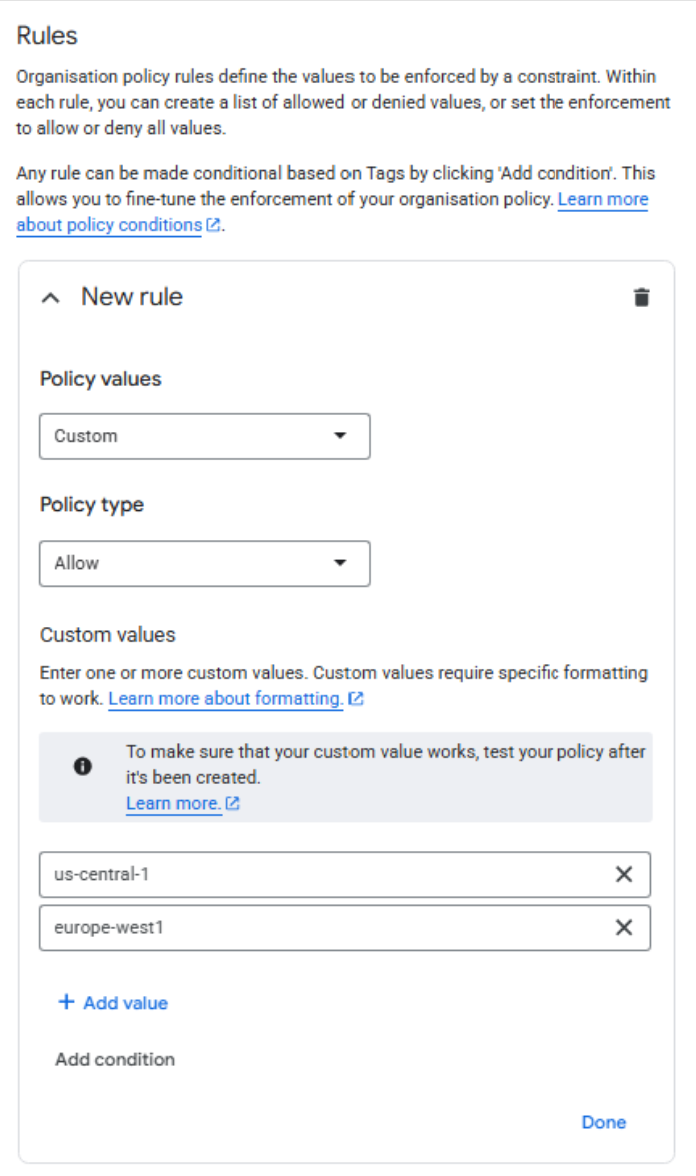
In the Rule section, click Add Rule ➜ Policy value: Custom ➜ Policy value: Allow
Under Custom values, choose the locations that you want to allow.
In this example, we'll allow only on two regions:
us-central1andeurope-west1.Click Done.
-
Click Set policy to apply the changes.
After the policy is active, the console may filter unavailable choices when users create resources.
To verify, create a test VM in the console and check the available regions.
-
Go to Compute Engine ➜ VM instances ➜ Create instance.
-
From the Region dropdown, check that only the allowed regions are available.
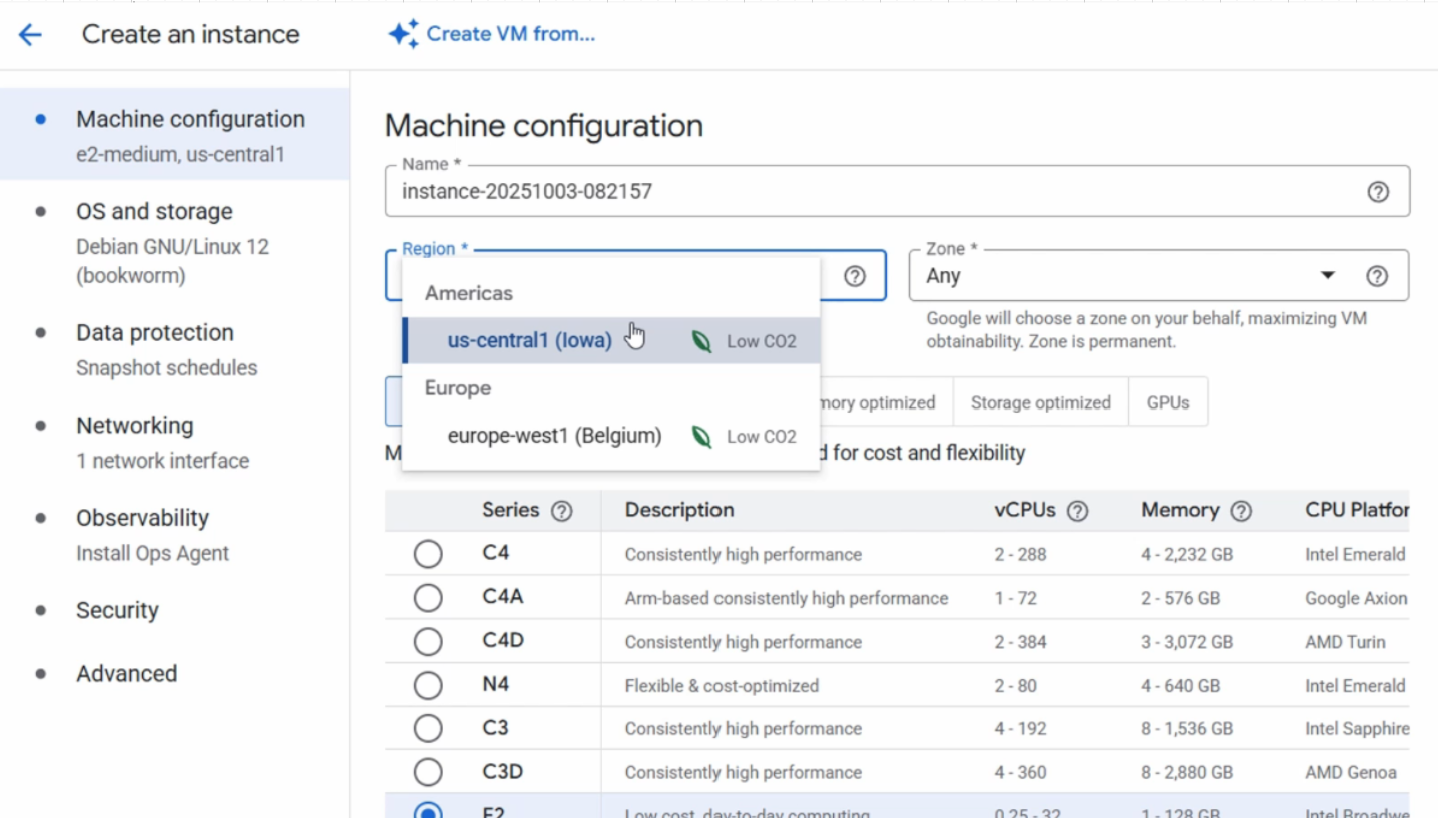
This makes the policy a proactive guardrail instead of only an error after the fact.
Required Permissions
To manage organization policies, a user needs the correct IAM permissions.
This is an example of IAM and organization policies working together:
- IAM decides whether the user can edit policies.
- Organization Policy Service decides which resource configurations are allowed.
A common role for this work is Organization Policy Administrator.
To edit the permissions:
-
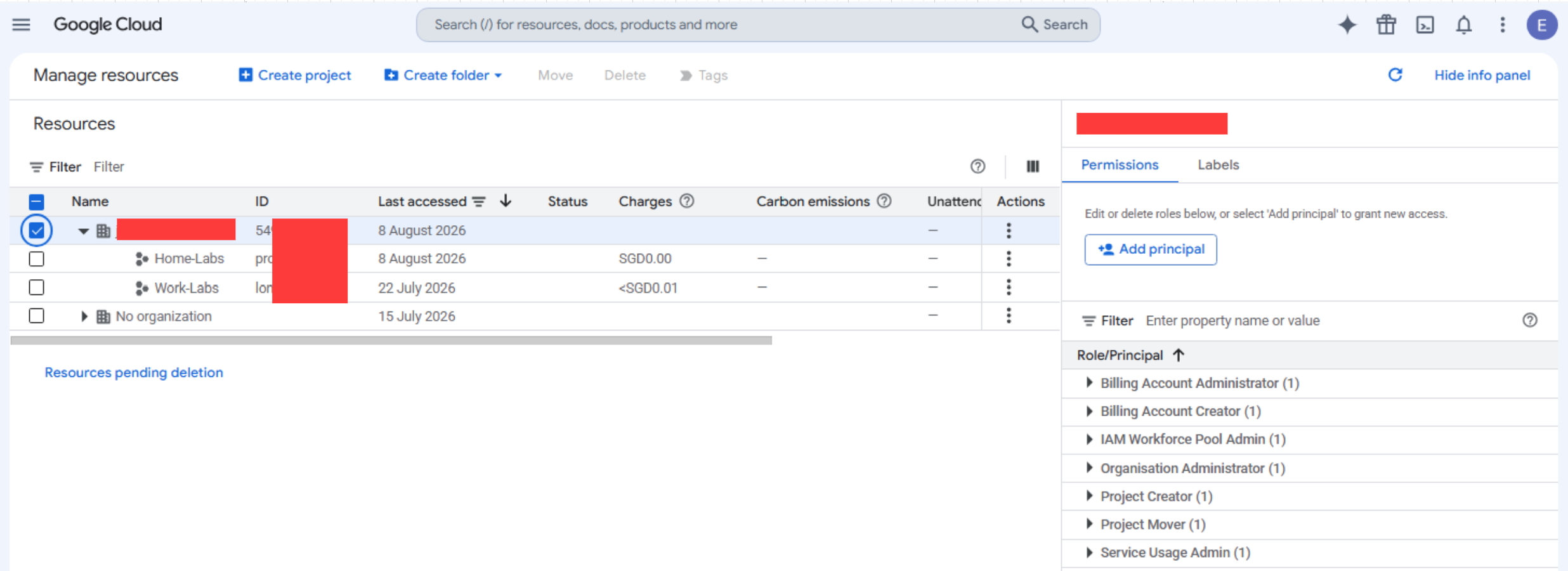
Go to IAM and Admin ➜ Manage Resources.
-
Select the organization that you want to update ➜ Add principal.
-
Enter the user or group email address that you want to grant the role to.
Then for the role, select Organization Policy Administrator.
Click Save to apply the role.
infoNote: The Organization Policy Administrator (
roles/orgpolicy.policyAdmin) is a root-level role. It cannot be viewed or assigned inside a specific project or folder scope. It only appears when your IAM scope is set to your root Organization.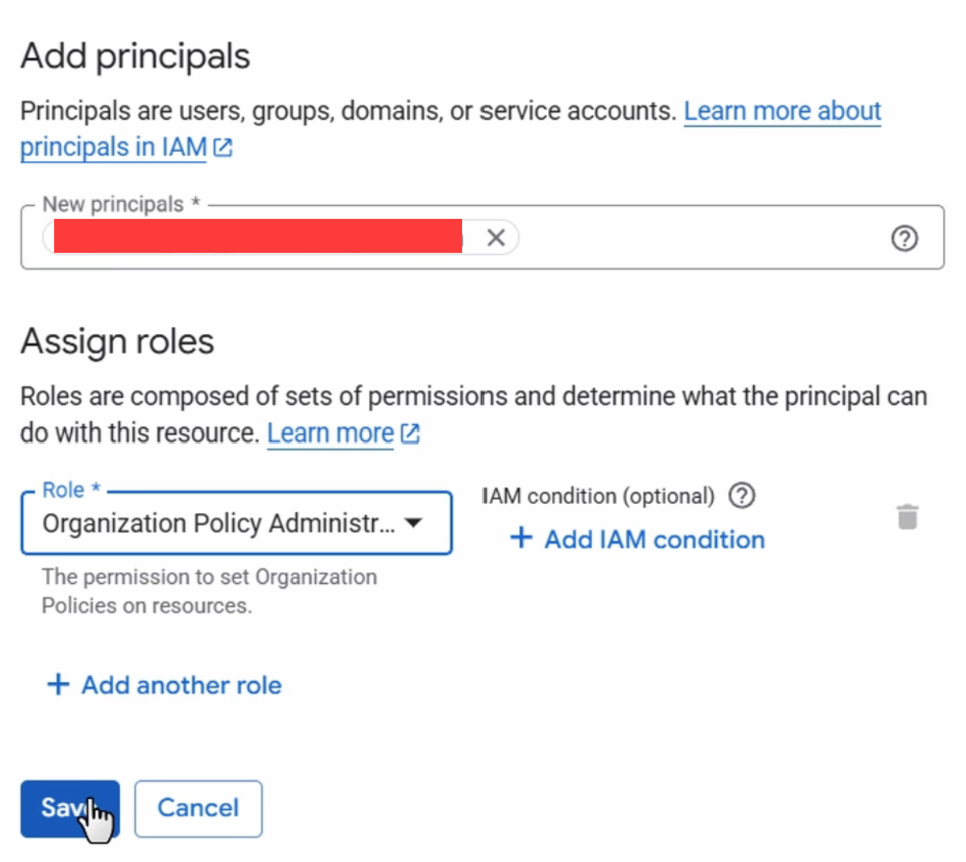
Example Use Cases
A company could apply these controls:
| Target | Policy | Effect |
|---|---|---|
| Organization | Domain-restricted sharing policy | IAM grants are limited to approved principals. |
| Engineering folder | External VM IP address restriction | Development VMs are not exposed to the public internet. |
| EU-Data folder | constraints/gcp.resourceLocations | Resources must be created in approved European locations. |
This allows teams to build while keeping security, compliance, and cost controls centralized.