Lookup Function and Variable Types
Overview
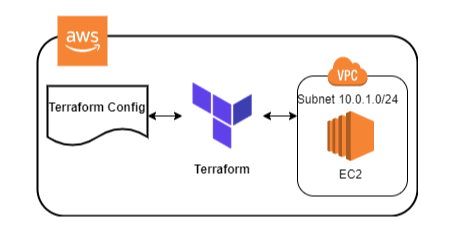
In this lab, we'll do the following:
- Deploy a VPC and an EC2 instance
- Look into "lookup" functions
- Understand different type of variables
This is a fairly simple lab and is an iteration of the first few labs, but here we'll checkout how to use the lookup function and see what sort of variables can we define in the vars.tf file.
Pre-requisites
- Setup Keys and Permissions
- Setup your Local Environment and Install Extensions
- Configure the Credentials File
- Install Terraform
Core Config files
Initially create the core configuration files which we will populate in the succeeding steps.
 touch main.tf
$ touch provider.tf
$ touch vars.tf
$ touch terraform.tfvars
Create the Provider file
provider.tf
terraform {
  required_version = ">= 0.12"

  required_providers {
    aws = {
      source  = "hashicorp/aws"
      version = ">= 4.16.0"
    }
  }
}

provider "aws" {
  region                   = var.aws_region
  shared_credentials_files = var.my_credentials
  profile                  = var.my_profile
}
Create the Main file
We can see that the main.tf file is populated with a lot of variables which we'll declare in the variables files. One important thing to notice here is the use of lookup function.
The ami field is basically looking through the values inside the map-type ami_ids and using os_type as a filter. If the os_type is given a "Windows" value, it will then check the ami_ids map and see use the AMI ID that is assocciated with a "windows" key.
main.tf
### main.tf
#--------------------------------------------------------

resource "aws_vpc" "lab09-vpc" {
  cidr_block = var.cidr_block
}

resource "aws_subnet" "lab09-subnet" {
  vpc_id            = aws_vpc.lab09-vpc.id
  cidr_block        = var.subnet
  availability_zone = var.availability_zone
  tags = {
    Name = "${var.servername}subnet"
  }
}

resource "aws_instance" "server" {
  ami                    = lookup(var.ami_ids, var.os_type, null)
  instance_type          = var.instance_size
  monitoring             = var.ec2_monitoring
  vpc_security_group_ids = [aws_vpc.lab09-vpc.default_security_group_id]
  subnet_id              = aws_subnet.lab09-subnet.id
  root_block_device {
    delete_on_termination = var.disk.delete_on_termination
    encrypted             = var.disk.encrypted
    volume_size           = var.disk.volume_size
    volume_type           = var.disk.volume_type
  }
  tags = {
    Name = var.servername
  }
}
Create the variable files
Here we can see that the vars.tf file declares alot of variables. The first three is what we'll use to connect from our local machine to our AWS account
The availability_zone, cidr_block, servername, subnet, and os_type are all string-type variables. On the other hand, ec2_monitoring is a bool-type variable, which means it will only accept True or False.
The disk is an object-type variable which allows grouping of values with different types together. This can be see when we assign the value to this variable in the terraform.tfvars file.
The ami_ids is a map-type variable which consists of a key-value pair.
vars.tf
# Variables for setting up terraform

variable "aws_region" {
  description = "AWS region"
  type        = string
}

variable "my_profile" {
  description = "Profile to be used to connect to AWS"
  type        = string
}

variable "my_credentials" {
  description = "Credentials to be used to connect to AWS"
  type        = list(string)
}

# variables for the lab

variable "availability_zone" {
  description = "Availability zone"
  type        = string
}

variable "cidr_block" {
  description = "IP Range"
  type        = string
}

variable "servername" {
  description = "Name of the server"
  type        = string
}

variable "subnet" {
  description = "subnet IP address space"
  type        = string
}

variable "os_type" {
  description = "OS to deploy, Linux or Windows"
  type        = string
}

variable "ec2_monitoring" {
  description = "Configure monitoring on the EC2 instance"
  type        = bool
}

variable "disk" {
  description = "OS image to deploy"
  type = object({
    delete_on_termination = bool
    encrypted             = bool
    volume_size           = string
    volume_type           = string
  })
}

variable "ami_ids" {
  type        = map(any)
  description = "AMI ID's to deploy"
}

variable "instance_size" {
  description = "Size of the EC2 instance"
  type        = string
  default     = "t2.micro"
}
Now that we've declared the variables, we can assign values to them through the terraform.tfvars.
terraform.tfvars
# Variables for setting up terraform
aws_region     = "ap-southeast-1"
my_credentials = ["/mnt/c/Users/Eden.Jose/.aws/credentials"]
my_profile     = "vscode-dev"

# Variables for the lab
cidr_block        = "10.0.0.0/16"
availability_zone = "ap-southeast-1a"
servername        = "lab09-server"
subnet            = "10.0.1.0/24"
os_type           = "linux"
ec2_monitoring    = true

disk = {
  delete_on_termination = false
  encrypted             = true
  volume_size           = "20"
  volume_type           = "standard"
}

ami_ids = {
  linux   = "ami-04d9e855d716f9c99"
  windows = "ami-07d9bd7bc4f2370d0"
}
Time to Apply!
Initialize the working directory.
terraform init
Check if there are errors with the formatting.
terraform fmt
Then check if the config files are valid.
terraform validate
Finally, do a review to check what changes will be introduce when you actually run the template.
terraform plan
If it doesn't return any error, you can now apply it.
terraform apply -auto-approve
It should return the Apply complete! message, along with the output values.
Apply complete! Resources: 3 added, 0 changed, 0 destroyed.
Verify in the AWS Console if the resources are provisioned.

Cleanup
To delete all the resources, just run the destroy command.
terraform destroy -auto-approve