Ollama
Overview
Ollama is a tool for running AI models on your own computer.
It works on macOS, Linux, and Windows. Unlike LM Studio, Ollama does not have a built-in graphical interface. You mainly use it from the terminal.
Install Ollama
Download Ollama from the official website.
Go to: https://ollama.com
Choose the version for your system.
- macOS
- Linux
- Windows
After installing, start Ollama.
- On macOS, you may see it in the status bar.
- On Windows, you may see it in the system tray.
Verify the installation by checking the version.
ollama --version
Output:
ollama version is 0.30.8
If the command is not found, restart your terminal or restart your system. Also make sure Ollama was installed and started properly.
Cloud Models in Ollama
Some Ollama models are cloud models. These do not run locally.
For example, if you run a cloud model like this:
ollama run minimax-m3:cloud
You may be asked to sign in.
Example output:
To use minimax-m3:cloud, please sign in.

Navigate to:
https://ollama.com/connect
After signing in, Ollama will ask you to pair your device with your account.
You can check your models with this command:
ollama list
Output:
NAME                ID              SIZE    MODIFIED
minimax-m3:cloud    d03a959f45c0    -       About a minute ago
If the size shows -, it means the model is not stored locally. It is a cloud model.
Pull a Model Without Running It
You can download a model without starting a chat session.
In the example below, gemma4:e4b is downloaded only.
ollama pull gemma4:e4b
After that, verify it with:
ollama list
Output:
NAME         ID              SIZE      MODIFIED
gemma4:e4b    abc123example   3.3 GB    1 minute ago
Use ollama pull when you want to prepare the model first and run it later.
Running a Local Model
To run a local model, use ollama run followed by the model name.
In the example below, gemma4:e4b is the model name and tag.
ollama run gemma4:e4b
If you haven't pulled the model yet, the first run downloads it.
After the download finishes, Ollama starts the model in the terminal.
Output:
>>>
This means Ollama is ready for your message.
Basic Chat Commands
Inside the Ollama chat, you can use slash commands.
| Command | Description |
|---|---|
/? | Show available help and commands |
/bye | Exit the current Ollama session |
/show info | Display information about the current model |
/show parameters | Display the active model parameters and settings |
/show system | Display the current system prompt |
In the example below, /show info displays details about the running model.
>>> /show info

  Model
    architecture        gemma4
    parameters          8.0B
    context length      131072
    embedding length    2560
    quantization        Q4_K_M
    requires            0.20.0

  Capabilities
    completion
    vision
    audio
    tools
    thinking

  Parameters
    top_p          0.95
    temperature    1
    top_k          64

  License
    Apache License
    Version 2.0, January 2004
    ...
NOTE: The context length shown here is the maximum supported by the model. It may not always be the active context length for the current session.
Sending a Multi-line Message
By default, pressing Enter sends your message.
To write multiple lines, use triple double quotes.
"""
Hi
How are you?
This is a multi-line message.
"""
This is useful when you want to send longer prompts.
Sending an Image to a Vision Model
Some models can understand both text and images.
For example, Gemma 4 has vision support, depending on the version you use.
Here, the prompt comes first, and the image path comes last.
What's on this image? ./images/sample.jpg
Output:
The image shows a person in a room with a recording setup.
The image path must be placed at the end of the prompt. Ollama uses the path to attach the image to your message.
Check Model Details
You can inspect the current model with /show.
/show info
This can show details like:
- Model family
- Parameter size
- Context length
- Quantization
- Capabilities
- Active parameters
You can also check the current parameters:
/show parameters
Output:
Model defined parameters:
  top_p                          0.95
  temperature                    1
  top_k                          64
These are the default settings applied by Ollama for the model.
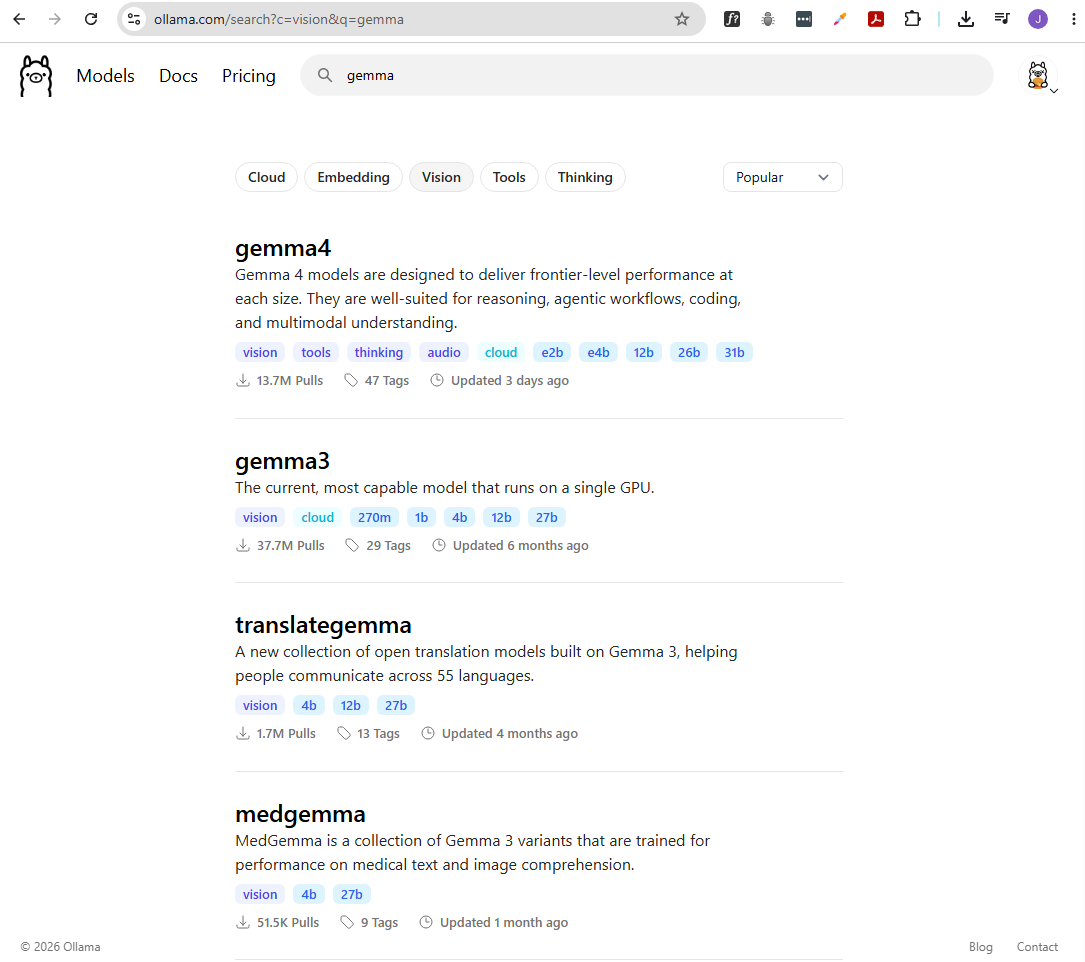
Ollama Model Catalog
You can browse available models on the Ollama website.
https://ollama.com/search
You can find models like:
- Gemma
- Llama
- Mistral
- DeepSeek
For vision models, you can search for models with image support.
https://ollama.com/search?c=vision
The model page usually shows the command needed to run the model.
This is the simplest way to find the correct model name and tag.
Ollama Model Tags
Ollama models use tags to identify specific versions.
Example:
gemma4:e4b
In this example:
gemma4is the model namee4bis the tag- The tag usually describes the model size or version
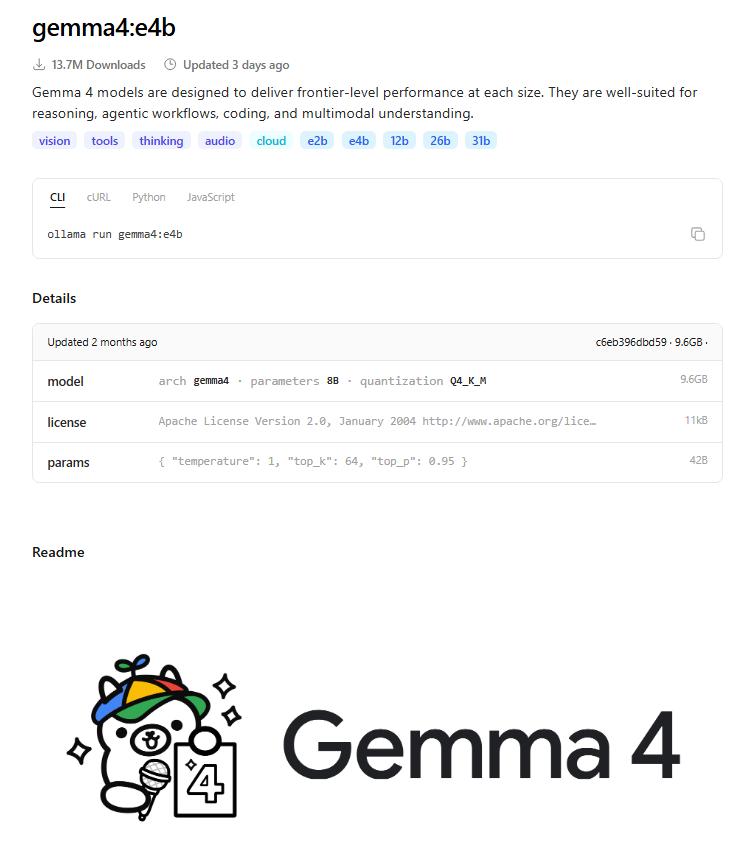
Some tags also refer to quantized versions.
Quantized models use less disk space and need less hardware. This is why most Ollama models are already quantized by default.
Ollama does not include a GUI
Ollama mainly runs from the terminal.
If you want a graphical interface, you can use:
LM Studio is easier if you want a simple desktop app.
Open WebUI is a browser-based interface, but it usually needs Docker or more setup.
Ollama is best if you are comfortable with the terminal and want a lightweight way to run local models.