Starter Notes
Overview
Claude Code is an agentic coding tool that reads your files, edits your code, and runs terminal commands directly to help you build software faster.
Supported platforms:
- Terminal
- VS Code
- JetBrains
- Claude Desktop app
Unlike Claude.ai,, Claude Code has direct access to your local files and your terminal. This setup means the tool goes directly into your workspace and does the work for you. It operates fully as an autonomous AI agent.
Core capabilities:
- It reads and analyzes your codebase
- It edits code across multiple files
- It runs commands in your terminal
- It searches the internet for documentation
Installing Claude Code:
Setting Up
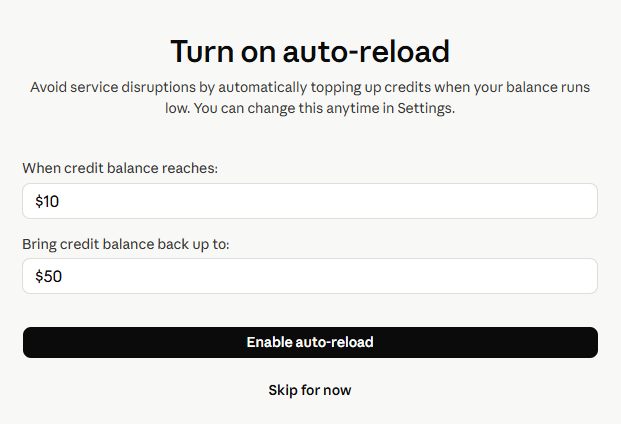
When you first run claude, it will prompt you to configure your settings, such as your user account and login method. You will need to created an account and configure your billing details.
Important: Make sure to skip auto-reload.
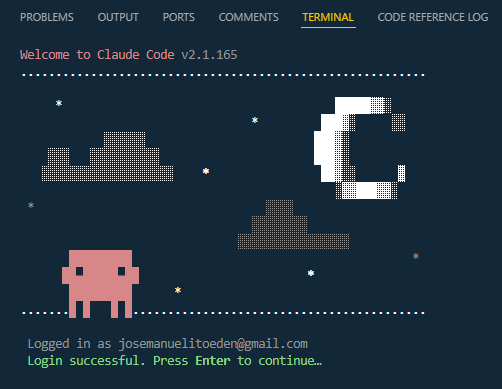
Return to your terminal. You should see a message confirming that login is successful.
Using Claude Code
To see how this works in practice, run claude command to start the tool directly inside your current project workspace.
claude
This will launch the Claude Code interface, where you can start interacting with the AI agent to assist you with your questions.

Claude Models
Anthropic (the company behind Claude) provides different versions of the Claude model family to suit specific development needs.
| Model | Best For |
|---|---|
| Haiku | Fast tasks such as text classification and sorting. |
| Sonnet | A balance of speed and reasoning for everyday reporting tasks. |
| Opus | Deep analysis and complex data extraction requiring maximum capability. |
Matching your specific task to the appropriate model variant allows you to scale workloads effectively without paying for unnecessary computing power.
Concepts
AI Agent
An AI agent is a program that interacts with its environment and takes independent actions to achieve a specific goal.
- Uses a large language model (LLM)
- They run in a continuous feedback loop
- Teams of agents can talk to each other
The Agentic Loop
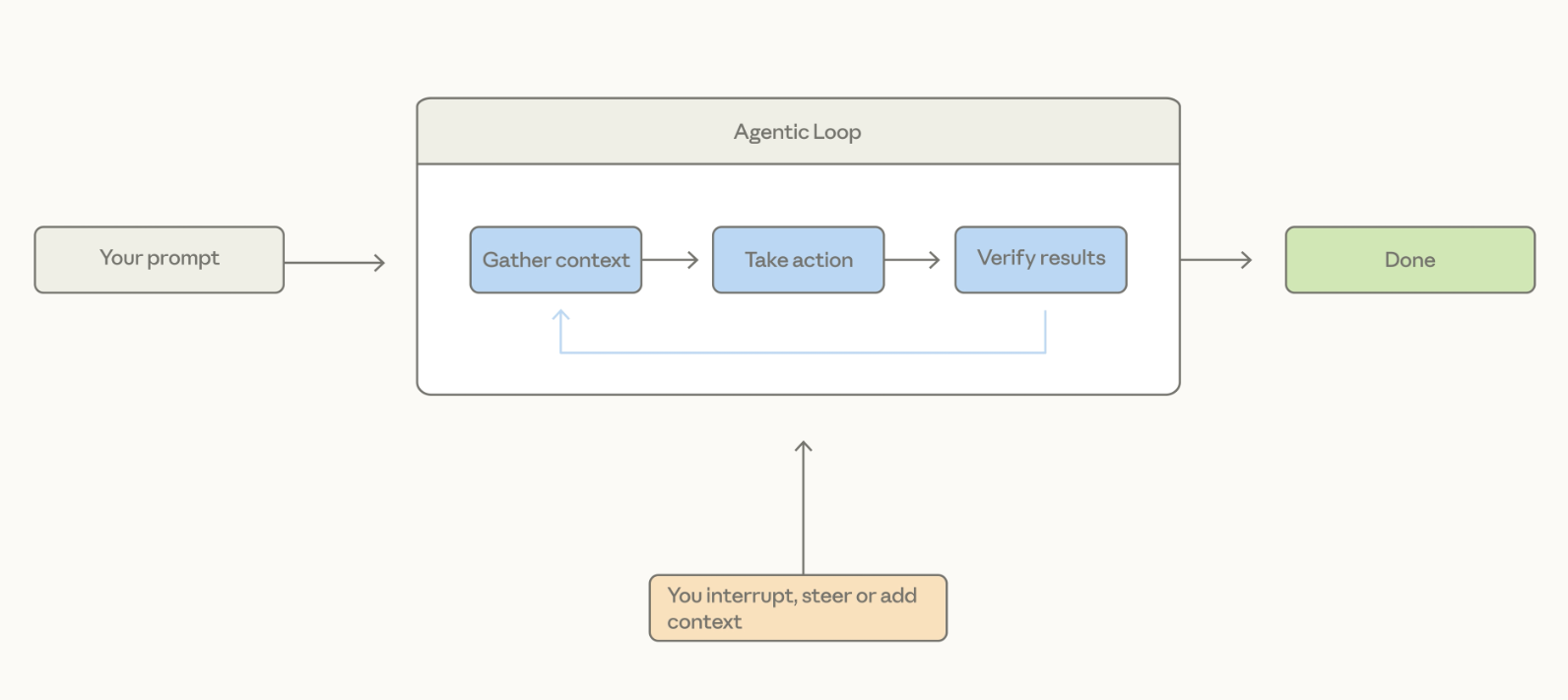
Claude Code works by running your instructions through a continuous loop of thinking and doing until the job is done.
- You give Claude a prompt
- Claude gathers context and decides on a tool
- It takes action like editing a file
- It verifies the results to see if they match your goal
If the results look good, Claude stops and waits for your next command, but it loops back to try a new approach if things are still broken.
Context Window
Claude uses a temporary working memory called a context window to hold your files and chat history, but this space can fill up quickly.
- File contents and terminal outputs fill the memory
- Claude automatically shrinks the chat history when full
- Important summaries are kept while extra details get dropped
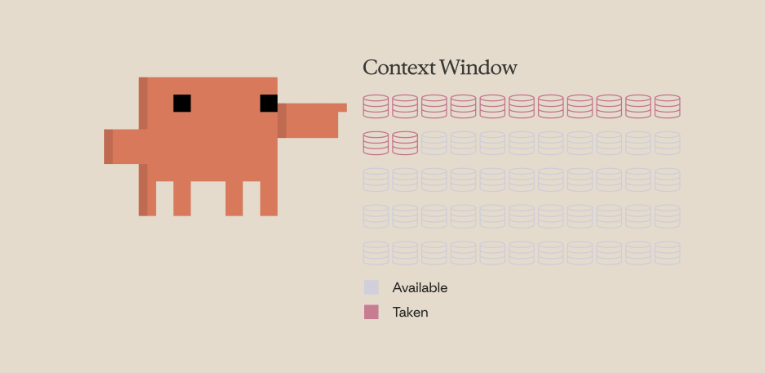
When the limit is reached, Claude smartly compacts the conversation so it can keep working without losing track of your main goal.
You can also manually run it:
/compact
You can check how much of the context window is currently being used with:
/context
To completely clear the context and start fresh, use:
/clear
See Configuration and Sessions for more details on managing context and sessions.
For permanent project details you want remembered across sessions, save them in a CLAUDE.md file so the information never has to be rediscovered from scratch.
See the CLAUDE.md section below for more details.
Tools
Tools are what turn a basic chatbot into an autonomous assistant that can actually interact with your computer.
- Tools let Claude execute real tasks
- File reading and web searches are handled by tools
- Semantic understanding helps Claude pick the right tool
Instead of just spitting out text for you to copy, Claude uses these tools to change files and check documentation on its own.
Permission Modes
You can control exactly how much freedom Claude has to change things on your machine by switching between different permission modes.
| Mode | Behavior |
|---|---|
Default Mode | Asks for confirmation before every edit or command. |
Auto-Accept Mode | Applies file edits automatically but still asks before running commands. |
Plan Mode | Only reads files and creates a strategy before making any changes. |
You can tweak all of these options inside your configuration settings file depending on how hands-on you want to be.
For more information, please see Configuration and Sessions.
CLAUDE.md
Claude can store project context in a file called CLAUDE.md. This file contains the core project information that Claude can reference in future interactions:
- Project Name And Purpose
- Common Commands
- Key Conventions
Sample Claude.md structure:
# Project

This is a Next.js 15 app using the App Router, Tailwind, and Drizzle ORM.

# Commands
- Dev server: `pnpm dev`
- Run tests: `pnpm test`
- Lint: `pnpm lint`

# Code Style
- Use 2-space indentation
- Prefer named exports
- All API routes go in app/api/
- Use server actions instead of API routes where possible
CLAUDE.md should evolve as the project changes or when mistakes are discovered. Each update improves future behavior and prevents repeated issues.
Good results depend on what is inside CLAUDE.md, not just the file existing. Too little context reduces accuracy while too much creates noise, so the goal is balance.
Initializing CLAUDE.md
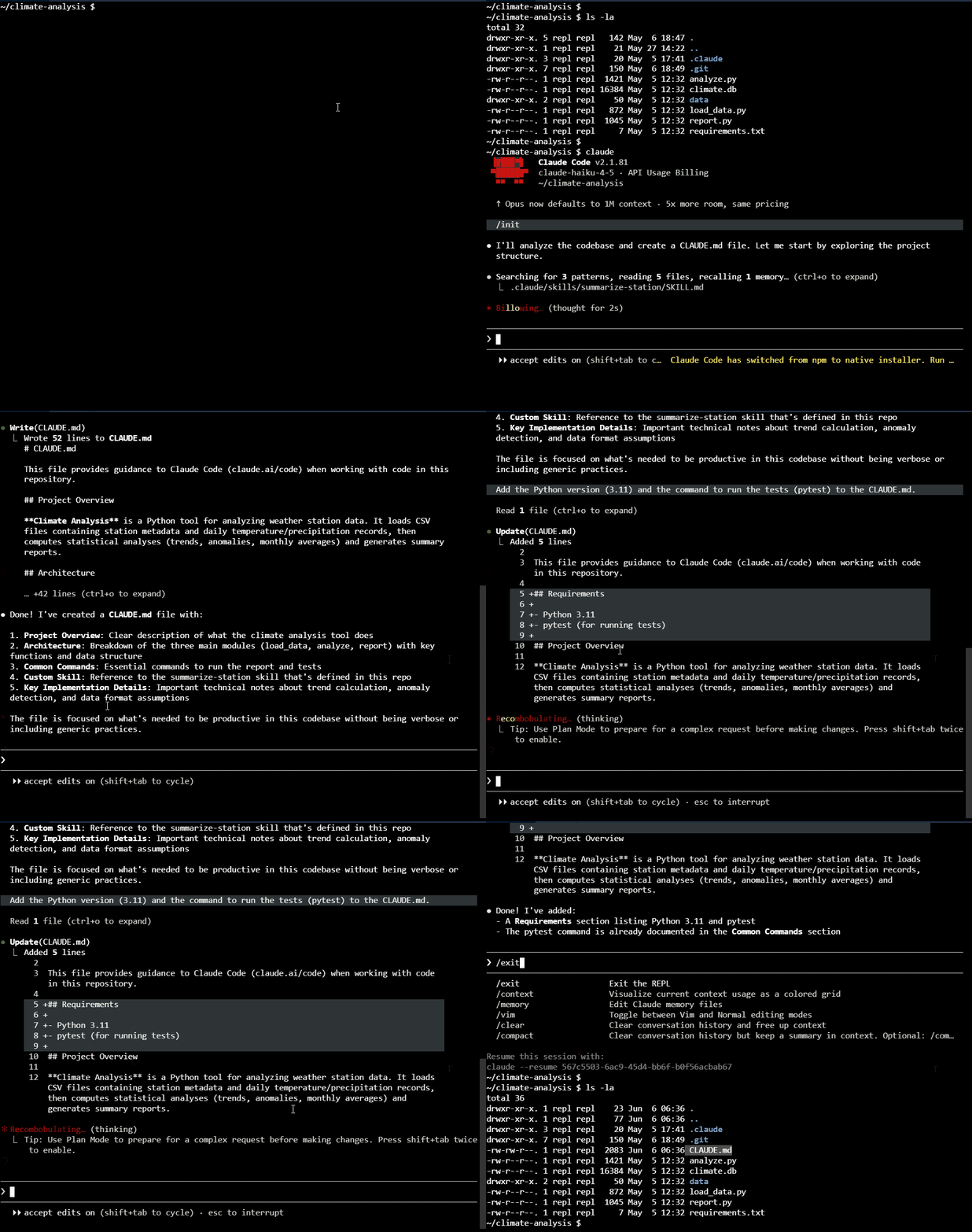
To get started, open Claude Code and run:
/init
Claude scans the project directory and generates a CLAUDE.md file automatically based on the existing codebase.
Context Layers
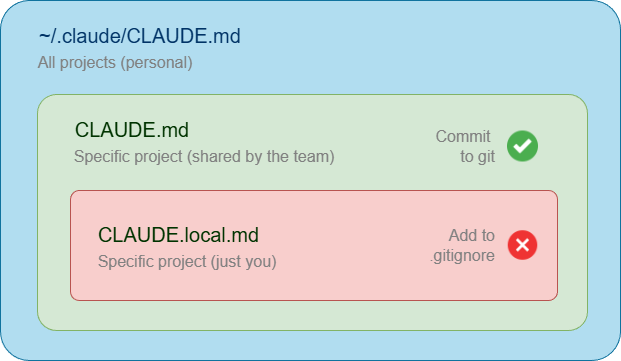
Claude Code separates context into three layers:
| Context Level | Location | Purpose |
|---|---|---|
Project CLAUDE.md | In git repository | Shared with the team. Contains test commands, conventions, and project structure |
CLAUDE.local.md | Not tracked in git | Personal settings like local paths and shortcuts |
Global CLAUDE.md | Home directory | Applies to all projects and defines global defaults like coding habits (for example, using type hints) |
File References
File references point Claude directly to source files instead of copying content into prompts, which keeps interactions accurate and up to date.
As an example, if you want to reference a file called routes.py, you can type:
@routes.py
Claude will then read the file directly and use its content to inform its response, without needing to copy the entire file into the context window. This method ensures that Claude always has access to the most current version of the file, even as it changes over time.
Levels of Thinking
Adding think to a prompt encourages deeper reasoning before responding. This helps Claude produce more thoughtful and structured responses.
Sample prompt:
think how to optimize the database query for better performance?
There are four levels of thinking:
| Command | Reasoning Depth |
|---|---|
think | Basic reasoning |
think more | Extended analysis |
think a lot | Comprehensive reasoning |
think longer | Extended time reasoning |
ultrathink | Maximum reasoning depth |