Dashboards
Overview
OpenStack provides two dashboards for managing resources. Both connect to the same backend APIs, so actions in one will appear in the other.
| Feature | Horizon | Skyline |
|---|---|---|
| Type | Classic and widely used dashboard | Newer and modern dashboard |
| Technology | Built with Django | Built with React and FastAPI |
| Performance | Stable and reliable | Faster and more responsive |
| Usage | Common in most environments | Growing adoption in newer setups |
| Functionality | Full feature support | Same backend APIs and capabilities |
Navigating Horizon
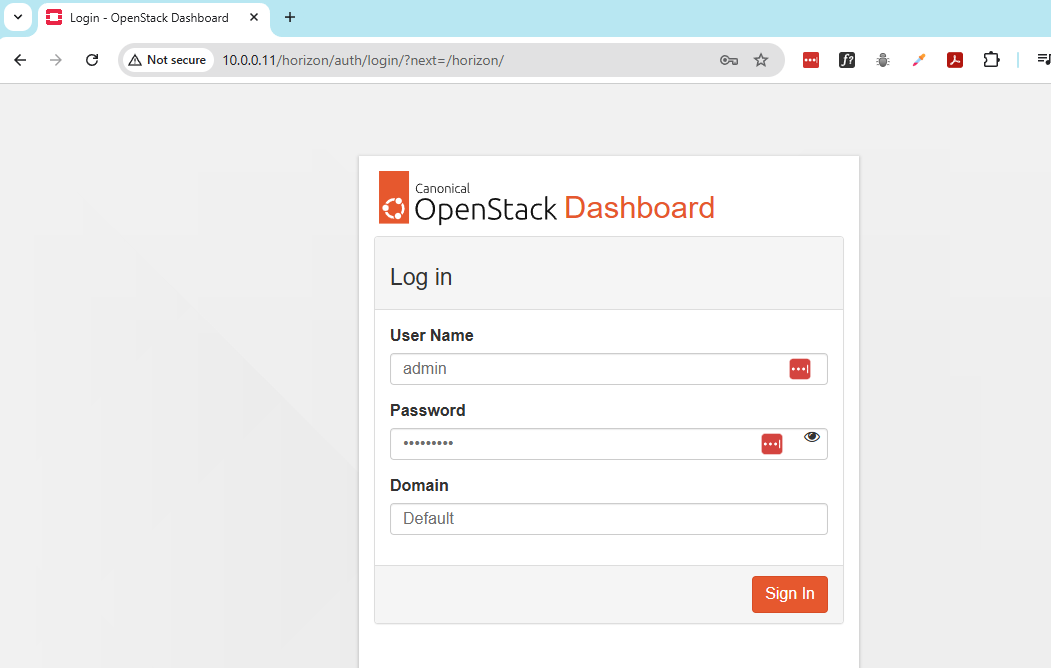
Horizon is usually the first dashboard you will encounter. To access it, open the Horizon URL in your browser.
http://CONTROLLER_IP/horizon
For exampple:
http://10.0.0.11/horizon
Next, log in using your assigned username and password. You should land on the Project overview page.
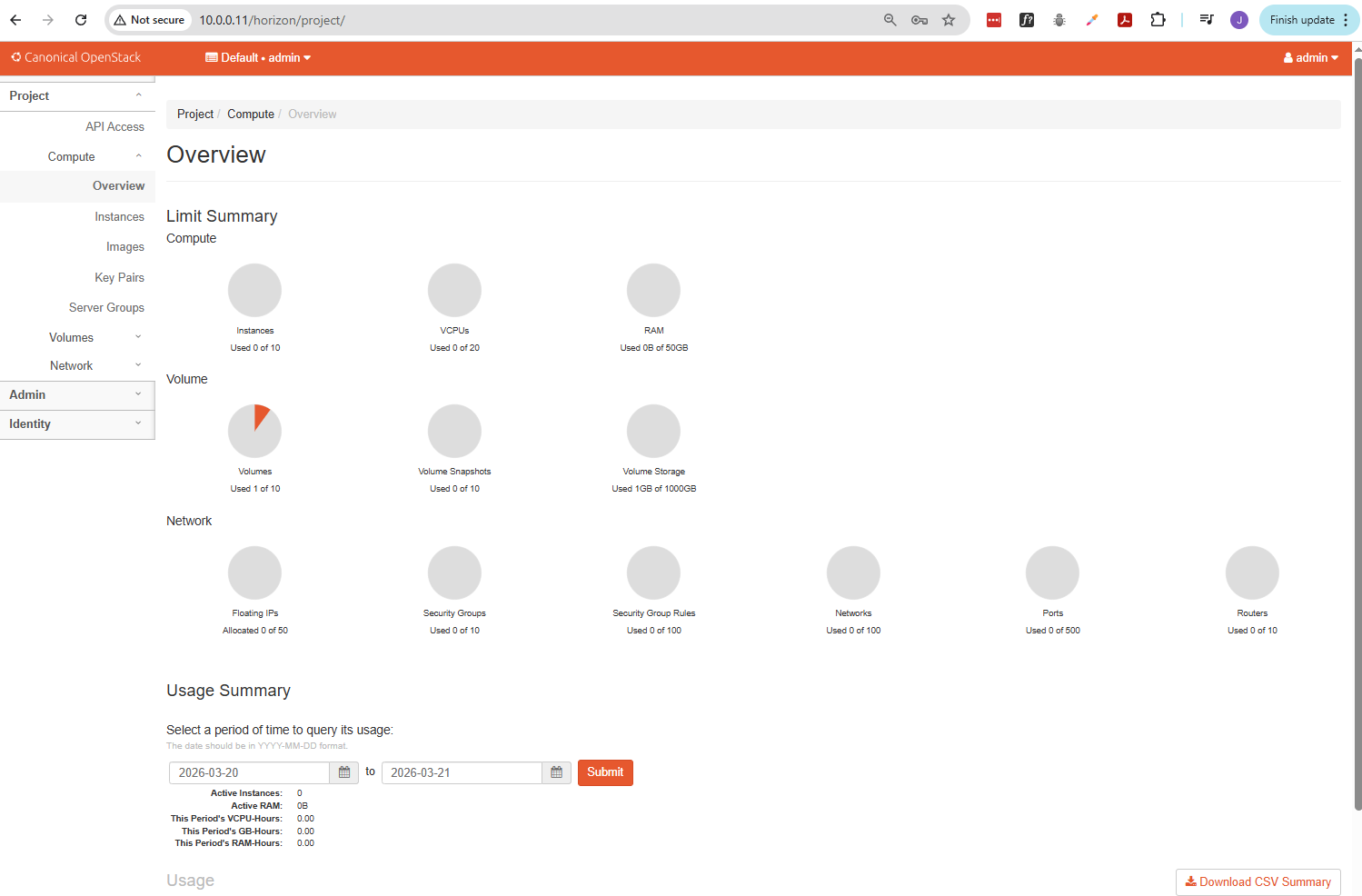
After login, Horizon shows the Compute Overview. This page displays resource usage like instances, vCPUs, and RAM.
- Quotas show how much you are allowed to use
- Usage shows how much you have consumed
- Values start at zero in a new environment
This page helps you track your available resources. You will return here often to check limits.
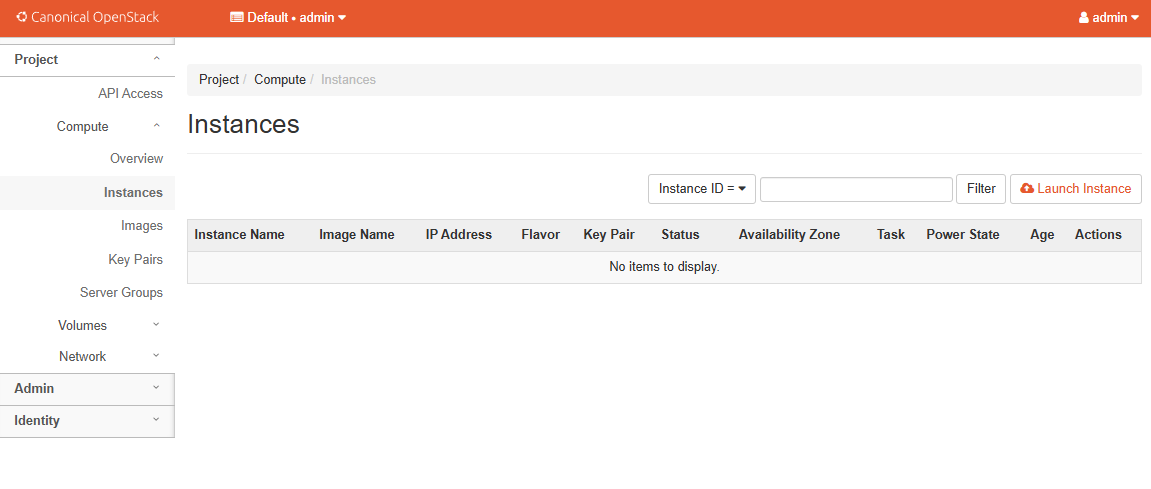
The sidebar helps you explore different resources.
- Instances shows your virtual machines
- Images shows available OS templates
- Network Topology shows network connections
The Instances page will be empty at first. This confirms no VMs are running yet.
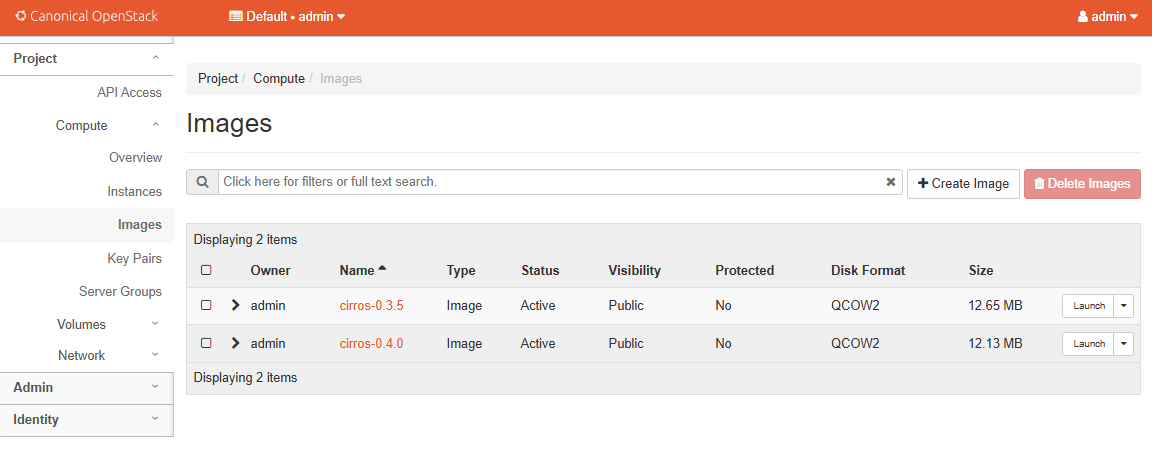
The Images page usually contains a small test image like Cirros.
- Lightweight and fast to boot
- Used for testing connectivity
- Limited functionality
Images act as templates. When you launch a VM, you select an image as the base.
Viewing Network Topology
The Network Topology page shows how networks are connected.
- Displays networks, routers, and connections
- Shows how traffic flows inside the project
- Updates when new instances are created
You may see:
- A private network (for internal communication)
- A router (connects networks)
- A provider network (external access)
This view helps troubleshoot connectivity issues. If a VM cannot reach the internet, this is the first place to check.
Downloading OpenStack RC File
Horizon allows you to download an RC file for CLI access.
- Found under API Access
- Downloads a shell script
- Sets environment variables for authentication
In the example below, the openrc.sh file is used to authenticate the CLI.
source openrc.sh
After running the script, the CLI will prompt for your password.
Please enter your OpenStack Password:
This allows you to run OpenStack commands without manually entering credentials each time. It keeps authentication simple and secure.
Accessing Skyline
Skyline is the newer dashboard with a modern interface.
- Open the Skyline URL (usually on port 9999)
- Log in using the same credentials
- The dashboard loads instantly without page refresh
Skyline provides a cleaner and faster experience.
- Real-time updates using live data
- Search and filters built into tables
- Faster navigation between pages
It is designed to improve usability while keeping the same functionality.
Using Skyline Features
Skyline offers similar features with better usability.
- Instances page includes search and filters
- Launch Instance opens a side panel instead of a new page
- Topology view updates automatically
The topology view is interactive.
- You can zoom and pan
- New instances appear in real time
- Helps during troubleshooting
This makes Skyline useful when managing multiple resources at once.
User Settings and Credentials
Skyline includes a User Center for managing access.
- Manage application credentials
- Used for automation and scripts
- Avoid exposing your main password
These credentials are useful for tools and automation workflows. You will use them in later tasks.