Project Card Tags
Overview
This page provides the details for adding tags to project cards in my projects page. I'll be using tags to organize and categorize projects, and in future updates, this will allow users to filter the projects page to show only the content they're interested in.
The filtering functionality is detailed in Designing the Project Page.
This page focuses on the implementation of tags on project cards.
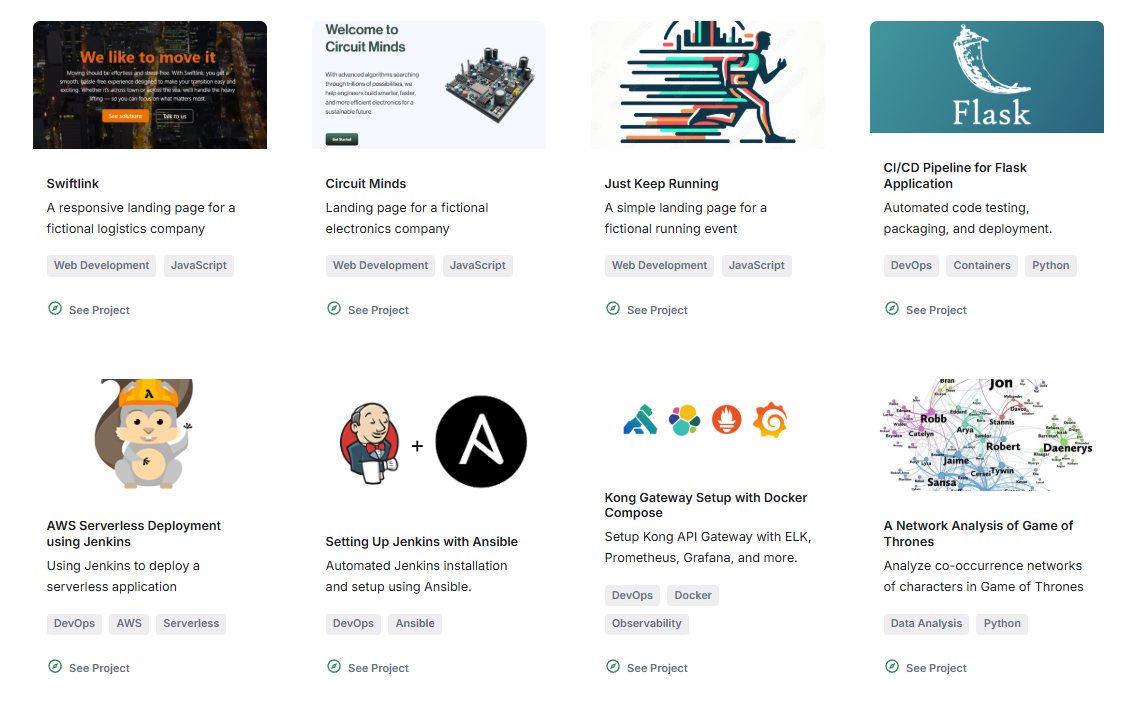
In the example screenshot below, you can see the tags displayed below the description of each project. Note that the tags are not clickable and only provide a visual way to identify the technologies used in each project, such as "Web Development", "JavaScript", "DevOps", etc.
Background
The projects page displays project cards in a grid layout. By adding tags to each project, I'm able to:
- Categorize projects by technology, domain, or scope
- Improve user experience by allowing focused browsing
- Implement filtering to show/hide projects (See Designing the Project Page.)
Additional note: Tags are optional; projects without tags will still render without the tags section.
Tag used (will be expanded in future updates):
Web DevelopmentJavaScriptDevOpsData Analysis
Files to modify:
src/components/projects/Project.tsx- Update interface and componentsrc/pages/projects.tsx- Add tags to project objectssrc/components/projects/Project.module.scss- Add tag styling (optional)
Implementation
1. Update ProjectData Interface
File modified: src/components/projects/Project.tsx
Update the ProjectData interface to include an optional tags array:
export interface ProjectData {
  title: string;
  description: string;
  url: string;
  image: string;
  tags?: string[];  // Add this property
}
2. Render Tags in Project Component
File modified: src/components/projects/Project.tsx
Update the Project component to accept and render tags:
export const Project: FunctionComponent<ProjectData> = ({
  title,
  description,
  url,
  image,
  tags,  // Add this parameter
}) => {
  return (
    <div className={clsx("col col--6", styles.cardContainer)}>
      <div className={clsx("card", styles.card)}>
        <div className={clsx("card__image", styles.image)}>
          <Image img={image} alt={description} title={title} />
        </div>
        <div className={clsx("card__body", styles.card__body)}>
          <h2>{title}</h2>
          <p>{description}</p>
          {tags && tags.length > 0 && (
            <div className={styles.tags}>
              {tags.map((tag) => (
                <span key={tag} className={styles.tag}>
                  {tag}
                </span>
              ))}
            </div>
          )}
        </div>
        <div className={clsx("card__footer", styles.card__footer)}>
          <a
            href={url}
            target="_blank"
            rel="noopener noreferrer"
            className="button button--primary button--outline"
          >
            <span className="button__icon">
              <DiscoverIcon />
            </span>
            See Project
          </a>
        </div>
      </div>
    </div>
  );
};
3. Add Tags to Projects
File modified: src/pages/projects.tsx
Update the projects array to include tags:
const projects: ProjectData[] = [
  {
    title: "Swiftlink",
    description: "A responsive landing page for a fictional logistics company",
    url: `${baseUrl}/docs/Software-Engineering/Web-Development/Projects/Swiftlink/`,
    image: require(`/img/docs/Screenshot-2025-04-18-144904.png`),
    tags: ["Web Development", "JavaScript"],
  },
  {
    title: "CI/CD Pipeline for Flask Application",
    description: "Automate code deployment with testing, packaging, and server deployment.",
    url: `${baseUrl}/docs/Version-Control-and-CICD/Jenkins-Labs/Single-Server-Deployment`,
    image: require(`/img/docs/jenkins-flask.png`),
    tags: ["DevOps", "Containers", "Python"],
  },
  // Add tags to remaining projects...
];
4. Add Tag Styling (Optional)
File modified: src/components/projects/Project.module.scss
Add CSS styling for project tags:
.tags {
  display: flex;
  flex-wrap: wrap;
  gap: 8px;
  margin-top: 12px;
}

.tag {
  font-size: 0.75rem;
  padding: 4px 8px;
  background-color: #2e8555;
  color: #ffffff;
  border-radius: 4px;
  text-transform: lowercase;
}
5. Implement Filtering (Future Enhancement)
The next step will be to implement filtering functionality based on these tags.
This will involve:
- Tracking selected tags in state
- Filtering the projects array based on selected tags
- Rendering tag filter buttons/toggles
- Updating the displayed projects based on the filter selection