Configuration and Sessions
Overview
Claude Code can be configured globally or per project. These settings control how Claude Code behaves, which model it uses, how it handles permissions, and how much control it has over your files.
- Global settings apply to your user account
- Project settings apply only to one project
- Local project settings are useful for personal overrides
Global Configuration
Global settings apply to Claude Code across your system.
On macOS or Linux, global settings are usually stored in your home directory:
~/.claude/settings.json
On Windows, the location depends on your user profile, but the idea is the same. Claude Code stores user-level settings outside your project folder.
In WSL, global settings are stored in the Linux home directory (
~/.claude/settings.json), not the Windows user profile.
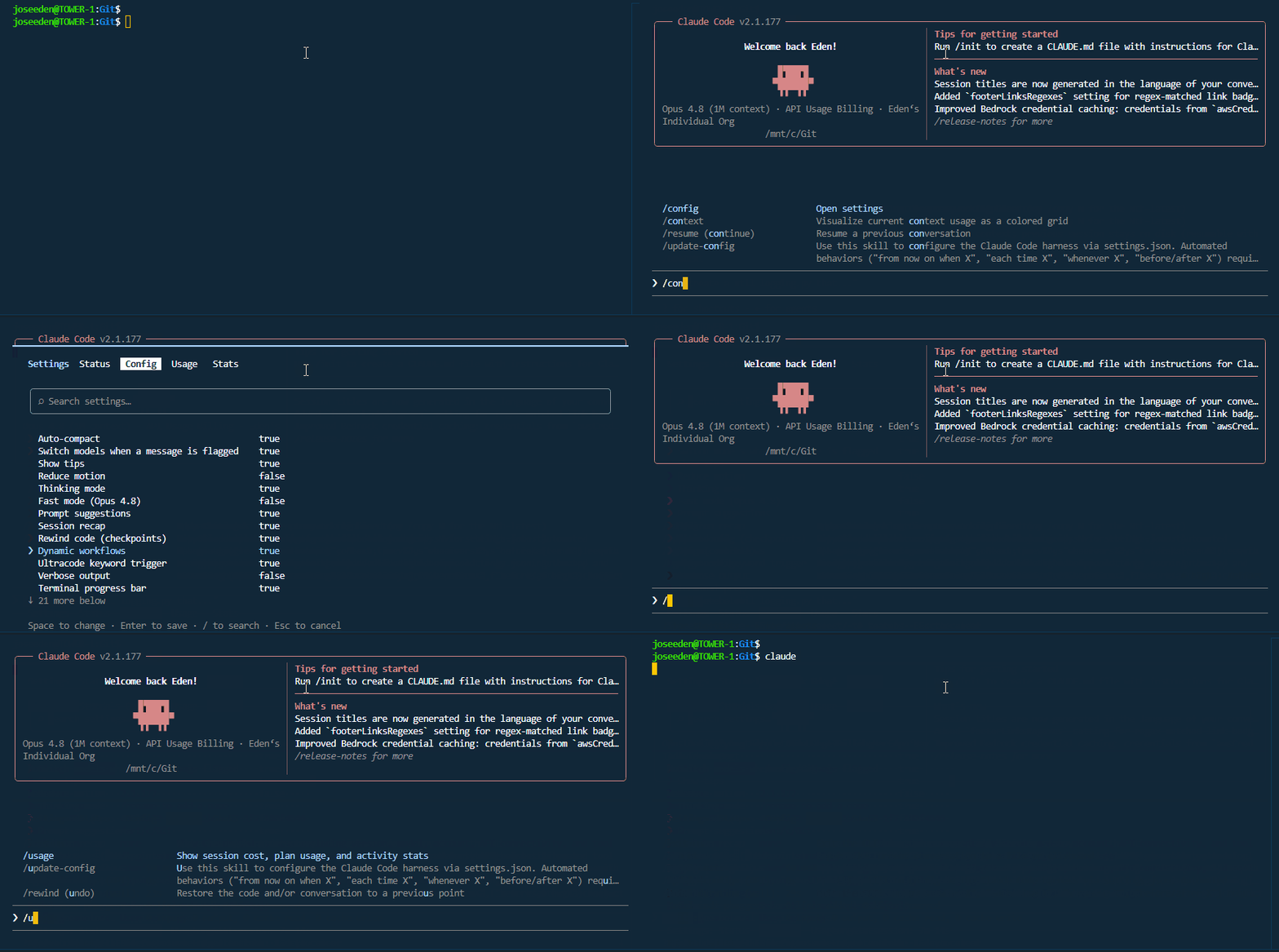
You can also change settings from inside Claude Code by running:
/config
Other settings in configuration include:
/statusshows current settings and permissions/usageshows usage information and limits
The configuration menu lets you change settings such as theme, thinking mode, and other Claude Code options.
Other resources to check out: Claude Code Docs - Available settings
Project Configuration
A project can also have its own Claude Code settings.
In the example below, the .claude folder stores settings for one project only.
my-project/
└── .claude/
    ├── settings.json
    └── settings.local.json
Notes:
-
settings.jsoncan be shared with the team. -
settings.local.jsonis for personal settings and should not be committed to Git.
Project settings are useful when one project needs different Claude Code behavior from your global setup.
Permission Settings
Claude Code can be allowed or denied access to specific files. This is useful for protecting files that may contain secrets.
In the example below, the settings.json is configured to deny Claude Code from reading and modifying the .env files.
{
  "env": {
    "CLAUDE_CODE_HIDE_ACCOUNT_INFO": "1"
  },
  {
    "permissions": {
      "deny": [
        "Bash(**/.env)",
        "Read(**/.env)",
        "Write(**/.env)"
      ]
    }
  }
}
This helps prevent Claude Code from reading secrets such as API keys, tokens, passwords, and private configuration values.
Choose a Model
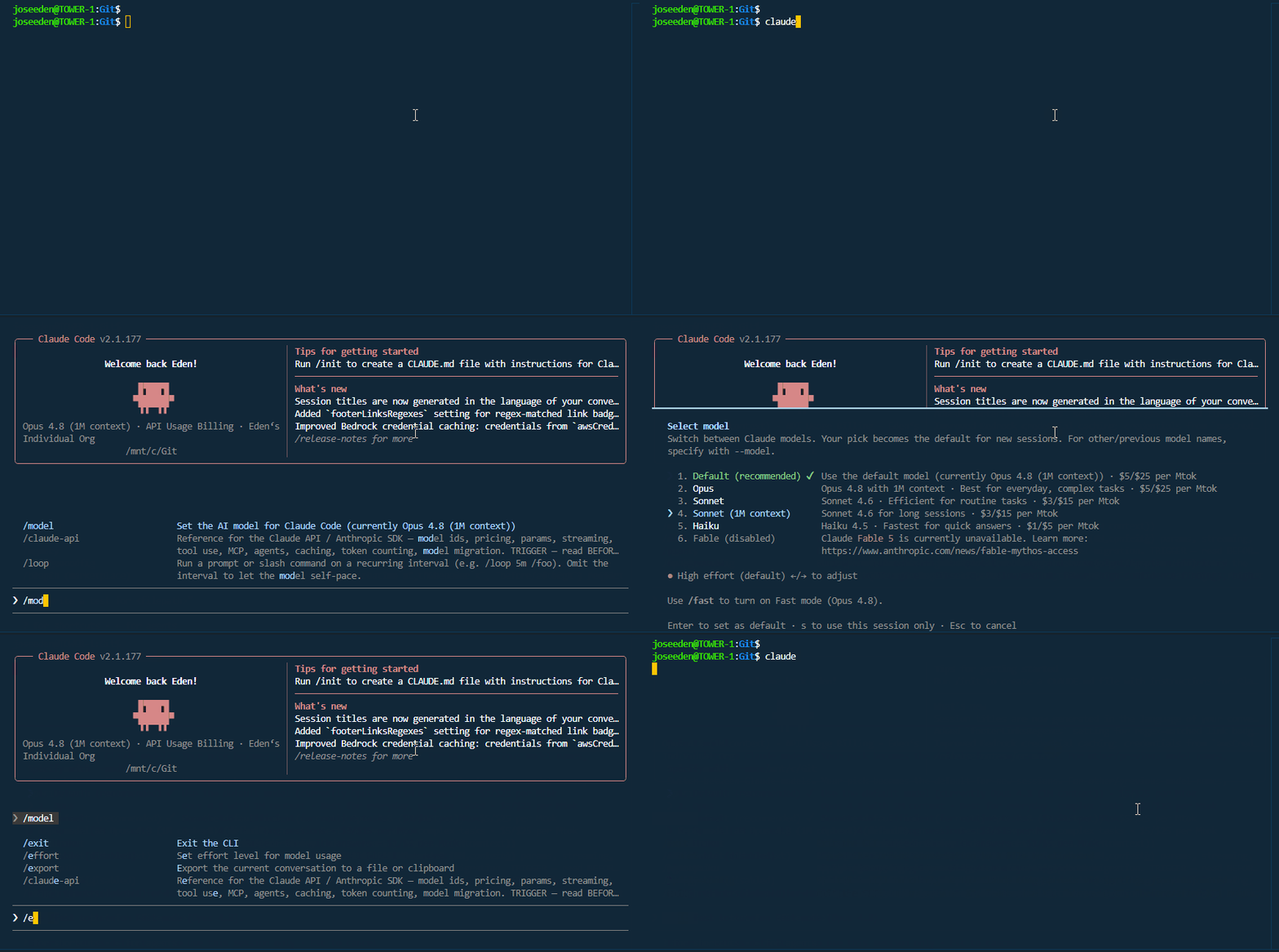
Claude Code lets you choose which model to use.
Inside Claude Code, run:
/model
You can also use the keyboard shortcut:
Option + P on macOS
Alt + P on Windows or Linux
Note: Stronger models are better for complex tasks, while smaller or faster models may be enough for simple work.
Common Slash Commands
Claude Code has slash commands for managing the current session.
| Command | Description |
|---|---|
/config | Opens the configuration menu. |
/model | Changes the active model. |
/clear | Clears the current session context. |
/context | Shows context window usage. |
/compact | Summarizes the current session. |
/usage | Displays usage info |
Check Context Usage
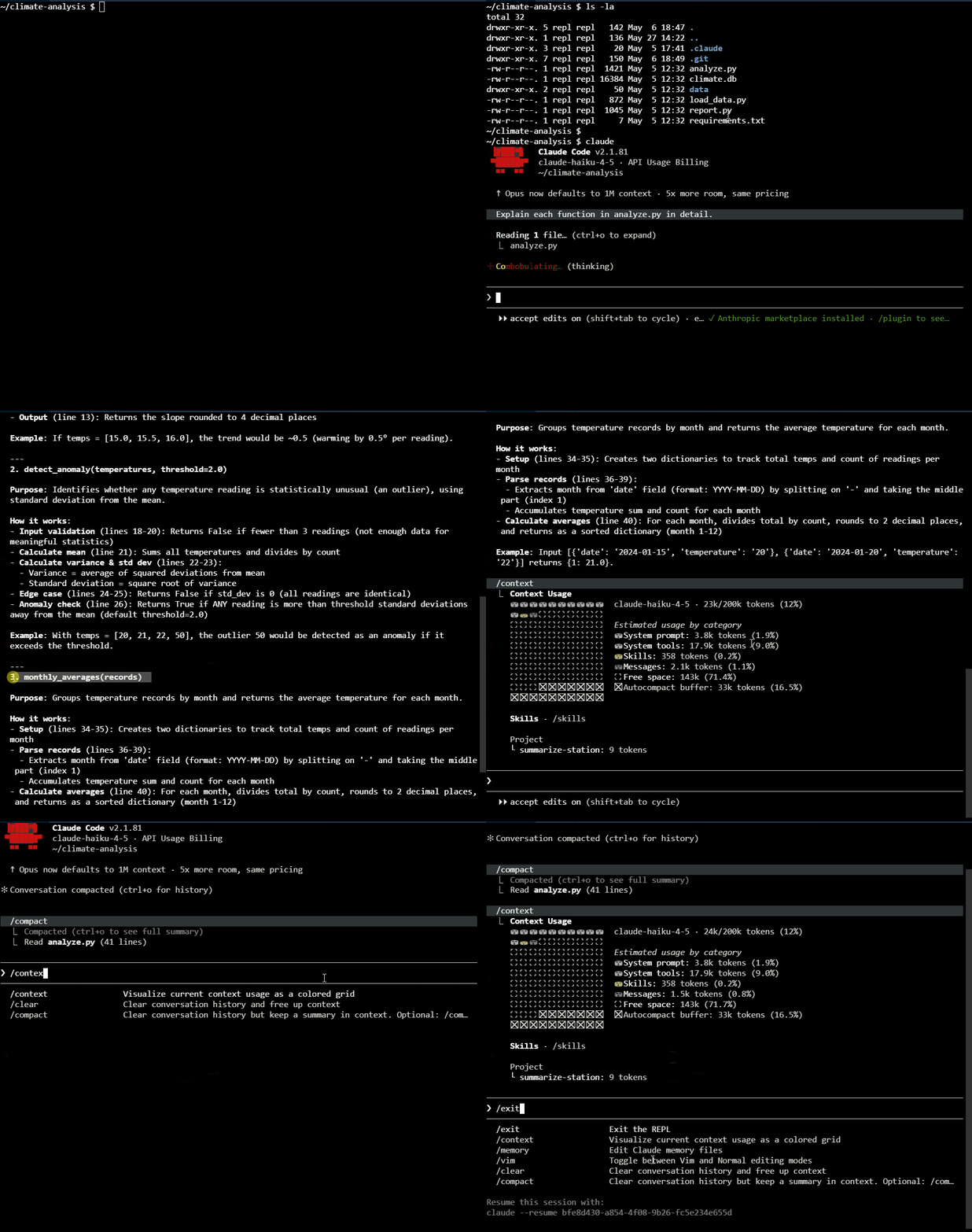
Claude Code has a limited context window. The context window stores the current conversation, files, tool information, and other details needed for the session.
/context
This helps you understand how much working space is still available in the session.
Compact and Clear a Session
When a session gets too long, Claude Code can compact it. Compaction summarizes the current session so Claude Code can continue with less context.
Run:
/compact
To completely clear the context and start fresh, use:
/clear
Compact vs Clear
When working on a long feature, compact the history if you start running out of memory. This step keeps the active conversation relevant and focused on your current task.
Once you finish the feature and want to start something new, clear the session completely. Starting fresh prevents old conversations from creating bias in your next task.
For permanent project details you want remembered across sessions, save them in a CLAUDE.md file so the information never has to be rediscovered from scratch.
Start Claude Code with a Prompt
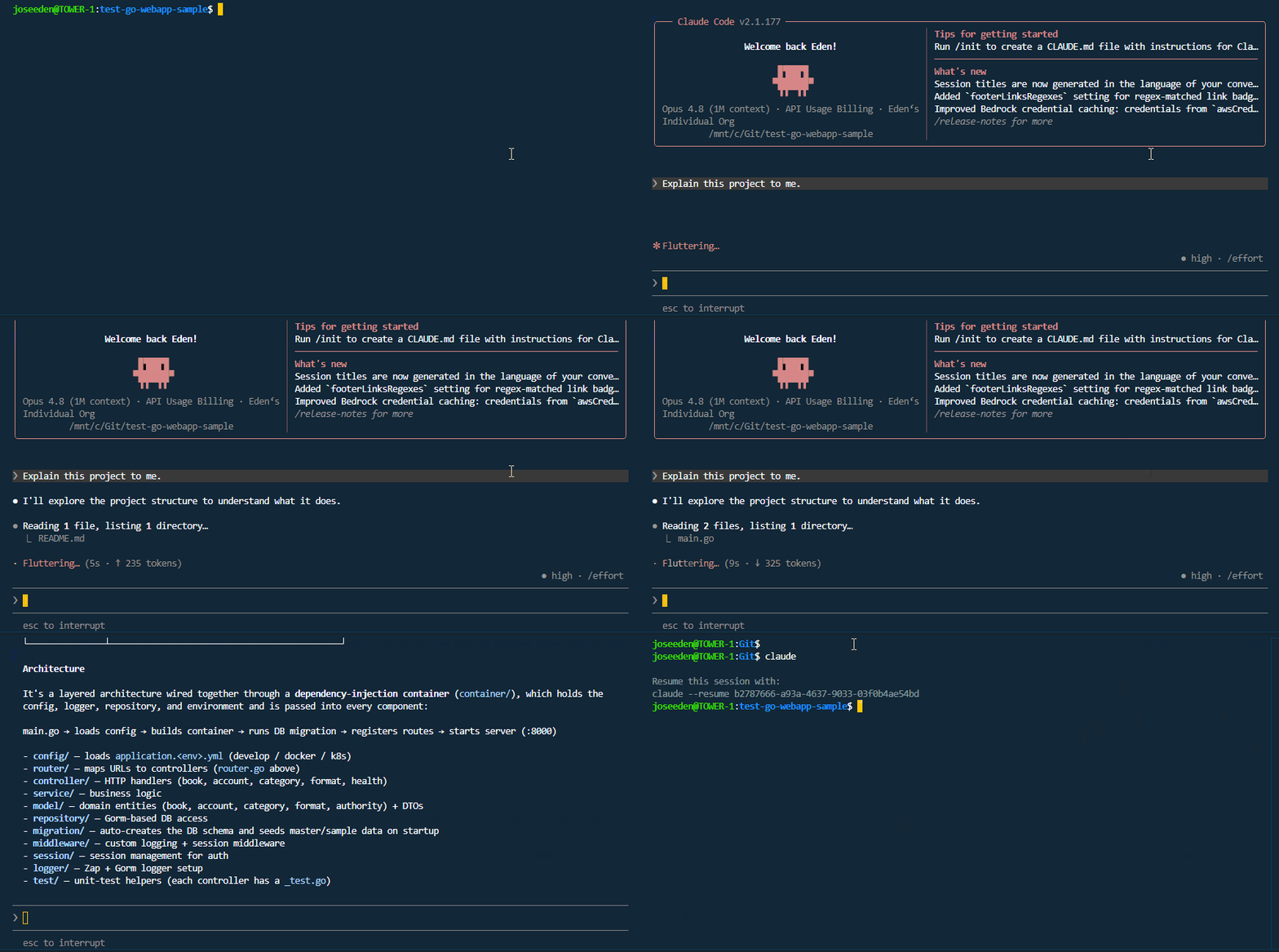
You can also start Claude Code and pass a prompt immediately.
In the example below, Claude Code starts and answers the prompt inside the interactive session.
claude "Explain this project to me."
This is useful when you already know what you want to ask.
Run Claude Code Without the Shell
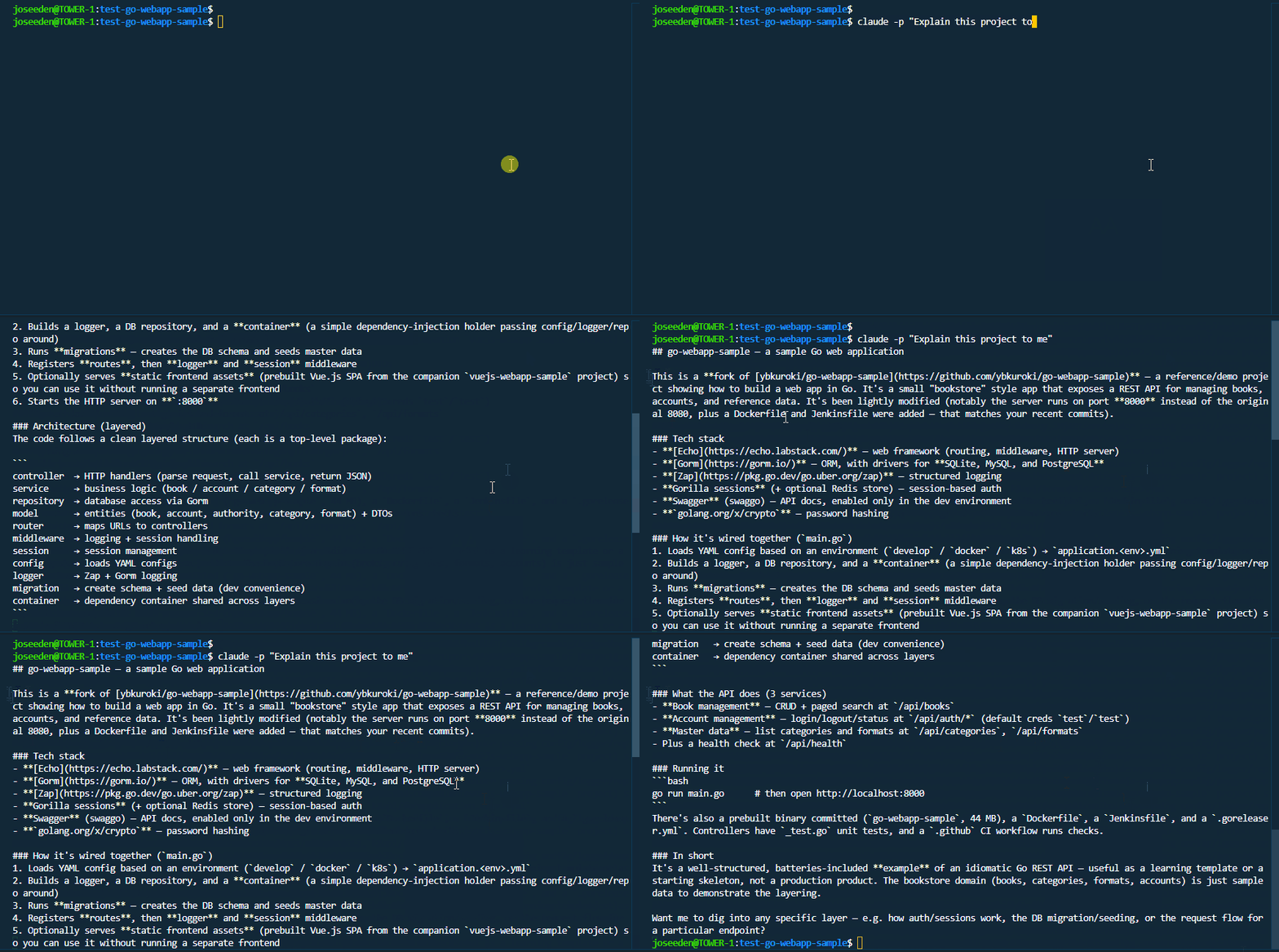
You can use the -p flag to print the response directly in the terminal.
In the example below, Claude Code answers the prompt and exits.
claude -p "Explain this project to me."
This is useful for quick questions where you do not need a full interactive session.
Resume a Previous Session
Claude Code can resume previous sessions.
Inside Claude Code, run:
/resume
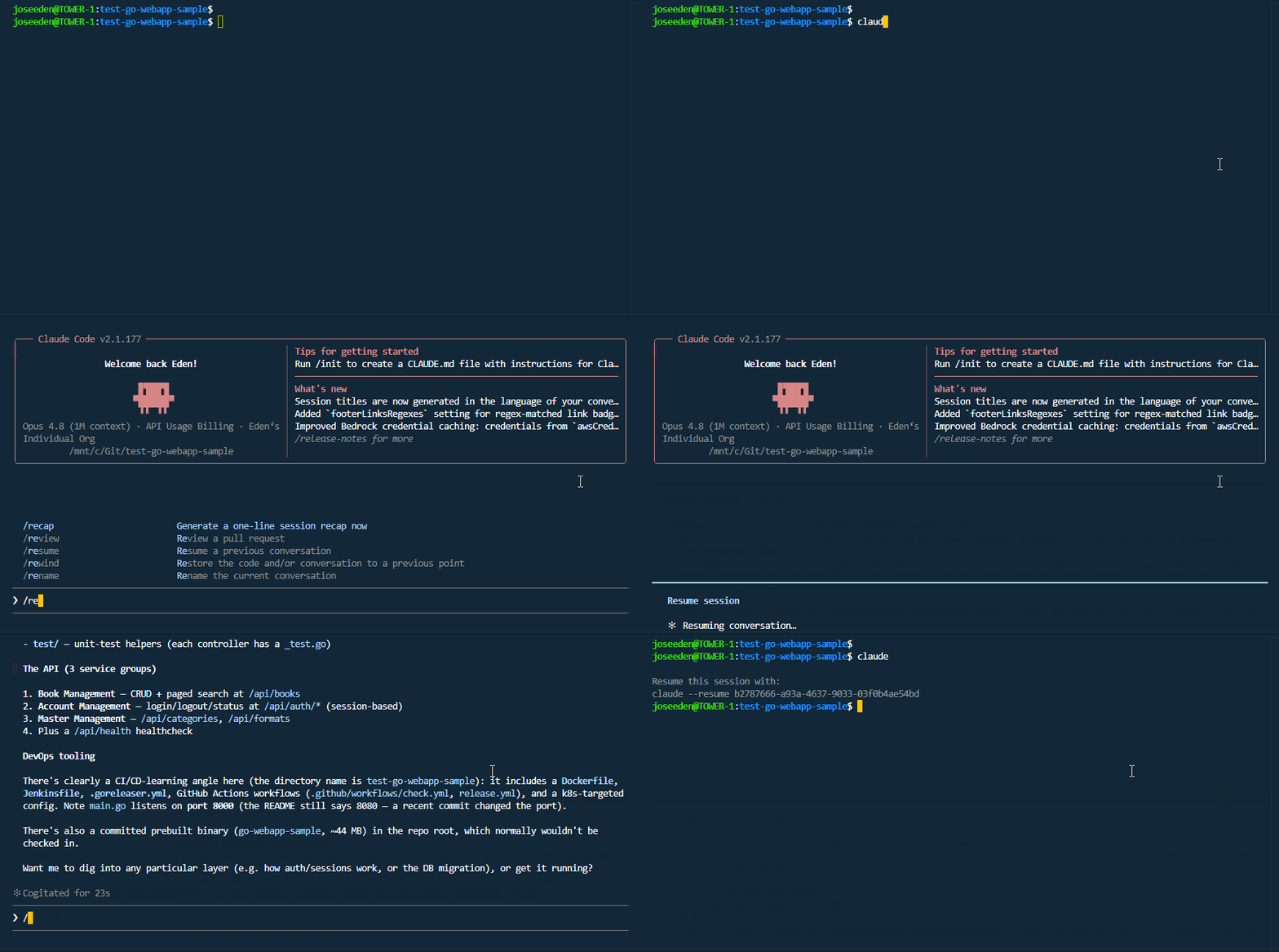
You can also continue the most recent session from the terminal.
claude -c
Resuming is useful when your terminal closed, your editor crashed, or you want to continue earlier work.
Permission Modes
Claude Code asks for permission before some actions. This helps you stay in control when it wants to edit files or run commands.
| Mode | Behavior |
|---|---|
Default Mode | Asks for confirmation before every edit or command. |
Auto-Accept Mode/Accept Edits Mode | Applies file edits automatically but still asks before running commands. |
Plan Mode | Only reads files and creates a strategy before making any changes. |
The default mode is safer because Claude Code asks before making changes.
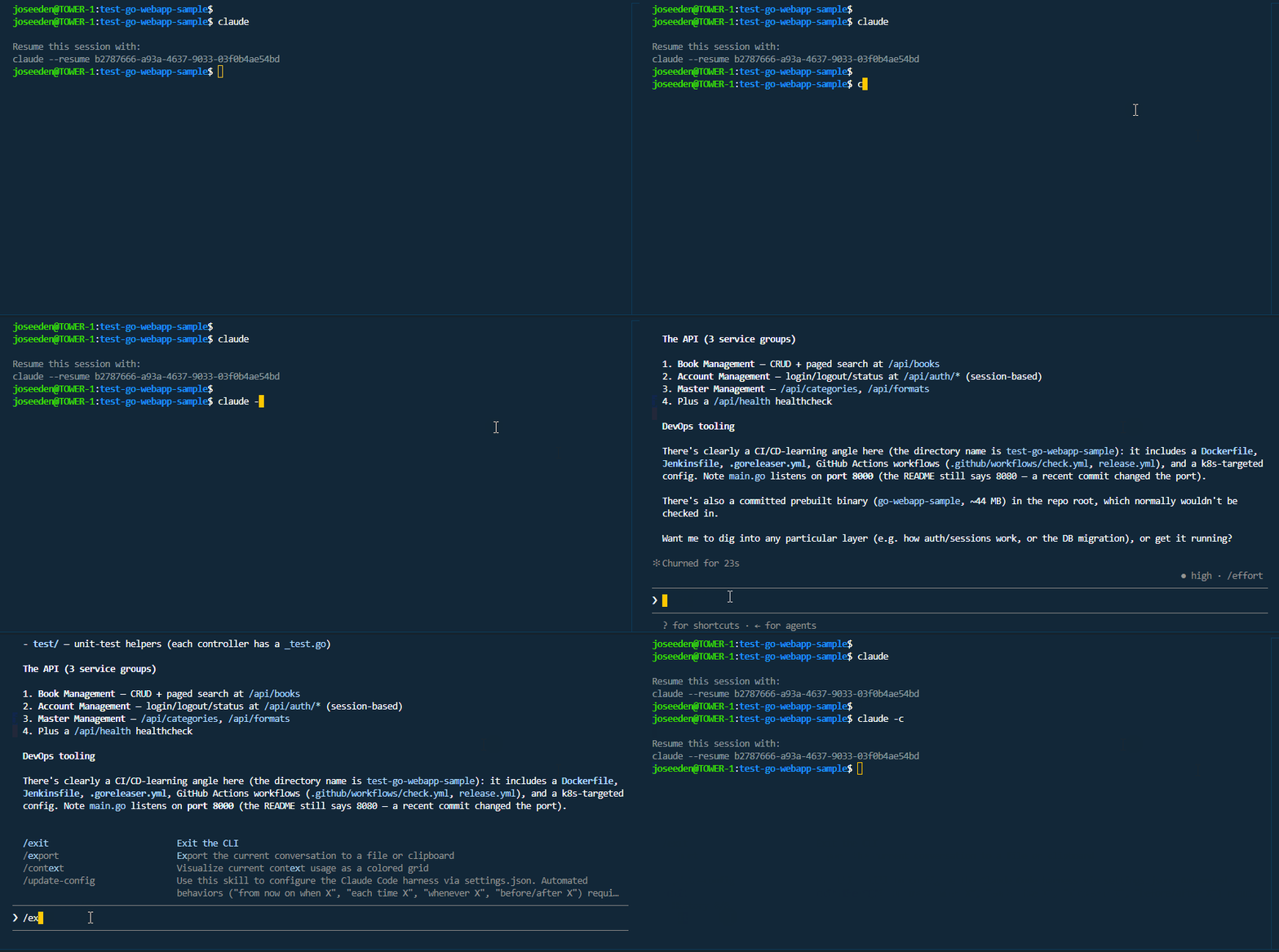
To see current permissions inside Claude Code, run:
/permissions
You can also switch modes with:
Shift + Tab
Accept Edits Mode
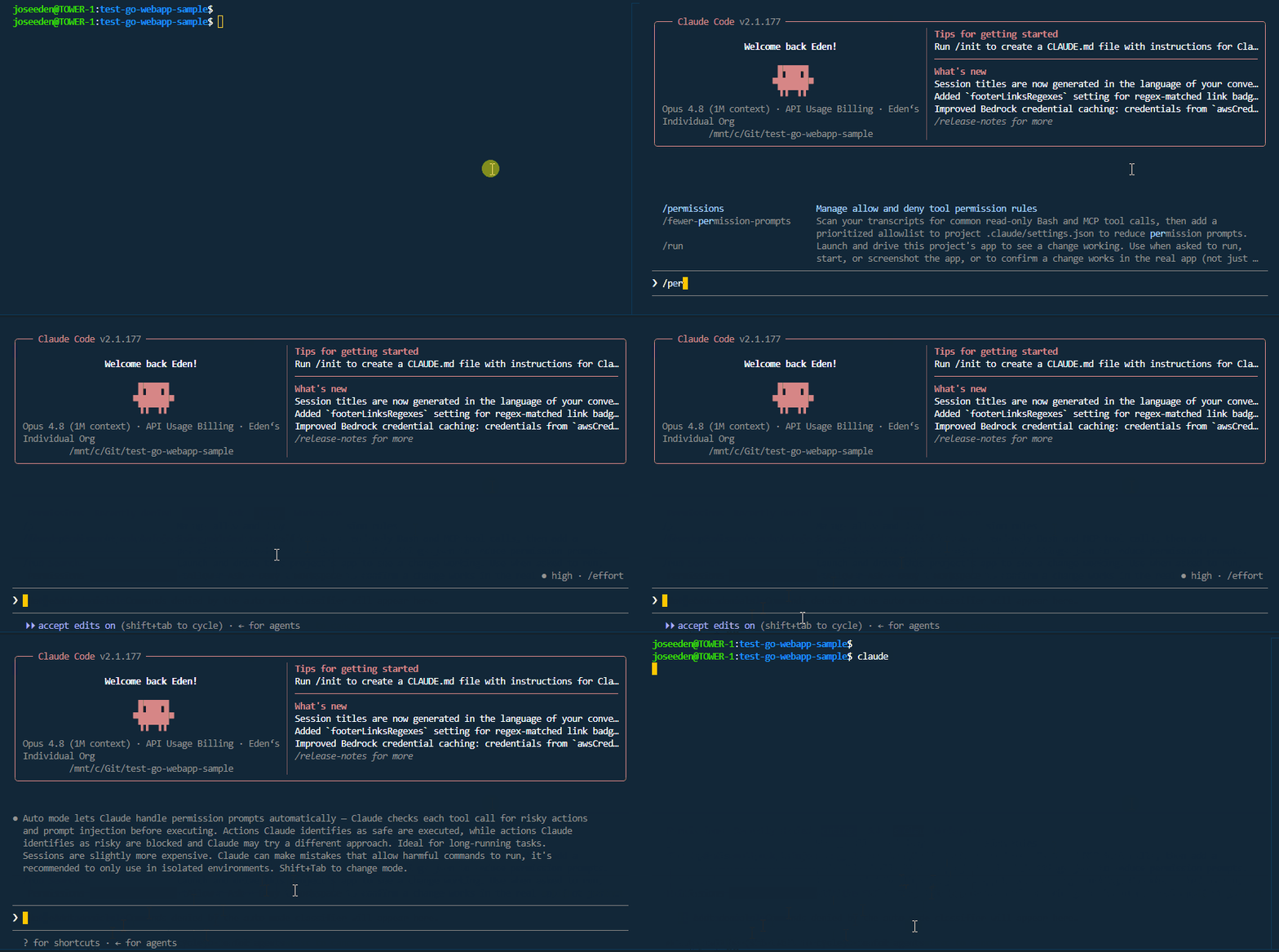
Accept edits mode allows Claude Code to edit files in the project without asking every time. It is useful when you want Claude Code to work faster on code changes.
However, this mode does not allow everything.
Claude Code may still ask before running commands such as:
git add .
git commit -m "Update project files"
Skip Permissions Mode
Claude Code can also be started with permissions skipped.
This is not included in the main permission modes because it is very risky.
In the example below, Claude Code starts without asking for permission before actions.
claude --dangerously-skip-permissions
This mode is dangerous because Claude Code can edit files, run commands, and make changes without asking first.
NOTE: Only use this in a safe test project, a disposable environment, or a clean Git working tree where you can easily recover changes.
Best Practices
A safer Claude Code workflow is to keep control over sessions and permissions.
- Start a new session for each major task
- Use
/clearwhen switching problems - Use
/contextto check available context - Use
/compactonly when needed - Protect
.envand other secret files - Review file changes before committing
- Avoid skipping permissions in important projects
Claude Code is powerful because it can work across files and commands. That power is useful, but it should be controlled with clear settings, focused sessions, and safe permissions.