Hooks
Overview
Hooks allow you to execute automation commands at specific stages of the development lifecycle.
- Ensure consistent execution for critical project requirements
- Prevent the AI from skipping important operational steps
- Standardize workflows across your entire development team
Unlike standard instructions that the AI might occasionally overlook, hooks are deterministic and execute every single time without exception.
Available Lifecycle Events
You can configure hooks within your configuration files by mapping commands to specific operational triggers. These triggers detect exactly when the AI is about to start an action or when it completes a task.
| Hook | When It Runs |
|---|---|
UserPromptSubmit | Runs immediately after you submit a prompt. |
PreToolUse | Triggers just before a tool executes an action. |
PostToolUse | Activates immediately after a tool finishes its work. |
Stop | Runs when the AI completes its entire response. |
Notification | Triggers whenever a system alert is generated. |
In the example below, the UserPromptSubmit event intercepts your input before any processing begins. Mapping your automation to these specific lifecycle events ensures that your scripts execute at the precise moment they are needed.
{
  "hooks": {
    "UserPromptSubmit": "echo 'Processing prompt...'"
  }
}
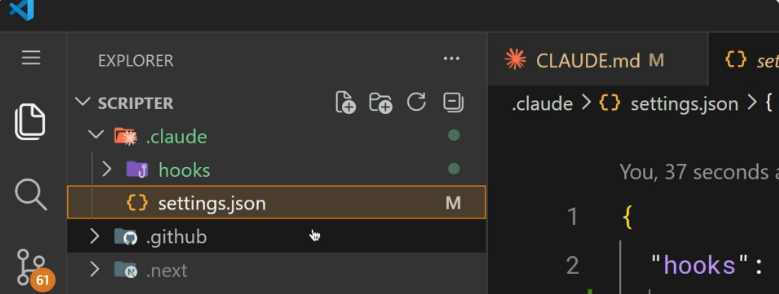
The settings.json is stored at the project level, so any hooks you configure here will be shared across your entire team when checked into your repository.
The settings.json file is where you define all Claude Code settings, not just hooks.
For more information, please see Configuration and Sessions.
Auto Formatting Code
The most common application for a post-execution trigger is automatically cleaning up source code after modifications. This setup monitors file editing tools and immediately triggers your preferred code formatter.
- Match specific file editing tools like edit or write
- Detect file extensions automatically to choose the right tool
- Clean up code formatting without manual intervention
Here, the PostToolUse setting runs after Edit and Write tools to automatically format code, which keeps the codebase clean without manual formatting.
{
  "hooks": {
    "PostToolUse": {
      "match": "Edit|Write",
      "command": "prettier --write"
    }
  }
}
Blocking Dangerous Operations
Pre-execution triggers can evaluate actions before they run and completely block unauthorized behavior. The system reads the tool inputs and uses standard exit codes to determine whether the operation is safe to proceed.
| Exit Code | Behavior |
|---|---|
| 0 | Allows safe operations to continue. |
| 2 | Blocks dangerous commands immediately. |
| Other codes | Shows an error message but does not stop the operation. |
In this example, PreToolUse hooks analyze incoming tool calls for potentially harmful operations. By enforcing strict exit codes, you can prevent actions like deleting critical files or executing unsafe commands.
{
  "hooks": {
    "PreToolUse": {
      "match": "Bash",
      "command": "grep -q 'rm -rf' && exit 2 || exit 0"
    }
  }
}
Sharing Hooks
You can store automation rules in the project so everyone on the team can use the same setup.
- Keep configs in the local settings file
- Share the same rules with the whole team
- Use environment variables for safe path references
In this example, the CLAUDE_PROJECT_DIR variable ensures that the validation script resolves correctly for every team member.
{
  "hooks": {
    "PostToolUse": {
      "match": "Write",
      "command": "node $CLAUDE_PROJECT_DIR/scripts/validate.js"
    }
  }
}