Using Snowflake
Creating a Snowflake Account
Getting started with Snowflake begins by creating an account so you can access the platform and use Snowsight.
- Go to Snowflake website
- Choose free trial or paid account
- Select cloud provider like AWS, Azure, or GCP
- Pick a region close to your location
- Confirm email and log in
After signup, you are taken into Snowsight, which is the main interface for working with Snowflake. This is where you run queries, manage data, and start building your environment.
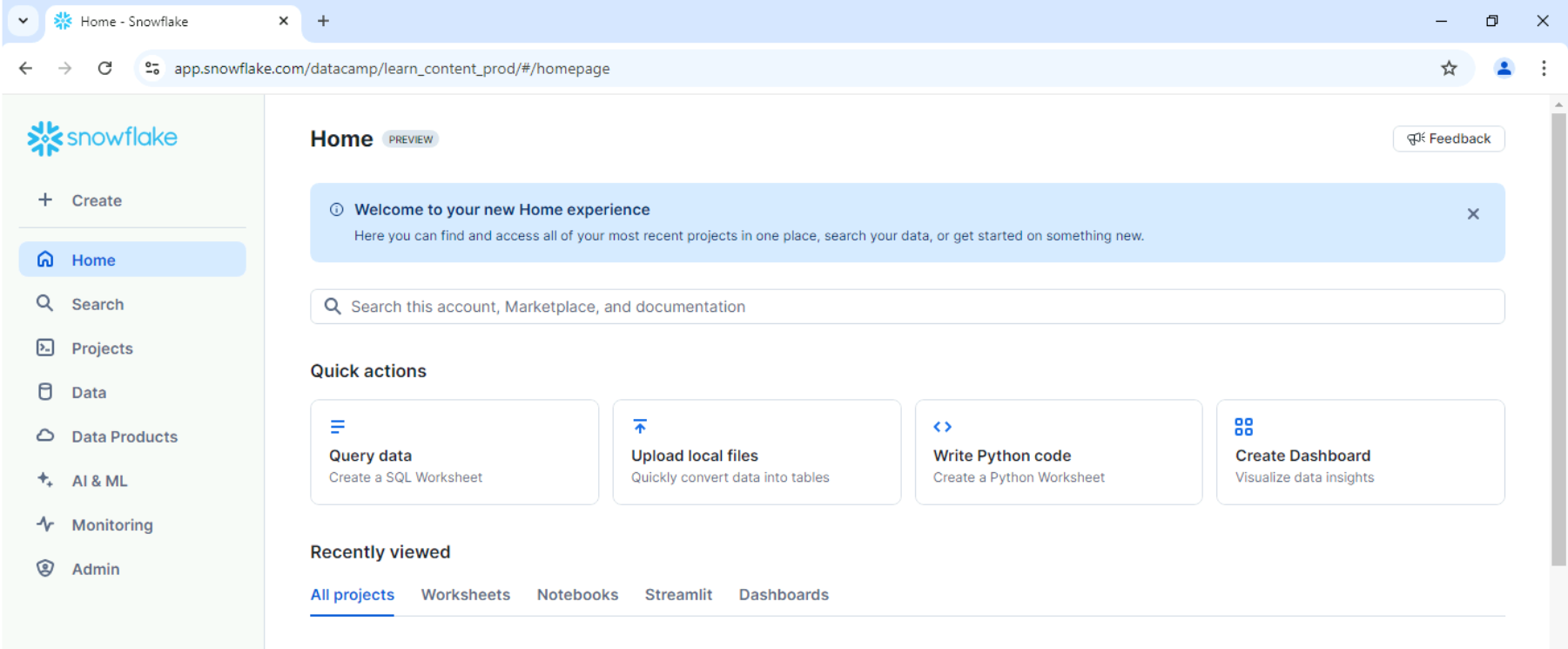
This step is the entry point into Snowflake because everything else like users, roles, and warehouses only exists after the account is created.
Roles
Roles control what a user can do in Snowflake.
| Role | Description |
|---|---|
ACCOUNTADMIN | Full access including billing and security |
SECURITYADMIN | Manages permissions for users and objects |
USERADMIN | Creates and manages users and roles |
SYSADMIN | Manages databases, tables, and warehouses |
PUBLIC | Default limited access role |
To start using Snowflake, you need to first create a user and a role. Roles control access, and users inherit permissions from roles.
Creating a Role
A role defines permissions for a group of users.
- Go to Admin ➜ Users & Roles ➜ Roles
- Click Add Role
- Name the role and add a description
- (Optional) assign it to a higher role like
SYSADMIN
In SQL, you can create the same role like this:
CREATE ROLE HR_ANALYST;
Creating a User
A user represents a person or system that logs into Snowflake.
- Go to Admin ➜ Users & Roles ➜ Users
- Click Add User
- Enter details and set default role
In SQL, you can create a user like this:
CREATE USER new_analyst
PASSWORD = 'SecurePass123'
DEFAULT_ROLE = HR_ANALYST;
At this point, the user exists but cannot access data until roles are granted.
Assigning Roles to Users
After creating users and roles, you must connect them so permissions can be applied.
- Roles must be assigned to users
- Permissions are controlled through roles, not directly on users
- Roles can also inherit other roles
In the example below, the SYSADMIN role is granted to a user:
GRANT ROLE SYSADMIN TO USER analyst_user;
This allows the user to inherit all permissions from SYSADMIN.
Role Hierarchy (Role within Role)
Roles can also be nested to simplify access management.
In this example, HR_ANALYST is granted to SYSADMIN, meaning anyone with SYSADMIN also gets HR_ANALYST permissions.
GRANT ROLE HR_ANALYST TO ROLE SYSADMIN;
This way, you can manage permissions at a higher level and avoid granting multiple roles to each user.
Virtual Warehouses (Compute Setup)
A warehouse must exist before running queries.
- Small warehouses are enough for testing
- Larger warehouses handle heavy workloads
- Warehouses can be started and stopped anytime
Common sizes:
X-Smallfor basic workloadsSmallfor light queriesMediumfor heavier processing
Creating a Virtual Warehouse
To create a warehouse, you can use the Snowflake UI or SQL commands.
- Go to Admin ➜ Warehouses.
- Click Add Warehouse, enter a name, and create it.
- Grant the role access.
In SQL, the warehouse can be created with the following command:
CREATE WAREHOUSE analyst_wh
WAREHOUSE_SIZE = 'SMALL';
Expected result:
Warehouse ANALYST_WH successfully created
Now the warehouse can process queries.
Granting Warehouse Access
Even after creation, access must be granted. This means that roles must first be granted the appropriate permissions to use the warehouse.
In the example below, the role SYSADMIN is granted usage on the analyst_wh warehouse:
GRANT USAGE ON WAREHOUSE analyst_wh TO ROLE SYSADMIN;
Database and Schema Setup
After setting up users, roles, and warehouses, you need to create a database and a schema (a folder inside the database) to hold it.
CREATE DATABASE my_first_db;
CREATE SCHEMA my_first_db.notebooks;