Multimodal Models
Overview
LM Studio allows you to upload images and documents directly into a chat. The model can then analyze, summarize, or extract information from those files.
To work with images, you need to use a multimodal model that supports both text and image inputs. Not all models have this capability, so you should check the model details before uploading an image.
You can usually identify image-capable models by looking for the "eye" icon or "Vision" tag in the model details in LM Studio.
Working With Images
Multimodal models can perform different types of image analysis.
- Extract text from images
- Summarize image content
- Identify objects
- Answer questions about images
One common use case is OCR (Optical Character Recognition), where a model reads text from images such as receipts, invoices, forms, or screenshots.
For example, you can upload:
- Receipt
- Invoice
- Screenshot
- Handwritten note
- Document photo
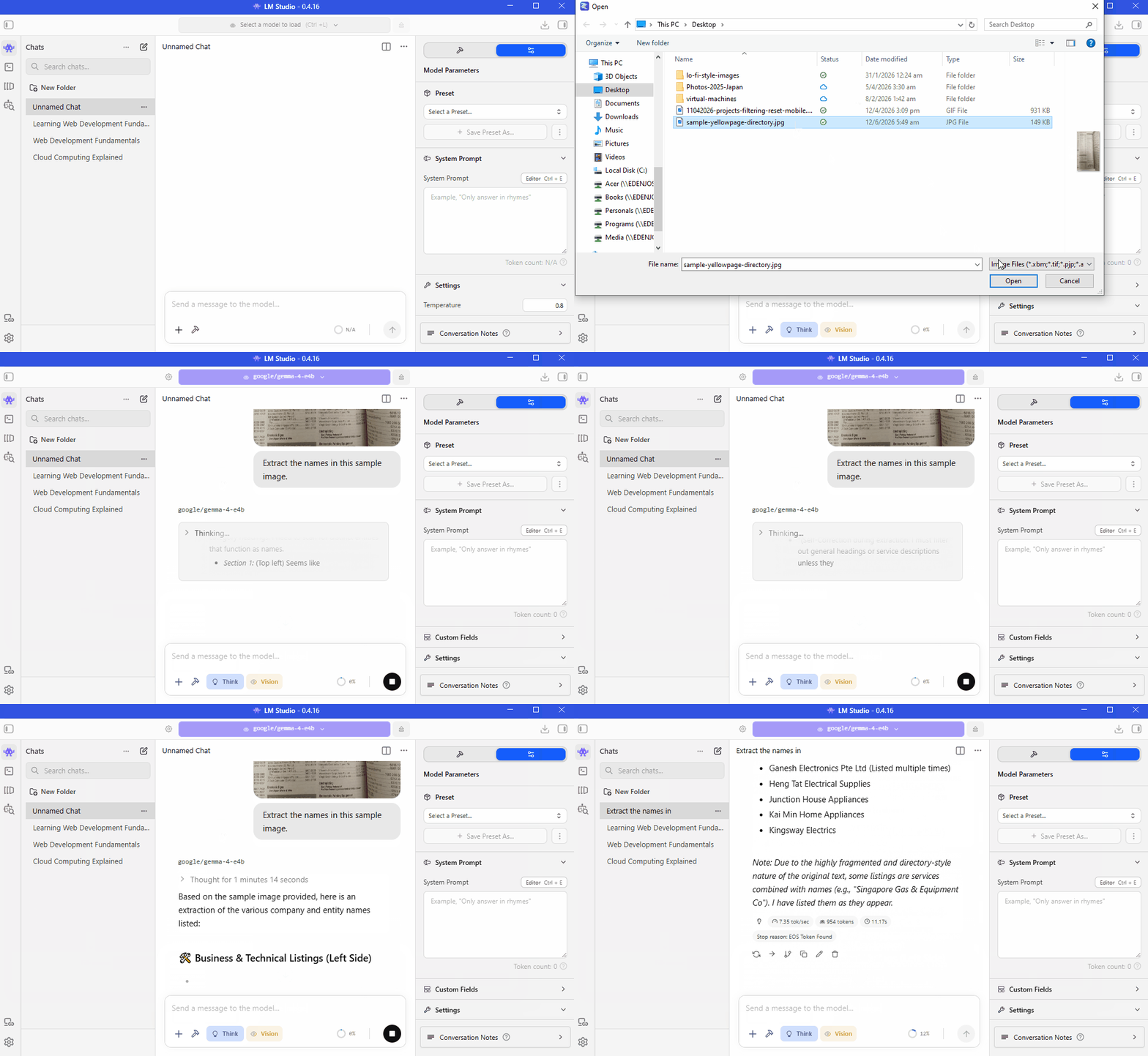
As an example, you can upload an image of a yellowpages directory, and the model can extract details such asnames, titles, and contact details from the image.
Get the sample image here: Github
Note: The accuracy of image analysis depends on the model's capabilities and the quality of the image. Blurry or low-resolution images may yield less accurate results, while clear images can provide better information extraction.
Working With Documents
LM Studio can also process document files.
- PDF files
- Text files
- Word documents
- Multiple file uploads
Document support allows you to analyze and summarize content without manually copying and pasting text.
Note: LM Studio may limit the number and size of uploaded files.
- Multiple files supported
- Combined size limits may apply
- Limits can change between versions
- Large uploads may affect performance
Even if large uploads are allowed, it is generally better to process documents in smaller batches. This helps the model focus on the most relevant information.
Get the sample file here: Github
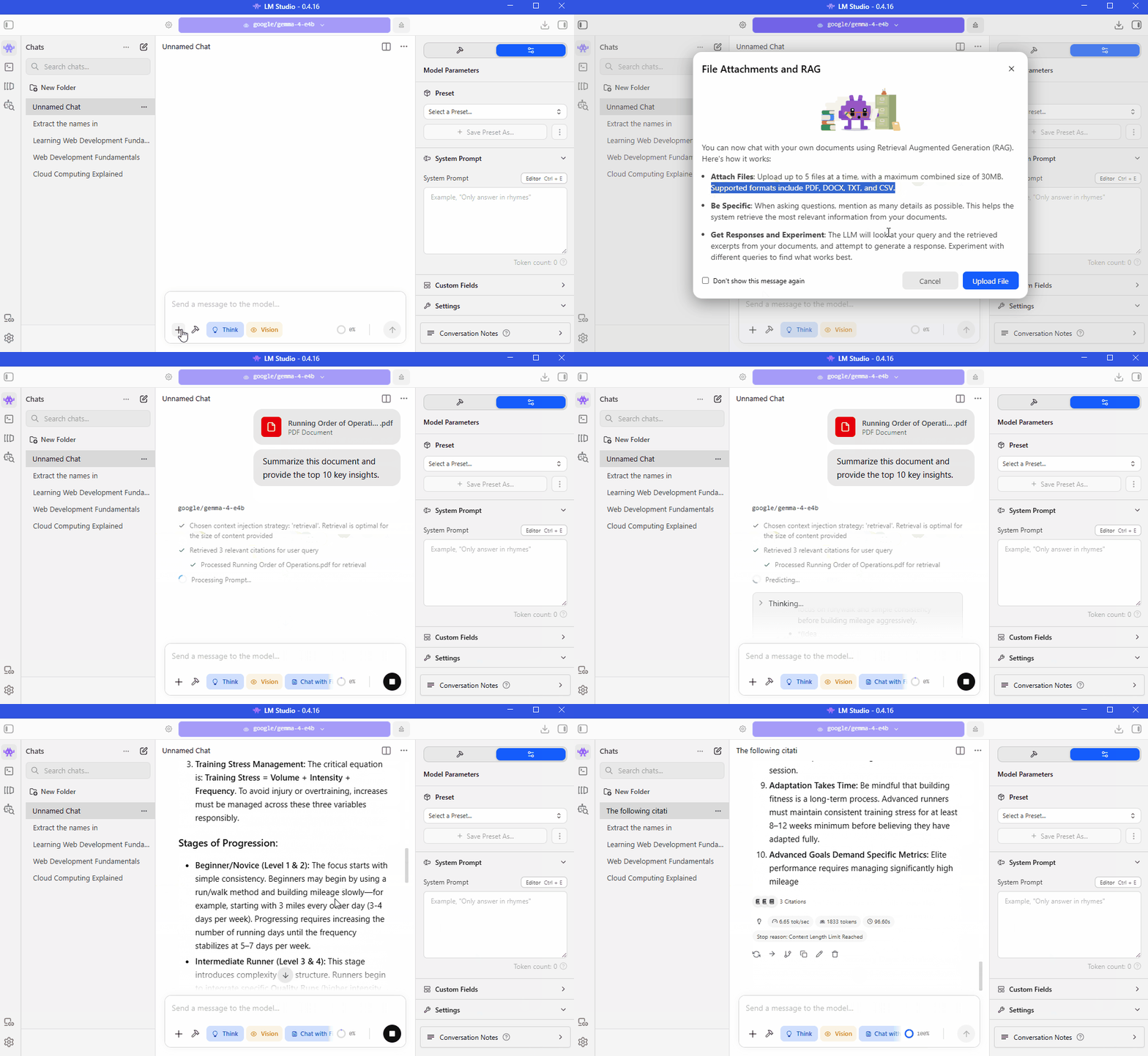
When you upload a file, LM Studio tries to make the content available to the model.
In simple terms, LM Studio tries to make the document available to the model as if you had pasted its contents into the chat.
- Reads document content
- Adds content to chat context
- Splits large documents when needed
- Retrieves relevant sections automatically
If the document is too large, LM Studio may automatically split it into smaller pieces and retrieve only the relevant sections when answering questions.
Context Window
The amount of information a model can process at one time is called the context window.
- Larger context windows handle more information
- Large documents consume context space
- Small context windows have stricter limits
- Context size varies by model
A larger context window allows the model to remember and process more content during a conversation.
This becomes important when working with long documents.
Document Summarization
Summarizing documents is one of the most useful local AI workflows.
- Summarize reports
- Extract key points
- Identify important numbers
- Review long documents quickly
For example, after uploading a report, you can ask:
Summarize this document and extract the top 10 key findings.
The exact response depends on the document content.
Large language models are particularly effective at summarization and information extraction.