Installing Maven
Overview
This lab installs Maven and supporting tools for Java build automation.
Diagram:
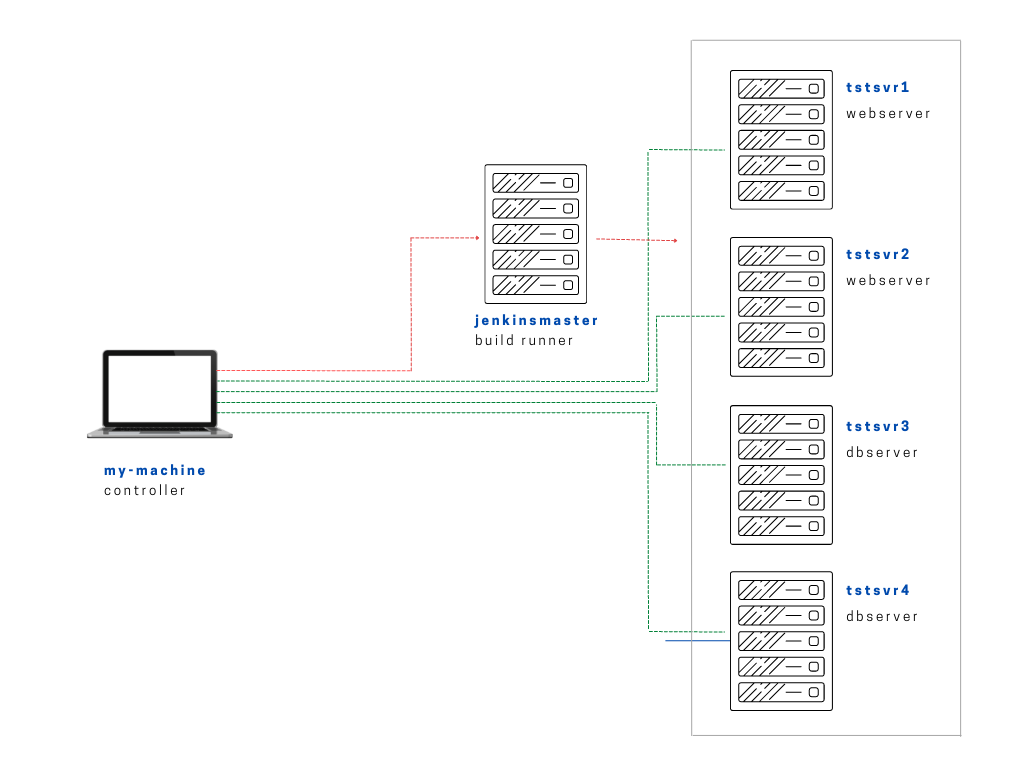
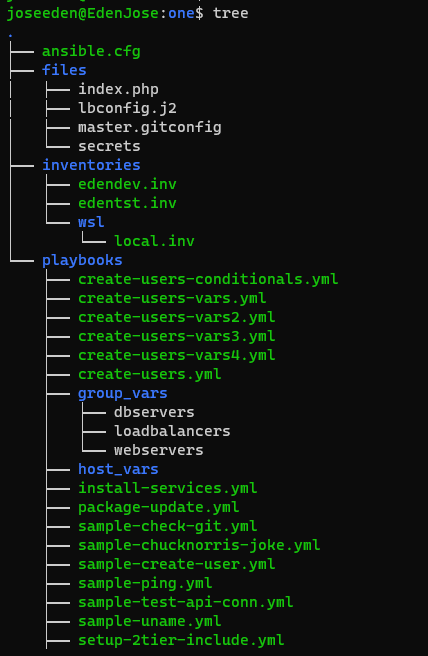
The tree-structure of our Project One currently looks like this. Don't worry if you see that there's already a lot of files in the directory. These are the files from the previous labs in this series. The only ones we'll really really need are also provided below.
Project One
ansible.cfg
 [defaults]
# E: variables for my personal lab
inventory = ~/proj-ansible-1/one/inventories/edendev.inv
remote_user = eden
private_key_file = ~/.ssh/id_rsa
host_key_checking = False
retry_files_enabled = False
timeout = 24
gather_facts = smart

[privilege_escalation]
become_method = sudo
become=True
become_user=root
become_ask_pass=True

#ansible_managed = "# This file is managed by Ansible, all local changes will be lost !"
#allow_world_readable_tmpfiles = True
#precedence = all_plugins_play, all_inventory, groups_plugins_play, groups_inventory, all_plugins_inventory, groups_plugins_inventory
#any_errors_fatal = True
#timeout = 24

[paramiko_connection]
#record_host_keys = False

[ssh_connection]
scp_if_ssh = True
pipelining = True
symlink in root directory pointing to projects folder
$ ls -la | grep "\->"
lrwxrwxrwx  1 joseeden joseeden    70 Jan 14 23:03 proj-ansible-1 -> /mnt/c/Users/Eden Jose/4-Projects
edenjen.inv
[webservers]
app1    ansible_host=13.251.146.254
app2    ansible_host=122.248.203.239
app3    ansible_host=52.76.189.254
app4    ansible_host=54.255.28.202

[jenkins]
jenkinsmaster     ansible_host=13.228.99.157

[local]
localhost   ansible_connection=local
This lab is build on top of the previous lab and is also a part of the Jenkins lab series. For this one, we'll be setting up a Maven-based Jenkins job.
Before anything else, we will need to install Maven first. Since this is for labbing purposes only, we'll install it the same Jenkins server.
The steps can be found in this link.. From these steps, we built our playbook:
install-maven-others.yml
# installs maven and git - needed for Jenkins lab
---

- name: Install maven and git
  hosts: jenkins
  become: true
  tasks:

    - name: Download files for Maven
      get_url:
        url: https://www-eu.apache.org/dist/maven/maven-3/3.6.3/binaries/apache-maven-3.6.3-bin.tar.gz
        dest: /opt

    - name: Extract downloaded archive
      ansible.builtin.unarchive:
        src: /opt/apache-maven-3.6.3-bin.tar.gz
        dest: /opt
        remote_src: yes

    - name: Create symbolic link
      file:
        src: "apache-maven-3.6.3"
        dest: "/opt/maven"
        state: link

    - name: Create file
      ansible.builtin.blockinfile:
        path: /etc/profile.d/maven.sh
        create: yes
        mode: '0755'
        insertbefore: BOF
        block: |
          export M2_HOME=/opt/maven
          export PATH=${M2_HOME}/bin:${PATH}

    - name: Source the maven script
      shell: "source /etc/profile.d/maven.sh"

    - name: Installs git
      yum:
        name:
          - git
        state: present
To run the playbook,
$ ansible-playbook playbooks/install-maven-others.yml -i inventories/edenjen.inv
The following steps will now be focused on Jenkins.
Now, clone the git repo
The link for the Github page can be found here.. Since we will be doing some stuff and pushing it to the repo in the succeeding labs, we'll fork it so that we can push changes to it. Make sure that you have a Github account as well.
Once you've forked it, we can now copy the SSH link under the Code tab. It used to be that we can use the HTTPs but starting August 2021, support for password authentication was removed and you will need to generate an SSH key and add it to your Github account..
Next, make sure you have git installed on your local machine.. Then create a ~/.ssh/config file with the following contents so Github will know where to look for the SSH keys.
Host github.com
 IdentityFile ~/.ssh/id_rsa
You may also append this at the bottom of your ~/.bashrc file. After this, your SSH Key-based authentication to Github is all setup.
# E: Use script below to enter passphrase only at the beginning

#### SSH AGENT ####
if [[ ! -v SSH_AGENT_PID ]]; then
        eval `ssh-agent`
        ssh-add ~/.ssh/id_rsa
fi
Now, going back to the forked repo, click Code then SSH then copy the link.
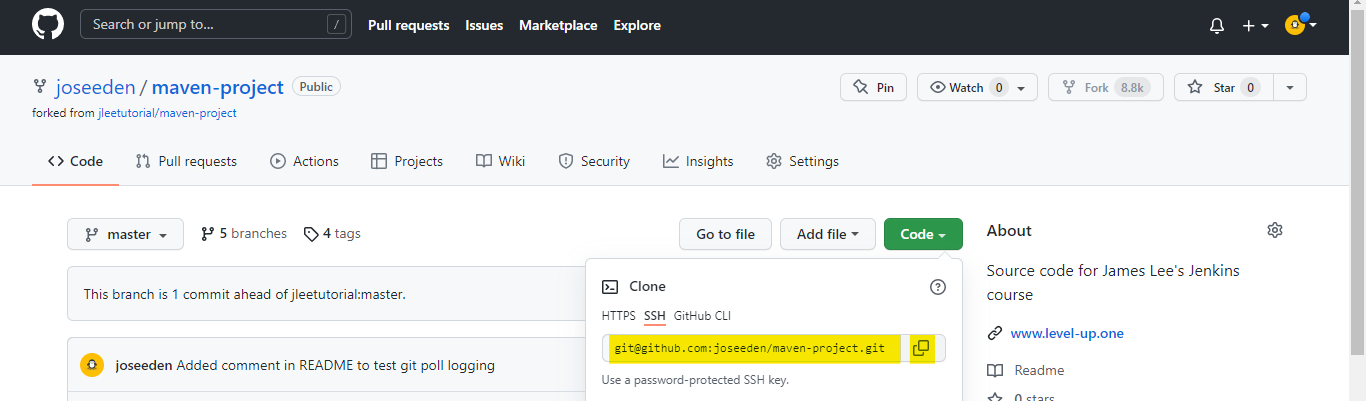
On your local machine, go one level up to the projects collections folder. This is where our project one is located.
Currently, I have the project one folder along with two more projects.
4-Projects$ ll
total 0
drwxrwx--- 1 joseeden joseeden 512 Jan 26 21:30 ./
drwxr-xr-x 1 joseeden joseeden 512 Jan 23 19:11 ../
drwxr--r-- 1 joseeden joseeden 512 Jan 14 22:55 confluent-cloud/
drwxr--r-- 1 joseeden joseeden 512 Jan 23 20:53 one/
drwxr--r-- 1 joseeden joseeden 512 Jan 15 00:47 two/
Clone the maven-project folder here. Note that we're now using SSH to clone
$ git clone git://github.com/joseeden/maven-project.git

Cloning into 'maven-project'...
remote: Enumerating objects: 108, done.
remote: Counting objects: 100% (3/3), done.
remote: Compressing objects: 100% (3/3), done.
remote: Total 108 (delta 0), reused 1 (delta 0), pack-reused 105
Receiving objects: 100% (108/108), 14.85 KiB | 271.00 KiB/s, done.
Resolving deltas: 100% (24/24), done.
4-Projects$ ll
total 0
drwxrwx--- 1 joseeden joseeden 512 Jan 26 21:35 ./
drwxr-xr-x 1 joseeden joseeden 512 Jan 23 19:11 ../
drwxr--r-- 1 joseeden joseeden 512 Jan 14 22:55 confluent-cloud/
drwxr-xr-x 1 joseeden joseeden 512 Jan 26  2022 maven-project/
drwxr--r-- 1 joseeden joseeden 512 Jan 23 20:53 one/
drwxr--r-- 1 joseeden joseeden 512 Jan 15 00:47 two/
Our maven-project folder looks like this:
tree-output of maven-project
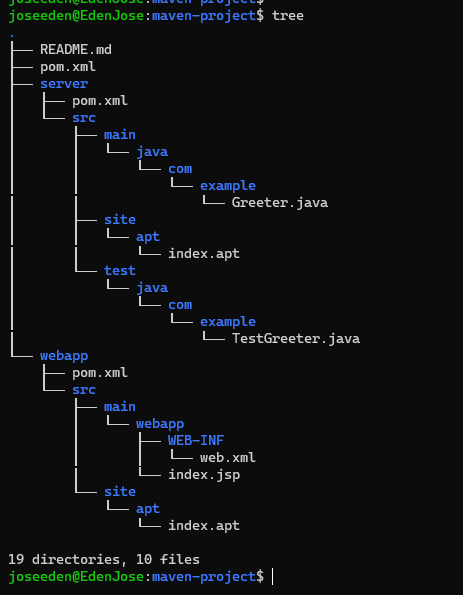
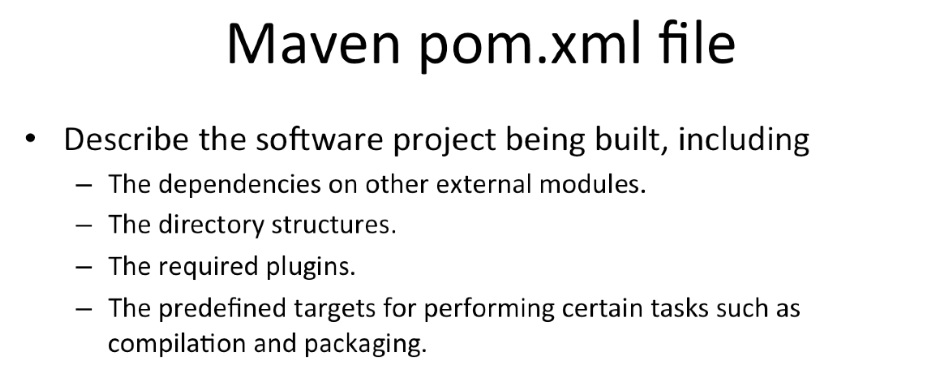
An important file is the pom.xml.
Now let's test an empty commit and push.
$ git commit --allow-empty -m 'Test commit'
[master 74e0ea0] Test commit
$ git push
Enumerating objects: 1, done.
Counting objects: 100% (1/1), done.
Writing objects: 100% (1/1), 186 bytes | 11.00 KiB/s, done.
Total 1 (delta 0), reused 0 (delta 0)
To github.com:joseeden/maven-project.git
   fb28e6b..35714aa  master -> master
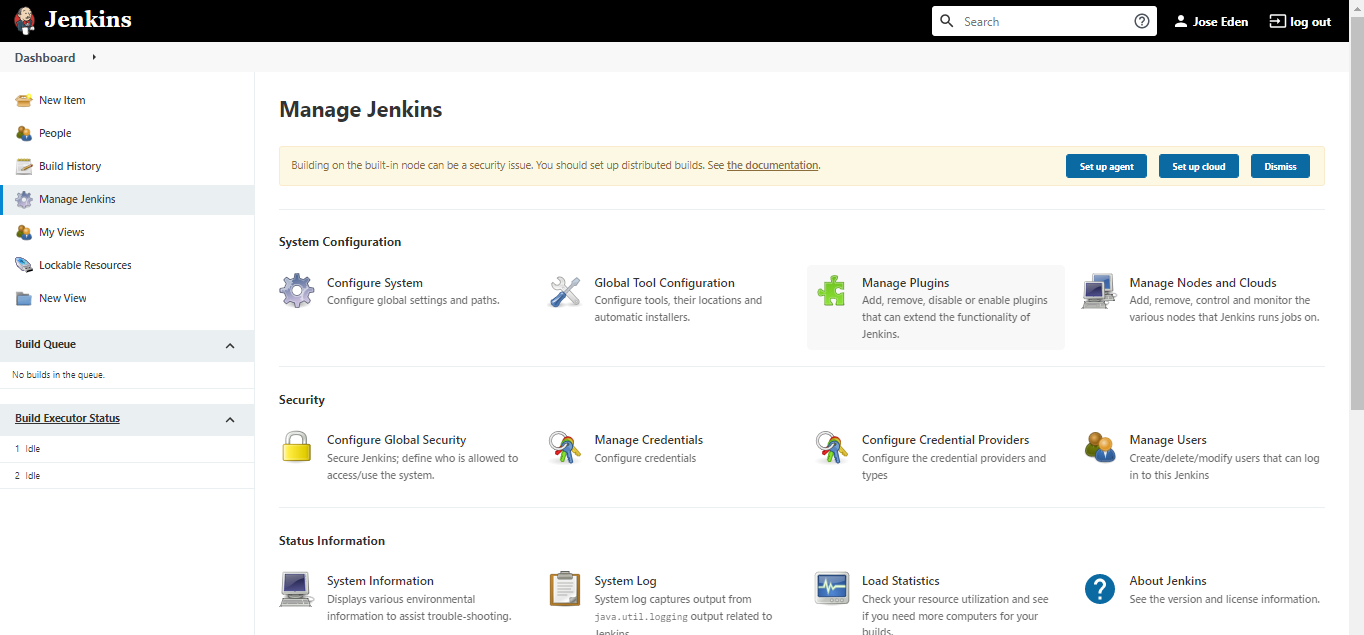
Once that's done, install the Github plugin in Jenkins. Select Manage Jenkins in the Jenkins landing page and then select Manage Plugins.
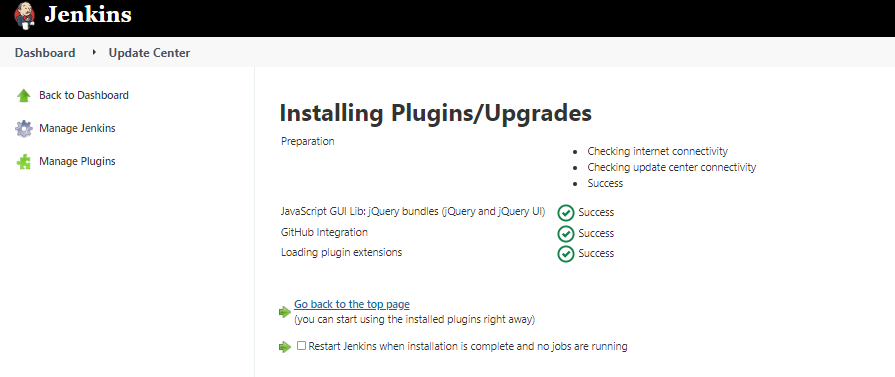
Select the Available tab and search for Github. Note that the results may differ. For this one we're selecting Github integration and then Install without restart.
Next, create the Jenkins job
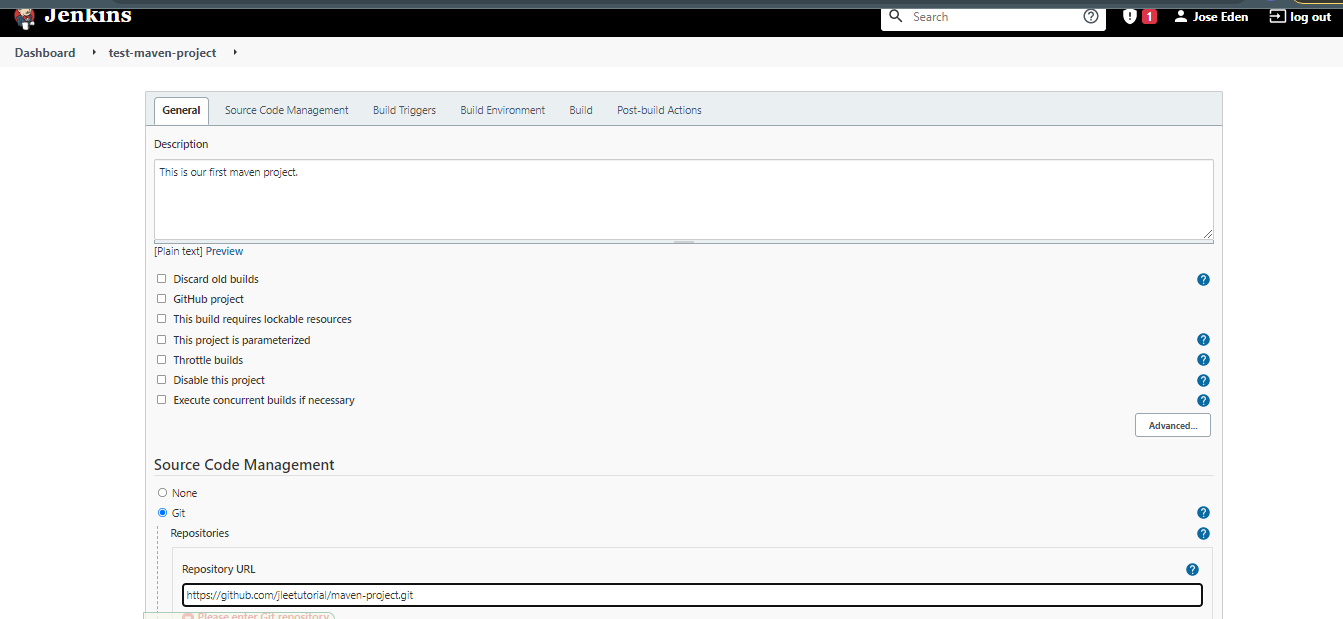
Back in the Jenkins landing page, select New item and put in the job name and description. Then select Freestyle project, and hit Ok.

In the Source code section, paste the same link you used to clone the maven-project.
https://github.com/joseeden/maven-project.git
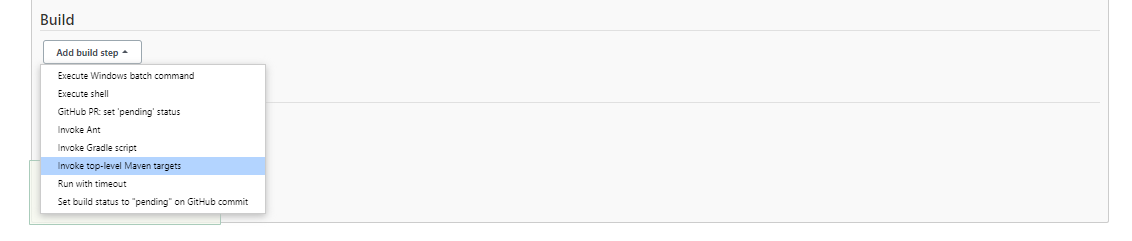
In the Build section, click Add build step and then select Invoke top-level Maven targets.
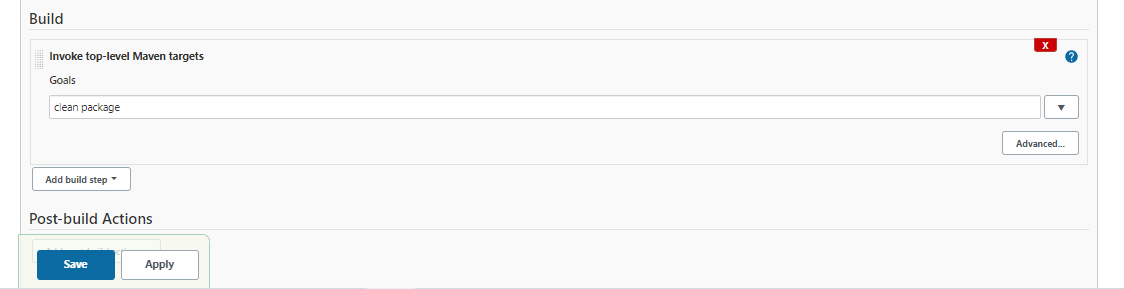
In the Goals field, put "clean package*. This is the last phase of a Maven Build lifecycle (which I'll include in this notes). Finally, click Save.
Now, manually trigger
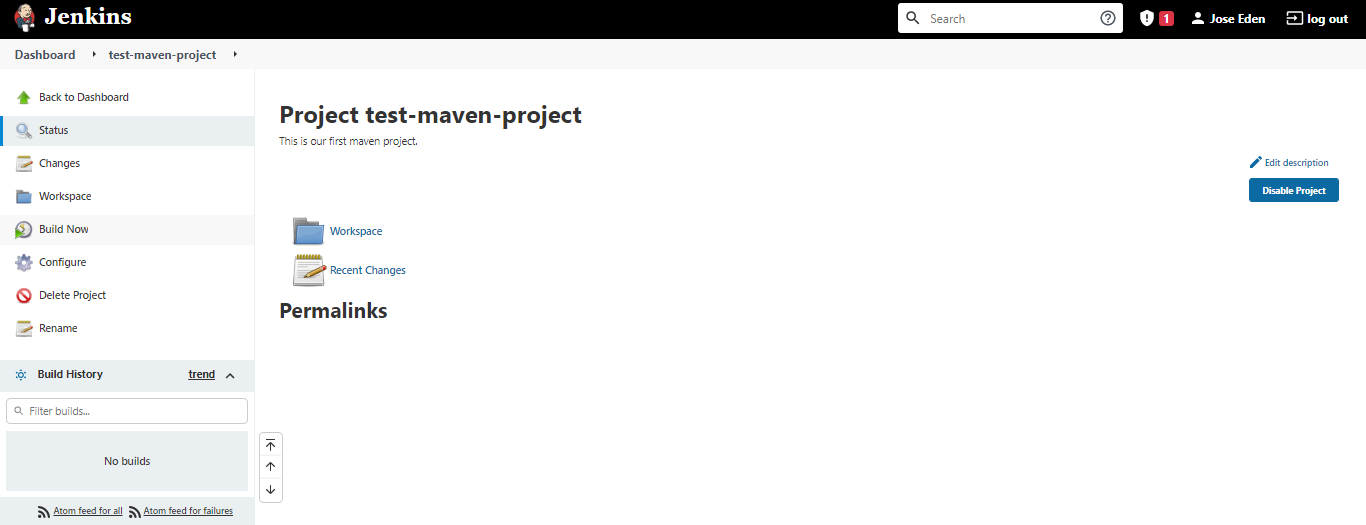
Once we've setup the job, it's time to trigger it. Select the job and click Build Now at the left panel.
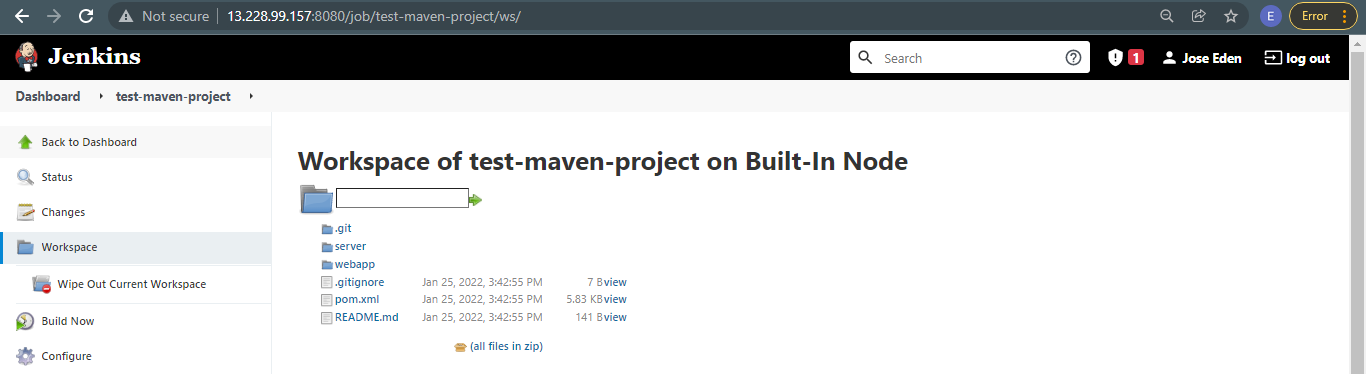
Once it's done, it should create a new tab called Workspace which should contain the directories and files for the project folder maven-project.
Note: I encountered errors when running this lab. Details on the errors and the steps to resolve them can be found in the succeeding sections.