Install and Configure Tomcat as the Staging Environment
Overview
This lab installs and configures Tomcat as a staging environment for application deployment.
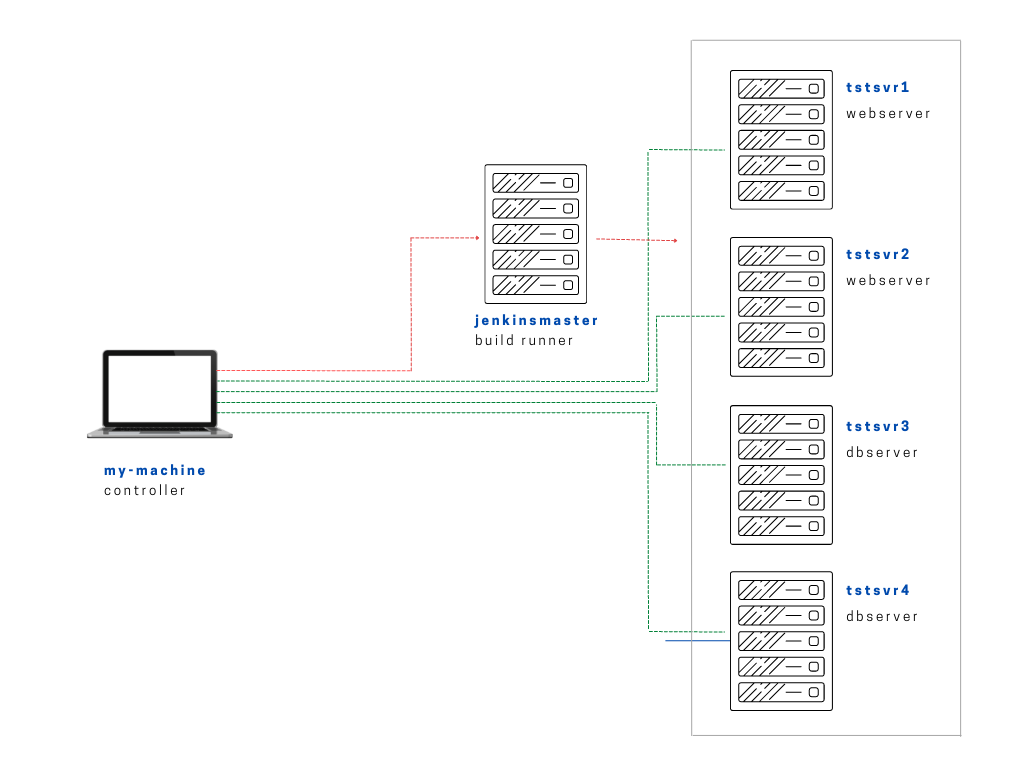
Diagram:
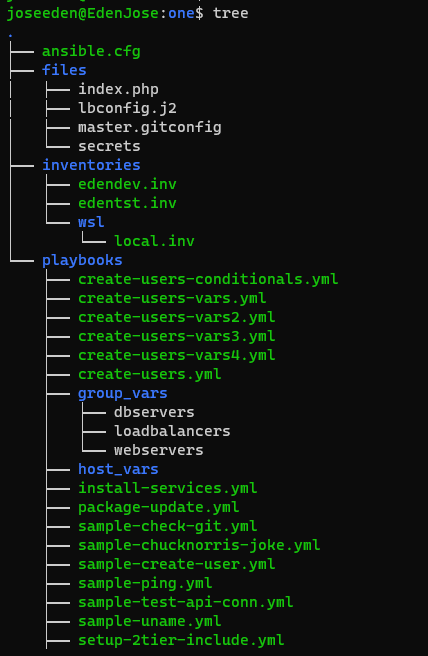
The tree-structure of our Project One currently looks like this. Don't worry if you see that there's already a lot of files in the directory. These are the files from the previous labs in this series. The only ones we'll really really need are provided below.
Project One
ansible.cfg
 [defaults]
# E: variables for my personal lab
inventory = ~/proj-ansible-1/one/inventories/edendev.inv
remote_user = eden
private_key_file = ~/.ssh/id_rsa
host_key_checking = False
retry_files_enabled = False
timeout = 24
gather_facts = smart

[privilege_escalation]
become_method = sudo
become=True
become_user=root
become_ask_pass=True

#ansible_managed = "# This file is managed by Ansible, all local changes will be lost !"
#allow_world_readable_tmpfiles = True
#precedence = all_plugins_play, all_inventory, groups_plugins_play, groups_inventory, all_plugins_inventory, groups_plugins_inventory
#any_errors_fatal = True
#timeout = 24

[paramiko_connection]
#record_host_keys = False

[ssh_connection]
scp_if_ssh = True
pipelining = True
symlink in root directory pointing to projects folder
$ ls -la | grep "\->"
lrwxrwxrwx  1 joseeden joseeden    70 Jan 14 23:03 proj-ansible-1 -> /mnt/c/Users/Eden Jose/4-Projects
edenjen.inv
[webservers]
app1    ansible_host=13.251.146.254
app2    ansible_host=122.248.203.239
app3    ansible_host=52.76.189.254
app4    ansible_host=54.255.28.202

[jenkins]
jenkinsmaster     ansible_host=13.228.99.157

[local]
localhost   ansible_connection=local
This lab is build on top of the previous lab and is also a part of the Jenkins lab series. For this one, we'll be deploying a Tomcat server. At this point, you should have deployed Jenkins which is using the port 8080. This is important to note because the default port of Tomcat is also 8080 and this will cause conflict. We'll be changing the Tomcat port to 8081 in our playbook.
Following this two useful links online:
From the steps in the links above, we build our playbook.
install-tomcat.yml
# installs tomcat - needed for Jenkins lab
---

- name: Install tomcat
  hosts: jenkins
  become: true
  tasks:

    - name: Ensure group "tomcat" exists
      ansible.builtin.group:
        name: tomcat
        state: present
        system: true

    - name: Add user+group for Tomcat
      ansible.builtin.user:
        name: tomcat
        shell: /bin/false
        groups: tomcat
        home: /usr/local/tomcatlink
        state: present

    - name: Get latest version of Tomcat and set in variable
      set_fact:
        ver: 9.0.58

    - name: Download files for Tomcat
      get_url:
        url: https://archive.apache.org/dist/tomcat/tomcat-9/v{{ ver }}/bin/apache-tomcat-{{ ver }}.tar.gz
        dest: /usr/local

    - name: Extract downloaded archive for Tomcat
      ansible.builtin.unarchive:
        src: /usr/local/apache-tomcat-{{ ver }}.tar.gz
        dest: /usr/local
        remote_src: yes
        owner: tomcat
        group: tomcat

    - name: Create symbolic link for Tomcat - Getting error so create dir dirst
      ansible.builtin.file:
        src: /usr/local/apache-tomcat-{{ ver }}
        name:  /usr/local/tomcatlink
        state: directory
        # force: yes

    - name: Empty dir
      ansible.builtin.file:
        src: /usr/local/apache-tomcat-{{ ver }}
        name: /usr/local/tomcatlink
        state: absent
        # force: yes

    - name: Create symbolic link for Tomcat
      ansible.builtin.file:
        src: /usr/local/apache-tomcat-{{ ver }}
        name: /usr/local/tomcatlink
        state: link
        owner: tomcat
        group: tomcat
        force: yes

    - name: Set ownership of symbolic link for Tomcat
      ansible.builtin.file:
        name: /usr/local/tomcatlink
        state: link
        owner: tomcat
        group: tomcat

    - name: Create /etc/systemd/system/tomcat.service
      copy:
        dest: "/etc/systemd/system/tomcat.service"
        content: |
          [Unit]
          Description=Apache Tomcat Server
          After=syslog.target network.target

          [Service]
          Type=forking
          User=tomcat
          Group=tomcat

          Environment=CATALINA_PID=/usr/local/tomcatlink/temp/tomcat.pid
          Environment=CATALINA_HOME=/usr/local/tomcatlink
          Environment=CATALINA_BASE=/usr/local/tomcatlink

          ExecStart=/usr/local/tomcatlink/bin/catalina.sh start
          ExecStop=/usr/local/tomcatlink/bin/catalina.sh stop

          RestartSec=10
          Restart=always
          [Install]
          WantedBy=multi-user.target

    - name: Change tomcat port to use 8081
      ansible.builtin.replace:
        path: /usr/local/apache-tomcat-{{ ver }}/conf/server.xml
        regexp: '(\s+)<Connector port="8080"(\s+.*)'
        replace: '\1<Connector port="8081"\2'

    # Uncomment play below if you have firewalld
    # - name: FirewallD rules
    #   firewalld:
    #     permanent: yes
    #     immediate: yes
    #     port: 8081/tcp
    #     zone: public
    #     state: enabled

    - name: Configure users on tomcat-users.xml
      ansible.builtin.lineinfile:
        path: /usr/local/tomcatlink/conf/tomcat-users.xml
        insertbefore: "^</tomcat-users>"
        line: |
          <role rolename="admin-gui"/>
          <role rolename="manager-gui"/>
          <user username="tomcat1" password="tomcat1993" roles="admin-gui,manager-gui,manager-script"/>

    - name: Enable Remote Access to Tomcat Manager
      ansible.builtin.lineinfile:
        path: /usr/local/apache-tomcat-{{ ver }}/webapps/manager/META-INF/context.xml
        regexp: 'allow="127\.\d+\.\d\+\.\d\+|::1|0:0:0:0:0:0:0:1" />'
        line: '         allow="127\.\d+\.\d+\.\d+|::1|0:0:0:0:0:0:0:1 |.*" />'
        state: present

    - name: Enable Remote Access to Tomcat Host-manager
      ansible.builtin.lineinfile:
        path: /usr/local/apache-tomcat-{{ ver }}/webapps/host-manager/META-INF/context.xml
        regexp: 'allow="127\.\d+\.\d\+\.\d\+|::1|0:0:0:0:0:0:0:1" />'
        line: '         allow="127\.\d+\.\d+\.\d+|::1|0:0:0:0:0:0:0:1 |.*" />'
        state: present

    - name: Force systemd to reread configs
      systemd:
        daemon_reload: yes

    - name: Ensures Tomcat is started
      systemd:
        name: tomcat
        enabled: yes
        state: started
Now to test, get the IP of the Jenkins server and paste it on your browser, followed by ":8081"
http://13.228.99.157:8081/
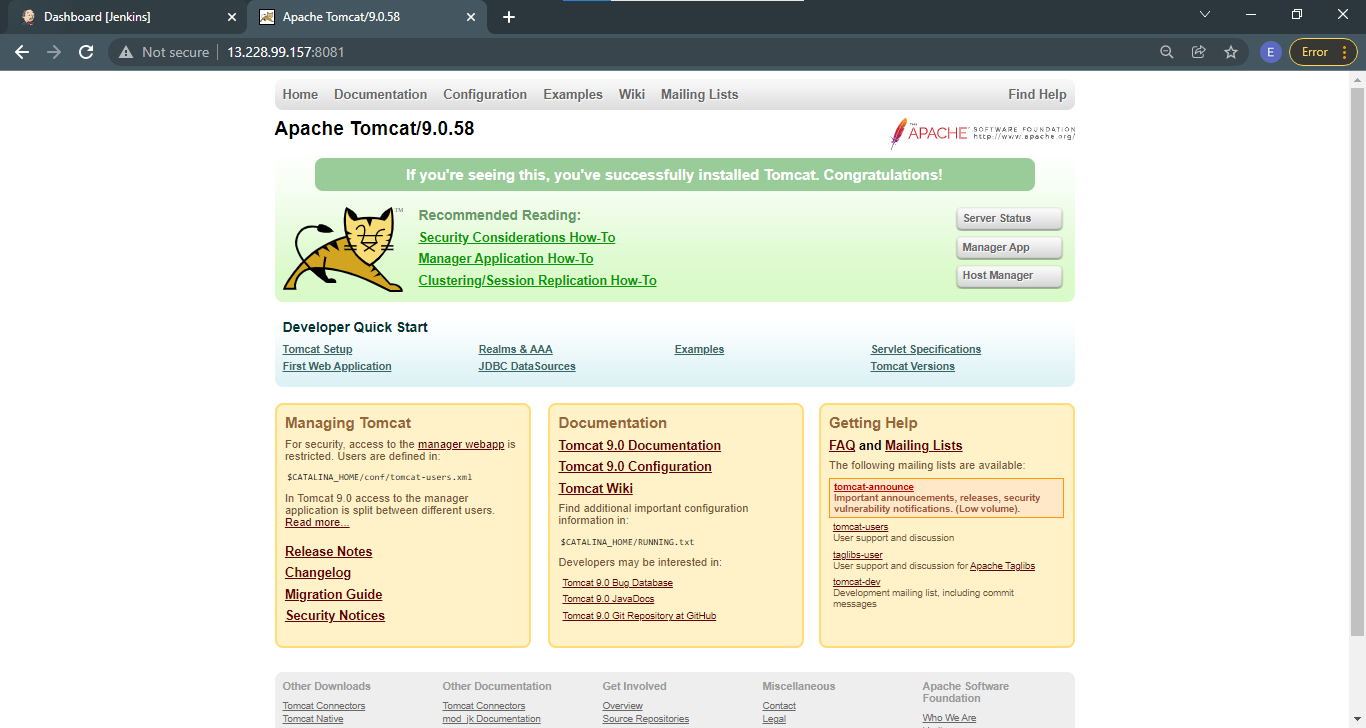
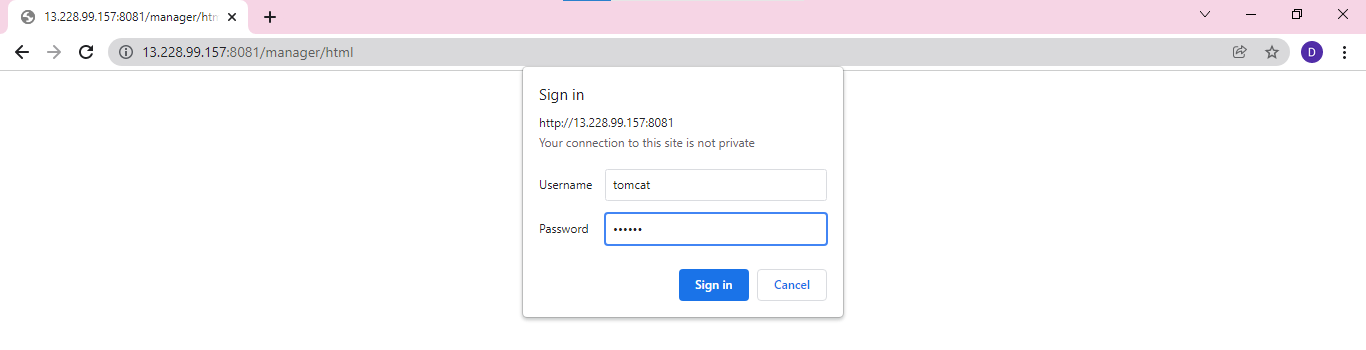
Check if you're able to access the Manager App by clicking the button on the right. You may also go to this link below. It should prompt you with the tomcat username and password. We set this in the playbook. Note that there are correct ways to set credentials and fetching them through runtime.
http://13.228.99.157:8081/manager
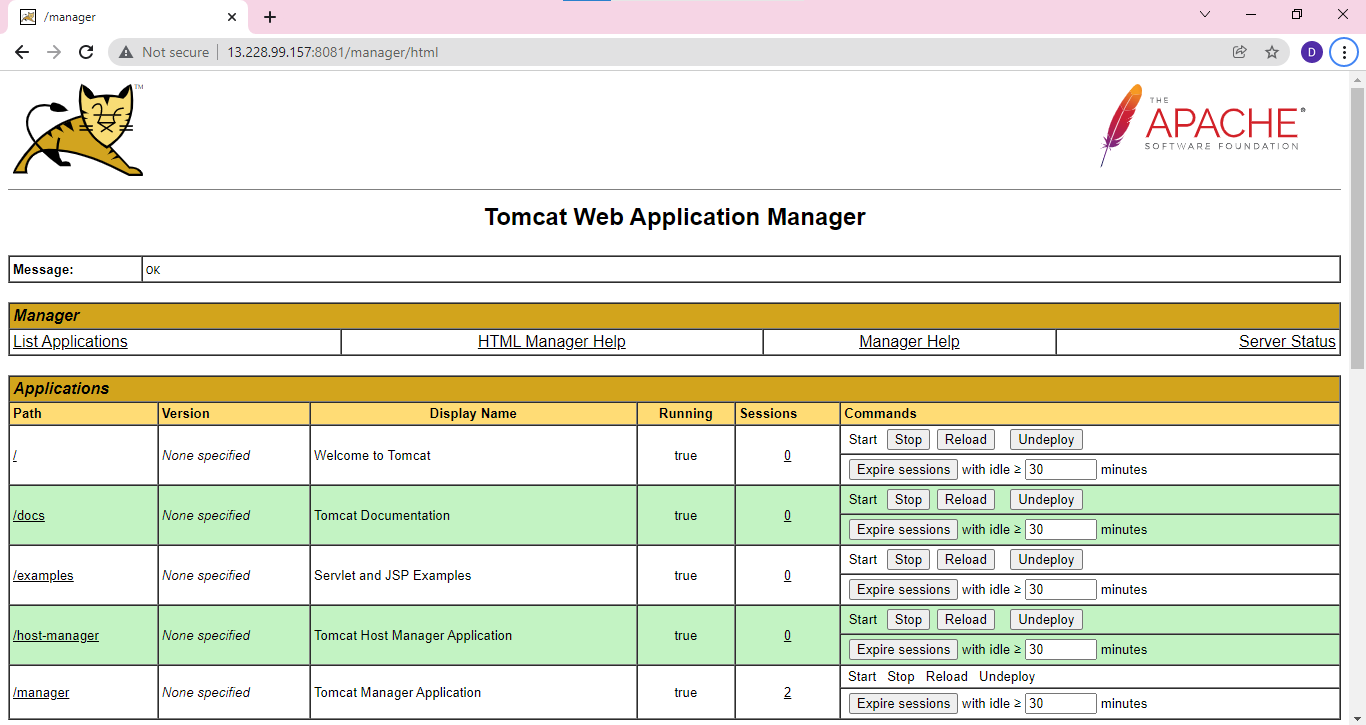
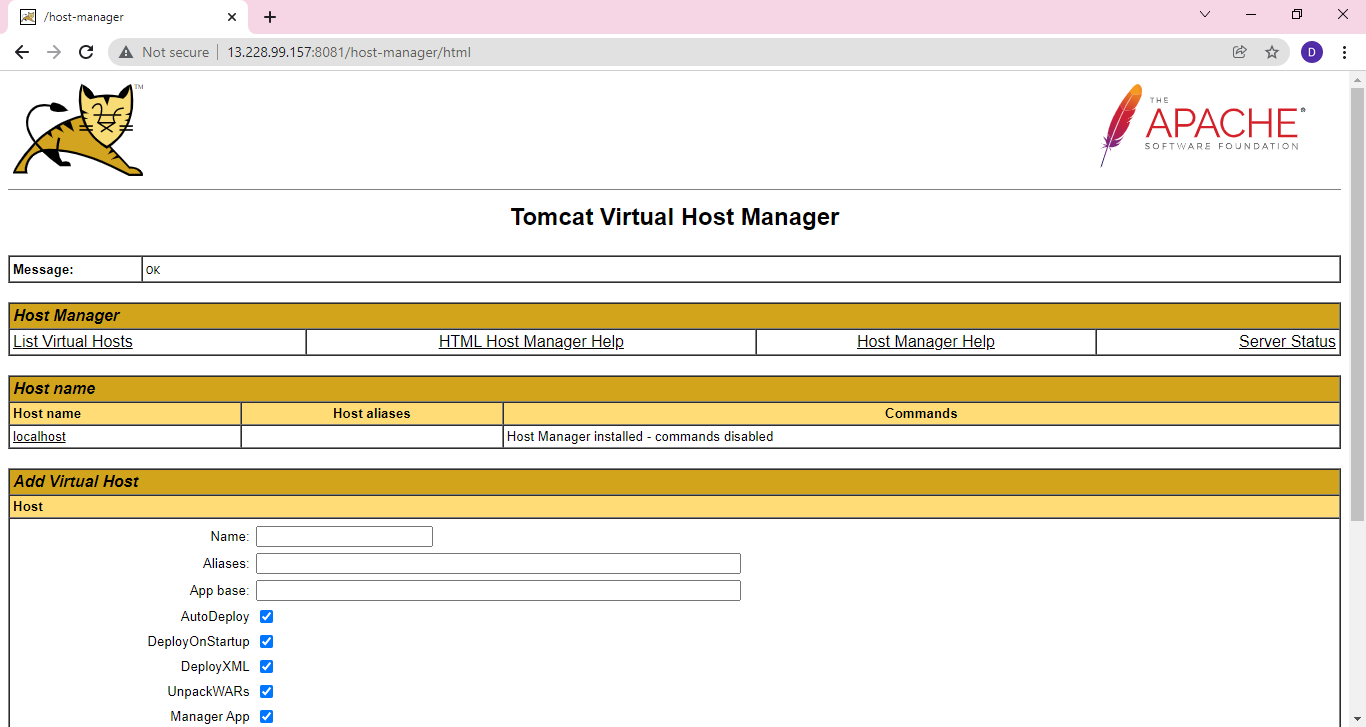
Do the same for the Host-manager. Enter the tomcat username and password.
http://13.228.99.157:8081/host-manager/html