Creating a Basic Ansible Playbook
Overview
This lab creates a basic Ansible playbook that installs and configures Apache and MySQL on an Ubuntu EC2 instance.
The environment uses a pre-launched EC2 instance. Connect to the instance with browser-based instance access or by downloading the key files and connecting from a terminal.
Installing the packages
We'll be installing a Apache and MySQL on the EC2 instance. Before anything else, we'll first make sure that the packages are still not installed.
$ dpkg -l apache2 mysql-server
dpkg-query: no packages found matching apache2
dpkg-query: no packages found matching mysql-server
We then create our first playbook, lamp.yml.
lamp.yml
# lamp.yml
---
- hosts: localhost
  gather_facts: false
  connection: local
  become: yes

  tasks:
    - name: Install our packages
      apt:
        name: ['apache2', 'mysql-server', 'mysql-common', 'mysql-client']
        state: present
        update_cache: true
To run the playbook,
$ ansible-playbook lamp.yml
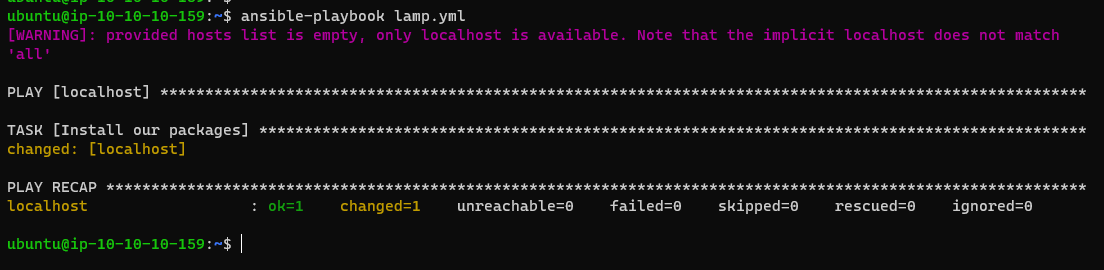
We run the same command earlier. This time we'll see that the packages have been installed.
$ dpkg -l apache2 mysql-server

At the end of the lab, validation checks confirm whether the requirements were fulfilled.
Ensure services are started
We now add a second play in our playbook. This play will ensure that the services are running. Notice that this doesn't dictate any method on how to start the services (which is normally done through systemd).
Instead we just define the services and then specify the state as "started" and Ansible will take care of the "how". This is the declarative approach.
lamp.yml
# lamp.yml
---
- hosts: localhost
  gather_facts: false
  connection: local
  become: yes

  tasks:
    - name: Install our packages
      apt:
        name: ['apache2', 'mysql-server', 'mysql-common', 'mysql-client']
        state: present
        update_cache: true

    - name: Confirm services are running
      service:
        name: "{{ item }}"
        state: started
      with_items:
        - apache2
        - mysql
We run the playbook once again.
$ ansible-playbook lamp.yml
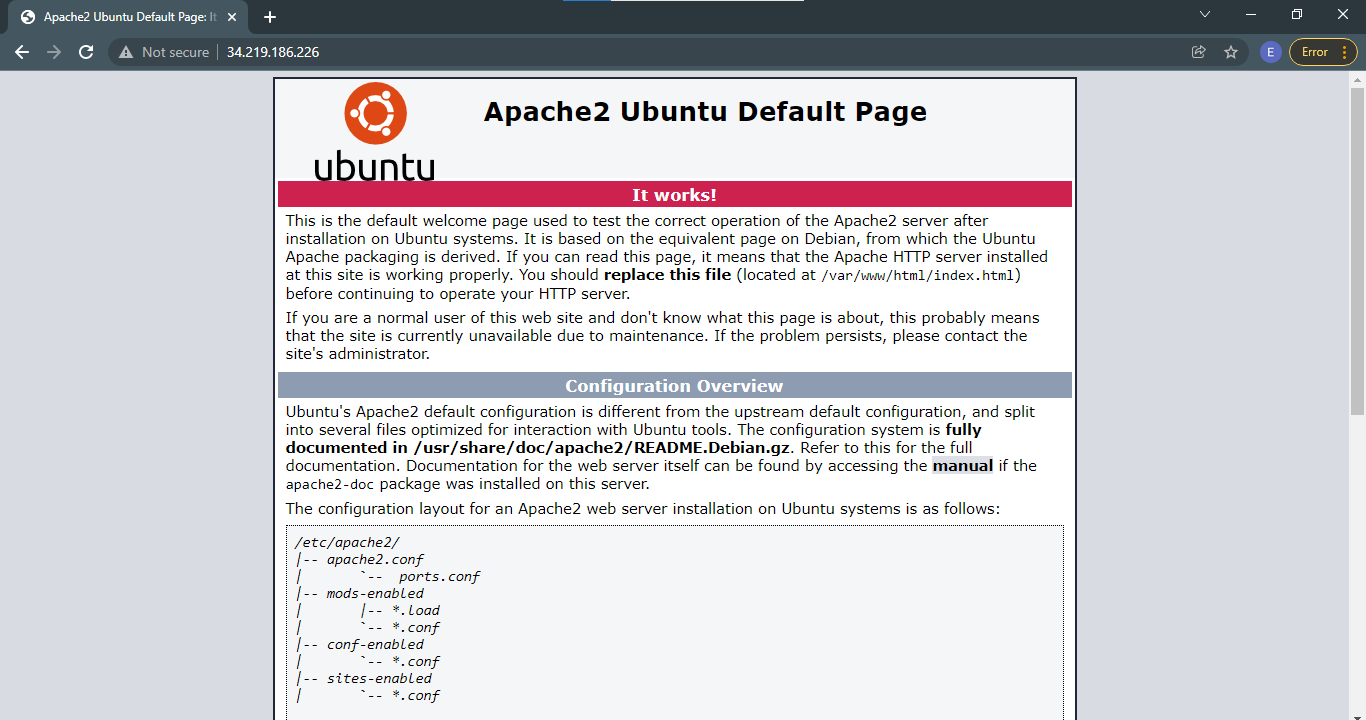
We then retrieve the instance IP. This can be checked through the AWS console or through the command line.
$ curl http://checkip.amazonaws.com
34.219.186.226
Pasting the IP on our web browser, we see the Apache default page.
Adding variables
Since we've crowded our playbook with the packages, we can better organize it using variables. By doing this, we can define all the packages at the begining of the playbook. This also makes it easier to modify in case we need to add more packages to the list.
lamp.yml
# lamp.yml
---
- hosts: localhost
  gather_facts: false
  connection: local
  become: yes

  vars:
    packages:
      - apache2
      - mysql-server
      - mysql-common
      - mysql-client
    services:
      - apache2
      - mysql

  tasks:
    - name: Install our packages
      apt:
        name: "{{ packages }}"
        state: present
    - name: Confirm services are running
      service:
        name: "{{ item }}"
        state: started
      with_items: "{{ services }}"
We run the playbook once again.
$ ansible-playbook lamp.yml
There should be no change when you open the ip in your browser. However, we were able to organize our code better by using variables.
Note that by default, Apache only has HTTP enabled. We will now add another play that will enable HTTPs site in Apache. We also added a play that will restart Apache to reflect the changes.
lamp.yml
# lamp.yml
---
- hosts: localhost
  gather_facts: false
  connection: local
  become: yes

  vars:
    packages:
      - apache2
      - mysql-server
      - mysql-common
      - mysql-client
    services:
      - apache2
      - mysql

  tasks:
    - name: Install our packages
      apt:
        name: "{{ packages }}"
        state: present

    - name: Confirm services are running
      service:
        name: "{{ item }}"
        state: started
      with_items: "{{ services }}"

    - name: Enable Apache2 modssl
      shell: a2enmod ssl

    - name: Enable Apache2 Default HTTPS site
      shell: a2ensite default-ssl

    - name: Restart Apache
      service:
        name: apache2
        state: restarted
We run the playbook once again.
$ ansible-playbook lamp.yml
Notice that each time a change has occured on the remote machine, it will show as "yellow" text in the output of the playbook when it is ran.
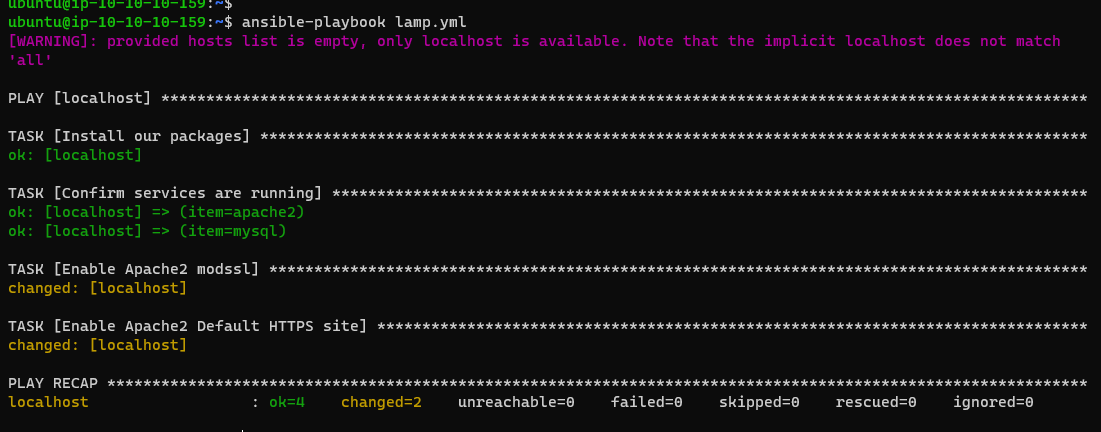
To check if it worked, open the IP in your browser again but this time prefix it with "https".
https://34.219.186.226/